Notepad - Notebook and Notes review
 Analysis by Appsdrops
I judge a notepad less by how many tools it can advertise than by whether I can capture a thought quickly and find it useful later. Notepad - Notebook and Notes is aimed at that straightforward job: keeping written notes, checklists, task lists, and memos together in a mobile productivity app. Its appeal is its modest scope. Rather than asking me to build a complicated knowledge system, it encourages a simple habit: write something down, give it a clear purpose, and return to it when needed.
A practical routine for everyday notes
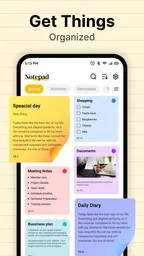
My most reliable way to use a notepad app is to decide what each note is for before I start typing. A quick memo can hold a phone number or an idea I do not want to lose; a checklist is better for groceries or errands; and a task list works when I need to keep track of actions over a day. This app is designed around those familiar kinds of writing, so it suits people who want a low-friction place for ordinary information rather than a full project-management system.
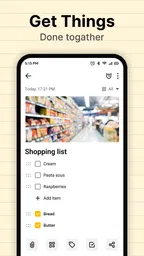
That distinction matters in daily use. If I jot “get batteries” in a general note, I may later have to scan through unrelated thoughts to find it. Putting the same item in a shopping checklist gives it a more obvious home. I would use the app’s different note styles as a lightweight filing method: not as elaborate folders or a formal workflow, but as a small decision at the moment of capture. The less time I spend deciding where an item belongs, the more likely I am to keep the habit.
A realistic routine might start on the way to work. I add a reminder to ask a colleague about a document, keep a short list of groceries for the evening, and write down an idea for a weekend project. Later, I can return to the relevant note instead of relying on memory or searching through a messaging conversation. The app’s value in this scenario is not automation; it is giving three different kinds of information a place where I can deliberately record them.
I would also keep notes short when they are meant for quick retrieval. A compact title such as “Market” or “Questions for meeting” is more useful than a vague label like “Things.” For longer thoughts, a separate memo prevents a running list from turning into a wall of mixed material. This is a small but meaningful discipline: the app can hold information, but clear note names and sensible separation are what make that information easy to use.
Where it fits among productivity apps
Compared with a paper pad, a phone notepad is easier to carry and can keep several kinds of writing in one place. Compared with a large notes platform, this app’s described purpose is narrower: it focuses on everyday notes, lists, and memos, rather than presenting itself as a place to manage a research library or a team’s work. That can be a benefit if complex tools make you hesitate before writing anything down.
I would not choose it as my only planning tool if my routine depends on calendar scheduling, recurring reminders, shared task assignment, or a detailed project board. Those needs call for an app built around those functions. A notepad is strongest when the information itself is the main thing: a thought to preserve, a list to check, or a memo to consult. It is less suitable when the next step must be automatically scheduled or coordinated with other people.
Settings and habits that make notes easier to revisit
Before relying on any note app, I check how its available settings affect the way I use it. I look for options that make reading and writing comfortable, and I pay attention to any controls that change how notes are organized or displayed. I would not assume a setting exists without seeing it in the app; the useful principle is to spend a moment reviewing the controls that are actually present, then leave the layout alone once it supports a steady routine.
One practical habit is to keep a small number of recurring note types. For example, I might use one note for household shopping, another for errands, and individual memos for ideas that need more than a line. This avoids making a new note for every tiny fragment while still preventing one enormous note from becoming difficult to scan. The trade-off is personal: people who prefer one continuous scratchpad may find categories unnecessary, while people who capture lots of unrelated details benefit from separation.
I also recommend a quick cleanup at the end of a busy day. That does not mean rewriting everything. I would simply check whether a temporary item has been handled, whether a list still applies, and whether a note’s title makes sense tomorrow. This repeatable review is more dependable than hoping a forgotten memo will resurface at the right moment. It is especially useful for a notepad because the user, not an automatic workflow, provides the structure.
Another useful check is whether the way I use the app matches the importance of the information. A casual grocery list belongs comfortably in a simple notes routine. A critical deadline or a detail that must be shared with a team deserves a more deliberate system, such as a calendar or a collaboration tool. I treat a basic notepad as a dependable capture point, not as a guarantee that every note will be surfaced at exactly the right time.
Faster patterns without adding complexity
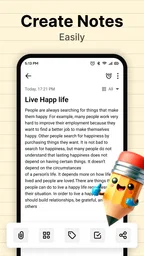
The fastest workflow is often a repeatable one. I would keep the sequence simple: open the app, choose the appropriate note or list, write the item in plain language, and make the title specific enough to recognize later. If I am in a hurry, I would capture the thought first and tidy its wording afterward. Requiring perfect organization at the moment of writing creates friction, which defeats the point of a quick mobile notepad.
For task lists, I find it helpful to write actions as verbs rather than subjects. “Call the clinic” is easier to act on than “clinic,” and “compare paint samples” is clearer than “paint.” That is not a special feature; it is a writing technique that makes a list more useful. For checklists, I keep entries limited to things I can actually verify as done. Mixing reminders, background information, and completed tasks in one list makes the checkmarks less meaningful.
A second efficient pattern is to separate capture from review. During the day, I add notes with minimal editing. At a natural pause, I scan them and decide which items are finished, which belong on a longer-term list, and which can be removed. This two-stage approach keeps writing quick without letting every temporary thought accumulate indefinitely. It is a better fit for a simple notepad than trying to turn every memo into a carefully maintained project record.
For anyone moving from paper, I would begin with just two or three active notes rather than transferring every old scrap at once. Start with the list you consult most often and one place for quick thoughts. After a week, notice what you actually reopen. That tells you more about a useful setup than building a large archive on the first day. If your habit is already digital, the same advice applies: move only the material you still need, not every note you have ever written.
What to expect from a simple notepad
The main limitation of this kind of app is also part of its appeal: a focused note-taking tool does not automatically become a complete personal assistant. The experience depends on the features available in the installed app and on the user’s habits. I would not assume that a memo will turn into a timed alert, that a checklist will be shared, or that a task will be synchronized with another service unless those capabilities are explicitly offered and I have checked how they work.
That makes it important to match the tool to the stakes. If I need to remember a casual idea, a note is enough. If missing a deadline would have consequences, I would put it in a calendar or reminder system designed to bring it back to my attention. If several people need to update the same list, I would favor a shared workspace. A plain list can still be useful alongside those tools, but I would not ask it to replace functions it was not designed to provide.
Organization can also become a burden if it grows without a plan. Creating a separate note for every small thought may leave me with a collection that is harder to browse than a single well-maintained list. On the other hand, keeping everything in one memo makes unrelated material collide. I would adjust the balance based on how often I revisit information: frequent, distinct activities deserve their own notes; one-off thoughts can stay together until a short review shows they need to be moved.
For privacy-sensitive or essential material, I would make a separate decision about where it belongs rather than treating any notepad as a secure vault or a backup system by default. The practical point is not to be alarmist; it is to avoid confusing convenience with protection. Keep important information in a system appropriate to its sensitivity, and use a notepad for the everyday writing it handles best.
Who I would recommend it to
Origin Infotech Apps positions this as a free productivity app, and its simple focus makes it a reasonable starting point for someone who wants to replace loose paper notes with a phone-based routine. It has an Everyone content rating, and the listed minimum operating-system requirement is version 8.0. Its average rating is 4.6 from around 4,900 ratings, with over 100,000 installs. Those figures suggest that many people have tried it, but they do not tell me whether its particular style will suit your habits.
The app is most appealing to students who need quick class reminders, household organizers who maintain practical checklists, and anyone who wants a place for short memos without adopting a more elaborate platform. The current version is 1.6, and I would approach it as a focused utility: install it, try a few real notes, and judge whether returning to them feels natural. Its release date is December 11, 2025, so I would pay attention to how it fits my present routine rather than assuming a long history of feature development.
I would steer people away if they want advanced document editing, a linked research system, robust team collaboration, or automatic task scheduling. A dedicated notes platform may be better for organizing large collections, while a task manager or calendar is a stronger choice for deadlines and reminders. There is no need to force one small app to do everything. The best setup may be this notepad for quick capture and a separate tool for commitments that need stronger follow-through.
After trying it as a place for short lists and memos, my recommendation is measured but positive: Notepad - Notebook and Notes makes sense when you want writing to stay simple and accessible. Its strongest result comes from pairing it with a repeatable habit—give notes clear names, keep lists focused, and review temporary items before they pile up. If you want a lightweight home for everyday thoughts, it is worth considering; if you need your notes to coordinate a more demanding system, choose a tool built for that job instead.
What we like
- Quickly capture ideas in a simple note-taking interface.
- Organize notes into categories for easier browsing.
- Useful for keeping short lists and reminders in one place.
- A lightweight option for everyday writing tasks.
- Notes are easy to review and update when plans change.
What could be better
- May lack advanced formatting tools for detailed documents.
- Large note collections can take time to organize.
- Not ideal for collaborative editing with other people.
- Important notes may need separate backups to avoid losing them.
- A basic notebook may not suit users who need task management features.





