
Move to iOS review
 Analysis by Appsdrops
Switching from an Android phone to an iPhone sounds simple until the transfer stalls, a device is not ready, or you are unsure whether to start setup again. Move to iOS is Apple’s free tool for securely moving data from Android to an iPhone or iPad. Its purpose is focused: help with the move, rather than act as a general-purpose file manager or a tool you use every day.
Where the transfer can get stuck
In my view, the app is easiest to understand when you treat it as one part of a two-device setup process. You use it on Android while preparing the iPhone or iPad to receive your information. That means both sides need to be ready at the same time. If you open the app before the Apple device reaches the relevant setup stage, or begin setup on one device while the other is not prepared, it is easy to feel as though the transfer has gone nowhere.
That timing is the first hurdle I would watch for. A migration tool cannot complete its job in isolation: the Android phone and the new Apple device must be involved in the same process. Before tapping through screens quickly, read the instructions shown on each device and make sure you understand which one to use next. A pause to check the sequence is usually less frustrating than backing out and guessing.
The second common source of confusion is expecting every part of a phone’s setup to happen inside the Android app. Move to iOS is a transfer companion, not a replacement for the iPhone or iPad’s own setup flow. The receiving device guides part of the process, while the Android app supports the move. If a screen appears on the Apple device, follow that prompt rather than searching for the same control in the Android app.
It also helps to separate a slow or interrupted transfer from a failed app. Moving information between two phones depends on the devices remaining available and the transfer being allowed to continue. An interruption may come from the phones’ state or the surrounding setup, not necessarily from a defect in the app itself. When something pauses, take note of what each screen says before closing anything or restarting the process.
For a one-time migration, the design makes sense: the app does not need a busy home screen full of unrelated tools. Its narrow purpose keeps the task clear, but it also means users should not expect it to solve every issue involved in changing phones. If the receiving device is still being configured, or a particular item needs separate attention, the app is only one piece of the wider transition.
Check both devices before you begin
My practical advice is to prepare both phones first. Keep the Android device and the iPhone or iPad close by, make sure you can use both, and avoid starting when you have to leave partway through. A transfer is much easier to manage when you can watch the prompts on both screens and respond in order. This is simple preparation, but it prevents the common mistake of treating the process as a quick background task.
Next, make sure the Apple device is at the point where it is ready to receive information. If you have already moved past the appropriate setup stage, stop and consider the available setup options on that device rather than repeatedly opening the Android app. The key is to coordinate the two sides, not to keep retrying the same action without checking the receiving device.
On Android, open Move to iOS and take the time to read each instruction. Do not assume that a familiar-looking button means the same thing it did on a previous screen. Follow the sequence presented on your devices, and give the transfer a chance to proceed before deciding that it has stalled. For a tool used during a potentially important changeover, careful attention matters more than speed.
It is also sensible to choose a moment when you are not relying on either phone for something urgent. Avoid switching between unrelated tasks or closing the app simply because the process is taking longer than you expected. If you need to stop, first check the state of both devices and the messages they display. That small habit can make it easier to understand whether you should continue, retry, or seek help with the setup itself.
Recovering from a pause or interruption
If a transfer appears stuck, start with the basics: look at both screens, read any visible message, and confirm that you are still following the same setup flow. It is tempting to repeatedly tap, switch apps, or restart one device immediately, but those actions can make the situation harder to interpret. I would first give the current step a moment and check whether either phone is asking for attention.
If the process has clearly stopped, use the guidance shown on the devices to decide what to do next. A cautious restart of the relevant setup step may be appropriate, but avoid improvising a sequence that conflicts with the prompts. The receiving Apple device’s state matters, so restarting only the Android app may not address the underlying issue. Think of recovery as getting both sides back into a compatible state.
When you try again, make the second attempt more deliberate than the first. Keep the phones together, stay with the screens, and follow the instructions in order. If a message points to a problem on one device, focus on that device rather than assuming the app itself needs reinstalling. Repeating the same attempt without changing anything is unlikely to clarify what went wrong.
There is a useful difference between a transfer that pauses and data that you cannot find after setup. The first is a problem with the migration process; the second may require checking the destination device or the relevant app where that information belongs. Avoid assuming that every missing item means the entire move failed. Check the Apple device carefully before making another major change to its setup.
For a difficult case, Apple’s support resources or the app store’s support information are more sensible next steps than relying on guesses. Explain what each device displayed and when the interruption happened. Clear details make troubleshooting more productive, especially when the issue concerns the receiving device’s setup rather than the Android app alone.
When the app may not be the cause
Because this process involves two different devices, not every obstacle points to the Android app. The Apple device may not be at the right stage, a prompt may have been missed, or the transfer may have been interrupted by what was happening on one of the phones. Looking at the full setup helps avoid blaming the app before checking the conditions around it.
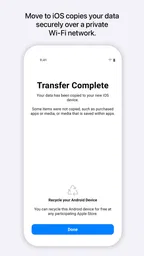
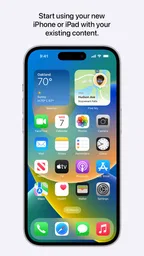
That distinction matters because expectations can get out of step with the app’s role. It helps move data securely from Android to iPhone and iPad, but it is not a general guarantee that every detail of a phone will behave identically after a change of platform. Once the transfer is complete, you may still need to review the new device and finish any remaining setup there.
The app’s Apple developer identity and focused purpose make it a straightforward option for people moving into Apple’s mobile ecosystem. At the same time, a transfer tool is only as smooth as the process around it. If your problem concerns the iPhone or iPad’s setup, concentrate on that device’s guidance. If the Android app itself is not responding, then checking its current state and following the app’s instructions is more relevant.
A focused tool with a clear job
As an app in the tools category, Move to iOS is deliberately practical rather than entertaining. Its main value is helping reduce the hassle of changing from Android to an Apple device. It does not need to become part of your daily routine to be worthwhile; for many people, its usefulness is concentrated in the period when they are setting up a new phone or tablet.
The app has a 3.6 average from around 224,000 ratings, with roughly 15,000 written reviews, and it has been installed over 100 million times. Those figures suggest that it is widely used while also reflecting the reality of a task where people can encounter setup friction. A middling average is not the whole story: transfer experiences can depend on both devices and on how carefully the setup sequence is followed.
It is free, rated for Everyone, and was released on September 16, 2015. The current version is 4.0.5, and it supports Android 6.0 and later. Those details make it accessible to a broad range of Android users, though the most important practical check is still whether the phone you plan to use meets the minimum system requirement.
My practical verdict
I see Move to iOS as a useful, purpose-built companion for moving from Android to an iPhone or iPad, provided you approach it as a coordinated setup rather than a one-tap shortcut. Its job is easy to grasp, and the narrow focus is an advantage when you are in the middle of a phone change. The main friction comes from timing, keeping both devices aligned, and knowing which screen should guide the next step.
Before you begin, prepare both devices, make sure the Apple device is ready for the transfer, and set aside enough attention to follow the prompts. If something goes wrong, check both screens before restarting and distinguish a transfer interruption from an issue with the new device’s setup. These habits will not make every migration effortless, but they give you a much clearer way to handle the process.
For Android users moving into Apple’s ecosystem, I would consider installing it when preparing for the change. Just keep expectations grounded: it is a transfer tool, not a universal fix for every setup question. Used at the right stage and with both devices ready, Move to iOS offers a straightforward starting point for bringing your data to a new iPhone or iPad.
What we like
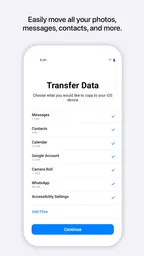
- Transfers contacts and message history from Android to iPhone.
- Moves camera photos and videos without manual copying.
- Can transfer WhatsApp messages and media to a new iPhone.
- Helps match free Android apps with available iOS versions.
- Transfers selected accessibility and display settings.
What could be better
- Both devices need to stay nearby and connected during transfer.
- A weak Wi-Fi connection can interrupt the migration.
- The iPhone must be new or erased to use the transfer process.
- Paid Android apps may need to be purchased again on iOS.
- Some files and app data may not transfer to the iPhone.





