






MistyPix: AI Image Generator review
 Analysis by Appsdrops
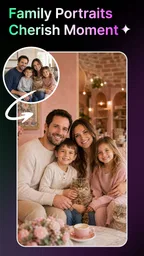
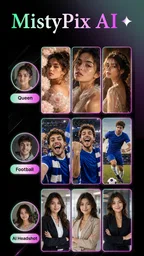
MistyPix: AI Image Generator aims to make AI-created photos and videos feel approachable, especially for anyone drawn to viral looks and ready-made creative inspiration. Its store summary focuses on trending templates and an AI generator, so the appeal is easy to understand: start with an idea, explore a visual direction, and make something shareable without treating the process like a full editing project. I find that promise attractive, though the real test is how smoothly the app fits into a person’s routine when a result takes a little experimenting.
Getting Started Without Guesswork
Creative apps can feel confusing when the first screen presents several choices before you know what each one does. With MistyPix, I’d approach the first session as a quick tour rather than a race to produce a polished image. Look through the available template and generator options, choose one direction, and give yourself room to understand the flow before trying to recreate a specific trend. That small change in expectations can make an unfamiliar tool feel far less demanding.
The app is free to install, which makes trying it out relatively straightforward. It also offers in-app purchases, with listed items ranging from $4.99 to $14.99 each, so I’d pay attention to any purchase screen and check the details before confirming anything. You don’t need to treat a paid option as a required first step: begin with what is available to you, see whether the creative process suits your needs, and decide later whether spending makes sense.
Before getting into a longer session, check the basics on your device. Make sure the operating system is supported, keep the app updated through your app store, and confirm that your device has a stable internet connection if a screen or result seems slow to appear. The minimum operating system is version 8.0. A restart can also help when an app is behaving oddly after being left open for a while, especially if other apps have been competing for device resources.
It helps to have a clear starting idea, but not a rigid one. A broad visual intention—such as a particular mood, setting, or style—is often easier to work with than a highly detailed concept on the first attempt. Since the app’s central pitch combines templates with an AI generator, I’d explore both routes at a comfortable pace. Templates can offer a guided starting point, while a generator invites more open-ended experimentation; which feels more useful depends on what you want to make.
Why the First Attempt Can Feel Unclear
AI creativity is not always a one-tap journey from idea to finished result. Sometimes the first choice doesn’t match what you pictured, or you may be unsure which template is most suitable. That doesn’t automatically mean the app is failing. It can simply take a little trial and adjustment to find a direction that works. I recommend changing one element of your approach at a time, rather than making several changes and then struggling to identify what improved the result.
When a choice is unfamiliar, pause and read the on-screen labels instead of tapping through quickly. That sounds obvious, but it is a practical way to avoid losing your place or opening a purchase flow by mistake. If you are comparing creative options, take a moment to decide what matters most—speed, a particular look, or room to experiment. A simple goal keeps the session focused and makes it easier to judge whether the result is useful to you.
The app is listed in the photography category and is rated for everyone. That broad audience positioning makes it approachable for casual creative use, but it’s still sensible to review anything you intend to share. I’d check the finished image or video myself, consider whether it matches the context where I plan to post it, and make sure it reflects the result I actually want to present.
Simple Checks Before You Try Again
If an option appears unresponsive, first give the screen a moment and check whether your connection is steady. Avoid tapping repeatedly while something is still processing; repeated input can make it harder to tell what the app is doing. If the issue continues, return to the previous screen and try the action once more. For general app trouble, closing and reopening the app is a sensible next step before attempting anything more disruptive.
It’s also worth checking that the device has enough free space for ordinary app use and that the operating system is not waiting on an update. These are general troubleshooting steps, not a guarantee that every issue will be fixed. If the problem appears only during one particular attempt, try a different template or a simpler creative idea. If the entire app behaves poorly, a restart and a check for an available app update are more useful than repeatedly changing your creative choices.
Keeping a Creative Session on Track
A good workflow is less about making every attempt perfect and more about keeping the process manageable. I’d start with a single idea, select a template or generator path, and assess the result before deciding what to change. This keeps experimentation understandable. When several variables shift at once, it becomes difficult to tell whether a new result came from the template, the prompt, or simply a different creative direction.
If you like one outcome, take a moment to consider what made it work. Was it the overall style, the subject, or the mood you had in mind? Carrying that observation into your next attempt gives you a practical way to refine your approach without assuming that every result will behave identically. If a direction stops being productive, switch to a different template or return to a broader idea rather than spending a long time forcing a result that isn’t coming together.
For a stalled session, keep recovery steps simple. Check the connection, wait briefly, and then retry once. If that does not help, move back a screen, reopen the app, and begin again with the same idea. If the same issue follows you across different attempts, it may be more useful to check the device and app setup than to keep changing the creative input. This kind of orderly troubleshooting saves time and makes it easier to explain the problem if you need support.
I’d also be thoughtful about when to stop. An AI tool can encourage endless tweaking because there is always another possible direction to explore. Setting a small goal—finding one style worth keeping, for example—makes the experience more satisfying than chasing an undefined “perfect” result. If you’re creating for social sharing, review the final output before posting and make sure it suits the audience and setting you have in mind.
When the Device or Connection Is the Real Obstacle
Not every delay or failed action points to the app itself. A weak connection, low device storage, or a phone that has been running many demanding apps can affect how smoothly a creative session goes. I’d check those conditions before assuming a feature is broken. Trying again on a steadier connection, freeing a little storage, or restarting the device can help distinguish a temporary device issue from a problem that consistently occurs within the app.
If only one part of the experience is giving you trouble, note what you were doing when it happened and whether it repeats. That gives you a more useful starting point than a vague sense that “nothing works.” If the issue affects the whole app, check for updates and restart it. If it happens only with one particular creative choice, try another route and see whether the rest of the app remains usable.
Install availability and compatibility are worth checking before troubleshooting anything else. The app is free, has an Everyone content rating, and supports devices running operating system version 8.0 or later. It has reached over 1 million installs, with a 4.5 average from around 3,400 ratings. Those figures suggest a sizeable audience, but they don’t guarantee that every device or individual session will behave exactly the same way.
There are also around 75 written reviews, which gives prospective users another place to look for general impressions in the app store. I’d treat ratings as context rather than a promise: what feels intuitive to one person may take another a little longer to learn. The best way to judge whether an AI photography app belongs in your routine is to try its creative approach yourself, keep expectations flexible, and see whether the available options suit the kind of images or videos you want to make.
Who Is Likely to Enjoy MistyPix?
MistyPix is a natural fit for people who enjoy experimenting with visual trends and want a creative starting point that doesn’t require building every idea from scratch. Its combination of trending templates and an AI generator gives the app a clear identity: it is aimed at playful, shareable image and video creation. If you prefer a carefully controlled editing process with a predictable result every time, an AI-driven approach may require more patience than you’d like.
For casual users, the strongest appeal is the chance to explore different visual directions without committing to a complicated routine. For someone who creates frequently, the value will depend on how well the available options match their personal style and how comfortable they feel experimenting. I would treat it as a creative companion for trying ideas, not as a guarantee that every attempt will be ready to publish without review.
The release date is June 18, 2026, and the current version is 2.0.2. Those details can help identify the app when checking for updates or comparing it with another listing. The developer is Vit Corp. As with any app, keeping an eye on its app-store page is a sensible way to check the version available on your device and review purchase details before deciding whether to use optional paid items.
A Practical Verdict
MistyPix: AI Image Generator has a straightforward creative pitch: use trending templates or an AI generator to make images and videos with viral potential. I like that the concept is easy to grasp, and the free entry point makes it approachable for people who want to explore before committing money. The main adjustment is to treat the process as experimentation. A little patience, a clear starting idea, and a willingness to try another direction can make the experience smoother.
My practical recommendation is to install it if you enjoy trying new visual styles, begin with a simple creative goal, and take time to learn the available choices. If something stalls, check the connection and device basics, then restart the app before repeating the same action. Review any purchase screen carefully, and inspect your finished work before sharing it. With those sensible habits, MistyPix can be a fun way to explore AI-assisted photography and video creation without turning every session into a technical chore.
What we like
- Turns text prompts into original images with little effort.
- Makes creative image generation accessible to beginners.
- Can help users explore visual ideas before commissioning artwork.
- Offers a playful way to experiment with AI art styles.
- Generated images are easy to share as digital creations.
What could be better
- Results may not match the prompt exactly.
- Image quality can vary between generations.
- Creating useful results may require several prompt revisions.
- AI-generated details can look distorted or inconsistent.
- Some features may require an account or paid access.





