
Microsoft Word: Edit Documents review
 Analysis by Appsdrops
I think Microsoft Word is easiest to judge by a small, familiar task: opening a document, making one useful change, and getting it ready to share. On a phone, that can be much less awkward than trying to edit a long file in a mobile browser or waiting until you are back at a computer. The app is still a full-featured word processor, though, so the first visit can feel busy if all you need is a quick note.
Microsoft Word is a free productivity app from Microsoft Corporation, with optional in-app purchases ranging from $0.99 to $199.99 per item. It has a 4.8 average from around 18 million ratings and over one billion installs. That reach makes sense: Word is familiar to many people, and documents created in it are common at school, work, and home. The app is rated for Everyone and has been available since January 6, 2015.
What to expect when you open Word
Expect a document editor, not just a plain-text scratchpad. You can write and revise, adjust formatting, and use grammar tools to help polish your wording. That range is valuable when a note starts turning into a letter, assignment, meeting summary, or other document that needs to look considered. It also means the interface has more choices than a lightweight notes app.
On a phone, the screen gives you less room to see both the page and the editing controls than a computer does. I find it best to treat mobile Word as a practical place to review and make focused changes, rather than assuming every long-document task will feel effortless on a small display. A tablet or computer is generally more comfortable when you need to compare several sections or do extensive layout work.
The app’s formatting and grammar tools are useful as a second pair of eyes, not a substitute for your own judgement. A suggested correction may not preserve the tone you intended, especially in informal writing, names, or specialist language. I would accept suggestions selectively, then read the sentence aloud or in context before sharing the document.
Word is a sensible choice if you regularly receive or create documents in Microsoft’s format and want to work on them away from a desk. If your needs are limited to short reminders, a simpler notes app may be quicker to open and less distracting. If your main priority is collaborative editing with a group, compare the workflow with the tools your teammates already use; the best option is often the one everyone can access comfortably.
Make the first setup simple
After installing the app, start with a document you already recognize or create a short test document. If Word asks you to sign in, use the account you normally use for your Microsoft documents; if you do not have one ready, follow the options shown in the app rather than guessing what account is connected. The point of this first visit is simply to reach a page you can edit, not to configure every preference.
When you open an existing file, take a moment to confirm that it is the right document before changing anything. If you are working from a shared or important file, make a small, reversible edit first and check how it appears on the page. This is a reassuring way to learn the controls without risking a large rewrite or altering a document you meant only to read.
It also helps to decide where you will keep the finished work before you begin. If you use Word on more than one device, check that you are signed into the account you expect and that the document is in a place you can reach again. For a one-off file, keep track of the location you chose. That simple habit prevents the familiar problem of finishing an edit and then wondering which copy you changed.
Do not feel obliged to explore every toolbar option at setup. Start with the task in front of you: typing, correcting, or applying a clear heading. Once you know where those controls live, the rest of the interface becomes easier to approach. Word rewards learning a few dependable actions more than tapping through every menu before you have a document to work on.
Your first meaningful edit
A good first success is improving a short document you already need. For example, open a draft email or a page of meeting notes, correct a sentence, add a descriptive heading, and check the result in the document view. This lets you try editing and formatting together while keeping the job small enough to finish in a few minutes.
For a useful mobile workflow, I recommend making the change that matters most before polishing details. Correct the key date or wording, then fix obvious spelling and grammar issues, and only afterward adjust headings or emphasis. On a narrow screen, this order reduces the chance that you spend time styling text that you later remove.
One less obvious benefit of headings is that they help you think through the document’s structure, not just its appearance. If a report or set of notes feels hard to scan, apply a clear heading to each major topic and check whether the sections now follow a sensible order. If the headings sound repetitive or vague, that is a clue the writing itself may need reorganizing.
Another practical tip is to use grammar suggestions as prompts for review. Instead of accepting a change automatically, ask whether it makes the sentence clearer and still sounds like you. This is particularly worthwhile in a cover letter, school assignment, or message where the right level of formality matters. The tool can point out a possible issue; you remain responsible for the meaning.
Before leaving the document, confirm that your edit has been saved or that the app shows the expected document state. Then reopen or revisit it if the file is important. That quick check is more reliable than assuming a change is safe simply because it appeared on screen. It is a small habit, but it makes mobile editing feel much less stressful.
Common points of confusion
The most common adjustment for a first-time user is learning that editing a document and changing its layout are different kinds of work. A sentence correction is usually straightforward; moving large blocks, fine-tuning spacing, or making a page look exactly right can take more care on a phone. If a layout-sensitive document is due soon, do the final visual check on a larger screen when you can.
Another source of confusion is the difference between an app being free to install and every possible capability being included without cost. Word is free to download, but it also offers in-app purchases. If a feature or action prompts you to pay, read the displayed terms before continuing and decide whether that purchase fits your needs. You do not need to buy anything just to explore the basic document-editing experience.
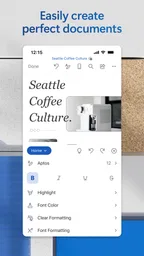
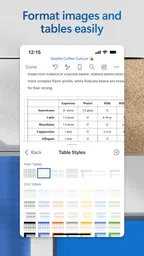
Formatting can also seem to change unexpectedly when you select text or move between controls. Before applying a style, make sure the intended words or paragraph are selected; otherwise, the result may affect a different part of the document or text you type afterward. If the page looks wrong, undoing the last change is often safer than stacking more formatting adjustments on top of it.
Finally, opening a file is not the same as knowing which copy you are editing. When documents have similar names or are shared across devices, check the file title and location before making substantial changes. If you are uncertain, use a test document first. This is a more useful way to build confidence than experimenting on a document someone else depends on.
Who benefits most, and when another tool is better
I would recommend Word to students who need to revise assignments, professionals who review documents while travelling, and anyone who regularly receives files that need more than a quick read. It is also useful for everyday writing that may eventually need headings, careful formatting, or a grammar pass. The combination of familiar document editing and mobile access makes it a dependable option when a computer is not nearby.
For a realistic example, imagine you have meeting notes to send before the end of the day. You can open the draft on your phone, correct the names and decisions while they are fresh, add headings for each topic, and review the wording before sharing. The phone is especially handy for that focused cleanup. If the notes need a complex table or painstaking page layout, I would save that part for a larger screen rather than fighting the interface.
For collaborative work, choose Word when it fits the files and habits of the people involved. If a group already uses another editor and needs everyone to work together in the same environment, switching tools may create more friction than it solves. Likewise, if you only want a place to jot down a shopping list, Word’s document-focused controls are more than you need. A lightweight notes app is likely the faster choice for that job.
Compared with basic mobile editors, Word offers a more familiar path for documents that need formatting and proofreading. Compared with editing on a computer, the trade-off is screen space and precision. I see the phone app as a capable companion for drafting, review, and targeted updates, rather than a perfect replacement for desktop work in every situation.
Build confidence one document at a time
Once you have completed a small edit, try a second task that matches your real needs: clean up a paragraph, organize notes with headings, or check a draft before sending it. Save a clean copy when you are making a major revision, and keep the original available until you are sure the new version is right. That simple safeguard matters more than learning every formatting option at once.
If you already use Microsoft documents, there is little mystery to getting started: open a familiar file, make one focused improvement, and verify the result. If you are new to word processors, begin with a short document and avoid layout-heavy work until the basic controls feel comfortable. The app’s scale—over one billion installs—shows how widely it is used, but what matters to me is whether it fits the task in your hands.
My overall view is positive, with a clear caveat: Word is most useful when your writing needs the structure of a document, not just a place to store a thought. It gives first-time users a practical route from opening a file to making a polished, shareable edit, while its mobile layout and optional purchases are worth keeping in mind. Start small, review changes instead of accepting them blindly, and use a larger screen when precision matters. That is the path I would recommend to a friend trying it for the first time.
What we like
- Familiar interface makes document editing easy to pick up.
- Cloud syncing keeps files available across supported devices.
- Comments and tracked changes help with collaborative editing.
- Templates provide a quick start for common document types.
- Dictation can help users draft text hands-free.
What could be better
- Some advanced editing tools require a Microsoft 365 subscription.
- The mobile screen can feel cramped when editing long documents.
- Formatting may shift when files are opened in other word processors.
- Offline access may depend on files being downloaded beforehand.
- A Microsoft account is needed for many cloud features.





