


Microsoft 365 Copilot review
 Analysis by Appsdrops
When I judge a productivity app, I look beyond how many tasks it can handle. I want to know whether I can find what I need, read it without extra effort, and use it comfortably when my hands, eyes, attention, or surroundings make ordinary phone use harder. Microsoft 365 Copilot brings Microsoft’s AI assistant into a work-focused app, and its appeal is strongest when you already rely on Microsoft tools and want help moving between writing, planning, and organizing. That promise is useful, but it does not automatically make the app easy for every person or every situation.
It is a free productivity app from Microsoft Corporation, with optional in-app purchases. Its Teen content rating is worth noting for families choosing apps for younger users. The app has a 4.4 average from around 9.3 million ratings, and it has passed over 1 billion installs. Those figures suggest broad familiarity, but they cannot tell you whether its navigation, AI responses, or visual presentation will suit your particular needs. I would treat it as a capable work companion to try, not as a guaranteed accessibility solution.
Finding your way through a busy workday
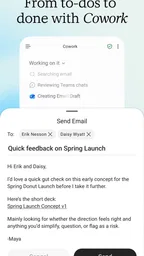
The central benefit is having an AI assistant available for practical work rather than treating it as a novelty. I would use it to get a first draft moving, reorganize rough notes into a clearer plan, or turn a long task into smaller steps. The key is to give it a concrete goal and then review what comes back. That conversational approach can be less intimidating than opening a blank document, especially when deciding how to start is harder than editing.
For readability, the most useful habit is to ask for a format that matches the way you process information. A dense answer can be followed by a request for short steps, a compact summary, or a draft with clear headings. This is not a substitute for adjusting the phone’s own display settings, and I would not assume that every response will be easy to scan. It does, however, let you shape the content itself instead of accepting a wall of prose as the final result.
I find the app’s value easier to assess when I think in terms of a workflow, not a single clever prompt. For example, I might collect scattered meeting notes, ask for a brief summary, check the summary against the original points, and then request a list of follow-up actions. The important step is that last review: an AI-generated action list can omit a nuance or make a tentative idea sound decided. Keeping the original notes beside the polished version helps me catch that shift.
Navigation can still feel like work if you expect one screen to explain every capability. Microsoft 365 Copilot is most rewarding when you arrive with a task in mind; browsing without a goal may leave you unsure which tool or prompt is the right starting point. I recommend testing it with a small, low-stakes job first, such as improving a message you have already written. That gives you a practical sense of its responses before you trust it with important documents or decisions.
There is also a meaningful difference between getting help with language and getting a finished answer. A request to make a paragraph clearer can produce a useful draft, but it remains your responsibility to check names, figures, commitments, and tone. I would not send a sensitive or high-consequence message straight from an AI response. The app can reduce the effort of composing and structuring work; it should not remove the person’s judgement from the process.
Readable output is only part of the experience
People who benefit from plain language may appreciate being able to ask for simpler wording or a more orderly explanation. That can help with unfamiliar work topics, long instructions, or a message that needs to be adapted for a different audience. It is also useful to request one change at a time. If you ask for a summary, a rewrite, a tone change, and a task list all at once, it becomes harder to tell which part of the answer needs correction.
On the other hand, AI-generated text can be longer than expected or organize information in a way that does not match your priorities. I would ask for a concise version when the first answer is too dense, then compare the new version with the original material. For someone who finds dense reading tiring, that two-pass method is often more manageable than trying to absorb a large response in one go. It also keeps the assistant’s interpretation from quietly replacing the source.
Different ways of interacting, and where they can fall short
People who find prolonged typing uncomfortable may value being able to work through ideas conversationally, but I would not treat an AI chat as a hands-free or one-touch workflow. Prompts still need to be entered and answers still need to be reviewed in the app. If precise text entry is difficult, preparing a short instruction before opening the conversation can reduce repeated editing. A focused request such as “turn these notes into three next steps” is easier to manage than a vague request to organize everything.
For users who rely on assistive settings or particular input methods, the practical question is whether the app works well with their own device setup. I cannot responsibly promise compatibility for every combination of screen reader, switch, keyboard, magnification, or voice control. A sensible first test is to open the app with the settings you already use and try the complete task you care about: start a conversation, enter a prompt, move through the result, and revise or copy what you need. A screen that opens successfully is not the same as a workflow that remains comfortable from start to finish.
Sensory comfort also depends on more than the words on screen. Notifications, a busy interface, and frequent context changes can make a work app harder to use for people who are sensitive to interruption. I would keep the first trial focused: choose one recurring task, avoid opening several work threads at once, and see whether the app’s pace suits you. The best use may be a short drafting session, not leaving the assistant open as another source of constant activity.
For someone with low vision or reading fatigue, text produced by the assistant may be easier to adjust than a fixed block of source material, but that should not be confused with a guarantee that every screen is readable. Use the phone’s familiar display and accessibility settings, and check the result at the size and contrast you actually need. If navigating controls or distinguishing interface elements remains uncomfortable, a simpler writing tool or a device with a more suitable display may be the better choice.
Using it when time, place, or attention are limited
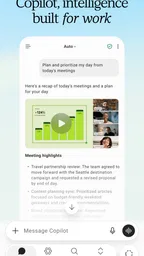
A realistic everyday use is preparing for a short meeting while commuting or moving between tasks. I might ask for a compact agenda from a few points I have already gathered, then review it before sharing. That can save the awkward blank-page step, but I would avoid relying on it while distracted or in a setting where I cannot check the details. AI assistance is most dependable as preparation, not as a substitute for paying attention to the people and information around you.
For a busy day, one useful trade-off is to use the app for the part of a task that creates friction rather than handing over the whole task. Ask it to suggest an outline, then fill in the specifics yourself. Ask it to make a draft shorter, then check that the key qualification survived. This division keeps the human review manageable and can be especially helpful when fatigue makes starting difficult but careful proofreading is still possible.
Another practical workflow is to turn a long, informal note into a checklist, then keep the original note available while working through it. That is more reliable than asking for a checklist and deleting the source immediately. If the assistant misreads an ambiguous sentence, the source gives you a way to catch it. This simple habit is particularly valuable for work involving names, deadlines, or instructions that should not be inferred from context.
Microsoft 365 Copilot is less compelling if your work is mostly offline, if you want a plain text editor with no AI interaction, or if you prefer a single-purpose task list. Compared with a traditional notes app, its conversational help can make restructuring text faster, but a conventional editor may feel more predictable and direct. Compared with a task manager, it can help you formulate next steps, while a dedicated task app may be better for tracking ownership, reminders, and progress over time. I would choose based on the job, not the appeal of having AI everywhere.
Remaining barriers and sensible safeguards
The biggest accessibility limitation is that assistance with content does not guarantee accessible interaction. A clear answer cannot compensate for a control that is difficult to reach, a screen that is hard to interpret, or a workflow that depends on repeated precise input. Nor can a well-written summary ensure that the underlying information was understood correctly. People with specific access needs should test the actual task they plan to use, rather than relying on broad claims about what an AI assistant can do.
There is a learning curve in explaining what you want. If a response misses the mark, you may need to rephrase the request, add context, or correct the output. That back-and-forth can be useful for someone comfortable experimenting with language, but frustrating for a person who needs predictable, repeatable steps. I would save a few prompt patterns that work for common jobs, such as summarizing notes or making a message more concise, so the process does not begin from scratch each time.
It is also important to think carefully before putting private or sensitive material into any AI-assisted workflow. I recommend using only information you are comfortable handling in the app and checking your organization’s own rules where work documents are involved. This is not a limitation unique to Copilot; it is a sensible boundary whenever an assistant is asked to process personal or business content. The convenience of a quick summary should not outrank the need to handle information responsibly.
The app is free to install, while in-app purchases range from about forty-nine cents to around two hundred dollars per item. I would check what a purchase offers before treating it as necessary; the basic decision is whether the app’s workflow helps you enough to keep using it. The current version is 16.0.20708.20014, and the app was released on February 16, 2020. Version details can change, so the number is most useful when comparing your installed copy with the one shown in the app store.
Who is likely to benefit most
I would recommend trying it if you already work with Microsoft tools, often need a first draft, or spend time turning rough thoughts into organized writing. It may also help when executive function or fatigue makes it difficult to break a broad task into a manageable starting point. The strongest approach is to keep the prompt specific, ask for a format you can comfortably read, and verify the result before acting on it.
I would be more cautious if you need a highly predictable interface, depend on a particular assistive setup that you have not tested with the app, or do not want AI involved in your writing process. In those cases, a familiar notes or document app may be easier to navigate and easier to trust. A different option is not a failure to use productivity tools well; it may simply fit your access needs and working style better.
My overall view is that Microsoft 365 Copilot can make common writing and planning tasks feel less daunting, especially when the first step is the hardest. Its conversational help is a real advantage, but it still asks you to steer, review, and sometimes correct the result. For inclusive use, I would judge it by a complete real-world task on your own device, not by the promise of AI alone. If it makes that task clearer without adding more friction, it is worth keeping in your routine; if it makes navigation or checking harder, a simpler tool is the more considerate choice.
What we like
- Summarizes documents and conversations into useful takeaways.
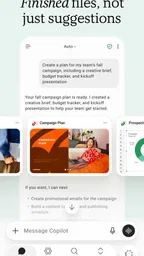
- Drafts and rewrites text directly in the mobile app.
- Supports voice prompts for hands-free interaction.
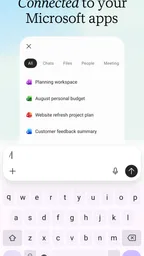
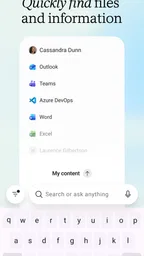
- Connects with Microsoft 365 files when signed into an account.
- Offers a free tier for trying core Copilot features.
What could be better
- Some features require a Microsoft 365 subscription.
- Answers can contain errors and need careful checking.
- File access depends on account permissions and storage setup.
- Advanced features may vary by region or subscription plan.
- Using cloud AI requires sharing prompts and content with Microsoft.





