




Microsoft Outlook review
 Analysis by Appsdrops
When a household juggles work messages, school schedules, appointments, and personal email, the hard part is often knowing which account to check—not sending a message. I find Microsoft Outlook most useful when it brings several inboxes and calendars into one manageable place while still letting me keep the accounts distinct. It is a productivity app from Microsoft Corporation, and its approach suits people who want one familiar hub on a phone rather than a separate app for every mailbox.
One phone, several routines
Picture a parent checking a work calendar while waiting outside school, then switching to a personal inbox to find an appointment confirmation. Outlook is built for that kind of quick context change. Bringing email, calendars, and contacts together can cut down on app switching, especially when different parts of life already run through different accounts.
The benefit is practical, not magical: Outlook does not make a household’s schedules agree or decide which account should receive a message. You still need to look at the sender, recipient, and calendar you are using. But when the accounts are set up clearly, a single app can make everyday coordination less scattered.
I would consider it particularly useful for someone who has a Microsoft work account alongside personal email, or who regularly checks more than one inbox. Its scale is reflected in over a billion installs and an average rating of 4.3 from around 11 million ratings. Those figures suggest broad adoption, though they cannot tell you whether its account handling fits your own routine.
Set up boundaries before the inbox gets busy
The most important setup decision is not simply adding accounts; it is learning to recognize which one is active before acting. When composing or replying, pause to check the sender account and recipient. That small habit helps prevent a work response going out from a personal address, or a private note being sent from a shared-looking mailbox.
For a shared phone, I would not treat one Outlook setup as a substitute for separate user profiles or private accounts. Each person’s email can contain sensitive conversations, password resets, and personal appointments. Keep account access under the account owner’s control, and avoid adding another person’s mailbox just because it is convenient. Outlook is a mail and calendar organizer, not a household account-boundary system.
A useful first-day routine is to add only the accounts you genuinely need, send a test message to an address you control, and check the account shown on the outgoing message. Then inspect the calendar view with each account in mind. This is a simple way to catch confusion early, before a busy morning turns a small setup mistake into a missed appointment or an awkward reply.
Account consolidation also has a trade-off: one app can make several inboxes easier to reach, but it puts more of them within the same phone experience. If the device is regularly handed around, use the device’s own access protections and keep Outlook from becoming an informal shared login. For a household where everyone needs privacy, separate devices or properly separated device accounts are a better foundation.
Make calendar coordination concrete
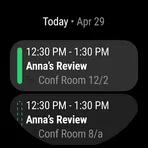
Outlook earns its place when email and scheduling are connected in the same daily flow. An appointment confirmation can be found in the inbox, while the calendar gives you a place to check what is coming up. For a household, that can help one person keep track of their own commitments while discussing plans with others; it should not be mistaken for automatic family coordination.
One low-friction approach is to agree on a consistent naming style for events you expect to discuss, such as a clear activity name rather than a vague label. When someone asks, “What time is the appointment?”, a specific calendar entry is easier to interpret at a glance. This is a workflow choice, not a special Outlook feature, but the app’s combination of email and calendars makes the habit convenient.
It also helps to treat email as the source of details and the calendar as the reminder of the commitment. When a school or service sends a change, read the message carefully before updating plans. Do not assume that keeping the email in Outlook automatically changes an event or informs everyone else. I prefer this deliberate step because it reduces the risk of acting on an old time or assuming another person has seen the update.
For a household that already relies on a shared calendar elsewhere, Outlook may be less compelling as the central planner. It can still be handy for personal accounts and work scheduling, but coordination works best when everyone knows which calendar is authoritative. If one person uses Outlook and another checks a different system, agree on where final plans live instead of maintaining competing versions.
Everyday strengths, and where the friction appears
Compared with using each email provider’s own app, Outlook’s main appeal is having multiple accounts, calendars, and contacts together. That can reduce the mental overhead of remembering which app holds a particular conversation. Compared with a dedicated calendar app, its advantage is the nearby inbox; its limitation is that people seeking a highly specialized planning workflow may prefer a tool designed around shared projects or household schedules.
The unified approach can also make the inbox feel busier. When several accounts appear in one place, an important personal message can sit alongside work traffic, and a quick scan may not be enough to understand its context. I recommend checking account identity before replying and avoiding rushed decisions based only on the newest message. If you find the combined view distracting, working through one account at a time may be calmer than trying to monitor everything continuously.
Another realistic friction point is setup and maintenance. Adding accounts is only the beginning: you have to keep track of which calendars matter, notice when an account needs attention, and decide how much of your life belongs in one app. If you rarely use more than one mailbox, a simpler single-account mail app may be easier. Outlook’s breadth is valuable when you need it, but unnecessary choices can feel like clutter when you do not.
Outlook is free to download, with in-app purchases listed from $1.99 to $12.99 per item. I would make the decision based on whether its everyday account and calendar convenience solves a real problem for you, rather than assuming a paid option is necessary. The app has been available since January 28, 2015, and its current version is 5.2644.1; as with any app that changes over time, screens and workflows may evolve.
Age, trust, and a sensible household approach
The app is rated Everyone, which describes its content rating; it does not mean that every child should have unrestricted access to an adult’s inbox. Email can expose private conversations, account-recovery messages, and appointment details. For younger users, I would set up an appropriate account and device arrangement with an adult’s involvement rather than letting them browse a parent’s signed-in mailbox.
For older children or teens who manage their own email, Outlook can be a practical place to keep messages and schedules together, particularly if they already use Microsoft services. The useful lesson is account awareness: they should know which address they are sending from, recognize when a message is meant for a different recipient, and avoid sharing a device while an account is open. These are habits to teach, not safeguards to assume the app provides automatically.
There are more than 351,000 written reviews of Outlook, alongside its broad rating and install figures, but popularity is not a substitute for checking whether the app suits your household’s privacy needs. Microsoft Corporation is the developer, and I would still treat each account according to its owner’s boundaries. If your priority is a tightly controlled family calendar or shared task management, compare dedicated tools for those jobs rather than expecting an email app to provide family controls.
Who I would recommend it to
I would recommend Microsoft Outlook to people who actively manage multiple email accounts and want their calendars and contacts close at hand. It is especially sensible for someone balancing a Microsoft work mailbox with personal email, or for a household member who needs to coordinate their own commitments without constantly jumping between apps.
I would skip it as the household’s main solution if everyone needs a shared schedule with clear collaborative ownership, if the phone is passed among people who should not see one another’s messages, or if you only use one simple inbox and prefer minimal setup. In those cases, a dedicated shared calendar, separate user accounts, or the email provider’s own lightweight app may be a better fit.
My overall view is that Outlook works best as a personal command center, not a shared family control room. Keep accounts separate in practice, check the sender before replying, and agree on which calendar holds final plans. With those boundaries, it can make a crowded week easier to manage; without them, putting every inbox in one place can create confusion as readily as convenience.
What we like
- Focused inbox helps prioritize messages that matter.
- Built-in calendar keeps appointments close to your email.
- Search makes it easier to find older messages.
- Supports multiple email accounts in one place.
- Customizable notifications help reduce distractions.
What could be better
- Some advanced features require a Microsoft 365 subscription.
- Large attachments may need to be shared through cloud storage.
- The interface can feel busy for first-time users.
- Sync delays may occur with some email providers.
- Some settings differ between mobile and desktop versions.





