







Malwarebytes - Mobile Security review
 Analysis by Appsdrops
If you’re installing a security app because a link, download, or strange phone behavior has made you uneasy, Malwarebytes is a practical place to start. I like that it brings several kinds of mobile protection together rather than treating antivirus scans as the only job. Its tools-focused approach is useful for everyday Android users, though it is worth understanding what the app can and cannot do before relying on it.
What to expect from Malwarebytes
Malwarebytes is a free Android security app from Malwarebytes, a developer known for security software. It combines malware protection with scam blocking, junk-cleaning tools, and a VPN. That breadth is convenient, but the features serve different purposes: a scan checks for threats, scam blocking is meant to help with risky interactions, cleaning addresses clutter, and a VPN concerns network privacy. Installing one app does not make those jobs interchangeable.
The app has an average rating of 4.4 from around 696,000 ratings, and it has passed 50 million installs. Those figures suggest it is widely used, but they don’t guarantee that it will catch every threat on every device. I’d treat it as one layer of sensible phone security, alongside careful decisions about downloads, links, and app access.
The app is free to install, with in-app purchases ranging from $1.49 to $139.99 per item. That spread means it’s sensible to check the screen carefully before starting a purchase or trial-related flow. If your main goal is simply to run a security check, begin with the free experience and decide whether any paid option addresses a need you actually have.
It is rated for Everyone and is listed for Android 10 and later. The current version is 5.34.0+592. If your phone is older than Android 10, this release may not be an option for you. On a supported phone, I’d make sure the operating system and apps are up to date before treating a security scan as the whole of your protection.
Start with a clear goal, not every tool at once
On first opening a security app, it can be tempting to switch on every feature immediately. I recommend a calmer route: decide what prompted the install, then use the tool that matches it. If you’re worried about a suspicious app or a recent download, begin with the malware-protection side. If unwanted calls, messages, or web interactions are your concern, look for the scam-blocking controls and understand what they cover before relying on them.
This distinction is useful because a cleaner is not a threat scanner, and a VPN is not a substitute for either. The bundled toolkit can save space and reduce app-hopping, but it can also make the product feel more complicated than a basic antivirus utility. Start with one concrete concern and learn that workflow before exploring the extras.
First setup: keep it deliberate
After installing Malwarebytes, I’d first read each setup screen instead of quickly accepting every prompt. Security and blocking tools may need access or system-level settings to work as intended, and the reason for each request should make sense to you. Grant only the access needed for the feature you want, and revisit the app’s controls if you later decide a tool isn’t useful.
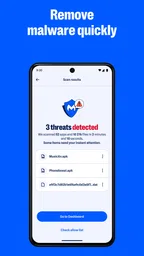
Then look for the main scan or protection action and run it once. This gives you a useful baseline: you can see how the app presents a result and where it directs you if it flags something. A security notification is a prompt to investigate, not a reason to panic. Read what the app identifies, check the item or setting involved, and avoid removing something you depend on without understanding the consequence.
For a first-time user, a good setup is one you can explain to yourself. Know whether you’ve enabled scanning, scam protection, cleaning, or VPN use, and keep track of which task each is meant to handle. If you switch on several tools at once, it becomes harder to tell which one produced a warning or changed your experience.
Your first meaningful success: check before you react
A realistic first win might be checking the phone after installing an app from a source you don’t usually use. Run a scan, wait for the result, and read any alert before taking action. If nothing is flagged, that is reassuring, but it is not a certificate that every file, message, or website is safe. If something is flagged, use the explanation in the app to decide what to do rather than assuming that every warning means the same thing.
Another useful routine is to scan after a moment that genuinely raises concern, such as noticing an unfamiliar app or seeing behavior you can’t explain. That makes the tool part of a response rather than a ritual you repeat without purpose. Keep the phone’s normal update habits in place too; security software is most useful when it complements, rather than replaces, the protections built into Android.
One non-obvious benefit of this approach is that it helps you avoid confusing a clean scan with a clean browsing history. A scan is a check of the device, while a suspicious text or webpage still calls for judgement before you tap. If a message pressures you to act quickly, open the relevant service through an app or route you already trust instead of following the message’s instructions.
Common confusion: cleaner, blocker, scan, and VPN
The combined feature set can blur the boundaries between jobs. Junk cleaning may help with clutter, but deleting files is not the same as finding malware. A VPN can change how your connection is routed, but it does not prove that a download is safe. Scam blocking can help reduce exposure to certain unwanted interactions, but it should not be treated as a guarantee that every fraudulent message or call will be stopped.
That is why I’d avoid turning on features just because they appear in the same app. If the phone is running low on space, use cleaning only after checking what it proposes to remove. If you want a VPN, consider whether you need it for the connection you’re using and whether its settings fit your expectations. If your concern is a suspicious app, focus on scanning and the app’s explanation of any result.
There can also be friction when a security tool asks for settings that affect how Android handles other apps or notifications. Take time to understand the purpose before enabling anything. If a feature feels intrusive or you can’t tell what it changes, leave it off until you’re confident you need it. A smaller, understood setup is better than a collection of toggles you forget about.
Where it fits among other Android security choices
Compared with relying only on Android’s built-in protections, Malwarebytes gives you a dedicated place to run checks and explore additional tools such as scam blocking and a VPN. Compared with a lightweight antivirus app, its broader bundle may be more convenient if you want several functions in one interface. The trade-off is that a wider toolkit asks you to make more choices and distinguish among features.
If you already use another trusted security suite that covers the same needs, adding a second app may create duplicated alerts or settings without much benefit. In that case, I’d compare what each one actually does on your phone and keep the setup you understand best. Someone who only wants a simple, occasional malware check may also prefer a more minimal tool. Malwarebytes makes more sense when its combination of checks and add-ons matches the way you use your device.
Who should use it—and who may want something else
I’d recommend trying it if you want a familiar security-focused app for Android and would value having malware checks alongside scam-related and utility tools. It is especially approachable when you have a specific concern and are willing to read results rather than treating the app as an automatic decision-maker. Its free starting point also makes it possible to explore before deciding whether a purchase is worthwhile.
I’d skip it if you’re looking for a tool that can make careless tapping risk-free, or if you expect a cleaner to solve every performance problem. It is also not the right choice for a phone below Android 10, given the listed minimum operating system. And if your priority is a very simple interface with just one job, a narrower alternative may be easier to manage than a bundle with several distinct functions.
What I’d do next
Once the first scan is complete, I’d make a small plan: keep the feature that addresses your concern active, learn how to review its alerts, and leave unrelated tools alone until you have a reason to use them. Check any proposed cleanup before confirming it, and treat scam warnings as a useful pause rather than proof that every risky interaction has been caught.
My overall view is that Malwarebytes is most helpful when approached as a set of separate tools, not as a single shield that handles every security decision for you. Its range is a strength for people who want more than a basic scan, while the extra options can be unnecessary for someone who wants a bare-bones checker. Start with one scan, understand what the result means, and expand your setup only when a particular feature solves a real problem.
What we like
- The interface is clear and easy to navigate.
- A security scan can be started with just a few taps.
- The app checks for potentially harmful apps and files.
- Web protection can help block dangerous websites.
- Privacy audit features can highlight apps with broad permissions.
What could be better
- Some advanced protection features require a paid subscription.
- Real-time protection may use extra battery power.
- Security scans can take time on devices with many files.
- False alarms may require users to review flagged items carefully.
- Some features may vary by device or Android version.





