




HP review
 Analysis by Appsdrops
Printing tends to become a productivity problem at the least convenient moment: a document is on your phone, the printer is somewhere else, and a setup or connection issue interrupts the task. HP is designed to bring printer setup, printing, and support together in one app. I see its value less as a flashy collection of extras and more as a practical part of a dependable work routine: it can help reduce the friction between having a document ready and getting it onto paper.
Make printing part of a smoother workflow
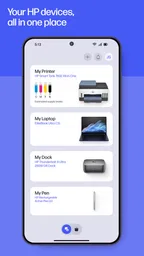
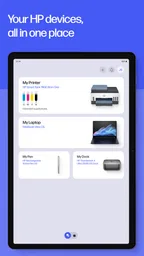
HP is a free productivity app from HP Inc. for people who use compatible HP printing equipment and want a central place to manage everyday printing needs. The basic idea is straightforward: instead of treating setup, printing, and support as separate jobs, the app brings them together. That makes it particularly useful when printing is one step in a larger task, such as preparing a form, sharing a document, or keeping a paper copy for reference.
Before using an app like this, it helps to think about the workflow around the printer. Where do the documents usually come from? Which ones actually need a paper copy? Is printing an occasional errand or a routine part of work or study? Those questions matter because an app can make a process easier, but it cannot make an unclear process efficient by itself. I’d approach HP as a way to simplify the printing stage after the document is ready, rather than as a replacement for organizing files or deciding what needs to be printed.
That distinction makes the app’s purpose easier to judge. If printing is already part of your day, having setup, printing, and support in one place can mean fewer separate steps to remember. If you rarely print, the main benefit may be having a familiar tool ready when the need comes up. Either way, the appeal is practical: a focused utility can earn its place by helping with a recurring chore, not by demanding constant attention.
Getting from a document to a print task
A reliable routine starts before the printer is involved. I’d first make sure the document is the version I want, with a clear filename and a sensible place in my files. That small habit avoids a common source of wasted time: printing an outdated copy and then having to repeat the task. Once the document is ready, HP gives users a dedicated place to handle the printer-related part of the process.
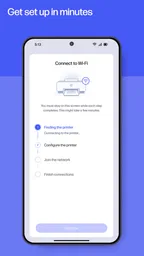
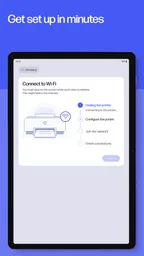
The app’s emphasis on setup is important because a printer is only useful when the connection and configuration are in place. Bringing setup into the same utility used for printing gives the workflow a more natural starting point. Rather than searching for a separate tool when setting things up and another one when it is time to print, users can begin with the app that is intended to cover both needs.
For a household, that can make the printer less mysterious for people who do not manage it every day. For a home office, it can help keep a routine task within reach instead of turning it into a troubleshooting session each time. I wouldn’t expect any app to remove every practical issue, but putting the essential stages together is a sensible foundation for a less fragmented process.
Capture and organize with intention
Productivity is not just about moving quickly; it is also about keeping work easy to find later. I’d pair HP with a simple document habit: keep useful files in an organized location, use names that make sense, and avoid printing duplicates just because the original is difficult to locate. The app can support the printing part, while these small choices make the larger system more sustainable.
This is especially relevant for people who handle forms, reference pages, or work documents across a phone and a printer. A print task is easier when the source file is already identifiable and ready. Rather than treating each print as an isolated event, think of it as the final step in a short chain: capture or receive the document, check it, organize it, and then decide whether a paper copy is useful.
That approach also helps keep the amount of paper in check. Printing only what has a clear purpose can reduce clutter and make the copies you do keep more valuable. HP’s role is not to make that decision for you; its role is to provide a place to carry out the printer-related step. In my view, that is a healthy boundary for a utility app. It supports a workflow without pretending to replace good file habits.
The app’s broad adoption suggests that this kind of practical tool has a place in many people’s routines: it has over 100 million installs. That scale does not tell me whether it will fit every individual setup, but it does underline how common mobile access to printing tasks has become. For someone who already relies on an HP printer, the most useful question is simply whether having one dedicated app makes the process easier to repeat.
Build a routine you can reuse
The best productivity systems are often the ones that are simple enough to repeat. I’d keep an HP-based printing routine short: prepare the file, use the app for the printer task, check that the result is what you need, and put the printed page somewhere sensible. If a task comes up regularly, keeping those steps consistent can prevent small decisions from turning into interruptions.
It also helps to distinguish routine printing from occasional setup or support needs. Setup belongs at the beginning of using a printer or when the setup needs attention; printing is the recurring action; support matters when something is not working as expected. The app brings those categories together, which gives users a clear place to start rather than leaving them to remember separate paths for separate stages.
I’d avoid building a complicated system around a simple printing need. A short checklist, a predictable folder for documents, and a familiar way to start the printer task are usually more sustainable than a stack of extra processes. HP fits that kind of approach well: use it when the printer is part of the task, then return to the work at hand. It is a focused tool, not a reason to turn every document into a print project.
For people who share a printer at home or in a small work setting, a consistent routine can also make the process easier to explain. When someone else needs to print, it helps if the steps are clear and the relevant documents are easy to find. The app’s all-in-one positioning can support that shared understanding, while the household or team still decides how files are named, stored, and handled.
Where the workflow can still snag
No printing app can make every part of a printer workflow effortless. The document still needs to be ready, the printer still needs to be available, and the user still needs to know what outcome they want. If one of those pieces is missing, opening an app may not solve the underlying problem. I find it useful to treat HP as a practical control point for printer tasks, while keeping expectations grounded in the parts of the process the app is meant to support.
A common failure point is starting with the printer when the real issue is the file. If the wrong version is selected or the document is hard to locate, the task can stall before printing even begins. Another is leaving setup until the moment a document is urgent. Handling the initial setup ahead of time, then keeping files organized, gives the app a better chance to be useful when time matters.
There is also a sustainability angle to consider. Printing can be convenient, but convenience alone is not a reason to create unnecessary paper copies. I’d use a quick purpose check before each print: do I need this on paper, or will a digital copy do? That pause keeps the routine purposeful and helps prevent printed pages from becoming clutter. The app can help with the printing stage; a thoughtful decision about whether to print remains part of the user’s system.
Finally, expectations should match the role of a focused utility. HP is not a general-purpose productivity planner or a substitute for organizing all of your work. Its strength is its clear connection to printer setup, printing, and support. If that is what you need, the concentrated scope is an advantage. If your main challenge is managing projects, notes, or deadlines, you will want other tools for those jobs.
Who will get the most from HP?
I’d recommend considering HP if you regularly print from a mobile device or want a central app for setting up and handling HP printer tasks. It makes the most sense for students, home-office users, families, and anyone who moves between digital documents and paper copies as part of ordinary work. The app has an average rating of 4.2 from around 944,000 ratings, which gives prospective users a broad pool of public feedback to consider alongside their own needs.
It may be less relevant if you seldom print or do not use HP printing equipment. In that situation, a dedicated printer app might not become part of your everyday routine. Even then, the idea behind it is easy to appreciate: keep the necessary printer tasks together, make the process repeatable, and avoid adding steps that do not help you finish the job.
HP has been available since November 21, 2012, and its current version is 26.4.2.6958. It is rated for Everyone and requires Android 10 or later. Those details help set expectations for people checking whether it suits their device and household, while the app’s actual value will depend on how often printing features in their routine.
A practical tool for the last mile
My overall impression is that HP is best understood as a utility for the last mile of document work. It does not need to reinvent productivity to be useful. Bringing setup, printing, and support into one place gives users a more direct route to a common task, and that can make a difference when the rest of the workflow is already organized.
The strongest reason to use it is consistency. Prepare documents thoughtfully, keep them easy to find, use the app when printer tasks come up, and print with a clear purpose. That approach keeps the app in its proper role: a helpful part of a sustainable productivity system rather than a collection of features to explore without a need.
If you depend on an HP printer, want mobile access to printer tasks, and value a straightforward routine, HP is worth considering. It is free, focused, and backed by HP Inc., with a long-running presence in the app ecosystem. For me, its appeal is simple: fewer separate steps around printing, so it is easier to get back to the work that matters.
What we like
- Print documents directly from a compatible mobile device.
- Check printer status and ink levels in the app.
- Scan pages using a phone camera on supported devices.
- Manage multiple compatible HP printers from one place.
- Access setup guidance for supported printers.
What could be better
- Some features require a compatible HP printer.
- Printer setup may require an HP account.
- Remote printing depends on an internet connection.
- Some functions vary by printer model and region.
- The app may request access to camera or local network features.





