Google Tasks review
 Analysis by Appsdrops
What I value most about Google Tasks is its close fit with the way many people already use Google Workspace. It gives everyday to-dos a dedicated home without asking me to adopt a complicated planning system. I can capture a reminder, give it a date, and come back to it when I need to act. That sounds modest, but it can make the difference between remembering a small obligation and letting it disappear into an inbox or a stream of notes.
As a free productivity app from Google LLC, it is built around a simple idea: keep the next action easy to see and easy to manage. I find that focus useful when a task list should support my day rather than become another project to maintain. It is not a full project-management workspace, and it does not try to be one. For personal errands, follow-ups, and small pieces of work, that restraint is its strongest quality.
A focused place for tasks, not a complete planning system
The central capability is straightforward task management in the Google Workspace setting. Instead of treating every obligation as an email to search for later, I can record it as a task and organize what needs attention. The practical benefit is less about elaborate planning and more about giving a loose intention a clear next step.
For example, “sort out the appointment” is easy to forget because it does not say what to do. Turning it into “call the clinic” makes the action more concrete; adding a date gives me a point at which to revisit it. I find this small act of phrasing especially useful. A task list is only as helpful as the tasks I put into it, and specific verbs make it easier to scan the list and get moving.
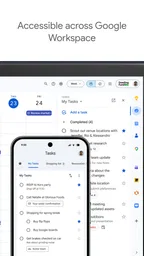
The app’s connection to Google Workspace is important to its appeal. If my daily routine already involves Google services, Tasks can feel more natural than a separate planner that requires its own habits and workflow. It is a particularly sensible choice for someone who wants a lightweight task list alongside existing Google-based work, rather than a new system that demands regular upkeep.
That connection should not be mistaken for a promise that every person will find a complete planning setup in one place. I would choose this app for keeping track of individual actions, not for mapping a complex project with dependencies, detailed status reporting, or a team-wide workload. Its usefulness comes from staying focused on the task itself.
Turning intentions into manageable actions
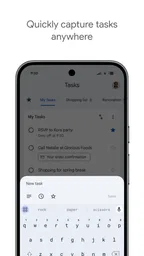
In practice, I use the list as a holding place for things I might otherwise keep in my head: a document to review, an item to pick up, or a message I need to send after getting an answer. The moment of capture matters. If I can write the action down while it is fresh, I no longer have to keep mentally rehearsing it while doing something else.
A useful habit is to separate a broad outcome from the next action. “Prepare for the move” is too large to feel actionable, while “measure the bookshelf” or “ask about the delivery date” gives me something I can actually do. I would not create a task for every thought or tiny household motion; that can make a list noisy. I reserve it for obligations I genuinely want to remember or complete.
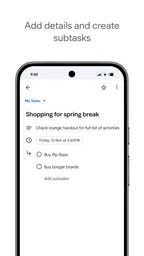
Dates are most helpful when they represent a meaningful prompt, not merely a guess. If I assign a date to every item, the list can start to feel like a queue of overdue work. For flexible tasks, I prefer to leave room to decide when they belong in my day. For a bill, appointment call, or time-sensitive follow-up, a date can make the reminder more useful.
Another practical choice is to keep the task wording short enough to scan but specific enough to understand later. “Email Sam about the draft” is clearer than “draft,” while a long note about the entire background may be better kept elsewhere. I treat the task as a signpost to the action, not as a substitute for a document, project brief, or conversation history.
A realistic day with a short list
Imagine I start the morning with three loose commitments: return a library book, send a colleague a revised file, and book a routine appointment. I add each as a separate action. The file can be handled when I am at my desk; the appointment call can be assigned a suitable day; the library return can stay visible until I am near the branch. The advantage is not a sophisticated schedule. It is that these unrelated obligations no longer compete for space in my memory.
As the day changes, I can review the list and make a choice rather than treating the first plan as fixed. If the appointment call cannot happen today, I can adjust when I intend to revisit it. If the colleague sends new information, I can change the wording to reflect the next action. That lightweight review is a realistic way to keep a small list relevant without spending more time organizing it than doing the work.
This is where I think Google Tasks works best: as a dependable companion to a normal workday, not as the command center for every responsibility. It is helpful when I want to see what I have promised myself to do, especially if those tasks sit alongside my usual Google Workspace routine.
Where it fits among other task tools
Compared with a basic notes app, Tasks encourages me to treat an item as something to complete rather than a paragraph to revisit. Notes are better for collecting context, brainstorming, or keeping reference material. A task list is better for the short action that comes out of that material. I often find it useful to keep the detailed information in a note and the next step in the task list, rather than forcing one tool to do both jobs.
Compared with a dedicated project-management app, Tasks is deliberately less involved. A project tool is the better fit when several people need to coordinate work, track stages, or see how tasks depend on each other. I would not choose this app as the only system for a complicated launch or a large team project. For a personal list of errands and follow-ups, however, the simpler approach can be an advantage: fewer structures to configure and less temptation to spend the morning maintaining the planner.
It also differs from keeping everything in email. Email preserves the conversation, but an unanswered message can be easy to bury among newer messages. A task can make the next action more visible. I still need the original email for its context, so I would not erase the distinction between a message and a reminder to act on it. The best workflow is often to keep the conversation where it belongs and record a concise follow-up task separately.
The tradeoffs I would consider before switching
The same simplicity that makes the app approachable can feel limiting if I want a highly structured system. People who rely on extensive project views, detailed collaboration, or rich planning conventions may prefer a more specialized alternative. I would also avoid turning a simple list into a catch-all archive. Tasks are most useful when the action is clear; lengthy background belongs in a place designed for reference.
There is a personal tradeoff in how much structure to add. A list with no dates can leave important deadlines easy to overlook, while a list in which every item has an arbitrary date can become stressful and difficult to trust. I recommend using dates selectively and making a brief review part of the routine. The app can hold reminders, but I still have to decide which commitments matter now and which can wait.
Another limitation is that task capture alone does not guarantee follow-through. If I add an item and never look at the list again, it has only moved the problem from memory to a screen. I get more value by checking the list at a natural transition, such as when I begin work or finish a block of errands. That simple review is more important than trying to build a perfect taxonomy for every task.
I would skip it if I wanted a single app to replace a detailed project workspace, a shared team tracker, and a notebook full of reference material. I would also be cautious if I already have a task system that I use consistently; switching tools can create duplicated lists and missed commitments. A lightweight app helps most when it becomes the one obvious place for the kind of tasks it handles well.
Who is likely to get the most from it
I would recommend it to people who want a free, uncomplicated way to keep personal to-dos visible, especially if Google Workspace is already part of their routine. It suits students tracking small study actions, busy households coordinating personal errands, and professionals who need to remember straightforward follow-ups without building a full project plan. Its content rating is Everyone, which reflects its general-purpose audience.
Its reach is also notable: it has more than 10 million installs, an average rating of 4.6 from around 619,000 ratings, and roughly 26,000 written reviews. Those figures do not tell me whether it will suit a particular workflow, but they do suggest that many people have tried it as a practical everyday tool. The app is free, so trying it does not require a paid commitment.
For me, the deciding question is whether I want a concise list of actions or a complete system for managing work. If it is the former, this app makes sense: I can capture a task, give it a useful date when needed, and return to it without adding much administrative overhead. If I need complex collaboration or detailed project tracking, I would choose a more specialized tool and keep Tasks for personal reminders, if I use it at all.
Google Tasks was released on April 24, 2018, and its straightforward approach still feels most valuable when I keep my expectations equally straightforward. It will not make a crowded week disappear, but it can make the next action easier to find. I would recommend it to a friend who wants a low-friction place for everyday commitments and already works comfortably within Google’s ecosystem. The key is to keep entries concrete, use dates with intention, and check the list often enough for it to remain trustworthy.
What we like
- Tasks sync across devices with the same Google account.
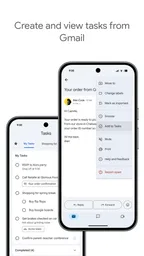
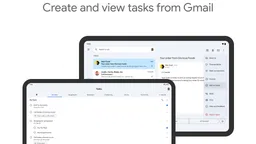
- Gmail messages can be turned into tasks quickly.
- Recurring tasks help keep regular routines on track.
- Separate lists make it easier to organize different projects.
- The interface is simple to learn and use.
What could be better
- There are few options for customizing task views.
- Tasks cannot be assigned to other people.
- The app lacks advanced project management tools.
- Notifications offer limited control over reminders.
- Offline changes may take time to sync across devices.





