Google Docs review
 Analysis by Appsdrops
When a household shares a tablet or takes turns using a computer, documents can become a small source of friction: someone edits the wrong copy, forgets to pass along a change, or can’t find the latest version. I find Google Docs useful because it makes a document easy to work on together, while keeping the actual writing and editing straightforward. It is a free productivity app from Google LLC, and its appeal is less about elaborate tools than about having a practical place to draft, revise, and coordinate.
One household document, several people’s needs
Imagine planning a weekend trip. One person starts a packing list, another adds meal ideas, and someone else checks the schedule. With a shared document, each person can contribute to the same working copy instead of sending edits back and forth in messages. That simple difference is where I think the app earns its place in a busy home.
It also works for less cheerful but more useful tasks: keeping a draft of questions for a school meeting, collecting repair notes, or writing down the steps everyone needs to follow when looking after a pet. These are not complicated projects, but they benefit from having the current version in one place. I’d use a document for information that changes as people contribute, rather than for a one-off message that is easier to send directly.
The important distinction is that sharing a document is not the same as sharing an account. I would keep personal Google accounts separate and invite people to the specific document they need. That makes it easier to understand whose account is active and limits the mix-up of personal work, saved files, and other account activity on a shared device.
Set up the device before the document
If several people use one tablet or phone, I’d first check which account is signed in before creating or opening a document. A quick account check can prevent a draft from being saved under the wrong person’s identity. On a shared computer, the same habit matters: close a session when finished and avoid leaving a document open for the next person to stumble into.
For a household document, decide who should be able to change it and who only needs to read it. That choice is especially useful for things such as a schedule or a reference list. If everyone is editing, a shared page can become confusing; if only one person can make changes, other members may have to keep asking for updates. I’d match access to the task instead of making every document open to everyone by default.
There is a practical trade-off here. Google Docs makes collaboration convenient, but convenience depends on people using the right account and sharing the right file. It is not a substitute for household boundaries or a reason to put private notes in a document meant for group use. I would keep sensitive personal material in a separate document and be deliberate about who receives access.
Make collaboration less chaotic
The most useful shared-document habit I’ve found is to give the page a clear purpose and structure before inviting others. A trip plan can have headings for dates, transport, and items to bring; a meeting note can separate questions from decisions. Even a short outline helps because collaborators can see where their contribution belongs instead of adding everything to the first blank line.
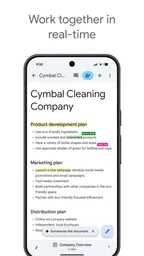
For a live planning session, several people can work on the same document rather than waiting for one person to finish and send a new copy. That is a genuine advantage over passing around attachments, where it is easy to lose track of which version contains the latest edits. For a task that does not need immediate group input, though, I prefer one person to collect suggestions and tidy the document afterward. Shared editing is helpful, but an unrestricted free-for-all can make a simple page harder to read.
Another useful approach is to treat a shared document as a working surface, not an unquestioned record. For a household decision, I’d label tentative ideas separately from agreed plans. That small distinction can stop a suggestion from being mistaken for a final choice, especially when someone opens the page later without having been part of the conversation.
When a document starts gathering unrelated material, I would split it rather than endlessly expanding it. A single page for a holiday plan can be convenient; combining that plan with school notes, shopping lists, and personal reminders is not. Keeping each document focused makes it easier to share only what is relevant and easier for everyone to scan.
Age, trust, and shared devices
The app is rated for Everyone, which makes it broadly approachable as a writing tool, but that rating does not remove the need for an adult to think about accounts and sharing. I would show a younger household member how to recognize the account they are using and explain that a shared document may be visible to the other people who have access. That is a more useful lesson than simply handing over a device and assuming the boundaries are obvious.
For a child contributing to a family list or a school-related draft, I’d keep the document limited to that purpose and review who can open it. A family can coordinate without giving every person access to every file. The app is a tool for writing together, not a family-management system, so I would not rely on it to create household rules or supervise someone’s device use.
Trust also affects how I would use it for sensitive topics. A shared page is convenient for a menu plan or a list of questions for an appointment, but private reflections or confidential information belong somewhere with access suited to that need. Before sharing, I’d ask a plain question: would I be comfortable with each invited person reading this? If not, I would make a separate document or choose another way to handle it.
How it compares with familiar alternatives
Compared with sending a file as an email attachment or passing a document through a chat, Google Docs is better when people need to keep working on one evolving copy. It reduces the familiar “which version is current?” problem and makes a shared draft easier to maintain. A notes app may be quicker for a personal reminder, while a messaging app is better for a short update that does not need to become a structured document.
For someone who mainly wants polished page layout or detailed desktop publishing, a dedicated word processor may be a better fit. I see Docs as strongest for everyday writing and collaboration, not as the first choice for every kind of document. If a household already relies on another document system, switching makes less sense unless the ability to collaborate in the same working file solves a real problem.
Its scale is reassuring to many users: it has a 4.7 average from around three million ratings and over one billion installs. Those figures tell me it is widely used, but they do not guarantee that every household will enjoy its way of organizing work. I’d judge it by whether the people who need the document can access and maintain it comfortably.
Where it fits—and where I’d pass
I’d recommend the app to households that write plans, lists, or drafts together and want to avoid sending a fresh copy after every change. It is particularly useful when one person begins a document on a device and another needs to continue the work later. Google Docs has been available since April 30, 2014, and its long-standing role in productivity makes it familiar to many people, but the best reason to use it is still the everyday convenience of a shared document.
I would skip it for a household that only needs quick, private reminders, or where no one wants to manage account and sharing choices. In those cases, a basic notes tool or a message may be simpler. I would also choose another option for work that depends on specialized layout features or for information that should not be shared among the people using the device.
My household verdict is favorable, with one condition: make the account and access boundaries clear before collaboration begins. The app is free, and its 78,000 reviews add to the picture of a well-established tool, but neither popularity nor price fixes a messy sharing setup. Used thoughtfully, Google Docs gives a family a practical common workspace for the documents that really benefit from more than one person’s input.
What we like
- Edits sync across devices when you sign in to your Google account.
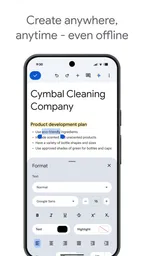
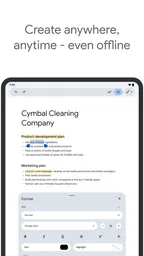
- Offline access lets you work on files without an internet connection.
- Voice typing can help you draft text hands-free.
- Version history makes it easy to restore earlier drafts.
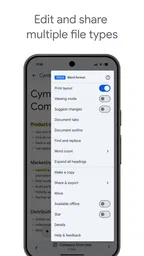
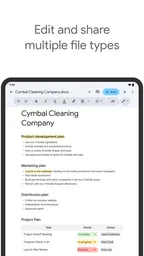
- You can export documents in several common file formats.
What could be better
- Some features require an internet connection.
- Advanced formatting options are less extensive than in desktop word processors.
- Large documents can feel slow on older devices.
- Offline files need to be set up before you lose internet access.
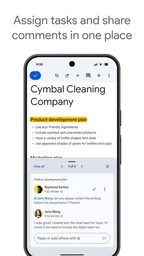
- Comments and suggestions can be harder to manage on a small screen.





