




Google Authenticator review
 Analysis by Appsdrops
I think of a good authenticator as a quiet tool: it should be quick when I need to sign in and easy to ignore the rest of the time. Google Authenticator fits that role by generating temporary verification codes for accounts that have two-step verification enabled. It is a free utility from Google LLC, and its long-running presence makes it a familiar choice for people who want a straightforward way to add a second check beyond a password.
Simple codes, with an important job
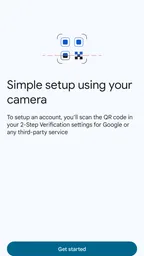
Using an authenticator app means that signing in can involve more than entering a password. When a service supports authenticator codes, I scan its setup code or enter its setup key, then use the changing code shown in the app when prompted. The app does not replace the account password; it supplies a separate step that can make a stolen or guessed password less useful on its own.
The core appeal is that a code generator is usually more convenient than waiting for a text message, especially when mobile reception is weak or I am travelling. It also keeps the sign-in code in a dedicated tool rather than mixed into a busy message inbox. That said, the service I am signing into must support authenticator-based verification, and I still need to keep control of the account’s recovery options.
Google Authenticator is best understood as a focused tool, not a general password manager or a complete account-security service. I would use it to keep verification codes together, while relying on each account’s own security settings and recovery methods for the rest of the job.
What the current version is good at
Its biggest strength is the low-effort routine. Once an account is set up, I open the app, find the matching entry, and read the current code. This is especially useful when I sign in to the same few services throughout the week: email, work tools, or a personal account that I do not want protected by a password alone. The tool’s usefulness comes from being ready at the moment a login asks for it, rather than from offering a long list of extras.
Google Authenticator sits in the security and utility part of the app world, even though its formal store category is Tools. It is made by Google LLC and is rated for Everyone. Its average is 3.9 from around 693,000 ratings, with roughly 23,000 written reviews and over 100 million installs. Those figures show broad adoption, but they do not tell me whether it matches every person’s preferred backup or account-management workflow.
There is a practical detail worth getting right at setup: save the recovery codes or other backup method offered by the service itself. An authenticator can help secure an account, but losing access to the phone can turn a quick login into a recovery task. I would not treat the app as the only way back into an important account, and I would make sure I understand that account’s recovery process before relying on it.
How its history affects the choice today
The app was released on March 21, 2012, so this is not a new experiment in the authenticator category. That history can be reassuring if I want a familiar, dedicated code generator rather than an unfamiliar tool. At the same time, longevity alone does not prove that a particular setup suits my needs today. I would judge it by how well its current workflow fits the services I use and how prepared I am to recover access if my phone changes or goes missing.
The verified release information establishes when the app first appeared, but it does not establish a feature-by-feature timeline or a specific current version. I would therefore avoid assuming that a particular capability arrived in a particular update. For an existing user, the useful question is less “what changed over the years?” and more “does my present setup still give me a dependable way to reach my codes and recover my accounts?”
That distinction matters because authenticator habits can become invisible. After adding several accounts, it is easy to assume that the list on one phone is the whole security plan. I recommend periodically checking that the services you care about still have a recovery method you can use, and that you know which entry in the app belongs to which account. A little housekeeping can prevent confusion during an urgent sign-in.
Everyday use and small workflow improvements
Imagine I am away from home and need to log in to a work account on a borrowed or newly set-up device. If the account asks for a verification code, having an authenticator ready can avoid depending on a text message reaching my current location. I still need to protect the phone itself and avoid exposing a code to someone nearby, but the flow is simple: identify the right account entry, use the current code promptly, and finish the sign-in.
A useful habit is to label accounts clearly during setup, especially when several entries have similar names. A code has little value if I cannot tell which service it belongs to under pressure. I also find it sensible to add accounts while I have time, rather than waiting until I am locked out of a service and trying to learn its verification setup in a hurry.
Another trade-off is device dependence. An authenticator is convenient because codes are close at hand, but that convenience can become a weakness if I lose the phone, replace it without planning, or have no access to it when signing in elsewhere. Before changing devices, I would check the account’s available transfer or recovery process and make sure important services are not all tied to a single point of failure. The exact steps depend on the service and the app’s current behavior, so I would follow the instructions shown during setup rather than assume every account moves in the same way.
For a shared household or team, I would be cautious about treating one person’s phone as a common code cabinet. Codes protect the account they belong to, and informal sharing can make it harder to control who can sign in. If multiple people need access, I would look at the service’s own account roles or shared-access options instead of casually passing around a personal authenticator device.
Where alternatives may suit better
Compared with text-message verification, an authenticator is a useful alternative when I want codes generated in an app rather than delivered by mobile network. But it does not make account recovery disappear, and a text message may remain a fallback for services that offer no other method. I would choose the method based on the account’s options and my circumstances, not assume one approach is always best.
Compared with password managers that can also handle verification codes, Google Authenticator is a more focused choice. Someone who already stores passwords and codes together may prefer one organized workflow, while someone who wants those functions kept separate may value a dedicated authenticator. The right trade-off depends on whether convenience or separation matters more to that person; putting everything in one place can simplify sign-in, but it also concentrates access.
I would also consider a different authenticator if my priority is a particular backup arrangement, multi-device routine, or broader account-management feature set. The important point is to compare the actual current behavior and recovery process, not just the app names. Whichever tool I choose, I would avoid moving all protected accounts at once without checking that I can still sign in and that recovery options remain available.
Who should use it, and who should skip it
I would recommend Google Authenticator to someone who wants a familiar, free code generator and does not need an all-in-one password tool. It is especially suitable for people who already use Google services, have a manageable number of accounts, and are comfortable keeping recovery information separate. Its broad adoption can make it an easy starting point for someone adding authenticator codes for the first time.
I would hesitate to recommend it as the sole choice for someone who frequently changes phones, needs a carefully coordinated team process, or expects a single app to manage passwords, account recovery, and verification codes together. That does not mean it cannot be part of those users’ setups; it means they should first check whether its current workflows match their needs and make a deliberate recovery plan.
The app is free, so trying it does not require a purchase. Still, I would not choose a security tool on price or popularity alone. The useful test is whether I can add the accounts I need, identify their codes reliably, and recover access if my device is unavailable.
What I would keep an eye on
For an existing user, the most worthwhile thing to watch is whether the app’s current account setup and device-change process continue to fit their routine. Before an operating-system change or phone replacement, I would review the app’s on-screen guidance and the recovery instructions for each important service. I would also check that any backup codes are stored somewhere safe and separate from the phone.
For a new user, I would start with one non-critical account that supports authenticator verification, learn the sign-in flow, and confirm the recovery route before adding more. Once that works smoothly, adding other accounts is less stressful. This small trial helps reveal whether a dedicated code app fits your habits better than message-based codes or a combined password-manager approach.
My overall view is that Google Authenticator succeeds when I treat it as one part of a broader account-security routine. It is convenient for getting a code at the right moment and has the advantage of a long history, but it cannot compensate for forgotten recovery details or careless access to the device. If you want a simple, free authenticator and are willing to plan for phone loss or replacement, it is a sensible option. If you need more integrated management or a specific backup workflow, compare alternatives before moving every account.
What we like
- Generates verification codes without an internet connection.
- Supports adding accounts by scanning QR codes.
- Can sync codes across devices when linked to a Google Account.
- Offers a simple interface that is easy to navigate.
- Codes refresh automatically for added security.
What could be better
- Losing access to the app can complicate account recovery.
- Cloud sync requires signing in to a Google Account.
- It does not approve sign-in requests with a single tap.
- Transferring accounts to a new device takes extra steps.
- It provides limited guidance for managing backup options.





