

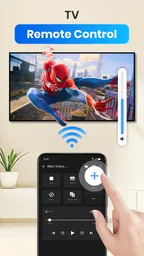

Cast to TV, Chromecast & Roku review
 Analysis by Appsdrops
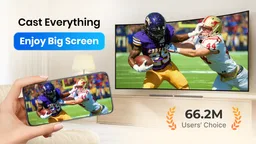
I like a casting app best when it makes the distance between finding a video on my phone and watching it on a larger screen feel uneventful. Cast to TV, Chromecast & Roku is built around that practical job: sending movies and videos to a TV, with screen mirroring for games also part of its purpose. It is a video player and editing utility by category, though its appeal is really about viewing and sharing rather than editing footage. I’d consider it when I want a straightforward way to move phone content to a compatible screen, not as a replacement for a full media library or a dedicated video editor.
From phone to TV: a dependable baseline
The most useful way to approach a casting app is to keep the first session simple. I would start with the phone and television connected to the same home network, open the app, look for the intended display, and test with a short clip before settling in for a film. This small check catches the common practical snag: the TV may be on, but the phone and receiver are not actually reachable on the same network. It also gives me a chance to confirm that the sound comes from the TV and that the picture is oriented as expected.
That routine matters more than it sounds. A cast that works for a ten-second clip is a better signal than assuming a long video will behave perfectly, especially if I’m setting things up for guests or family. I’d choose content on the phone first, make sure it plays locally, then connect to the screen. If the app or TV takes a moment to appear, I’d avoid tapping repeatedly; waiting briefly and checking the network is more useful than creating several connection attempts at once.
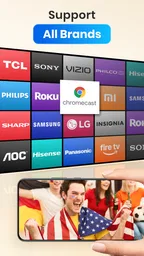
The app’s stated reach includes Chromecast, Roku, Xbox, and Smart TVs. That makes it appealing in a home where people use more than one kind of screen, though compatibility is not the same as a guarantee that every model, file, or network setup behaves identically. In my view, the sensible expectation is a convenient bridge for supported devices, with a quick test for the particular television you plan to use. If a device does not show up, I’d first check that it is awake and available on the same network rather than assuming the video itself is the problem.
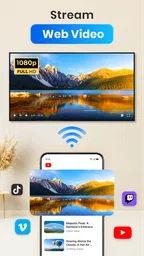
For everyday viewing, the strongest use case is casual sharing: a clip someone sent in a family chat, a saved video from a trip, or a movie file already on the phone that is easier to watch from the sofa. The screen-mirroring option also gives it a different role from apps that only send a selected video to a receiver. Mirroring can be handy when I want the larger screen to show what is happening on the handset, but it is a less focused way to watch a long film than casting a video directly. I would choose the method according to the task, not treat them as interchangeable.
Make the first connection repeatable
A good repeatable habit is to use one familiar test clip whenever I connect to a new TV or return to a network after a while. Once I know that clip displays and plays sound correctly, I can move on to the video I actually wanted. This is especially helpful when several televisions or streaming devices are nearby: checking the screen name before starting avoids sending private viewing to the wrong room.
For a normal evening, I might open a saved video, connect to the living-room screen, and then put the phone aside while it plays. For a short group watch, I’d keep the phone close enough to choose the next clip without making it the centre of attention. Those small habits make a casting tool feel more dependable than repeatedly exploring menus each time. They also help separate a device-discovery issue from a playback issue: if the TV never appears, I troubleshoot the connection; if it appears but the selected video will not play as intended, I test another clip.
Settings and choices that affect the experience
I would check the app’s available settings before relying on it for a particular viewing routine, especially if I plan to mirror a game or use it with a television that has several input and display modes. The key question is not whether every option is adjustable, but whether the current setup is comfortable: is the phone’s screen orientation suitable, is the TV on the right input, and is the audio coming through where I expect? A little preparation is more useful than hunting for controls in the middle of a film.
Mirroring deserves a separate expectation check. It shows the phone screen on the TV, which can be useful for games, browsing through personal clips, or demonstrating something to people in the room. But the phone remains part of that experience. Notifications, accidental touches, and a screen that dims or changes orientation can interrupt what everyone sees. Before showing something personal, I’d silence distractions using the phone’s own controls and open the content I want to display. That is a practical workflow, not a hidden feature of the casting app.
There is also a useful trade-off between mirroring and sending a video for playback. Mirroring can show more than a single video, so it is flexible when I need to demonstrate an app or move between items. Direct video casting is the more natural choice when the goal is simply to watch one movie or clip. If the result feels less smooth than local playback, I would switch approaches when possible rather than assume the TV is at fault. The best option depends on how the content is being presented and what the receiver supports.
For game mirroring, I’d keep expectations realistic. A larger picture can make a casual game easier for a group to watch, but casting adds a link between the phone and the TV, so it is not the setup I would choose when precise, immediate control is essential. The phone’s own display remains the place where I interact. If a game feels awkward on a mirrored screen, that may be a limitation of the viewing arrangement rather than a reason to keep adjusting indefinitely.
Faster routines without relying on tricks
Experienced users usually save time through consistency, not mysterious shortcuts. I’d keep the app’s role clear: connect to the screen I use most, start with the media I want, and avoid changing several things at once when troubleshooting. If the cast fails, I’d check the receiver, the shared network, and the chosen content in that order. That sequence is easier to repeat than closing and reopening everything without knowing what changed.
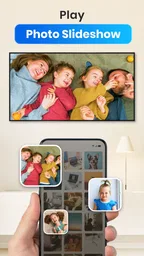
At home, a useful routine is to decide whether I need a video sent to the TV or the entire phone screen mirrored before connecting. That single decision cuts down on fumbling later. For a movie, I’d use the video-first route; for showing a photo sequence, app screen, or game to a group, mirroring may make more sense. When the choice is unclear, a brief test on the TV tells me quickly whether the current method is comfortable enough for longer use.
I’d also treat the phone as a remote for preparation rather than as something to keep tapping throughout playback. Choose the clip, verify the target screen, and then leave the phone alone unless I need to change what is playing. If I’m sharing with others, I would queue up the next item before passing the phone around. That reduces accidental disconnections and keeps private notifications from becoming part of the viewing session.
In a household with several screens, naming and recognizing the intended receiver becomes part of the routine. I would pause long enough to confirm the destination each time, particularly when visiting someone else or using a shared network. It is a small safeguard, but one with real value: a successful connection to the wrong screen is not a successful session. This is the sort of detail that separates a smooth casual cast from an awkward one.
Where the app fits among alternatives
Compared with opening a video in a service that already has its own TV app, a casting utility can be more useful when the content is on the phone or when I want to mirror something beyond a streaming catalogue. A native TV app is often the simpler choice for regular viewing from a specific service: it avoids using the phone as the source and may offer a more direct remote-control experience. I would not install a casting app just to duplicate a setup that already works well through the television.
Compared with a phone’s built-in screen-casting controls, a dedicated casting app can be appealing when I want one place focused on reaching televisions and playing phone videos. The trade-off is another app to learn and another point where device compatibility matters. If my phone and TV already pair reliably through system controls, I’d keep using that path unless this app solves a specific problem. Its value is practical convenience, not a reason to replace a working setup.
It is also distinct from an editing app despite its broader video-player-and-editor category. I would not choose it to trim a clip, add titles, or build a polished social video. Its central job is viewing on another screen. That distinction helps set expectations: people who want to prepare footage should use a dedicated editor, while people who want to share existing videos on a larger display are closer to this app’s purpose.
Limits to keep in mind before settling in
Casting depends on more than the app. The phone, network, television, receiver, and media all contribute to the result, so a stutter or missing device can have several possible causes. I would test another video and verify the connection before deciding that the app itself is unusable. Conversely, if the same issue follows the app across content and compatible screens, it may simply not suit that setup. This is why I prefer a short trial before planning a long watch.
Screen mirroring can also be less discreet and less convenient than sending one video. The phone’s display stays central, and anything visible on it may become visible on the TV. It is therefore not my first choice for private viewing in a shared room or for a long session where I want to use the phone for other tasks. If I need uninterrupted playback while using the handset freely, a television’s own media app or another direct playback route is likely a better fit.
The app is free to start with, while optional in-app purchases range from $2.49 to $13.99 per item. I would try the basic casting workflow before paying for anything, then decide whether the available experience meets my needs. The presence of purchases does not by itself tell me which option I should buy; the useful test is whether the app reliably handles the screens and content I actually use. That approach avoids paying to solve a problem that may turn out to be a network or device setting.
It is developed by InShot Inc. and has a 4.5 average from around 492,000 ratings, with over 50 million installs. Those figures suggest that it has reached a broad audience, but they do not replace checking how it behaves in my own home. It is rated for Everyone, and its current version is 2.5.6; the stated minimum operating-system requirement is 7.0. For a reader choosing an app, the more important practical point is to make sure the phone itself can run it and that the intended TV is supported in the way they plan to use it.
Who I’d recommend it to
I’d recommend Cast to TV, Chromecast & Roku to someone who often has videos on a phone and wants a straightforward way to bring them to a compatible television, or who occasionally wants a group to see a mirrored phone screen. It makes the most sense when casting is a recurring household need and the user is willing to do a quick connection check rather than expect every screen to appear automatically.
I would skip it if I mainly watch through streaming services that already have reliable TV apps, if my built-in casting controls already do everything I need, or if I want editing tools rather than playback and mirroring. I’d also choose another approach for latency-sensitive gaming or private, uninterrupted viewing that should not depend on keeping a phone screen involved.
My overall view is that this is a useful bridge between phone content and the living-room screen, provided I treat it as a focused tool rather than a universal media solution. Its best results come from a repeatable routine: confirm the receiver, select direct playback or mirroring intentionally, and test briefly before settling down. With those habits, it can make casual sharing easier; without them, network and device quirks can turn a simple watch into unnecessary troubleshooting.
What we like
- Supports streaming to several popular TV devices.
- Offers a convenient way to browse and play local media.
- Screen mirroring can help display phone content on a larger screen.
- Simple controls make playback easy to manage.
- Useful for sharing photos and videos with others.
What could be better
- Casting performance depends on a stable Wi-Fi connection.
- Some features may require a paid upgrade.
- Device compatibility can vary by TV model.
- Screen mirroring may introduce noticeable lag.
- Ads may interrupt use of the free version.





