
CamScanner- scanner, PDF maker review
 Analysis by Appsdrops
I judge a scanning app by what happens when I am in a hurry, working with awkward paper, or trying to send a document to someone who needs a clean copy. CamScanner is built for those practical moments: it turns paper into digital files, with tools for making PDFs or JPGs, adding an e-signature, and sending documents by fax or email. My overall impression is that it can make everyday paperwork much easier, though the experience depends on whether its scanning workflow suits your eyesight, hands, device, and tolerance for extra options.
Finding a clear path through a scan
As a productivity app from INTSIG PTE, CamScanner is aimed at people who want more than a camera photo of a page. Its appeal is the document-focused workflow: capture paper, prepare a shareable file, and move it onward without first switching among several unrelated tools. That makes sense for receipts, forms, notes, and records that need to stay legible when viewed on a phone or sent to someone else.
The app is free to install, and it has a 4.6 average from around 5.1 million ratings. That broad reception suggests it is familiar to many users, but a popular rating cannot tell me whether its controls will feel comfortable on a particular screen or for a particular person. I would treat the first scan as a small trial: check whether the camera view and editing steps are easy for you before relying on it for an important document.
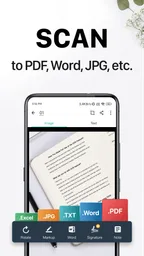
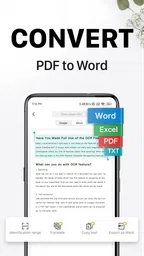
For readability, the key question is not simply whether the page looks sharp. It is whether the finished document is easy to inspect, save, and share without losing track of the original. I find the PDF option useful when pages belong together, such as a signed application or several pages of class notes. JPG is a better fit when I only need to send one image or place it into another workflow. Choosing the output before sharing helps avoid sending a collection of separate images when the recipient expects one document.
A practical workflow for paper-heavy days
One useful habit is to scan related pages as a single task rather than treating each sheet as a separate file. For example, if I am handling a form with an attached receipt, I can prepare the pages together and check the order before sending. That small pause matters: a polished scan is not helpful if page two appears before page one or a supporting sheet is missing. The app’s document-making focus is most valuable when it reduces these handoffs, not when it merely replaces a camera shutter.
I would also make a quick review of the final file part of the routine. A page can look readable in the camera preview but still be awkward to read after it is saved or shared. Zoom in on small print, check that the edges and signature are visible, and open the exported file before sending anything time-sensitive. This is a practical safeguard rather than a special feature, and it is especially worthwhile for forms where a clipped date or faint mark could cause a delay.
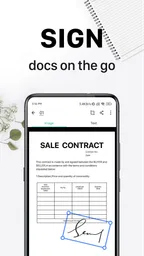
For e-signatures, I see the convenience in completing a straightforward document without printing it just to add a mark. Still, a signature tool should not be confused with every organization’s preferred signing process. If a recipient has specific requirements, I would check those first and use the app only when its output is accepted. That distinction keeps a quick mobile workflow from creating a second round of paperwork.
Motor and sensory comfort in real use
Scanning involves more than tapping a button: I need to hold the phone steady, position a page, and judge whether the result is usable. That can be frustrating for someone with limited hand control, fatigue, or difficulty coordinating a phone and loose paper. A stable surface, good lighting, and placing the page on a contrasting background can make the physical part easier. If holding the phone is the main obstacle, asking another person to capture the page may be more practical than repeatedly trying to correct a shaky image.
Visual comfort also varies. A person who struggles with small text or busy screens may find multi-step editing tiring, even if the final document is clear. I recommend working through one page at a time at first and checking the result at a comfortable zoom level. If you depend on a screen reader, magnification, voice control, or other device-level accessibility tools, test the complete path—from opening the camera to saving and sharing—rather than assuming every control will be equally easy to reach.
The sensory environment matters too. A glossy page under overhead lights can produce glare, while faint printing may be difficult to judge on a small display. Moving the paper near a window or turning it slightly can improve the view before capture. For someone with low vision, the important test is whether the saved file can be enlarged and inspected comfortably, not just whether the app has captured something that looks acceptable at first glance.
A useful trade-off is precision versus effort. Taking extra time to align each page and inspect the result can produce a more dependable document, but it may not be the easiest method for a person with pain, tremor, or limited energy. In that situation, a flatbed scanner at a library or workplace, or help from someone nearby, may be a better choice for a large batch or an especially important form. I would use the phone for convenience, not insist that it is the right tool for every body or task.
Access when you are away from a desk
The app is particularly helpful when paperwork appears at inconvenient times. Imagine being handed a school permission form, a reimbursement receipt, or a signed page while away from home. Instead of carrying the paper around and hoping it stays intact, I can make a digital copy and send it onward by email or fax. That is a meaningful advantage for people who travel, share documents across locations, or do not have a scanner within reach.
It also offers a more organized alternative to taking ordinary photos. A camera roll can quickly become a mixture of family pictures, screenshots, and paperwork, making a needed document difficult to find. A scan-oriented process gives the task a clearer purpose: capture the page as a document, decide whether it belongs in a PDF or JPG, and share it through the route that fits the recipient. I would still use sensible file names and a consistent place to keep important copies; a scanning app does not remove the need for a personal filing habit.
Compared with a built-in phone camera, CamScanner is the more natural choice when I need a document prepared for sending rather than a casual snapshot. Compared with a basic scanner app, its combination of scanning, e-signature, fax, and email tools may reduce app-switching for someone who regularly handles paperwork. But if I only need to photograph a page once in a while, the camera already on my phone may be enough. If I need to archive many pages with a desktop workflow, a physical scanner may be more comfortable and consistent.
There is another situational consideration: a phone is not always the best device for confidential or delicate paperwork. Before scanning, I would consider who can see the screen, whether I am comfortable handling the document on that device, and whether the recipient expects a particular format. The ability to send a file quickly is useful, but speed should not replace checking that the right pages are going to the right person.
Where the experience can still feel demanding
A feature-rich workflow can also create friction. Every additional stage—capture, inspect, adjust, choose a format, sign, and send—asks the user to make another decision. That is manageable when I scan occasionally, but it can feel burdensome when I am tired, working one-handed, or dealing with several documents in a row. I would not assume that having multiple ways to finish a task automatically makes the app easier for everyone.
There is also a learning curve in deciding which output and sending method fit the job. Someone who only wants a quick copy may prefer a simpler camera-based option. Someone who handles sensitive documents may prefer an established scanner and file-management process they already understand. And someone who cannot comfortably position a phone over paper may be better served by a stationary scanner or assistance. Those are not reasons to dismiss the app; they are reasons to match the tool to the task and the person.
The app is free, with in-app purchases ranging from about $0.49 to $399.99 per item. I would explore the basic workflow before paying for anything and pay attention to which actions are available without an extra purchase. That is especially sensible for a casual user who may only need occasional scans. The range means it is worth checking the purchase details in the app store before committing to a feature or ongoing document routine.
It is rated for Everyone, and its current version is 7.28.5.2611020000; the minimum operating system is Android 5.0. It has been available since October 30, 2010, and has passed 500 million installs. Those facts speak to its long-running presence and reach, but they do not guarantee that the current interface will be comfortable for every user or device. I would keep the app updated where possible and test it on the phone I actually plan to use, especially if accessibility tools are part of my daily setup.
Who I would recommend it to
I would recommend CamScanner to someone who regularly turns paper into files and values being able to scan, sign, and send from one mobile workflow. It is a sensible fit for students collecting notes, workers handling receipts or forms, and anyone who often needs a document while away from a desk. The strongest case is repeated, practical use: if paperwork is a regular part of your week, the time saved by preparing a clean file on the spot can add up.
I would be more cautious if scanning is rare, if a phone is difficult to hold or navigate, or if a recipient requires a signing method the app’s output may not satisfy. In those cases, a built-in camera, a simpler scanning tool, a desktop scanner, or another person’s help may be less frustrating. My advice is to try a low-stakes page first, inspect the saved file, and see whether the controls work with your preferred accessibility settings before making it part of an essential routine.
Overall, I see this as a capable mobile paperwork tool with real everyday value, not a universal replacement for every scanner or signing process. Its best quality is bringing several document tasks together when I am away from a desk; its main limitation is that the physical and on-screen steps still demand attention and dexterity. For people whose needs match that workflow, it can make paper easier to manage. For everyone else, choosing a simpler or more accessible alternative is a perfectly reasonable decision.
What we like
- Scans documents into crisp and readable digital copies.
- Automatically detects page edges for cleaner scans.
- Exports scans as PDFs or image files.
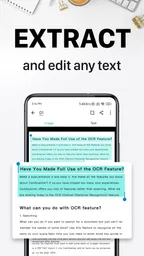
- Supports text recognition to make scanned content searchable.
- Lets users organize scans into folders for easier access.
What could be better
- Some useful features require a paid subscription.
- Free exports may include a watermark.
- Text recognition can misread handwriting or low-quality scans.
- Cloud syncing may require an account and internet access.
- Scanned files can use significant storage space.





