
Camera for Android review
 Analysis by Appsdrops
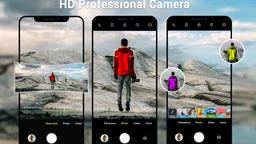
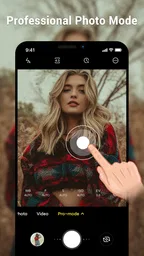
If you want a straightforward way to take a picture on your Android phone, Camera is built around a familiar idea: open the camera, frame what you want, and capture it without a complicated learning curve. Its store summary describes it as an Android native system HD camera app focused on being simple and fast. That makes it an appealing option for first-time users who want to get from installation to a usable photo with as little fuss as possible.
I like the clarity of that promise. Plenty of photography apps put filters, editing tools, and extra controls front and center; this one presents itself as a camera first. Developed by Litter Penguin, Camera is a free photography app for Android, with optional in-app purchases. It has been around since February 28, 2014, and its current version is 6.8.5. Those details give a new user a useful snapshot of what they are considering before tapping install.
What to expect from this Android camera app
The main expectation to set is a modest one: Camera is intended to make taking a photo feel simple and quick. The description calls it a native system HD camera app, so its appeal is less about turning every shot into a creative project and more about reaching the camera experience without extra ceremony. If you mainly want to point your phone at a moment and take a picture, that focus is easy to understand.
Camera has a 4.7 average rating from around 419,000 ratings, with roughly 5,500 written reviews. It has also passed 50 million installs. Those figures suggest that many people have tried it, though they don’t tell you whether it will suit your particular phone or photography habits. I’d treat them as context, then judge the app by the simple question that matters most: does it make taking the kind of pictures you want feel straightforward?
The app is free to install and is rated for Everyone. Optional purchases are listed at prices ranging from $2.99 to $9.99 per item. If you are just looking to try the camera, the free starting point makes the first step low-commitment. Before buying anything, I’d take time to see whether the basic experience already meets your needs; you don’t need to make a purchase just to begin exploring the app.
Compatibility is another practical part of the decision. Camera requires Android 6.0 or later, so checking your phone’s Android version before installing can save you a little time. If your device meets that requirement, you can move on to setup and see how the app behaves for you. The release date and version number are useful background, but your own first test is more meaningful than assuming the experience will be identical on every Android device.
Before opening the camera
For a first-time user, the best approach is to keep the goal small. You don’t need to plan a perfect portrait or master a set of controls before you start. Decide on one easy subject—a cup on a table, a plant near a window, or a view you can safely photograph—and use that first picture to learn the basic rhythm of the app. A low-pressure test makes it easier to notice what feels clear and what deserves a second look.
It also helps to think about the result you want. A quick photo to remember something calls for a different level of effort from an image you plan to share or keep for a long time. Camera’s emphasis on simplicity makes it a natural candidate for everyday snapshots, but a little care with framing and light still makes a difference. You can start with the app’s basic purpose and refine your approach after you have taken a few pictures.
Getting started without overthinking setup
Install Camera from the app store, then open it and take a moment to look at the screen before rushing into a shot. A camera app is most useful when you can comfortably identify how to begin capturing an image. Rather than assuming that every control works the same way on every phone, let the interface guide you. If a label or symbol is unfamiliar, pause and inspect it instead of tapping randomly while trying to photograph something fleeting.
When Android displays a request related to using the camera, read it and make your choice based on what you want to do. The app’s purpose is photography, so camera access is central to taking a picture. If you see another request, consider it on its own terms; there’s no need to approve anything automatically. This calm, deliberate approach is especially helpful if you are new to installing camera apps or simply prefer to understand what you are agreeing to.
Next, point the phone toward a clear, still subject in decent light. Hold the device steadily and check that the subject is framed the way you want. For a first try, avoid moving around or choosing a scene with lots of motion: a simple subject makes it easier to tell whether you have understood the basic capture process. The goal is not to make a flawless image on the first attempt, but to complete one satisfying, uncomplicated shot.
Once the photo is taken, check the result using the options available on your device. This is a good moment to confirm that the image came out as expected and to decide whether you want to try again with a small adjustment. If the picture is too dark, move toward better light. If the subject looks cramped, give it more space in the frame. Small changes are easier to understand when you alter one thing at a time.
Your first successful photo
My recommended first success is deliberately ordinary: photograph an object that will stay still while you learn. Choose a place with even light, hold the phone comfortably, and frame the object before capturing it. Then look at the picture and ask yourself whether the main subject is easy to see. If it is, you have already achieved the most important first step: opening the app, taking a picture, and understanding the result.
That simple exercise also gives you a fair sense of whether Camera matches your expectations. You can notice how quickly you get from opening the app to taking a photo, whether the controls feel approachable, and whether the image is suitable for your everyday use. I find this a more useful test than spending the first session hunting for advanced options. A camera app should earn your confidence through the basic action you actually came to perform.
If the first picture doesn’t look quite right, don’t assume the app is difficult or that you have done something wrong. Photography depends on the subject, the light, how steadily you hold the phone, and how you compose the frame. Try the same object again after changing just one of those things. For instance, improve the light or adjust the framing, then compare the results. That gives you a practical way to learn without turning a quick snapshot into a technical lesson.
When you are happy with the photo, repeat the process with a different subject. A second attempt helps you see whether the first success was a one-off or whether the app feels comfortable for ordinary use. You might try a close object and then a wider scene, keeping your expectations realistic. The purpose is to build familiarity with the camera, not to chase a particular look that the app has not promised.
Common points of confusion
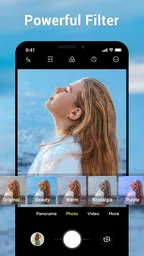
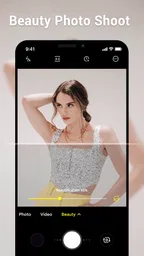
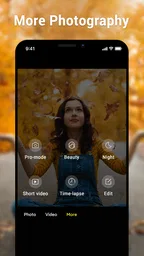
One common misunderstanding is to expect a simple camera app to be a full photo-editing suite. Camera is presented as a camera, so it makes sense to begin with capturing images rather than looking for a complete workflow for editing, organizing, or sharing them. If your main goal is to take a picture quickly, that focus can be a strength. If you want a broader set of creative tools, think about that distinction before deciding whether this is the right fit.
Another point that can trip up a first-time user is assuming that every Android phone presents the same camera experience. The app’s description refers to Android’s native system camera, but the way an app feels can still depend on the device you use. If something looks different from what you expected, take a moment to explore the screen calmly and try a basic photo in a familiar setting. A short hands-on test is more useful than judging the app from assumptions about another phone.
It’s also easy to mistake a disappointing photo for a problem with the app. A dim room, a moving subject, or an unsteady hand can affect the result, even when the capture process itself is simple. Before changing settings or searching for complicated fixes, try a still subject in brighter light and hold the phone steady. That small comparison helps you identify whether the scene was the issue and gives you a better basis for deciding what to do next.
Finally, don’t feel pressured by the presence of in-app purchases. The app is free to install, and listed purchases are optional. For a first session, focus on the free experience and see whether it covers the job you came for. If you later consider a purchase, check what it offers in the app store and decide whether that added value matters to you. Taking this step at your own pace keeps the experience clear and avoids spending before you know what you need.
Making the most of everyday photography
Once the first picture feels comfortable, Camera can become a handy option for everyday moments. Keep your expectations tied to the task: quick snapshots, simple framing, and a fast route to taking a photo. That practical mindset is especially useful when you don’t want to pause and work through a lengthy creative process. If the app opens and lets you capture the moment you care about, it is doing the job its straightforward pitch sets up.
You can improve your results without needing to learn photography jargon. Pay attention to light, keep the phone steady, and check that the subject is not awkwardly cut off at the edge of the frame. Before taking a picture, look once around the edges of the screen as well as at the main subject. These small habits work with any camera and make a good next step after you have become comfortable with the basic controls.
For a more deliberate photo, take a beat before pressing the capture control. Decide what should draw the viewer’s attention, then frame the shot so the subject is easy to recognize. If the first attempt misses the mark, make one change and try again. I like this approach because it keeps the app’s simple premise intact while giving you a little more control over the finished image.
The best way to evaluate Camera is to use it for the kind of photo you actually take. A quick snapshot test tells you more than a long list of imagined possibilities. If you mainly take casual pictures, try it in the situations where you would normally reach for your phone camera. If you are after a specialized photography workflow, consider whether a deliberately simple camera app is enough for you before making it your main choice.
Who may enjoy Camera
Camera is worth considering if you want an Android photography app whose central promise is speed and simplicity. It may suit a new smartphone user who wants a gentle first step, someone who prefers a direct camera experience, or anyone curious about trying an alternative app for basic picture-taking. Its broad install history and strong average rating are encouraging signs of interest, but your own device and habits should guide the final decision.
It may be less compelling if what you really want is a complete creative studio with an extensive set of editing or production tools. The app’s identity is presented around being a camera, so I would approach it with that role in mind. Keeping expectations aligned with the product’s simple pitch makes it easier to decide whether the app feels useful rather than wishing it were designed for a different purpose.
For a first-time user, the reassuring part is that you can begin with a very small commitment: install the free app, open it, and take one photo of a still subject. There is no need to master everything at once. If the first result is clear and the process feels natural, try a few more everyday shots. If it doesn’t suit you, you can make that decision after a practical test rather than relying on assumptions.
My final take on Camera
Camera keeps its appeal simple: it is a free Android photography app positioned as a native system HD camera that aims to be simple and fast. I appreciate that direct purpose, especially for someone who just wants to get started without treating a quick snapshot like a major project. Its Everyone rating, long presence in the app marketplace, and substantial user adoption may help a first-time installer feel more at ease, while the actual experience on your phone remains the deciding factor.
My advice is to start with one easy subject, pay attention to how the app guides you, and judge the result against your everyday needs. Check the Android requirement before installing, take your time with any system prompts, and don’t feel that you need to explore optional purchases during your first session. If a straightforward route from opening the app to capturing a usable picture is what you want, Camera is a sensible app to try. Begin small, take that first photo, and let your own experience tell you whether it deserves a place on your home screen.
What we like
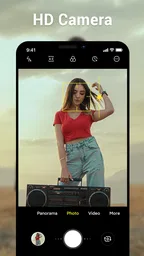
- The interface makes common camera controls easy to find.
- You can switch between front and rear cameras quickly.
- A timer helps with group photos and hands-free shots.
- Grid lines make it easier to compose and align photos.
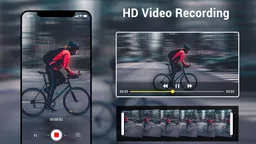
- The app can capture video without needing a separate tool.
What could be better
- Image quality depends heavily on your phone's camera hardware.
- Low-light photos may look grainy or lose detail.
- Some features may vary between Android devices.
- Large photos and videos can use storage quickly.
- Camera access requires sensitive permissions to work.





