

Blink Home Monitor review
 Analysis by Appsdrops
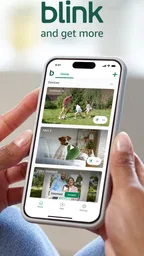
I think Blink Home Monitor makes the most sense when a household wants a shared way to keep an eye on its Blink security setup, rather than another general-purpose smart-home dashboard. The app is made by Immedia Semiconductor, is free, and sits in the tools category. Its focus is practical: checking in on home security through the Blink system. That clear purpose is useful, but it also sets a boundary. If you do not use Blink equipment, this is unlikely to be the monitoring app you want.
Sharing one home without sharing every boundary
In a shared household, security is rarely just a matter of one person opening an app. Someone may be away at work, another person may be home, and a neighbor or relative might be helping while the household is traveling. A phone-based monitor can make it easier to check the home without relying on one person to be physically present. I would treat Blink Home Monitor as a companion to the Blink setup, not as a substitute for agreeing on who is responsible for checking it and how the household will respond to something concerning.
A realistic use case is a household leaving for a weekend trip. One person can use the app to check in, while the people staying behind know that the security system is being monitored. The useful part is not simply having another screen; it is having a shared understanding of what a check-in means. Before relying on it, I would decide who handles routine checks, who should be contacted if something looks wrong, and whether everyone understands that an app alert or view is not the same as a person being available to respond immediately.
This distinction matters especially when more than one person uses a device. A phone left on a kitchen counter, for example, may be visible to guests or children. I would avoid treating that phone as a communal control point unless everyone in the household is comfortable with what it can show and who can use it. A better everyday habit is to keep access on the devices of the people who genuinely need it, and to make the household’s expectations explicit rather than assuming that everyone has the same level of access or responsibility.
Start with account ownership and device access
Setup should begin with a simple question: whose account and phone are being used to manage the household’s monitoring? That choice affects practical boundaries, even before anyone checks the home. The person setting things up should make sure the account is theirs to manage, use a device they can secure, and think through what happens if that phone is replaced, shared, or no longer used by that person. This is ordinary account hygiene, but it becomes more important when the app relates to home security.
I would also agree on who should be able to use the monitoring setup before passing a phone around. Avoid sharing account credentials casually just to make access convenient; it is harder to keep track of responsibility when several people use the same sign-in. If another household member needs access, handle that through the options available in the Blink system and app rather than assuming that the app offers a particular family-sharing arrangement. That keeps the decision grounded in what the product actually supports on your setup.
For a household with a shared tablet or an older spare phone, I would pause before installing the app there. Shared devices can be convenient, but they blur the line between a private account and a household screen. Consider who can unlock the device, whether notifications might appear where visitors can see them, and whether the device will remain in a place where children can tap through the app. Those are not reasons to avoid the app; they are reasons to choose the device deliberately.
The app has been available since January 7, 2016, and its current version is 62.0. That long-running presence may reassure someone looking for an established companion app, but I would still approach setup as a present-day task: check that the phone meets the minimum operating-system requirement of 10, install the current release offered for the device, and follow the setup prompts for the equipment being used. Compatibility is a practical first check, especially if a household is trying to reuse an older phone rather than install the app on a newer personal device.
Coordinate around routines, not assumptions
Monitoring works best when it fits a routine. If one person checks the app each morning and another is responsible for checking when the household travels, that is clearer than expecting everyone to watch it constantly. I would keep the routine modest and specific: decide when a check is useful, who owns that check, and how to let the rest of the household know if a response is needed. This avoids turning a security tool into a source of repeated, uncoordinated checking.
One non-obvious trade-off with shared monitoring is that more people looking at the same home can create uncertainty instead of reassurance. If one person assumes another has already checked, a task can be missed; if everyone checks independently, people may worry about the same event without knowing whether anyone has acted. A simple household agreement helps more than installing the app on every available phone. Decide who is the primary person for routine checks and what the backup plan is when that person is unavailable.
Another useful habit is to separate ordinary check-ins from action. Looking at the app may help someone understand what is happening at home, but the household should decide in advance whom to contact if a situation needs attention. That could be another adult in the household or a trusted person nearby, depending on the circumstances. I would not assume that installing a monitoring app automatically creates a response plan; the human part still needs to be agreed on.
Notifications and phone settings deserve a little thought as well. If the person responsible for checking the home keeps the phone on silent, in a bag, or out of reach, the app may be less useful in that moment. On the other hand, putting security-related information on a shared lock screen may expose it to people who do not need it. I recommend finding a balance on each person’s own device instead of using one household phone as the answer to every coordination problem.
Age, trust, and a sensible role for children
Blink Home Monitor has an Everyone content rating, which makes its store age classification broad. In a household, though, that rating is not the same as a recommendation to give every child responsibility for home security. I would keep the account and the decisions about responding with a trusted adult. Younger family members can be told, in age-appropriate language, what the household’s monitoring setup is for, without being asked to manage alerts or decide what a security concern means.
That approach is especially helpful when children use a parent’s phone or a shared device. The issue is less about the app’s age label and more about the responsibilities and information connected to the account. Adults should decide where the app is installed, who can unlock that device, and what the household wants children to do if they notice something unexpected. In most homes, a clear instruction to tell an adult is more suitable than asking a child to investigate or make a security decision.
Trust also means being open with the people who live in the home. If monitoring is part of the household routine, I think everyone old enough to understand should know that it is in use and who manages it. That makes the app feel like a practical safety tool instead of a hidden way to keep tabs on other household members. I would use it for home security, not as a replacement for direct communication or mutual trust.
What it does well, and where another option fits better
Compared with a generic home-monitoring app, Blink Home Monitor is a more focused choice: it is intended for people using Blink rather than a neutral hub for unrelated brands. That focus can be an advantage if your household already uses Blink equipment, since you can keep the relevant monitoring in the companion app instead of searching through a broad smart-home interface. The trade-off is equally clear. If your devices are from different systems, or if you want one app to bring several manufacturers together, a broader smart-home platform may be a better fit.
The app has an average rating of 4.4 from around 225,000 ratings, with about 33,000 written reviews, and it has been installed over 10 million times. Those figures suggest that many people have tried it, but popularity does not tell me whether it matches a particular household’s equipment or habits. I would use them as a reason to consider it, not as a substitute for checking that your own Blink setup is compatible and that the people who need access can use the app comfortably.
Its free price removes the need to pay just to try the app, and the Everyone age rating makes it easy to find in a household context. Still, “free” does not mean it is useful without the right setup: its value depends on having the Blink system it is meant to accompany. If you are choosing security equipment from scratch, compare the complete system and the way its app fits your household rather than judging this app in isolation. If you already use Blink, the app is a natural place to start; if not, choosing a different ecosystem may be more sensible than installing a companion app with nothing to monitor.
I would also set expectations around what a phone app can and cannot do for a household. It can make remote checking more convenient, but it cannot guarantee that someone is watching continuously or that a person will be available to act. Battery level, connectivity, phone settings, and the user’s routine can all affect how useful a check-in feels in practice. Treat the app as one part of a security arrangement, alongside sensible device setup and a clear plan for who to contact when something needs attention.
My household verdict
For a home that already relies on Blink, I find Blink Home Monitor a sensible, focused companion: free, established, and straightforward in purpose. Its strongest household use is giving the people responsible for the home a way to check in without turning every phone into a shared control panel. The best setup is usually the one with clear account ownership, a small number of responsible users, and an agreed routine for checks and follow-up.
I would skip it if you do not have Blink equipment, if you need one dashboard for a mix of unrelated smart-home brands, or if your household expects an app alone to coordinate everyone’s response. I would also avoid handing it to children as a security responsibility simply because the age classification is Everyone. Used with sensible account boundaries and adult oversight, it can be a useful part of a shared home routine; used without those decisions, it can create confusion about who is watching and who should act. That is why my recommendation is positive but specific: choose it when Blink is already part of your home and your household is ready to decide how monitoring is shared.
What we like
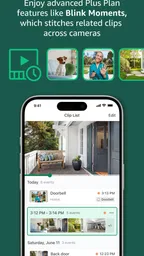
- Live video lets you check on home activity from anywhere.
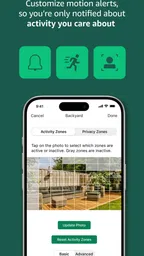
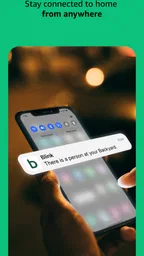
- Motion alerts can help you respond quickly to unexpected activity.
- Two-way audio lets you speak through compatible Blink cameras.
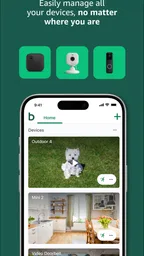
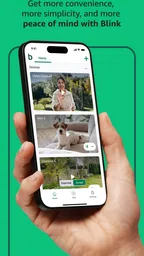
- Multiple cameras can be managed from one account.
- Scheduled arming helps automate when motion detection is active.
What could be better
- Some features require a separate Sync Module or subscription.
- Cloud storage options may depend on your plan and region.
- Alerts can be triggered by pets or other routine movement.
- Live view can drain the phone battery during extended use.
- Camera compatibility and features vary by model.





