


Authenticator App - SafeAuth review
 Analysis by Appsdrops
I think about an authenticator most when something else is already going wrong: I’m trying to sign in, I’m away from my usual devices, or a login page is waiting for a code. Authenticator App - SafeAuth is a security tool for those moments, built around temporary one-time passcodes and ways to protect access to the app itself. Its appeal is straightforward, but the practical question is whether it fits the way you move between networks, phones, and accounts.
SafeAuth is made by SafeAuth Services and is free to install. It has an average rating of 4.3 from around 172,000 ratings, with more than 10 million installs. Those numbers suggest a widely used option, but they don’t tell me whether its setup suits a particular account or whether I have a reliable recovery plan. With an authenticator, those details matter more than a crowded feature list.
When the network is part of the login problem
Authenticator codes are useful precisely because a sign-in can involve several moving parts: the service asking for proof, the phone showing a code, and the connection that brings the login page to life. SafeAuth’s focus is on generating OTP codes for accounts protected by two-factor or multi-factor authentication. I would treat the code as one step in a sign-in process, not as a replacement for a working internet connection wherever the account itself needs one.
That distinction becomes important on public Wi-Fi or in a building with unreliable reception. If a website is slow to load, a fresh code in an authenticator will not fix the connection to that website. It can, however, keep the second-factor step separate from the browser or app where I’m signing in. That separation is useful when I’m switching between apps, and it also makes clear why an authenticator cannot solve every network-related login failure.
I would test the full setup while I still have dependable access to the account: enable two-factor authentication, add it to SafeAuth, and complete a sign-in before relying on it on a trip or during a busy workday. That simple rehearsal catches a surprisingly common mistake—adding a code generator but never checking that the account accepts its codes. It also gives me time to save any recovery options the account offers, rather than discovering their importance when I’m locked out.
The key trade-off is that a code helps only when I can reach both the authenticator and the service I’m signing into. If a service requires a network connection, being able to view a code does not remove that requirement. I would not choose SafeAuth on the assumption that it can restore a broken connection or bypass a service’s sign-in checks.
Keeping a sign-in manageable across apps
A realistic everyday case is signing into a work account on a laptop while carrying only a phone. I can keep the account’s login screen open on the laptop, switch to SafeAuth on the phone, read the current code, and return to finish the sign-in. The convenience is less about speed than about keeping the second step distinct from the password and the service’s own login screen.
That workflow still has a small point of friction: moving between devices can cost time, and a code changes. I’d avoid copying it into a note or messaging it to myself just to make switching easier. The safer habit is to read it directly from the authenticator and enter it promptly. If I’m logging in on the same phone, repeated app switching may feel less smooth than using a built-in prompt or a device-based sign-in method supported by the service.
Useful on the move, with a few practical limits
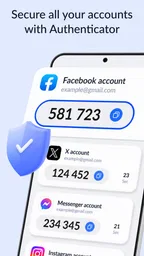
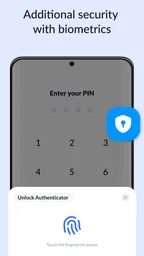
SafeAuth is a mobile tools app, and its store summary highlights OTP codes plus PIN and biometric protection. That combination addresses two different concerns: obtaining a second factor for accounts and adding a barrier before someone can open the authenticator on the phone. I like that distinction because protecting the phone generally is not the same as protecting the collection of account codes inside one app.
On a commute, at a hotel, or between meetings, I’d keep the phone accessible but avoid assuming that any convenient screen is a safe place to expose a code. A biometric or PIN lock can add a useful pause before the app opens, especially if the phone is handed to someone else briefly. It does not eliminate the need for a secure device passcode, nor does it protect against every way an account or phone could be compromised.
When comparing it with the usual alternatives, I’d weigh SafeAuth against an authenticator bundled with a password manager, a platform’s built-in sign-in tools, and other standalone code generators. A bundled tool can be convenient if I already rely on that manager, while a platform option may fit better if I keep my digital life within one device ecosystem. SafeAuth’s straightforward role may suit someone who wants a dedicated authenticator rather than another feature buried inside a larger app. The right choice depends on where you already keep credentials and how you plan to recover access.
SafeAuth is free to download, though in-app purchases range from $4.99 to $99.99 per item. I would check what a purchase actually covers before paying; a broad price range alone does not tell me which option is useful for my setup. If all I need is a basic second-factor workflow, I would first try the free app and judge it by whether it fits my accounts and daily routine.
Plan for a lost phone before it happens
The most important weakness of any phone-based authenticator is the phone itself becoming unavailable. It might be lost, damaged, out of battery, or replaced before I’ve arranged access to my accounts. PIN and biometric protection help control who opens the app on a working phone, but they are not a recovery plan for a missing one.
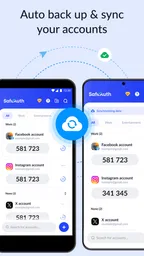
Before moving accounts into an authenticator, I would look at each service’s own recovery process and save its backup codes somewhere separate from the phone. I’d also check whether that service offers another trusted sign-in method. This is a practical precaution, not a claim about a particular SafeAuth backup feature: recovery options often belong to the account provider, and the user needs to understand them before a lockout.
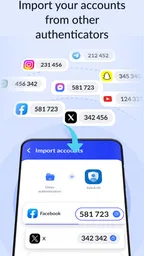
If you change phones, do not assume that installing the app again will automatically restore every account entry. Treat the move as a small security migration: confirm how each account can be transferred or re-enrolled, keep the old device until the new setup has been tested, and retain the recovery route until everything works. That may feel slower than simply replacing a phone, but it can prevent an urgent sign-in problem later.
Another useful habit is to add accounts one at a time and test each one immediately. If a code fails, I can focus on that service’s enrollment step rather than trying to diagnose several newly added accounts at once. I’d also check the phone’s displayed time settings if codes are repeatedly rejected, since time-based authentication can be sensitive to clock mismatch. This is a general troubleshooting step for OTP workflows, not a special repair function I’m attributing to SafeAuth.
What to consider if you are careful about data
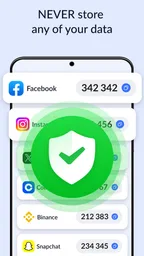
Authenticator apps sit close to valuable accounts, so I would be deliberate about where their codes live. SafeAuth’s PIN and biometric options are relevant here, but a lock on the app is only one layer. I’d use a strong device lock, avoid sharing screenshots of setup codes, and be cautious about anyone asking me to reveal a one-time code. A legitimate sign-in may ask for a code in its own login flow; an unexpected message asking me to send one deserves suspicion.
Connectivity can affect privacy choices too. A code generator and the service being accessed are separate parts of the experience, and I would not infer from that arrangement how the app handles every kind of data. Instead, I’d review the app’s current privacy information in the store and consider what I am comfortable installing. For especially sensitive work accounts, I would follow my organization’s approved setup rather than choosing an authenticator independently.
The app is rated for Everyone, and its current version is 1.7.7, with Android 7.0 or later listed as the minimum operating-system requirement. That makes compatibility worth checking before installation, particularly on an older phone. The age rating is not a security assessment; adults managing financial, work, or personal accounts should still make their own judgment about recovery, device access, and account policies.
There are situations where I would skip a standalone authenticator. If I routinely lose access to my phone and have no dependable recovery method, adding more accounts to a phone-based code app may increase stress rather than reduce it. If a service offers passkeys or a managed company sign-in that better fits my devices and recovery needs, I would compare those options instead. And if I only need a single account’s second factor, that service’s built-in method may be simpler than installing another app.
Who is likely to get the most from it?
I’d recommend SafeAuth to someone who wants a dedicated place for OTP codes and values having PIN or biometric access protection available. It can be a practical fit for people who sign into several services from a computer while keeping their phone nearby, or who want a separate second-factor app instead of relying on a password manager for everything.
I’d be more cautious for someone who expects an authenticator to work like a complete account-recovery system, or who wants every sign-in to happen without switching devices. The app’s central job is narrower: it helps with the code step. A password manager may be a better fit if the main need is organizing passwords alongside authentication, while a platform sign-in option may be more convenient when it works across the devices and services the user already depends on.
The app has 2,100 reviews in addition to its much larger rating count, and that makes it sensible to read recent user feedback for issues that match your own phone or workflow. I would not treat popularity as a substitute for testing. Add one low-stakes account first, complete a sign-in, and make sure you understand how you would regain access if the phone disappeared.
My connectivity verdict
My view is that SafeAuth is most useful when it makes a second-factor step feel routine without encouraging me to neglect the account’s recovery plan. Its dedicated OTP role, alongside PIN and biometric protection, gives it a clear purpose. The less convenient side is equally clear: I still need to move between the login screen and the phone, the account’s own network requirements remain, and losing access to the device can turn a simple code workflow into a recovery problem.
For someone willing to set it up carefully, test each account, and keep recovery options separate, Authenticator App - SafeAuth is a reasonable free place to start. I would choose it for a straightforward, phone-centered second-factor routine—not because an authenticator can make connectivity dependable or guarantee access under every circumstance. That is the practical line I’d keep in mind: useful for proving it’s me during a login, but only as reliable as the phone, account setup, and recovery choices around it.
What we like
- Generates verification codes without requiring a network connection.
- Supports time-based one-time passwords for compatible accounts.
- Keeps two-step verification accessible from a single app.
- Adds a quick extra security check at sign-in.
- Can help protect accounts even if passwords are exposed.
What could be better
- Losing the device can make account recovery difficult.
- Codes expire quickly and must be entered promptly.
- A phone backup may not restore authenticator entries.
- It cannot prevent phishing if a code is shared with an attacker.
- Some services require separate setup for authenticator-based sign-in.





