






AOL: Email News Weather review
 Analysis by Appsdrops
When news, weather, and email each live in a separate app, even small checks can turn into a string of distractions. AOL: Email News Weather brings those everyday tasks together, which makes it appealing if you want a single place to glance at the morning headlines, check conditions, and deal with your AOL email. I see its strongest role as a convenient hub in a broader productivity routine—not as a replacement for every specialist tool.
A calmer starting point for the day
Before using an all-in-one app, it is worth noticing how often you switch between inbox, forecast, and news. Each switch can invite another scroll or notification check. AOL’s approach is practical: keep these familiar activities close together so you can handle them in one visit. That can make a real difference if your goal is simply to get oriented, rather than spend the morning browsing.
As a productivity app, it is aimed at everyday personal use, not project management or deep work. I would open it to see whether the weather calls for a coat, catch up on current stories, and check messages that need a quick response. It is less suited to someone who wants an elaborate task system, a specialized newsroom experience, or a feature-rich email client for managing a busy work account.
The app is developed by AOL Media LLC, and its long-running presence gives it a familiar feel for people who already use AOL email. It is free to install, with in-app purchases listed from $1.99 to $99.99 per item. That price range is worth keeping in mind: the core app may be free, but users should review any purchase prompts carefully and decide whether optional spending fits their needs.
One visit, three kinds of information
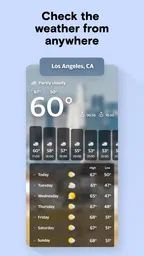
The useful idea is not merely that several tools sit in one app. It is that they serve different parts of the same quick decision. Weather can inform what you wear or whether you adjust a commute; headlines provide context for the day; email catches anything that requires a reply or follow-up. When you check them in a consistent order, you can leave with a clearer sense of what needs attention.
For example, imagine checking your phone before leaving home. You look at the forecast first, then scan a few headlines, and finish by reviewing new mail. If a message changes your plans, you can respond while it is fresh rather than discovering it later in a separate inbox. This is a modest workflow, but it is the kind of small reduction in app-hopping that makes an all-in-one utility worthwhile.
The trade-off is that combining these functions does not automatically make them equally strong. If you rely on highly detailed weather tools, carefully curated news, or advanced email controls, a dedicated app for that job may suit you better. I would treat AOL as a convenient daily overview and keep specialist alternatives for the moments when a quick glance is not enough.
Capture messages without letting the inbox take over
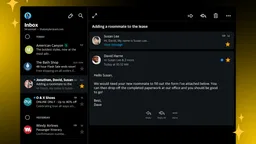
Email is often where a simple morning check becomes an unplanned work session. My practical advice is to decide what counts as an action before opening the inbox: reply to a message that takes a moment, note a task that needs more time, and leave low-priority mail for a planned check. This keeps the app’s convenience from turning into an excuse to monitor messages all day.
A useful habit is to pair an email check with a real transition, such as arriving at work or finishing breakfast. If a message requires a longer response, make a mental note or move to the tool where you track commitments instead of trying to manage a whole project inside email. AOL can be part of the capture step, but a mailbox is not a dependable substitute for a task list when deadlines and multiple people are involved.
Another small but helpful distinction is between information and action. A headline may be worth reading but not worth pursuing immediately; a forecast may influence the day without needing a reminder; an email may demand a reply. Sorting those into “read,” “know,” and “do” reduces the chance that every item feels equally urgent. That approach works especially well when you are using one app for several kinds of content.
Build a repeatable check rather than a scrolling habit
I would use a short routine with a clear stopping point: check the forecast, scan headlines for anything relevant, then handle only the messages that genuinely need attention now. The order matters less than the boundary. Without one, news can absorb more time than intended and the inbox can pull you into unrelated conversations.
For people who prefer to keep their phone quiet, it also helps to separate a planned check from reactive checking. Open the app at a time that already exists in your day, rather than reaching for it every time you have a spare minute. This is not a special setting or an automation feature; it is a way to use the app’s combination of content without letting that combination create more interruptions.
AOL’s value is clearest when you want a broad snapshot. It can make a morning routine feel less scattered because weather, news, and email are close at hand. It is not necessarily the right place for long-form reading or a sustained email-cleanup session. If you want either of those, moving to a dedicated service can be a more intentional choice than trying to do everything in one stop.
Where the all-in-one approach can fall short
The main limitation is also the app’s central trade-off: putting different services together can make the experience convenient, but it may not match the depth of tools built around a single purpose. A person who depends on detailed inbox organization may prefer a dedicated mail client. Someone who wants a tightly tailored news diet may favor a news app designed around that habit. And if weather decisions are especially important, a focused forecast service may offer the kind of detail they expect.
There is also a focus cost. News and email are both capable of pulling attention away from the task that brought you to the app. I would avoid opening it when I have only a few minutes before a meeting if I know I am likely to follow a headline or start a long reply. The combined layout is most useful when you can check what matters and leave, not when you are trying to avoid every possible distraction.
It is sensible to think about the app as a personal convenience rather than a complete productivity system. Keep commitments in a calendar or task manager you trust, use email for communication, and let the news and weather components support decisions rather than dictate the day. That division of labor avoids asking one app to solve problems it was not designed to handle.
Who is likely to get the most from it
I would recommend trying it if AOL email is already part of your routine and you like the idea of checking headlines and weather in the same place. It can also suit someone who wants a straightforward daily overview and does not need every tool to have extensive customization. The free entry point makes it easy to assess whether that simpler workflow feels natural, while the optional purchases are a reason to check what is being offered before buying.
People who prefer highly specialized apps should be more cautious. If you already have a favorite weather service, a carefully organized news reader, and an email client that handles complex work, adding another hub may create duplication rather than save effort. The best choice depends on whether convenience matters more to you than having each function tuned to your own preferences.
The app has an average rating of 4.1 from around 186,000 ratings, and it has been installed over 10 million times. It is rated for Everyone 10+, and it has been available since July 22, 2010. Those figures suggest a widely used, established option, but they do not tell you whether its mix of content and email matches your habits. A short trial of your own routine is a better test.
My recommendation
AOL: Email News Weather makes the most sense as a convenient checkpoint: a place to orient yourself, not a command center for every part of your day. I like the practical pairing of information that people often check together, especially when the alternative is bouncing between apps without a clear purpose. Its strongest use is a quick, repeatable routine that ends once you know what the day requires.
I would choose it if you value having AOL email, news, and weather within one app and are comfortable keeping deeper work in more focused tools. I would skip it if you want advanced controls across all three areas or know that a combined feed will keep you scrolling. Used with a clear stopping point, it can reduce small bits of friction; used without one, it can simply gather several distractions under the same icon.
What we like
- Unified inbox makes it easier to manage multiple email accounts.
- Customizable swipe actions help speed up routine inbox tasks.
- News alerts provide quick updates on major stories.
- Weather forecasts include useful details beyond the current temperature.
- AOL Mail supports attachments for sharing photos and documents.
What could be better
- Some features may require an AOL account.
- Advertisements can appear while using the app.
- News coverage may not match every reader's interests.
- The app requires internet access for updated content.
- Notifications may need adjustment to avoid unnecessary alerts.





