



Amazon Photos: Photo & Video review
 Analysis by Appsdrops
When photos are scattered across several phones, the hard part is often finding the right picture later—not taking it. I find Amazon Photos most useful as a place to gather and revisit personal images, especially in a household where people take pictures of the same events on different devices. It is a photography app from Amazon Mobile LLC, and its appeal is less about editing photos than about keeping a growing collection accessible.
That distinction matters before you install it. This is not the photo editor I would choose for retouching portraits, adding elaborate effects, or building a polished album for social media. I’d consider it when I want a practical archive alongside the camera roll already on my phone, and when Amazon’s storage options fit the way I manage accounts and media.
How it fits into a shared household
Picture a weekend gathering: one person takes photos on a phone, another captures a few short clips, and everyone later asks for the same handful of pictures. A cloud photo library can make that collection easier to revisit than a thread of messages or a folder passed around by hand. In this kind of everyday situation, Amazon Photos can serve as a separate home for images rather than forcing the phone’s camera roll to do every job.
The practical benefit is not that every household member automatically sees everyone else’s pictures. I would treat each person’s account as a boundary and decide deliberately which account is being used on each device. Before uploading a shared tablet’s camera roll, for example, I’d check whose account is signed in and whether those pictures belong in that person’s library. That small habit helps avoid mixing private snapshots with household photos.
For a couple or family, a useful workflow is to agree on one account for a particular shared device, then use that device consistently for pictures meant for that library. If everyone wants a separate archive, keeping personal accounts distinct is more sensible than assuming one shared login will neatly organize everything. The app is a storage and browsing choice; it does not replace a household agreement about who should be able to see which images.
Coordination also benefits from a little planning. I’d choose a simple naming or sorting habit outside the app—such as keeping track of which device took a set of event photos—if several people contribute to a collection. That may sound modest, but it helps when someone later asks for a specific picture and the household has more than one camera roll in play. A cloud library makes images easier to keep together only when people are clear about where they are sending them.
Start with account boundaries, not storage
On first use, I’d focus on the account decision before moving a large photo collection. The app is associated with Amazon, so anyone who already uses an Amazon account may find that context familiar. But a shared phone or tablet deserves extra care: being signed in to a household member’s account can affect where photos are stored and who can browse that account’s library. I would not treat a device used by several people as though it were automatically a shared photo space.
There is also a difference between using one account on multiple personal devices and having several people use the same account. The former can make sense when one person wants a library available across their devices. The latter can blur ownership and privacy, particularly when people take pictures they would rather keep personal. For a family device, I’d agree on its account and purpose before enabling a photo workflow, rather than sorting out the consequences after images have accumulated.
Storage expectations are worth checking too. The app’s headline storage benefit is tied to Prime membership: Prime members get unlimited photo storage and five gigabytes for video. That makes photos and videos meaningfully different parts of the decision. If your household mainly saves still images, the arrangement may suit your needs differently than if you regularly keep long clips. I’d check the current account terms in the app before relying on it as the only home for important videos.
For people without Prime, the app is free to download, but it also lists in-app purchases ranging from $0.99 to $11.99 per item. I would look at the available options and the account’s current storage situation before moving a whole camera roll. The key question is not simply whether the app costs nothing to install; it is whether the storage setup matches the size and type of collection you intend to keep.
Make the library easier to live with
My most useful tip for any growing photo archive is to begin with a small, intentional test. Add or view a manageable batch first, then check that the pictures appear under the account you expected and that the app suits your browsing habits. This is especially helpful when setting up a family tablet: a short trial can reveal whether the chosen account and device arrangement make sense before the library becomes difficult to untangle.
A second practical habit is to treat videos as a separate storage decision rather than assuming that photo storage automatically covers every kind of media in the same way. If a family records school performances, trips, or celebrations, video can become the part of the archive that needs the most attention. I’d decide which clips are worth keeping in the cloud and which can remain elsewhere, instead of uploading everything without considering the video allowance attached to the account.
For coordination, I’d also avoid relying on the app as the only place to communicate about a set of pictures. If relatives need to know which images are intended for a particular event or person, a quick message or an agreed routine can prevent confusion. The app may help keep a collection accessible, but a household still needs a shared understanding of what belongs there and whose account is responsible for it.
Another trade-off is the difference between an archive and an editing workspace. If I want to crop, adjust color, or create a finished image, I’d use a dedicated editor and then keep the result in the photo library. That division of labor is often cleaner than expecting a storage app to be the best tool for every stage. Amazon Photos makes more sense to me as a place to preserve and revisit pictures than as the center of a creative workflow.
Age, trust, and the people using the device
The app has an Everyone content rating, and its minimum operating-system requirement is version 10. That broad age rating does not answer every household question. Parents still need to decide whether a child should use an adult’s account, what personal pictures may be uploaded, and whether a shared device should hold a child’s images alongside a parent’s collection. I would make those choices explicitly instead of reading the age label as a substitute for supervision or account planning.
Trust here is mostly about account access and expectations. Before letting another person use a device that is signed in, I’d consider what else that account contains and whether the person should be able to browse it. If different household members need separate personal libraries, keeping their accounts separate is the more straightforward starting point. If the goal is a common collection, the people involved should agree on the account and the kinds of images it will hold.
That approach is particularly important for guests or relatives borrowing a tablet. A device can be convenient for viewing pictures together, but convenience should not quietly turn into access to an entire personal archive. I’d prepare the device for the specific occasion and confirm which account is active before handing it over. This is ordinary digital housekeeping, but photo libraries can feel especially personal because they include everyday moments people may not think of as private until someone else sees them.
Where it stands among photo apps
Compared with the default gallery on a phone, Amazon Photos is attractive when I want a cloud-oriented library connected to an Amazon account, particularly if I already have Prime and the photo-storage benefit fits my needs. A phone’s built-in gallery can be simpler for quick local browsing and may feel more natural for someone who wants to keep pictures on one device. The right choice depends on whether cross-device access and cloud storage matter more than staying with the phone’s familiar setup.
Compared with other cloud photo services, I would make the decision around account habits and storage terms rather than assuming every service handles a household the same way. If your family already organizes purchases and accounts through Amazon, this app may be a convenient addition. If your relatives use a different platform, or if shared albums and collaboration are the main reason you want a photo service, compare those specific workflows before migrating a collection. A familiar brand does not automatically make a library easy for every person in the household to use.
The app has a 4.7 average from around 1.1 million ratings, and it has been installed over 50 million times. Those figures suggest it is widely used, but they cannot tell me whether its account arrangement is right for your family or whether its storage terms suit your videos. I’d use them as context, not as a reason to skip the small test and account check that matter more in daily use.
My household verdict
I’d recommend Amazon Photos to someone who wants a straightforward place to keep and revisit pictures, especially a Prime member whose household already uses Amazon accounts and whose main need is photo storage. It is free to install, has an Everyone rating, and comes from Amazon Mobile LLC; the app has been available since November 2, 2012. Those details give a sense of its established presence, but the practical decision still comes down to your account setup, your balance of photos and video, and how much coordination your household is willing to do.
I would pause before choosing it as a single shared archive for several people with different privacy expectations. It is also not my first pick for someone who mainly wants powerful editing tools, or for a household whose preferred service already makes sharing and account separation clearer. The storage benefit tied to Prime is compelling for the right collection, but video has its own allowance, and an account used casually across a shared device can create avoidable confusion.
My advice is to choose the account deliberately, try a small set of pictures, and confirm that the library behaves the way your household expects before building a long-term routine around it. If that test feels natural, Amazon Photos can be a useful home for memories that would otherwise be scattered across phones. If the account boundaries feel awkward, keeping personal galleries separate or using another service that better matches your family’s existing habits is the wiser call.
What we like
- Prime members get unlimited full-resolution photo storage.
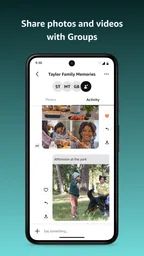
- Family Vault makes sharing selected photos with relatives convenient.
- Automatic uploads can back up new photos over Wi-Fi.
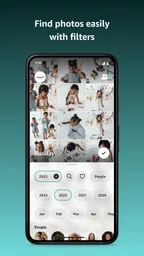
- Search can find images by people places and objects.
- Photos can be viewed on phones tablets and compatible Fire TV devices.
What could be better
- Unlimited photo storage requires an eligible Prime membership.
- Videos count toward a limited storage allowance.
- The app offers fewer editing tools than dedicated photo editors.
- Automatic backups may use mobile data if settings allow it.
- Some users may find the interface less intuitive than their phone gallery.





