

Airbrush: Face & Photo Editor review
 Analysis by Appsdrops
When I want to improve a portrait without turning it into a full editing project, I look for a tool that gets me from an ordinary camera roll photo to a shareable result quickly. Airbrush: Face & Photo Editor is built around that kind of touch-up: it focuses on faces and familiar portrait adjustments rather than asking me to learn a complex, all-purpose editor. The trade-off is clear from the start: it can make small corrections convenient, but it takes restraint to keep the person in the picture looking like themselves.
From an everyday photo to a cleaner portrait
Airbrush is a free photography app from PIXOCIAL TECHNOLOGY (SINGAPORE) PTE. LTD. It has been available since October 23, 2015, and its current version is 8.20.0, with Android 8.0 as the minimum OS requirement. Its Teen age rating is worth keeping in mind if a younger person will use it, particularly because the app is designed around changing appearance in photos.
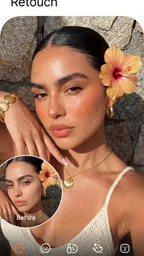
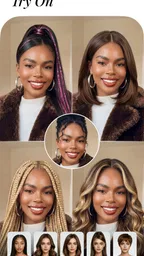
The appeal is easiest to understand with a routine example: I have a decent photo from a family gathering, but a small blemish or tired-looking skin is drawing my eye. I do not want to crop everyone out, adjust colors across the whole scene, and export through several tools. Airbrush gives me a portrait-first place to start. The app’s focus on skin smoothing, acne removal, teeth whitening, and hairstyle changes makes it more targeted than a general photo editor, though not every portrait needs all of those adjustments.
That focus is also its main limitation. If I am trying to fix a crooked horizon, build a collage, or carefully grade the colors of a landscape, I would reach for a broader editor instead. Airbrush makes more sense when the face is the subject and the desired changes are local and cosmetic. In my view, the best starting condition is a photo that is already well composed and reasonably lit; retouching is not a substitute for fixing a poor original.
Choose the portrait before choosing the edits
I would begin by selecting a photo where the face is large enough to inspect, rather than immediately applying a strong overall treatment. That makes it easier to see whether an edit actually helps. A close portrait is useful for checking skin and teeth, while a group shot calls for extra care: edits that look subtle on one face can become uneven when several people have different lighting or skin texture.
A practical tip is to decide what looks distracting before touching any controls. If I notice one small blemish, I should address that first and then reassess the image at normal viewing size. Smoothing the entire face to solve one tiny spot can remove natural detail elsewhere. This is a simple way to keep the result believable and avoid the familiar overly polished look that can make a candid photo feel artificial.
Make small changes in a deliberate order
My preferred workflow is to work from the most specific correction to the broadest one. I would start with a temporary blemish, then consider whether any skin smoothing is genuinely needed, and leave teeth or hair adjustments until I have a clear reason to use them. This order helps me avoid stacking several cosmetic changes before I know which one is responsible for the improvement.
The less obvious benefit of a portrait-focused app is that it encourages this kind of targeted decision-making. A general editor can offer many ways to alter an image, which is useful but can invite unnecessary tinkering. Airbrush narrows attention to appearance edits. That is convenient for a quick headshot or a profile photo, but it also makes it important to pause between changes: the app’s purpose is to alter faces, so I have to supply the judgment about when to stop.
For a natural-looking result, I would compare the edited image with the original after each meaningful change. If the skin begins to look uniformly smooth, or a smile seems brighter than the surrounding scene, I would dial back the adjustment rather than adding another one to compensate. The most useful edit is often the smallest one that stops a detail from distracting me.
Keep the handoff to sharing simple
Once the portrait looks right, the next step is deciding where it belongs. A casual social post can tolerate a little more polish than a work profile photo, where excessive retouching may feel out of place. For a professional headshot, I would preserve texture and use cosmetic changes sparingly; for a private family album, I might leave a minor flaw untouched because the memory matters more than a flawless face.
This is also where I would avoid treating the edited copy as a replacement for the original. Keeping the untouched photo gives me a way back if I later decide the changes look too strong, especially when viewing the image on another screen or in a different context. It is a useful habit with any face editor, and particularly with one whose central purpose is cosmetic adjustment.
Airbrush is not a substitute for a full desktop retouching workflow when precise control over a large image matters. Nor would I choose it first for edits that need to match across a batch of portraits. Its strength is the short handoff from a selected face photo to a more polished version, not a comprehensive system for managing a photo project.
Where the workflow can go wrong
The biggest risk is not technical complexity; it is over-editing. Skin smoothing can erase the small variations that make a face look real, while whitening teeth or changing hair can shift the photo’s overall impression. Those options may be fun to explore, but I would treat them as occasional adjustments, not automatic steps for every picture.
Another point to consider is cost. The app is free to install, but it offers in-app purchases ranging from $0.49 to $89.99 per item. That broad range means I would check the purchase details in the app before committing to anything and decide whether the free experience already covers my needs. If I only want to remove an occasional blemish, I would not assume that paying is necessary; if a feature I want is behind a purchase, I would weigh that against how often I expect to use it.
Airbrush has a 4.1 average from around 1.6 million ratings, with about 31,000 written reviews, and has passed 100 million installs. Those figures suggest that it is a widely used option, but they do not tell me whether its particular editing style will suit my taste. I would judge it by the quality of the result on my own photos: portrait retouching is personal, and the same adjustment can look natural to one person and too polished to another.
Who will get the most from it
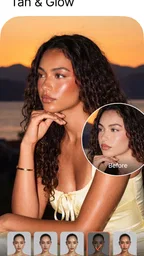
I would recommend Airbrush to someone who regularly takes selfies, prepares profile pictures, or wants a quick way to make a portrait feel a little more finished. It is especially appealing if the task is narrow: soften a distracting skin issue, brighten a smile modestly, or experiment with a hairstyle change before sharing a picture. The app’s concentration on face-focused edits means I can get to the relevant kind of work without first navigating a broad set of unrelated photo tools.
I would skip it if I prefer unretouched portraits, need detailed color and lighting control, or want one editor for every type of image. A standard photo editor is a better fit for landscapes and composition fixes; a more precise retouching tool may suit someone who needs consistent professional results. Airbrush is also not the right choice if I know I will be tempted to smooth every face automatically. In that case, a simpler workflow—or leaving the photo untouched—may produce a result I like more.
A useful tool when the edit stays modest
After following the workflow from choosing a portrait to deciding whether to share it, my view is that Airbrush: Face & Photo Editor works best as a focused finishing tool, not as a reason to remake every face in a photo. It offers a straightforward route to common portrait corrections, but the quality of the outcome depends on making measured choices and checking the image against its original.
If I wanted a quick touch-up before sending a picture to friends, I would give it a try and keep the edits light. If I wanted faithful, untouched photos or detailed control over a whole image, I would use something else. That distinction makes the decision simple: Airbrush is worth considering when a face needs a small, deliberate adjustment, and less compelling when the real goal is broader editing or a completely natural portrait.
What we like
- AI tools make common portrait edits quick and accessible.
- Skin retouching offers adjustable controls for a natural-looking finish.
- The interface is easy to navigate for first-time editors.
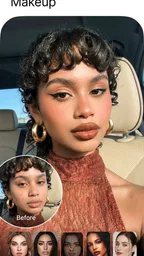
- A range of filters helps create different photo styles.
- Edited images can be saved and shared from the app.
What could be better
- Some features and effects require a paid subscription.
- Strong retouching can make portraits look unnatural.
- AI results may vary depending on the photo.
- The app may request access to personal photos.
- Export quality options may be limited for free users.





