AI Video Generator: Collart AI review
 Analysis by Appsdrops
I’m more cautious with an AI photo and video app than with a basic editor, because the results may depend on personal images and the creative choices are not always obvious. Collart AI is aimed at turning photos into moving clips and generating images or videos with AI. That makes it appealing when I want a quick visual experiment, but it also makes it worth thinking about which pictures I choose and what I expect the app to do with them.
Creative shortcuts, with a reason to pause
Published by Shotcut Video Workshop, this free photography app has a 4.6 average from around 49,000 ratings and more than five million installs. Its Teen age rating is another useful point of context: this is a creative tool, not just a camera utility, and AI-generated imagery can call for judgment about what is appropriate to make and share.
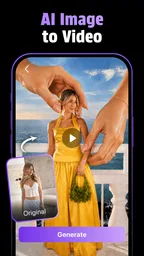
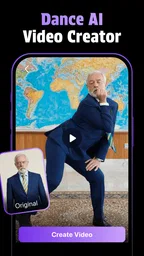
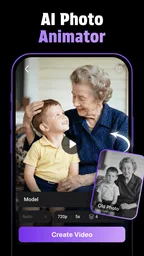
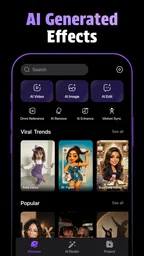
I see its clearest role as a fast idea generator. Rather than opening a full desktop editor, setting up a timeline, and animating a still image manually, I can start from a photo and explore an AI-made motion treatment. That is handy for a casual social post, a playful image for a group chat, or a quick visual concept. It is not the same as having precise control over every movement and edit.
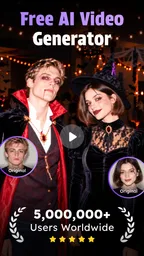
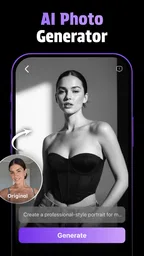
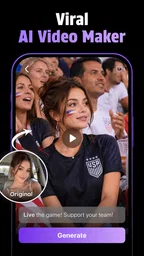
The app’s description points to AI image-to-video creation as well as image generation, so it sits between a photo editor and a lightweight video maker. People who enjoy experimenting with visual styles may find that combination more inviting than a conventional editor’s rows of detailed controls. If I need predictable results for a client, a presentation, or a carefully paced story, I would still favor a tool built around manual editing.
What trust means in an AI image workflow
Trust here is not a question I can answer just by looking at a polished result. A photo can contain faces, a home interior, a child’s drawing, or other details I would not casually share. AI creation also introduces a second decision: whether the finished image or clip could mislead someone if it is presented without context. I treat the app as a creative space, not as a neutral place to put every picture on my phone.
Before choosing an image, I would ask whether I am comfortable using that particular photo in an AI workflow. A cropped object, landscape, or staged image is often a lower-stakes starting point than a close-up portrait or a picture that reveals private surroundings. This is practical caution, not a claim about what the app collects or how it handles files; I would check the app’s current permission prompts and privacy information directly before deciding what to share.
The same care applies to generated content. If I make a clip from a real person’s photograph, I would avoid presenting the AI movement as something that actually happened. That matters especially when a result leaves the app and reaches a wider audience. For personal, clearly playful use, the risk is easier to manage; for sensitive or public-facing material, I would slow down and consider whether a different workflow is more appropriate.
Check the choices the app actually presents
Permissions are worth reviewing when they appear, rather than approving everything automatically. If I only want to try a single picture, I look for the narrowest photo access option the device offers. I also pay attention to whether the app asks for access that seems connected to the action I am taking. A request that does not make sense to me is a reason to pause and investigate, not to guess at its purpose.
Account controls deserve the same direct check. I would look inside the app for settings related to sign-in, subscriptions, and account management, and review the app store’s purchase controls before starting anything that could cost money. The app is free to install, but it offers in-app purchases ranging from $1.99 to $799.99 per item. That unusually broad range makes it especially sensible to inspect the exact purchase screen and terms instead of assuming every creative option is included at no charge.
I would also distinguish between an app’s visible controls and its data practices. A setting that lets me manage a subscription does not, by itself, explain how a photo is processed or retained. I would read the current privacy information and any consent wording shown at the point of use, especially before uploading personal images. If those explanations do not answer the questions that matter to me, my choice would be to use non-sensitive material or skip that workflow.
Make experiments easier to manage
A useful habit is to begin with a test image that carries little personal information. I might use a still life or an ordinary outdoor scene, then see what the app asks me to do and how the creation process feels before trying a family photo. This separates two questions that are easy to blur together: whether I like the creative result, and whether I am comfortable with the way I had to provide the source image.
Another practical approach is to keep a clean original. I would make a copy of a photo before experimenting and avoid treating an AI-edited version as a replacement for the source. That gives me a simple way back if the generated motion or style changes details I wanted to preserve. It is particularly useful for images with text, product details, or a recognizable setting, where a creative transformation may alter more than the mood.
For a low-pressure everyday example, imagine I want to make a birthday message feel more lively. I could choose a decorative picture rather than a private portrait, try an animated treatment, and review the result before sharing it. If the output feels odd or changes the subject in a way that distracts from the message, I can keep the still image instead. That small fallback matters: AI generation is most useful when it gives me an option, not when I feel obliged to use whatever it produces.
Where it fits beside familiar editors
Compared with a standard photo editor, Collart AI’s draw is the generative step: it is for exploring a transformation, not just adjusting a crop or color. Compared with a conventional video editor, it can be a more approachable starting point when the source is a still image and I want to see it move. The trade-off is that AI results may be less dependable than edits I place and time myself. If exact pacing, clean typography, reliable subject motion, or frame-by-frame control matters, a traditional timeline editor is the safer choice.
It also differs from simply using a phone’s built-in camera tools. Those tools are usually better for capturing and organizing ordinary photos; this app is more relevant after I already have an image and want to experiment with a generated visual treatment. I would not install it expecting it to replace a full photo library, a professional retouching program, or a comprehensive video editor. Its appeal is narrower and more playful.
One trade-off I would keep in mind is the gap between a striking preview and a result that is genuinely ready to share. A motion effect can make a still image feel fresh, but I would check faces, edges, background details, and any text before posting. If the result looks artificial in a way that could confuse viewers, I would either label it as AI-made or choose a simpler edit. That quick review is more valuable than generating several versions without looking closely.
Who should try it—and who may prefer another route
I would recommend giving it a cautious try if you enjoy visual experimentation, want to animate an image without building a video from scratch, or need an easy creative starting point for casual content. It may also suit someone who likes testing different ideas before deciding which one to finish elsewhere. The app is currently at version 3.6.5, and I would keep it updated through the app store so I am using the current release available for my device.
I would be more hesitant if my main goal is precise editing, if I routinely work with confidential images, or if I do not want to inspect purchase terms and privacy choices. In those cases, a local, manual editor may offer a more comfortable workflow, while a timeline-based video app can provide clearer control over each cut and transition. If the AI aspect itself is not the attraction, there is little reason to accept its extra uncertainty just to make a simple crop or slideshow.
My overall view is that Collart AI is best approached as an optional creative shortcut, not as a place to send every photo or a substitute for careful editing. I like the idea of turning a still image into a quick visual experiment, especially when the source is non-sensitive and the result is reviewed before sharing. The free install lowers the barrier to trying it, but the in-app purchase range and the personal nature of photo workflows make deliberate choices important. Start with an ordinary test image, check the permissions and purchase details you actually see, and keep a conventional editor in reach when control matters more than surprise.
What we like
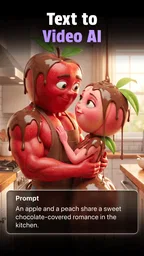
- Turns text prompts into short video clips with little editing effort.
- AI image tools can help create visual assets for videos.
- Useful for social posts and quick creative experiments.
- Preset styles make it easier to explore different looks.
- Mobile workflow lets you create without desktop editing software.
What could be better
- Generated scenes may not match every detail in a prompt.
- Results can look inconsistent across frames.
- Some features or exports may require a paid plan.
- Video generation may take time depending on the request.
- Requires an internet connection for AI processing.





