




AI Photo Restore With Music review
 Analysis by Appsdrops
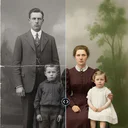
I tend to judge photo-restoration apps by a simple test: do they help me make an old picture easier to enjoy, or do they merely make it look more processed? AI Photo Restore With Music is aimed at the first task, combining photo enhancement and family-photo restoration in a photography app. Its focus is personal memories rather than elaborate editing, which makes it appealing if you want to revisit older images without learning a full photo editor. My main advice is to treat the result as an interpretation of a photograph, not a guaranteed recovery of every detail that time has erased.
What the app is suited to today
Made by ATQ - AI Lab, AI Photo Restore With Music is a free app for restoring and enhancing photos. The music element points toward presenting memories as well as improving images, but I would approach the app primarily as a restoration tool: the practical question is whether it can make a specific photograph clearer and more presentable. That distinction matters, because a polished result is not always a more faithful one.
The app has a 4.3 average from around 11,000 ratings, and it has passed one million installs. Those figures suggest that it has reached a substantial audience, but they cannot tell you whether it will handle your particular picture well. Photo restoration depends heavily on the source: a slightly faded portrait offers more usable information than a tiny, badly damaged image, and no enhancement process can reliably recreate details that are not there.
I see the strongest use case in everyday family archiving. You might have a photograph of a grandparent tucked into a box, a scanned picture from a family gathering, or an old image on your phone that looks dull beside newer photos. A restoration app can make it easier to share and revisit that picture. If the image is historically important or its exact appearance must be preserved, keep the original untouched and compare any enhanced copy against it.
The app is rated for Everyone and is free to install. In-app purchases range from $7.99 to $39.99 per item, so I would try the free experience on a picture that matters to you before paying for anything. Think about whether you need a single restored image or expect to work on a collection; the value of a purchase depends on your own use, not on the promise of a dramatic before-and-after.
How I would approach an old photograph
Start with a copy, not the only version of an image. If you are scanning a print, use even light and keep the camera parallel to the paper; glare and angled edges can give an enhancement tool a harder job. If you already have a digital scan, choose the clearest original available rather than a smaller image that has been repeatedly shared or compressed. This simple preparation can matter as much as the choice of app.
Then inspect the result at the face, edges, and background, rather than judging it only as a small preview. AI enhancement can make faces appear smoother or sharper while subtly changing features. A restored image may look pleasing on a phone but less convincing when enlarged. For a family portrait, I would compare it with the source and ask whether the people still look like themselves—not just whether the image seems cleaner.
One useful workflow is to keep two versions: the untouched original and a clearly named restored copy. That gives you room to experiment without losing the source, and it prevents an enhanced image from quietly becoming the only record. For a family album, you can also add a brief note about who is pictured or when it was taken. That small bit of context may be more valuable years from now than an aggressive attempt to sharpen every detail.
Where it fits among photo tools
Compared with a standard photo editor, a restoration-focused app is a more direct choice when your goal is to improve an older image rather than adjust exposure, crop, or color by hand. A general editor offers control and flexibility, but can demand more decisions and effort. Conversely, if you want precise retouching or a carefully documented archival workflow, a dedicated editing tool may be a better fit than relying on automated enhancement alone.
Against other AI photo enhancers, the practical trade-off is convenience versus control. An automated process can be attractive when you want a quick attempt at improving a family picture, but different tools may interpret faces and textures differently. I would not assume that one result is objectively correct. If a portrait looks unusually smooth or a background seems reconstructed, try another approach or leave the image as it is rather than chasing a stronger effect.
The music aspect may suit someone who wants to present family memories in a more personal way, but it is not the main reason I would choose this app. If your priority is building a detailed slideshow with exact timing, captions, transitions, and extensive audio controls, compare it with a dedicated video or slideshow editor. Here, the more sensible expectation is a photo-restoration experience with a presentation-oriented element, rather than a complete media-editing suite.
What the version and release tell us
The current version is 2.7.0, and the app was released on March 3, 2026. That gives a useful snapshot of its present point in development, but version numbering by itself does not reveal which features changed or how earlier releases behaved. I would avoid treating the version as proof that a particular restoration method is new, improved, or more accurate.
For someone already using it, a newer version can be a reason to check the app again, but it is not a reason to discard older restored images or assume their quality has changed. Keep copies of originals and finished edits in a place you control. When updating, test the current workflow with a nonessential photo before putting an irreplaceable family picture through any new process.
The minimum operating-system requirement is Android 7.0. That makes compatibility worth checking before installing, especially if you use an older device. Even on a supported phone, restoration can be less comfortable on a small screen because it is harder to inspect fine details. If you care about subtle facial changes, review the image on a larger display when possible.
Limitations worth considering
The biggest limitation of AI restoration is inherent to the task: enhancement can produce a convincing-looking image without recovering the original truth. A blurred eye, missing section, or faded pattern may be guessed at rather than genuinely retrieved. That does not make the result useless; it means I would treat it as an edited interpretation. For legal, documentary, or historically sensitive images, preserving the unaltered source should come first.
Another point to weigh is the purchase model. The app is free to start, but some items cost between $7.99 and $39.99. Before buying, I would identify what you actually need and check the in-app purchase screen carefully. If you only want to try one old portrait, it may be better to see how far the free option takes you. If you have a large family archive, compare the expected cost with the time you would otherwise spend editing images manually.
There is also a real difference between restoring one special picture and processing many. A quick enhancement may be enough for a family chat, while an archive project calls for consistent naming, backups, and a way to track which images were changed. I would not use an app’s output as the sole archive copy. Keep the original scans separately, and make decisions about restoration image by image rather than applying the same look to every photograph.
Finally, users who want complete manual control may find an automated tool too limiting, while someone seeking only basic cropping or brightness adjustment may not need a restoration-focused app at all. If your current photo editor already handles the modest correction you want, adding another app may not improve the result. This one makes most sense when older or damaged family photos are the actual problem you want to solve.
Who should give it a try
I would recommend trying AI Photo Restore With Music if you have old family pictures that you would like to make easier to view or share, and you are comfortable checking the result rather than accepting it blindly. It may also suit someone who wants a straightforward first step before learning a more involved editing tool. The Everyone age rating is broad, but anyone handling family photographs should still use good judgment about what they choose to edit and share.
I would skip it if you need forensic accuracy, extensive manual retouching, or a complete slideshow-production workspace. I would also hesitate to pay before testing the kind of picture you actually care about. A clean scan, a faded portrait, and a severely damaged photo are very different challenges; a result on one should not set expectations for all the others.
What I would watch next
For new and returning users alike, the most useful things to assess are consistency, natural-looking faces, and how well the app handles different kinds of source images. Those are practical tests rather than promises about future updates. If a later version changes the workflow or restoration output, judge it with copies of familiar photographs and compare them against saved originals.
Overall, this is a focused option for people who want to give old family photographs another look without starting with a complex editor. Its appeal is the chance to make memories more accessible, while its central trade-off is that AI can beautify as well as restore. I would use it selectively, preserve every original, and pay only if the results on my own photos justify the expense. That approach keeps the app useful without asking it to do what no restoration tool can: recover details that the photograph no longer contains.
What we like
- Restores faded photos with a simple workflow
- Can add music to restored photo creations
- Useful for refreshing family pictures
- AI processing reduces the need for manual edits
- Suitable for users with little photo editing experience
What could be better
- Restoration quality can vary with the original image
- Severely damaged photos may retain visible flaws
- AI results may alter small facial details
- Music features may offer limited customization
- Some tools may require payment or an account





