
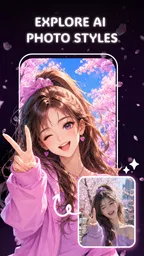
AI Photo Editor: Art Studio review
 Analysis by Appsdrops
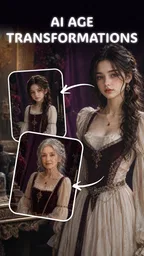
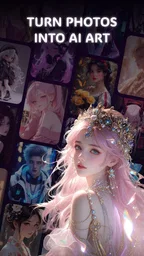
When I want to improve a photo quickly, I don’t always want a full editing suite with a dozen panels and controls. AI Photo Editor: Art Studio is aimed at the simpler end of that job: it’s a photography app from developer Leilani Rogers for making AI-generated art, changing a picture’s background, removing unwanted objects, and enhancing an image. I’d treat it as a handy creative tool for casual edits rather than a replacement for careful, hands-on photo work.
Where the AI helps—and where the network matters
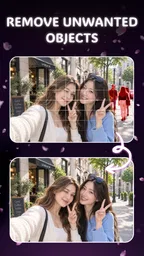
The main appeal is the range of edits gathered around one idea: describe or choose a transformation and let AI do much of the visual work. That can be useful when I have a clear result in mind but don’t want to learn masking, retouching, or detailed color controls first. For instance, removing a distracting item from a photo is a different task from creating art, but both are the sort of edit this app is built to make approachable.
These AI-heavy tasks are also the moments when connectivity is most likely to shape the experience. A request that needs processing may take longer or be less convenient when a connection is weak, so I’d start an important edit somewhere with dependable internet rather than assume it will finish smoothly on the move. The app is best approached as a tool whose AI workflow may depend on a usable connection, not as a guaranteed no-signal editor.
That distinction matters if you plan to edit while commuting, traveling, or working in a place with patchy coverage. I would avoid leaving a complicated transformation until the last minute. Make the edit while connected, check the result before closing the app, and keep the original photo available until you know you have an output you like.
AI Photo Editor: Art Studio has a 3.2 average from around one thousand ratings, which suggests opinions are mixed rather than universally enthusiastic. I read that as a reason to keep expectations practical: the app may save time on a simple visual change, but AI results can need another attempt or a different source photo. For an image that matters, I would review the outcome closely instead of assuming the first version is ready to publish.
What works well in a quick mobile workflow
The app’s strongest use case is an edit with a specific, limited goal. If a casual portrait has an unwanted object in the background, or a product photo would look clearer against a different setting, an AI-assisted change can be more appealing than learning a desktop editor. I’d use it for social posts, personal images, and early creative experiments where speed and convenience matter more than pixel-level control.
A practical workflow is to begin with the cleanest original you have, make one major change, then inspect the edges and important details before trying another. For background changes, look carefully around hair, glasses, hands, and objects that overlap the subject. For object removal, check the space that has been filled in: a result may look convincing at phone size but reveal odd texture or repeated patterns when viewed larger. This kind of close inspection is a small step that can prevent an AI edit from looking obviously artificial.
I also recommend keeping separate versions when experimenting. If you remove an object and then change the background in the same sequence, it can be harder to tell which transformation introduced a strange edge or softened detail. Saving or retaining a clean starting point lets you compare outcomes and return to the version that looks most natural. This is especially useful for portraits, where subtle changes around a face can matter more than a dramatic overall effect.
For a realistic everyday example, imagine taking a quick photo of a handmade item at home, then noticing a cluttered shelf behind it. I’d try a background adjustment, examine the outline of the item, and compare it with the original before sharing. If the replacement setting makes the product look detached or changes its shape, a simple crop or a conventional editor may produce a more trustworthy result. The point is not to force AI into every picture, but to use it when the desired change is localized and easy to judge.
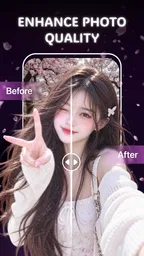
Enhancement is another useful option when a picture needs a general lift, but I would be cautious with images that are already heavily compressed or blurry. AI can make an image look cleaner without restoring genuine detail that was never captured. When accuracy matters—such as documenting a receipt, a product condition, or a record—an enhancement should not be treated as proof of what the original contained.
Using it on the go without losing track of an edit
On a phone, the attraction is straightforward: I can work on a photo where I took it instead of transferring it to a computer. That makes the app a reasonable fit for quick creative decisions between errands or after taking pictures at an event. Still, mobile convenience doesn’t make every setting ideal. A small screen can hide fine cutout problems, and bright outdoor light can make it harder to judge colors and edges accurately.
For edits I care about, I’d do the creative pass on the phone and then check the finished image at a larger size if possible. This is particularly worthwhile after removing objects or replacing a background, because those edits depend on believable boundaries and consistent lighting. A quick phone preview is useful for deciding whether the overall idea works; it is less reliable for catching every small flaw.
Connectivity can also affect when I choose to work. If I have only a brief window and an unstable connection, I’d avoid starting a transformation that I need immediately. Instead, I would prepare the source image first, make sure I know what I want changed, and run the AI edit when I can give it time to complete. That reduces the chance of rushing through a result or losing track of which version I intended to keep.
The app is free, which lowers the barrier to trying it, and its Everyone age rating makes it broadly suitable from a content-rating perspective. It has reached over one million installs, so it has attracted a substantial audience, though popularity alone doesn’t tell me whether a particular workflow will suit my needs. The current version is 1.0.4, and it runs on Android 7.0 or later. Those details make it worth checking device compatibility before planning to use it on an older phone.
When an edit stalls or the result disappoints
AI editing is not a one-tap guarantee, so I would plan for the occasional unsatisfying result. If a change appears incomplete or the output looks wrong, first check whether the connection is stable and give the task a moment rather than repeatedly submitting the same request. If the app is still behaving unexpectedly, reopening it and trying again with the original image is a sensible next step. Keeping that original matters more than relying on a single generated version.
When the result is poor, I’d change one thing at a time. A tighter crop can reduce distracting background detail; a clearer source image can give the tool a better subject boundary; and a less ambitious transformation may look more convincing than asking for a complete visual overhaul. These are practical ways to diagnose an edit rather than treating every failure as a reason to discard the app.
There are also jobs where I would choose another kind of editor. If I need exact control over a mask, consistent retouching across a batch of photos, precise color grading, or dependable preservation of fine details, a traditional editor with manual tools is the safer choice. AI Photo Editor: Art Studio is more appealing when I want a fast starting point and can accept some experimentation. For professional delivery, I’d compare the result with the original and use a more controlled tool for final corrections.
It is also not the right choice if my priority is an entirely predictable change. AI-generated art is inherently interpretive, and object removal has to invent what should appear behind the removed item. A visually pleasing reconstruction is not necessarily an accurate one. I would avoid relying on those edits for evidence, documentation, or any situation where altering the scene could mislead someone.
Keeping image use deliberate
Because AI transformations can involve processing beyond a simple local adjustment, I would be thoughtful about which pictures I choose to edit. I’d start with ordinary images that I’m comfortable using in an AI workflow and avoid putting sensitive personal photos into any editing service unless I’ve reviewed its current privacy terms. That is a sensible precaution for any connected photo tool, not a claim about this app’s specific data practices.
Data-conscious use also means choosing the task carefully. A full creative transformation may be more involved than a small crop or brightness correction in the phone’s built-in editor. If all I need is a minor adjustment, the built-in option is often quicker and avoids sending an AI request. I’d reserve this app for changes that genuinely benefit from its AI focus, such as trying a new background or removing a distracting object.
Before beginning, it helps to decide whether the image is worth the time and connection it may require. For a throwaway experiment, I’m happy to explore a few different looks. For an important photo, I’d use a duplicate, keep the original untouched, and inspect the final output before sharing. That simple habit protects the source and makes it easier to undo an edit that changes more than intended.
Who should try it, and my overall take
I’d recommend AI Photo Editor: Art Studio to someone who wants approachable AI tools for occasional creative edits and is comfortable checking the result rather than accepting it blindly. It makes sense for casual portrait tweaks, social content, playful art experiments, and cleaning up a distracting detail when a conventional editor feels like too much work. The combination of enhancement, background changes, object removal, and AI art gives a curious user several reasons to try it.
I’d steer away from it if I needed dependable offline editing, advanced manual controls, batch consistency, or a highly faithful record of an image. In those cases, a traditional photo editor—or the phone’s own basic tools for a simple adjustment—will usually be a better match. The most useful question is whether I want the app to make an imaginative suggestion or whether I need to direct every pixel myself.
My verdict is that this is a convenient, free entry point for experimenting with AI photo changes, with the trade-off that results and workflow can call for patience, a steady connection, and a careful final check. I’d keep the original, work on non-sensitive pictures when possible, and use a larger screen to inspect edits that need to look polished. If that balance suits you, AI Photo Editor: Art Studio is worth trying; just think of it as a creative assistant, not a substitute for precise editing judgement.
What we like
- AI tools can turn text prompts into creative image variations.
- The app offers artistic effects for experimenting with photo styles.
- Editing on a phone makes quick touch-ups convenient.
- Presets can help users get started without advanced editing skills.
- The app can inspire new ideas for portraits and social posts.
What could be better
- AI-generated results may differ from the image you had in mind.
- Some features may require payment or a subscription.
- Processing can take longer with complex edits or slower devices.
- Results may look less natural than carefully edited photos.
- Uploading personal images may raise privacy concerns.





