

AI PDF Reader & Scanner review
 Analysis by Appsdrops
I judge a document app by what it helps me finish, not by how many tools it claims to put on one screen. AI PDF Reader & Scanner is aimed at people who regularly handle PDFs alongside other office files and want one mobile place to read and manage them. Its focus on AI-assisted PDF reading is appealing, but it also makes connectivity an important part of the experience: a document workflow can feel very different when a task depends on a network than when it is simply opening a file.
As a productivity app from Gushan Technology, it makes sense for quick document work rather than replacing a full desktop office suite. It is free, and its Everyone age rating makes it broadly accessible. The current version is 1.0.4, so I would approach it as a focused tool to try with ordinary files before making it the center of an important work process.
Where a connection can shape the workflow
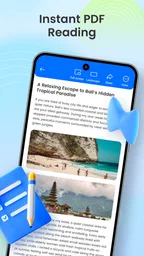
The AI angle is the clearest reason to consider this reader instead of a basic PDF viewer. If I am looking through a long report, the useful promise is less about admiring a document on a phone and more about getting to the relevant part with less effort. That kind of assistance is most valuable when I have a specific question or need to understand a document quickly, not when I am simply checking a page number or reading a short form.
At the same time, I would not plan an AI-dependent task around an assumed connection-free workflow. A store summary describes a helper for PDFs and office documents, but does not establish which actions work without a network. My practical advice is to try the exact task you expect to use—such as asking for help with a document—while you have a reliable connection, then check what happens in the places where you usually work. For a trip or a meeting in a building with unreliable reception, save and open the document ahead of time rather than relying on an untested workflow at the last minute.
Connectivity matters differently for different jobs. A person reviewing a document at home may barely notice whether a particular action needs internet access. Someone checking a form while moving between appointments may care a great deal. I would separate basic reading from AI-assisted tasks in my own expectations: use the reader for straightforward document access when that works for your setup, and treat network-sensitive assistance as something to confirm in practice before depending on it.
Make document questions specific
A useful habit with an AI-oriented reader is to go in with a clear question rather than expecting a general summary to solve every problem. For example, when reviewing a policy, I would first identify what I need to find—such as a deadline, a named requirement, or a section that explains an exception—then check the relevant passage in the document itself. This gives the AI a narrower job and gives me a way to verify the answer instead of treating a generated response as the final authority.
That is especially important with office paperwork. A short response can help me locate a passage, but I would still read the surrounding text before acting on a contract, invoice, or official form. If exact wording matters, the original page is the source to trust. This cautious workflow is not a drawback unique to this app; it is a sensible way to use any AI reader when a small detail could change what a document means.
Useful on a phone, with limits
The strongest everyday case I can see is a person who receives PDFs and office documents while away from a desk: a student checking class materials, a freelancer reviewing client paperwork, or someone looking through a form before an appointment. Rather than waiting until they are back at a computer, they can use a mobile document app to get oriented and decide what needs attention. The AI focus may be most helpful when the document is long enough that scrolling page by page becomes tiresome.
For a realistic routine, imagine receiving a multi-page document shortly before a meeting. I would open it while connected, use the app’s reading assistance if it helps me find the sections I need, and then inspect those passages directly. Before leaving, I would make sure I can reach the file in the situation where I expect to use it. That last check is a small but worthwhile step: it avoids discovering in a hallway or on public transport that a task depends on a connection I do not have.
Phone screens are still a constraint. Even a capable reader cannot make a dense table or a carefully formatted page as comfortable to inspect on a small display as it is on a computer. I would use a mobile app to search, skim, and prepare—not to make a final judgment about complicated layouts when precision matters. If your work depends on comparing several pages side by side, annotating complex drawings, or editing office files extensively, a desktop application or a more specialized tool is likely the better fit.
Keep a simple recovery plan
When a document task goes wrong, the first thing I would check is whether the issue is with the file, the connection, or the action I am trying to perform. If ordinary reading works but an AI-related step does not, I would retry that step when the network is stable rather than repeatedly reopening the document. If the document itself is not available, I would locate the original file in the place I received or stored it and open it again. These are modest checks, but they prevent a temporary interruption from turning into a confusing troubleshooting session.
I would also avoid making the app the only place I can find an important file. Keep track of the original document and its source, particularly for time-sensitive forms or work materials. That is not a claim about how this app stores files; it is a practical safeguard for any mobile document workflow. If a file matters, knowing where it came from makes it easier to recover when an app, device, or network gets in the way.
Before relying on it for a recurring job, I would test one representative document from beginning to end: open it, find a passage, use any assistance that is relevant, and return to the document to verify the result. Repeating that small test with a typical office file is more informative than trying a random sample PDF. It helps reveal whether the app fits your actual documents and whether your usual connection is dependable enough for the parts of the workflow you want to use.
Be deliberate with documents and data
Document handling can involve personal or business information, so I would choose files thoughtfully when testing an AI reader. Start with a non-sensitive document and see whether the app’s workflow suits you before using it for material you would not casually share. I would not assume that an AI function handles content in a particular way just from its name; for confidential work, check the app’s current privacy information and your organization’s rules before bringing documents into it.
There is also a practical data trade-off. If you expect to use AI assistance while away from Wi-Fi, consider whether the task is important enough to do over your mobile connection, and keep the document question focused so you are not making repeated, unnecessary attempts. I would avoid testing a large collection of files on a limited connection when a single representative document can tell me whether the workflow is useful. These habits help keep mobile use intentional without assuming anything about the app’s network or storage design.
For routine reading, the connection question may be less urgent than it is for AI-assisted work. That distinction is worth testing rather than guessing. Try opening a familiar file in the setting where you normally read, then separately test any feature that appears to need network access. Once you know which parts of your own workflow are dependable, you can use the app with fewer surprises.
How it compares with familiar alternatives
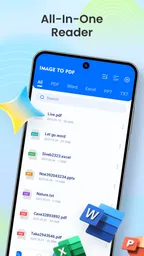
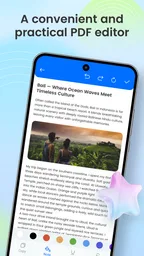
A standard PDF viewer is often the simpler choice when all I need is to open a file and read it. It may suit people who want a straightforward reader and do not expect AI help. At the other end, a full office suite is more appropriate when a document needs substantial editing or when several kinds of files must be changed rather than just reviewed. AI PDF Reader & Scanner sits between those approaches: it is aimed at mobile document management with an AI-centered reading angle, while its summary also points to office documents beyond PDFs.
That middle ground is useful if your main friction is finding information in documents on a phone. It is less compelling if your priority is advanced editing, exact layout control, or a workflow that must be fully predictable in weak-connectivity settings. I would compare it with alternatives by testing the same real file in each one: can you reach the relevant passage comfortably, does the AI assistance save enough time to matter, and can you complete the task in the places you actually work? That comparison is more useful than choosing by feature labels alone.
The app has an average rating of 4.0 from about 700 ratings, and it has more than 100,000 installs. Those figures suggest that people are trying it, but they do not answer whether its AI workflow matches a particular user’s needs. I would treat them as context, then make the decision based on a short hands-on test with the types of documents I regularly receive.
Who should try it—and who should look elsewhere
I would recommend giving AI PDF Reader & Scanner a try if you often need to understand PDFs on a phone and want AI-oriented reading assistance alongside access to office documents. It is especially plausible for students, mobile workers, and anyone who receives paperwork away from a desk and wants to identify what deserves a closer read. Since it is free, trying it with a low-stakes file is a straightforward way to see whether its approach saves you time.
I would skip it, or use it only as a secondary reader, if you need reliable access to every function without a connection, handle highly sensitive documents without a verified privacy review, or regularly edit complex files. A conventional PDF reader may be preferable for simple reading, while a desktop office suite is better for demanding document production. If your work relies on exact wording, always verify AI-assisted findings against the original page.
Gushan Technology’s app is a focused option in the productivity space, and its 1.0.4 release is the version to look for when deciding whether to test it. My overall view is positive but measured: the AI reading focus could make mobile document review less tedious, yet connectivity and the limits of a phone screen should shape how much I rely on it. I would keep the original file accessible, test the tasks I care about on a stable connection, and use the app as a practical reading companion rather than assuming it replaces a full office workflow.
What we like
- Summarizes lengthy PDFs to help you grasp key points faster.
- AI-powered question answering makes finding document details easier.
- Built-in scanning turns paper documents into digital files.
- Text recognition helps make scanned pages searchable.
- Useful for reviewing documents on the go.
What could be better
- AI answers may miss context or misinterpret complex passages.
- Scans may need manual correction when pages are skewed.
- Poor lighting can reduce the quality of captured documents.
- Some features may require a subscription or in-app purchase.
- Uploading sensitive files may raise privacy concerns.





