
AI Mirror: Screen Mirroring TV review
 Analysis by Appsdrops
I judge a screen-mirroring app by what happens after the first tap: can I get from a phone full of photos or videos to a comfortable viewing setup without turning the evening into a troubleshooting session? AI Mirror is aimed at that straightforward job, bringing phone media to a television or another larger screen. Its appeal is practical rather than elaborate: it is a free video-player and editing-category app from Insumos XP, and the central question is whether its casting workflow fits the way you already use your devices.
From phone to big screen: a sensible baseline
My recommended first run is simple. Install the app, open it when you are connected to the screen you intend to use, and follow the available connection prompts. Then pick a short video or a handful of photos as a test before settling in for a longer watch. That small trial helps separate a connection problem from a particular file or viewing choice, and it is much less frustrating than discovering an issue halfway through sharing something with family.
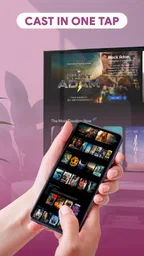
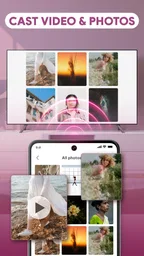
The basic use case is easy to picture: after a day out, I might want everyone to look at photos together rather than pass a phone around. Or I might have a clip saved on my device that is more comfortable to watch from the sofa. This app is designed around those moments, where the phone is the source and the larger display is the place to watch. It makes more sense as a convenient bridge for personal media than as a replacement for a dedicated streaming service.
For a repeatable routine, I would keep the first connection deliberate: confirm the intended display, start with the content I want, and leave the phone accessible until the picture appears. If I am showing a group photos, I would choose the images beforehand instead of scrolling through a crowded gallery in front of everyone. That is not a special app feature; it is a small habit that makes phone-to-TV sharing feel much smoother.
AI Mirror’s short store label is “AI Mirror,” but the product’s practical role here is screen mirroring and casting. The distinction matters: I would install it because I want to show phone content on a bigger screen, not because I am looking for a full editing suite or a broad catalog of entertainment. Its video-player and editor category gives some context, but the useful test is whether it handles the everyday handoff from handheld viewing to shared viewing in a way that suits your setup.
Make the first connection a useful test
Before relying on any mirroring app for a presentation or a gathering, try it with the exact television and phone you plan to use. A quick check tells you whether the devices can see one another and whether the content you care about displays comfortably. If the connection does not appear, I would first verify that both devices are ready for the same local casting or mirroring setup, then reopen the app and try again. Keeping those checks in a familiar order is more useful than repeatedly tapping different controls at random.
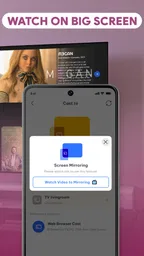
There is also a difference between mirroring a phone screen and simply playing a video on a television. Mirroring can be handy when I want to move between photos, clips, or other phone content without preparing a separate playlist. It can be less ideal if I want the phone completely free for messages, browsing, or another task while the video continues. For a focused watch, a television’s own streaming apps or a dedicated media player may be a better fit; for spontaneous sharing, the phone-led approach can be quicker.
Settings worth checking before settling in
I would look through the app’s available settings and connection prompts before making it part of a regular routine, especially if I use more than one display. The sensible goal is not to hunt for a hidden control, but to understand which screen is selected and how the app expects a connection to be started or ended. When the interface presents a choice of target, pause long enough to confirm it rather than assuming the last device used is still the one you want.
Phone and television settings can matter just as much as the app. If a display is not discoverable, check its own screen-sharing or casting options and make sure the devices are prepared to connect in the way the television supports. If the image is present but does not look right, check the phone’s orientation and the content’s framing before blaming the connection. These are useful first checks because a portrait photo, a wide video, and a mirrored phone interface do not occupy a television screen in the same way.
For a living-room session, I would also set up the physical side before starting: place the phone where it can stay connected, keep its battery in mind, and avoid locking yourself into a workflow that requires repeated trips across the room. I would test sound with a short clip as well as checking the picture. Those steps are ordinary, but they prevent the familiar problem of getting the image on the television and only then discovering that the viewing arrangement is uncomfortable.
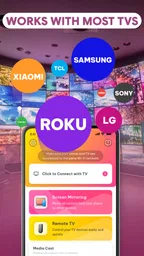
Compatibility is the practical question most people should answer first. The app supports Android devices from version 8.0, while the television or receiving screen still needs a compatible way to accept the connection. An app cannot make every older display behave like a modern smart television. If your screen has no suitable mirroring or casting support, a separate compatible receiver or another playback route may be necessary; I would check the TV’s own options before expecting the app alone to solve that gap.
Build faster habits without expecting magic
Experienced users get speed from consistency, not from imagined shortcuts. I would use the same order every time: wake the target display, open the app, confirm the destination, and then select the content. Once that sequence is familiar, it reduces the chance of sending a photo to the wrong screen or starting playback before the television is ready. If the app remembers a previous connection in your setup, that may save a step, but I would still verify the destination whenever privacy matters.
For sharing photos, a useful habit is to curate a small selection before casting. It keeps the phone’s private notifications, unrelated images, and awkward pauses out of the group viewing experience. For a video, I would choose the clip first and test its opening seconds; if the result is good, continue, and if not, use that moment to adjust the connection or choose a different playback method. This is a more reliable workflow than treating every session as an improvisation.
Another practical trade-off is what happens to the phone while content is on the big screen. Mirroring is naturally tied to the phone’s display activity, so I would not assume that the phone can be used freely for unrelated tasks without affecting what others see. If I need to reply to messages privately while a show continues, a television app or a streaming device is usually the cleaner option. If I am presenting photos and want to control what appears next, keeping the phone in hand is an advantage rather than a drawback.
Because this is free, it is reasonable to try it for occasional home sharing without making a purchase decision first. Its audience is broad: the content rating is Everyone, and the app has passed the ten-million-install mark. Those figures suggest that many people have tried it, but they do not guarantee a flawless fit with a particular router, phone, or television. I would treat the first session as a compatibility check, not as proof that every future connection will be identical.
Where it fits—and where it does not
AI Mirror sits among video and screen-sharing tools, but it solves a narrower problem than a full media center. Compared with opening a streaming service directly on a television, mirroring is useful when the content is already on the phone or when I want to show something that is not part of a TV app’s catalog. Compared with sending a file to another device, it can avoid the extra step of transferring or organizing that content first. The trade-off is that the phone remains central to the session.
I would skip it if my main goal were to watch subscription services in the best possible format, browse a polished TV interface, or keep using my phone independently while playback continues. Those jobs are usually better handled by the service’s native television app or a dedicated streaming device. I would also look elsewhere if my television lacks a compatible receiving method and I do not want to add hardware. The app is most convincing when the display is ready and the content is already on the phone.
Connection quality is another real-world limitation to keep in mind. A stutter or delay can come from the home network, the devices, the selected content, or the television’s own capabilities; it is not always something an app setting can fix. If a video is important, test it in advance and keep an alternative ready, such as playing it directly on the television or using a cable-based option if your devices support one. That backup is especially worthwhile for a meeting, class, or event where a failed connection would interrupt everyone.
The app has an average rating of 3.2 from around fourteen thousand ratings, alongside several hundred written reviews. I read that as a reason to keep expectations measured: screen mirroring depends heavily on the combination of devices and network conditions, so a rating cannot tell me how well it will work in one specific home. The current version is 1.0.2, and I would keep the app updated through the app store rather than rely on an old installation when troubleshooting.
A measured verdict for everyday sharing
In my view, AI Mirror is worth trying if you regularly want to show phone photos or saved videos on a larger screen and your television already supports a compatible connection. The strongest case is informal sharing: a family photo session, a quick clip with friends, or checking a phone video from the comfort of the sofa. Its free price makes that experiment low-commitment, and the workflow is easy to understand when the receiving screen is ready.
I would not choose it as my default for every kind of television viewing. A native TV app is generally better for long-form streaming, while a dedicated player can be preferable when I want playback to continue without tying up the phone. AI Mirror’s value is in immediacy: it can bring personal phone content into a shared room without first turning it into a separate media-library project. That convenience is real, but it depends on a compatible display and a connection that behaves well.
For the best chance of a smooth session, I would check the television’s mirroring support once, establish a simple connection routine, and test the actual content before inviting everyone to watch. I would also keep the phone’s screen and notifications in mind, since mirroring can expose more than the video if I leave unrelated content visible. These small precautions make the app more useful and help set honest expectations about what it can do.
Overall, Insumos XP’s app is a practical option for people who want an easy route from phone media to a larger display, not a universal answer to home entertainment. Its usefulness comes down to a specific combination: the right content on your phone, a compatible screen, and a workflow you can repeat. If that describes your routine, it is a sensible free tool to test; if you need independent TV playback or dependable performance across unsupported devices, a native television app or dedicated streaming hardware is the better choice.
What we like
- Works with many smart TVs that support screen casting.
- Useful for sharing photos and videos on a larger display.
- Setup is straightforward when devices use the same Wi-Fi network.
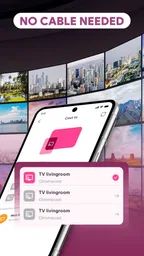
- Can mirror a phone screen without connecting a cable.
- Handy for presentations and group viewing at home.
What could be better
- Casting support varies by TV model and operating system.
- A stable Wi-Fi connection is needed for smooth mirroring.
- Some content may be blocked by streaming service restrictions.
- Screen mirroring can drain the phone battery quickly.
- Free features may be limited by ads or in-app purchases.





