




Adobe Premiere: Video Editor review
 Analysis by Appsdrops
The most useful way to judge Adobe Premiere is by the kind of edit it makes approachable: combining clips with text, sound, and visual adjustments without turning a quick video into a desktop-sized project. I like that focus for everyday footage. Rather than treating a phone edit as a miniature film production, it gives you a practical place to shape a short clip and make it feel considered.
Adobe Premiere is a free video-editing app from Adobe in the video players and editors category. Its audience is broad: someone assembling a family moment, a student preparing a project, or a creator making a short social post. The app has a 4.5 average from around 27,000 ratings and over 5 million installs, which suggests it has found a substantial audience without making it a fit for every editing style.
Why adding text can change the whole edit
The central capability I’d pay attention to is the ability to bring text into a video alongside its footage, audio, filters, and sound effects. Text is more than decoration. A brief opening label can tell viewers what they are watching, while a closing line can give a clip a clear finish. Used carefully, it can make footage understandable even when someone is watching casually or without sound.
That is a more useful editing goal than simply adding effects. A cooking clip, for example, can use a short title to name the dish and a few concise labels to mark important steps. A travel montage might need only a location and a final caption. In both cases, the words should support the images rather than compete with them. I’d keep each text element brief and check the result at phone-screen size, where long lines can become hard to read.
The advantage of having text and sound work in the same editing app is convenience: you can think about the clip as one piece rather than finishing the picture in one place and then trying to bolt on another layer elsewhere. The tradeoff is that creative freedom also makes restraint important. A filter, sound effect, and caption can each seem like a good idea on its own; together, they can crowd a simple video. I get better results by choosing one element to lead and letting the others stay subtle.
A practical workflow for a short clip
For a simple edit, I’d begin by deciding what the video needs to communicate. If the footage already tells the story, a short title or closing note may be enough. If the sequence needs context, I’d use text to provide that context rather than trying to explain everything in a long caption. This keeps the viewer’s attention on the action and gives the edit a clearer purpose.
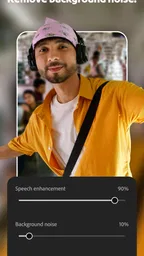
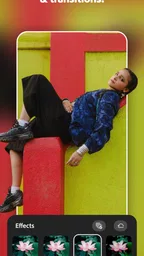
Then I’d consider the audio before reaching for sound effects. A clip with useful natural sound may need little added to it; a quiet montage may benefit from a sound choice that gives the sequence more energy. The point is not to fill every pause. It is to make sure the sound supports the pace and mood instead of becoming a distraction. The same principle applies to video filters: choose them to create a consistent feel, not just because an option is available.
A helpful, easily overlooked habit is to review the edit once for the picture and once for the message. On the first pass, I’d watch for abrupt changes in the visual flow. On the second, I’d ask whether each text element is readable and whether it appears when the viewer needs it. Separating those checks makes it easier to catch a caption that looks attractive but arrives too late to be useful.
I’d also keep an untouched copy of the original footage before experimenting. That gives you room to try a different filter or rethink the order without feeling that you have to preserve every early decision. For short phone videos, this is a simple safeguard: it helps keep experimentation relaxed and prevents a quick edit from becoming a stressful attempt to reconstruct the source.
Where it fits into everyday editing
Imagine recording a few clips at a weekend market: a stall being set up, a close view of the food, and a friend choosing what to try. I’d use a short opening line to establish the setting, trim the story around those moments, and add only enough audio or effects to give the finished piece some shape. If the footage is self-explanatory, I would skip extra captions rather than turn the video into a sequence of labels.
This is the sort of modest project where Adobe’s phone-first convenience is valuable. You can make a shareable edit from footage you already have without first moving into a more involved production workflow. The same approach suits a small school assignment, a quick how-to, or a personal recap. In each case, the app is most helpful when the aim is a coherent short video, not a complex production that depends on detailed control.
Text also has a practical role when a clip is likely to be watched in different settings. A clear title can supply context at a glance, while concise on-screen wording can help the viewer follow a sequence. I would avoid putting essential information only in audio if the video needs to make sense when played quietly. At the same time, text should not become a substitute for clear footage: if a shot is confusing, a few words may not fix the underlying problem.
What to expect from the editing experience
Adobe’s name will be familiar to people who have used its creative software, but I would assess this app by the work you want to do on a phone rather than by that reputation. Its appeal is the combination of editing ingredients in one place. That can be less cumbersome than switching among separate tools for video, captions, and sound, particularly when your project is short and you want to finish it soon.
Compared with the usual alternatives in mobile video editing, the main question is whether you prefer a straightforward path from clips to a finished piece or more specialized control over the edit. A lightweight editor can be a better choice if you only need to join a couple of shots and do not care about adding much else. A more advanced desktop editor is a better fit when the project calls for detailed adjustments, a larger production workflow, or careful control that feels awkward on a small screen. Adobe Premiere sits most comfortably between those needs: more expressive than a bare trimming tool, but best approached as a mobile editor rather than a replacement for every professional workflow.
There is also a learning tradeoff. Even a focused set of creative options requires decisions about timing, text, sound, and visual treatment. If you want an automatic result with almost no involvement, the freedom to shape those elements may feel like extra work. I’d treat that control as an invitation to make a few deliberate choices, not a requirement to use every editing option in every video.
Free to start, with a paid layer to consider
The app is free to download, while in-app purchases range from $7.99 to $69.99 per item. That makes it sensible to start with a real project and judge whether the editing experience suits you before spending anything. I would not buy an add-on just because it is available; first, decide what limitation you are actually trying to solve and whether the purchase addresses it.
Its current version is 26.5.0, and the app is rated for Teen audiences. Those details matter for different reasons: the version helps identify the release you are considering, while the age guidance is worth checking if a younger family member will use it. Adobe develops the app, so people already comfortable with the company’s creative tools may find the name reassuring, though familiarity alone does not guarantee that a phone workflow will suit them.
The app’s 4.5 average and broad adoption are useful context, but they cannot tell you whether its balance of creative choices and convenience matches your habits. A person who edits often and enjoys shaping a video may value the flexibility. Someone who wants to make a single, plain cut and move on may prefer a simpler tool. I’d make that decision based on the editing process, not popularity alone.
Who will get the most from it
I’d recommend Adobe Premiere to people who regularly turn phone footage into short videos and want text, sound, filters, and effects available as part of that process. It is especially suitable if you like improving a clip through a few intentional choices: a clear opening, a little audio shaping, and a visual treatment that ties the shots together. Students, casual creators, and people sharing personal updates are natural candidates when their projects stay manageable in scope.
I would point a different way if you mainly need quick trimming, if editing menus make you lose interest, or if you are building a detailed production that calls for a desktop workflow. It is also not the right answer when you have no reason to add text or sound and would rather use the simplest possible editor. More options are useful only when they help you finish the video you actually want.
For me, the best reason to try it is its emphasis on making a short video communicate more clearly, rather than simply making it busier. Start with one clip and one clear goal; add text only where it helps, and use sound or a filter only when it improves the result. That restraint is the difference between an edit that feels intentional and one that looks like a collection of effects. If that kind of hands-on finishing sounds appealing, the free app is worth exploring. If your priority is either instant simplicity or highly detailed production control, another option may fit better.
What we like
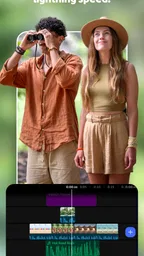
- Timeline editing gives precise control over clip order and timing.
- Automatic captions can save time when preparing videos for social media.
- Cloud project syncing helps continue edits across compatible devices.
- Adobe Stock integration offers access to ready-to-use creative assets.
- Export settings support a range of video formats and resolutions.
What could be better
- Some advanced tools require a paid subscription.
- Large projects can use substantial storage and processing power.
- The mobile interface may feel crowded on smaller screens.
- Cloud syncing depends on a stable internet connection.
- Some desktop Premiere features are not available in the mobile app.





