
Adobe Acrobat Reader: Edit PDF review
 Analysis by Appsdrops
I reach for Adobe Acrobat Reader when a PDF needs more than a quick glance. It is a mobile productivity app from Adobe, and its appeal is straightforward: I can read a document, make certain changes, and sign it without immediately switching to a separate tool. That makes it useful for the small but recurring paperwork jobs that interrupt an ordinary day, though it is not automatically the best choice for every PDF task.
What the free starting point is worth
The app is free to install, which makes it easy to try before deciding whether its paid options matter to your routine. In-app purchases range from $0.99 to $299.99 per item, so “free” describes the starting point, not necessarily every capability you might want. I would check what a particular paid option includes in the app store before buying; the range alone does not tell you which purchase suits your needs.
That distinction matters because many people only need to open and read PDFs. For that everyday use, paying should not be treated as a prerequisite. If your work regularly involves editing documents or signing them on a phone, the possibility of paid tools may be more relevant, but I would first identify the exact task you need to solve rather than assume every feature requires a purchase—or that every purchase is worthwhile.
Acrobat Reader has a 4.5 average from around 8.1 million ratings, with roughly 146,000 written reviews. It has over 500 million installs, which reflects how widely it is used, but popularity is not a substitute for checking whether its editing approach fits your workflow. Adobe has been building the app since May 24, 2010, and it is rated for Everyone.
Where the app earns its place
The strongest practical case is keeping a PDF workflow together. A document arrives, I open it to check the contents, make a needed change if the available tools support it, and sign it without treating the phone as merely a viewer. The benefit is not that a mobile screen becomes a full desktop workspace; it is that small, time-sensitive tasks can be handled where I am.
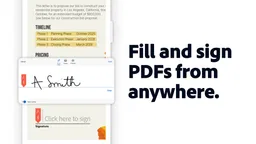
A realistic example is a form sent while I am away from my computer. I can review the PDF on my phone, decide whether it is ready to sign, and avoid the awkward cycle of saving it, finding another app, then trying to remember which version I signed. For a routine approval or personal form, reducing that app-hopping can be more valuable than having a large collection of specialist tools.
One useful habit is to read the entire document before editing or signing, rather than jumping straight to the final page. On a phone, it is easy to mistake a completed-looking form for a finished one, especially if fields or instructions are spread across several pages. I also recommend reopening the saved document after making changes. That quick check helps catch a misplaced mark or a signature that did not land where you intended.
Another practical trade-off is screen size. A phone is convenient for a signature or a quick correction, but dense tables, small print, and complex layouts are easier to inspect on a larger display. If a PDF is important enough that a tiny alignment error would be costly, I would use a tablet or computer for the final review even if I started the task in Acrobat Reader.
Editing and signing without overestimating the phone
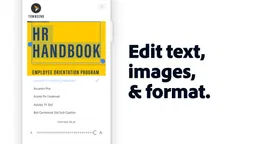
The phrase “edit a PDF” can mean very different things. Some people mean adding a signature or making a small adjustment; others expect to rewrite paragraphs, rearrange a complicated layout, or rebuild a document. Acrobat Reader is most compelling for the first kind of need. I would not choose a phone-first PDF app on the assumption that it will make extensive document redesign as comfortable as working in a desktop editor.
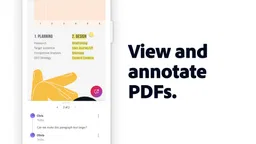
Before committing to a workflow, test the exact kind of file you handle. A clean form and a densely formatted report present different challenges, and a tool that feels simple with one may feel cramped with the other. If your usual task is just to read, annotate, or sign occasionally, the app can be a sensible everyday companion. If you frequently need precise text reflow or layout changes, a computer-based PDF editor is likely a better fit.
For signatures, I find it helpful to treat placement as part of the review, not a final tap to rush through. Zoom in enough to see the signature line, check nearby instructions, and confirm the resulting page before sending the file onward. That is a small workflow improvement, but it matters more on a touchscreen where a finger can cover the very detail being checked.
There is also a difference between being able to complete a task and enjoying the process. A quick sign-off is a good match for a mobile app; a long session involving many corrections can become fiddly. If you expect to revise a large document repeatedly, moving to a larger screen early may save time rather than forcing the whole job onto a phone.
Trade-offs against other PDF tools
Compared with a basic PDF reader, Acrobat Reader is attractive when you want reading and document actions in one place. A simple viewer may be enough if you never sign or edit anything, and it can be the cleaner choice for someone who wants no more than opening files. Acrobat’s broader purpose is useful, but broader capability can also mean more choices to navigate than a reader-only user needs.
Compared with a dedicated signing app, Acrobat Reader makes more sense when signing is one part of a wider PDF routine. If your only recurring task is collecting or applying signatures, a focused signing tool may feel more direct. Conversely, if you also need to inspect documents and make occasional changes, keeping those steps together can be more convenient than maintaining separate apps.
It is less fair to compare it with a full desktop editor as if the two were interchangeable. The phone version is for convenient document work on the go, not a promise that every complex PDF job will be comfortable on a small screen. My rule is simple: use mobile for quick review and straightforward actions, and switch devices when precision, long editing sessions, or a complicated layout becomes central.
Paid options deserve the same task-by-task approach. The listed purchase range is wide, and that alone cannot establish the value of a particular item. I would only spend after confirming that the specific capability solves a recurring problem for me. Someone who signs one form every few months has a different calculation from someone who handles PDFs as a regular part of work.
Who is likely to get the most value
I would recommend trying it if you often receive PDFs on your phone and want a familiar place to read, make modest changes, and sign. It is especially convenient for people who handle forms while travelling, at appointments, or between other tasks. The free entry point makes it reasonable to see whether the basic workflow suits you before considering any in-app purchase.
It is also a practical option for anyone who shares documents across everyday situations: reviewing a form before a meeting, signing a permission document, or checking a file sent by a colleague. The key benefit is not a dramatic transformation of the document; it is having a capable PDF tool ready when a small administrative task appears.
I would skip it—or at least avoid relying on it as my main editor—if I rarely open PDFs, already have a reader that handles my needs, or routinely do intricate page and text work. A reader-only app may be simpler for occasional viewing. A desktop editor is the stronger choice for substantial revisions. And if you are considering a paid option, do not buy just because the app offers one: first make sure you can name the task it will improve.
My verdict on the value
Adobe Acrobat Reader: Edit PDF is a sensible free starting point for mobile PDF work, with its clearest value in combining everyday reading with the ability to act on a document when needed. Adobe’s long-running presence in this space and the app’s broad adoption make it an easy option to consider, but neither removes the need to judge the tools against your own tasks.
My recommendation is to install it if PDFs regularly land on your phone, then try a real document before deciding whether its paid options are worth considering. For occasional signing and quick changes, the convenience may be enough. For heavy editing, a narrow signing-only need, or simple reading with no extra actions, another tool or a larger screen may suit you better. The best value here comes from using the free starting point for a genuine workflow, then paying only when a specific feature earns its keep.
What we like
- Opens PDFs reliably across a wide range of file sizes.
- Search makes it easy to find specific text in long documents.
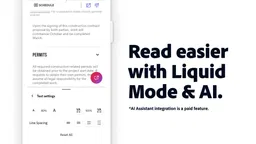
- Reading mode offers a cleaner view with less on-screen clutter.
- Cloud storage support helps keep documents accessible across devices.
- Accessibility tools can make PDFs easier to read and navigate.
What could be better
- Many editing features require a paid subscription.
- Some documents load slowly when they contain many pages or images.
- The interface can feel crowded with frequent upgrade prompts.
- Cloud features may require an Adobe account and internet access.
- Large PDFs can use considerable storage and device memory.





