



1.1.1.1 + WARP: Safer Internet review
 Analysis by Appsdrops
I judge a network privacy app less by how impressive its promise sounds and more by how it behaves when I switch between home Wi-Fi, mobile data, and a spotty public connection. 1.1.1.1 + WARP is a free Tools app from Cloudflare, Inc. that combines its 1.1.1.1 DNS service with WARP, a way to route a device’s internet traffic through Cloudflare’s network. The distinction matters: it is not simply a button that makes every online activity private, and it cannot turn a weak connection into a reliable one. Its value is in offering a straightforward network-level option for people who want to change how their phone connects.
What the connection change means in everyday use
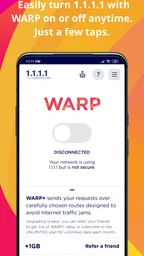
The app’s basic appeal is that it handles a technical choice through a phone-friendly interface. Instead of manually changing DNS settings or setting up a separate VPN service, I can use the app to choose between its DNS-focused mode and WARP. Those approaches are related, but they are not interchangeable: DNS concerns how a device looks up a site or service, while WARP routes more of the connection through Cloudflare. Neither should be confused with anonymity or a guarantee that every app, account, or website cannot identify me.
That distinction is useful when deciding whether to leave WARP enabled. If I want a simple DNS change, the lighter DNS option may be enough; if I want the broader routing approach, WARP is the relevant choice. In either case, the benefit depends on the network path and the service I am using. I would not assume that switching modes will make every page faster, or that a change in connection behavior means a particular site is now inaccessible for a specific reason.
The app has an average rating of 4.1 from around 1.4 million ratings, with roughly 17,000 written reviews and over 100 million installs. That scale suggests it has become a familiar option for people looking for a simpler alternative to editing network settings themselves. It is free to install, though in-app purchases are listed at $4.99 per item, so I would check the app’s current purchase screen if an optional paid offer matters to me.
Where it helps—and where it cannot
A practical everyday example is joining café Wi-Fi to check a bank balance or send a work message. I can enable WARP before using the connection, then continue using my usual apps. This can be a more comfortable setup than joining an unfamiliar network with no extra routing layer, but it is not a substitute for checking that the bank app is genuine, using strong account security, or avoiding sensitive actions on a device I do not trust. The app changes a part of the network connection; it does not make careless browsing safe.
On a weak signal, WARP cannot fix the underlying problem. If the access point is overloaded or mobile reception is poor, pages may still stall, video may buffer, and calls may drop. Routing traffic through an additional service can also affect responsiveness in ways that vary by network and destination. I would test it in the places where I actually use my phone rather than assume a privacy tool will improve every connection. If a particular banking, work, or streaming app behaves differently with WARP on, switching it off temporarily is a sensible troubleshooting step.
Compared with the usual alternatives, this app is less demanding than manually configuring DNS and more focused than a conventional VPN chosen for a particular country or server location. That simplicity is its strength, but it also sets boundaries: I would not pick it when my main goal is to select a specific region, connect to a particular VPN endpoint, or follow an organization’s exact VPN setup. For those jobs, a service designed around server choice or an employer-managed configuration may be a better fit.
Moving between Wi-Fi and mobile data
Phones rarely stay on one network all day. I might start a podcast at home, walk outside, and continue on mobile data; later I may join a guest network at work or in a hotel. A connection tool is most useful when it does not require me to rethink the setup at each transition. WARP is intended to change the path traffic takes, so I pay attention to whether the connection remains usable after a network change rather than judging it only while sitting beside my router.
My practical tip is to try the app in a few ordinary places before relying on it for travel. Compare a familiar site or app with the setting enabled and disabled, and note whether the difference appears only on one network. If a problem occurs, this small comparison can help separate a WARP-related issue from a local Wi-Fi or mobile signal problem. It also avoids the common mistake of changing several network settings at once, then having no clear idea which change mattered.
For people who move between personal and managed networks, there is another trade-off: the simplest setup is not always the right one. A school or employer may require a specific configuration, and a personal routing app should not be treated as a replacement for that. I would follow the network owner’s instructions first. Similarly, anyone who depends on a work connection should test the services they need before making WARP part of an everyday routine.
When a connection fails, keep the diagnosis simple
When an app stops loading, my first instinct would be to check whether the phone is actually connected to Wi-Fi or mobile data, then see whether other apps can reach the internet. If the whole connection is down, changing the privacy mode is unlikely to solve the root cause. If only one service fails while everything else works, temporarily turning WARP off can help identify whether the routing choice is involved. I would then restore the setting that works best for the task rather than repeatedly toggling options without a reason.
This kind of troubleshooting is especially useful on captive networks, such as hotel or guest Wi-Fi that asks users to accept terms on a sign-in page. Some network changes can complicate the initial connection process. If the sign-in screen does not appear or the network seems stuck, I would first connect to the Wi-Fi in the ordinary way, complete its access step, and only then test WARP. That is a practical sequence, not a promise that every network behaves identically.
It is also worth remembering that a routing app cannot resolve every service-specific restriction. A website may be down, an account may need verification, or a local network may block traffic. If a problem persists only with one destination, I would check that destination through another trusted connection before concluding that the phone itself is at fault. The more carefully I isolate the issue, the less likely I am to mistake a temporary network failure for a privacy feature failing.
What to consider if you watch your data use
People with limited mobile data should treat any change in routing as something to evaluate in their own routine. I would compare normal use with WARP on and off over a representative period, paying attention to the activities that matter most, such as video, large downloads, or frequent calls. The app’s role is to alter the network path, not to serve as a data-saving tool, so I would not enable it expecting it to reduce the amount of content a service sends to the phone.
A useful approach is to separate situations rather than make one blanket decision. I might prefer WARP on an unfamiliar public network, then choose the DNS-focused option or turn the routing change off when troubleshooting a service or conserving a constrained connection. The right choice depends on what I am doing and how that network performs. If the phone is on a reliable home connection and I notice no practical benefit, there is no reason to treat the setting as mandatory.
Battery and responsiveness are similarly best judged through real use rather than assumptions. Network tools can interact differently with different devices, signals, and apps. I would pay attention to whether a particular routine feels less smooth after enabling WARP, especially during long calls or navigation, and compare the same task without it. This is more useful than expecting a universal improvement or assuming that a single slow session proves the app is unsuitable.
Who should install it, and who may prefer something else
I think it suits people who want a low-friction way to use Cloudflare’s DNS service or try WARP without manually building a network setup. It is also approachable for someone who wants to understand the difference between a DNS change and routing more traffic through a service, provided they are willing to test both options and keep their expectations realistic. The age rating is Everyone, and the app has been available since November 10, 2018; its current version is 6.38.12, with Android 7.0 as the minimum operating-system requirement.
I would steer away from it if I needed a VPN mainly for choosing a particular location, had to use a mandated workplace VPN, or expected a tool to guarantee anonymity. Those are different requirements. I would also skip enabling it by default if it interfered with an essential app or made a weak connection feel worse. Having an easy switch is helpful precisely because the best network choice can change with the task.
One non-obvious habit that makes the app easier to evaluate is to keep a mental note of the network and mode when something behaves unusually. “This site failed on hotel Wi-Fi with WARP on” is a useful observation; “the internet is broken” is not. That small bit of context makes it quicker to decide whether to switch modes, reconnect to the network, or simply wait for the service to recover. It turns the app from a set-and-forget promise into a tool I can use deliberately.
My connectivity verdict
Cloudflare’s app earns its place on my phone when I want a simple way to adjust how network traffic is handled, especially while moving among Wi-Fi networks I do not control. Its strongest quality is accessibility: it gives ordinary users a path into DNS and WARP without requiring them to start with manual configuration. The main limitation is not a flaw unique to this app; it is the gap between what a network tool can change and what users sometimes expect it to guarantee.
I would recommend 1.1.1.1 + WARP to someone who values an easy-to-test privacy-oriented connection option and understands that performance can vary. I would not present it as a cure for unreliable internet, a replacement for account security, or a universal alternative to every VPN. Start with the DNS option if that is all you need, try WARP on the networks where you care about it, and switch modes when a real task gives you a reason. That measured approach is where the app makes the most sense.
What we like
- Simple setup makes it easy to enable private DNS protection.
- The free DNS service can be used without creating an account.
- WARP can improve performance on some networks.
- The app offers a clear switch for turning protection on or off.
- A separate DNS-only mode is available without the WARP tunnel.
What could be better
- WARP may not work with some VPN apps or network configurations.
- Connection speed can vary depending on the route and server load.
- Some websites may behave differently when traffic uses WARP.
- The app can use extra battery while its VPN tunnel is active.
- Advanced controls and customization are limited for experienced users.





