
ABC Kids: Tracing & Learning review
 Analysis by Appsdrops
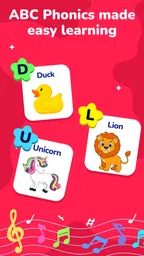
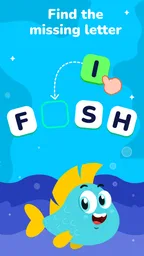
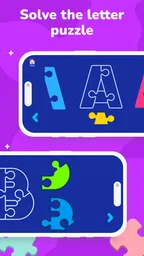
I’d treat ABC Kids: Tracing & Learning as a short, hands-on activity for a young child, rather than a complete early-learning course. Its mix of letter practice, phonics, balloon popping, and puzzles gives little learners different ways to engage, which can help when tracing alone stops holding their attention. In my view, its best role is a simple activity to share with a child or offer during a brief quiet moment—not a substitute for an adult reading, talking, and practising letters with them.
Where young learners can get stuck
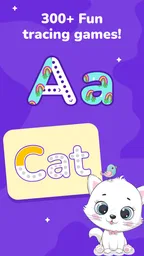
The game comes from BayBee Brain and sits in the educational-games category. Its different activity styles are a practical strength: a child who is reluctant to trace may be happier with a puzzle or a balloon activity, while a child who enjoys drawing can spend more time practising letter shapes. That variety gives a caregiver a few ways to reset attention without immediately switching to another app.
There is a trade-off, though. A collection of activities can encourage tapping from one thing to the next instead of staying with a learning task. I’d guide a child toward one activity at a time and name what they are practising: “Let’s follow this letter,” or “Can you find the sound again?” That small bit of adult involvement makes the play more purposeful, especially for children who are still learning to connect a letter’s appearance with its sound.
Tracing can also be frustrating for a child whose finger movements are still developing. If a line does not register as expected, I wouldn’t assume the child has failed or that the game is broken. A larger finger movement, a slower attempt, or a short pause can make the interaction easier. For a child who gets upset by screen-based tracing, a paper page or drawing with a finger in the air may be a better next step.
Touchscreen play is not equally comfortable for every child. A very young learner may need help holding the device steady, avoiding accidental taps, and returning to the activity after a distraction. I’d sit nearby at first rather than handing over the device and expecting the game to teach independently. The app can provide an activity; the adult helps the child make sense of it.
Check the basics before handing over the device
The game is free to download, but it includes in-app purchases listed from $2.99 to $49.99 per item. I’d check the purchase controls available on the device before a child plays, and keep any store purchasing protected. This is a useful setup step because a young child may tap around without understanding the difference between a game activity and a purchase prompt.
It is rated for Everyone, but that rating doesn’t decide whether its activities suit a particular child’s age, attention span, or motor skills. I’d try it together first and watch how the child responds: do they follow the tracing activity, enjoy the puzzles, or become distracted by switching between options? That first session gives a better answer than assuming every early learner will enjoy the same parts.
For Android users, the listed minimum operating-system requirement is version 6.0. If installation or launch is troublesome, checking that the device meets that requirement is a sensible first step. I’d also confirm there is enough available storage, that the app has finished installing, and that the device itself is responding normally before repeating an install or changing settings.
The current version is 9.12. If a problem appears after installing or updating, I’d first close and reopen the app, then restart the device if needed. These are straightforward checks, not guarantees; they help separate a temporary device hiccup from an issue that persists. I’d avoid deleting the app as an early troubleshooting move if the child has already settled into using it, since reinstalling can add unnecessary setup friction.
A calmer way to recover a disrupted session
When a child gets lost in the activity, I find it more useful to pause and return to one clear task than to let them tap randomly in search of the previous screen. Invite them to choose between tracing and a puzzle, then help them stay with that choice for a short turn. This turns a confusing moment into a manageable restart and makes it easier to see which kind of activity is actually working for them.
If tracing seems unresponsive, try one deliberate stroke and watch whether the child is touching the intended area. Then let them try again with a slower movement. Rapid tapping can make it hard to tell whether the issue is the interaction, the child’s hand control, or simply impatience. Keeping the device steady and giving the child time to complete a single attempt is a more useful test than repeatedly tapping different parts of the screen.
A practical routine is to use the app as a small part of a larger learning moment. For example, during a quiet stretch at home, a caregiver might invite a child to trace a letter, say its sound together, and then look for that letter in a book or on a familiar object. The app supplies the on-screen activity, while the conversation connects it to the child’s world. I would stop when attention fades rather than treating completion as a requirement.
It can also help to make the device handoff predictable. I’d open the game myself, select the activity, and explain what the child will do before passing it over. If the child’s attention wanders, I’d bring them back to the same task or end the session, rather than using every available activity just because it is there. The point is a comfortable learning rhythm, not filling every spare minute with screen time.
When the app may not be the problem
Not every difficult session points to a technical fault. A tired, hungry, or overstimulated child may have little patience for tracing, and an unfamiliar touchscreen can make a simple task feel awkward. If the child is struggling, I’d try again at a calmer time or switch to an offline activity. A paper letter, a toy, or a conversation about sounds may be a better fit in that moment.
It is also worth separating the child’s learning needs from the game’s activities. If a child needs a structured lesson sequence, detailed progress tracking, or a particular teaching method, this collection of playful activities may not meet that need. I’d look for a more clearly structured learning resource or work with a teacher’s recommendations instead of expecting a general children’s game to provide a complete curriculum.
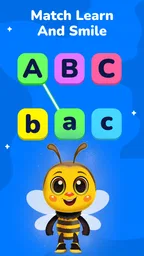
Compared with a single-purpose alphabet app, ABC Kids offers a broader change of pace through tracing, phonics, puzzles, and balloon play. That can be helpful for a child who loses interest in repeated letter drills. The reverse is true for a learner who benefits from one predictable task with fewer distractions: a focused tracing app, a printed workbook, or adult-led practice may be easier to stick with. The right choice depends less on the number of activities and more on how the child responds to them.
Who I’d recommend it to
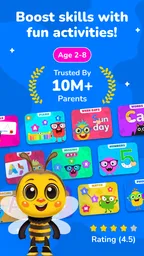
I’d consider it for caregivers looking for a free starting point for playful letter practice, especially when they can join in and help a child choose an activity. It has a substantial audience, with over 10 million installs, and its average rating is 4.3 from around 24,000 ratings. Those figures suggest many people have tried it, but they don’t tell me whether it will suit an individual child, so I’d still judge it by a shared first session.
I’d be less inclined to recommend it to someone seeking a fully guided course, a distraction-free tracing tool, or an experience that a child can use without any adult setup. Parents who want to avoid in-app purchases should also check purchase protections before handing over the device. And if a child finds touch controls stressful, offline letter games may be kinder and more effective.
My practical verdict is that ABC Kids: Tracing & Learning is worth trying when you want a varied, low-commitment way to introduce letters and keep a young child engaged for a short activity. BayBee Brain’s game is free, rated for Everyone, and offers more variety than a tracing-only exercise, but it works best with an adult nearby to steer the session and turn taps into conversation. I’d install it for shared practice, keep purchases protected, and move on to paper or a more structured option whenever the child needs less choice or more guidance.
What we like
- Tracing activities help children practice early letter formation.
- Simple controls make it easy for young children to navigate.
- The colorful visuals keep lessons inviting for preschoolers.
- Activities cover both uppercase and lowercase letters.
- Parents can use it for short practice sessions at home.
What could be better
- The lessons focus mainly on letters rather than broader skills.
- Repeated activities may feel predictable over time.
- Children may need adult guidance to hold the device correctly.
- Screen time may not suit every family's learning routine.
- The app offers limited challenge for children who already know the alphabet.







