
YouTube Kids review
 Analysis by Appsdrops
When I first open YouTube Kids, I think of it less as a smaller copy of regular YouTube and more as a viewing space designed around a child’s use. That distinction matters: the app can make it easier to find videos for younger viewers, but it does not replace an adult’s judgement about what a child should watch. I’d recommend it to parents who want a more child-focused starting point for video time, as long as they are willing to help with setup and keep an eye on how it is used.
What to expect from a child-focused video app
YouTube Kids is a free entertainment app from Google LLC, available for Android and iOS. It is intended for everyone, though its practical audience is children and the adults helping them choose videos. The app has been around since February 23, 2015, and its scale is substantial: it has passed 500 million installs and holds an average rating of 4.2 from around 3.4 million ratings. Those figures suggest that many families have tried it, but they do not guarantee that every video or viewing experience will suit every household.
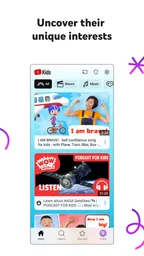
The basic appeal is straightforward: a child can browse and watch videos in an environment made with children in mind, rather than being handed the full regular YouTube experience. In practice, I see the app as a useful first layer between a young viewer and a huge video library. It can make independent browsing feel more manageable, but it should not be treated as a promise that every recommendation will match a parent’s standards.
That is the main expectation I would set before downloading it. The app can help narrow the experience, but it cannot make a family’s decisions for them. If you are looking for a way to keep a child occupied without any adult involvement, this is not the tool I would rely on. If you want a child-oriented place to start watching together, or a familiar app that a child can learn with your guidance, it makes more sense.
Where it fits among video options
Compared with regular YouTube, the point here is not simply access to more videos; it is a child-focused presentation. A parent choosing between the two may prefer YouTube Kids for a younger child who is not ready to navigate the broader service. Regular YouTube may be a better fit for an older viewer who needs content or controls outside this app’s intended experience, while a small, fixed collection of videos can be better when you want to decide exactly what is available.
There is a trade-off in that convenience. A broad video app is appealing because it can offer variety without requiring a parent to prepare every viewing choice in advance. But the more a child explores, the more important it is to check what they are watching and whether the app’s suggestions fit your household. I would use it as a guided library, not as a substitute for choosing family rules.
Start with the adult, not the child
For a first-time user, I would install the app and explore it before handing over the device. Spend a few minutes seeing how the child-facing experience is arranged and which options are available to the adult. The exact decisions that make sense depend on the child’s age, interests, and how independently you plan to let them use the app, so I would avoid rushing through setup just to reach the first video.
A practical first session does not need to involve a complicated plan. Decide when the child is allowed to watch, whether you will sit with them, and what kinds of videos you are comfortable with. Then open the app together and let the child explore while you watch how they respond to the choices on screen. This makes setup part of the routine, rather than a one-time task that you never revisit.
If the device is shared, think about who will be using it before starting. A child-friendly app on a family tablet may be convenient, but the tablet itself can still contain other apps and ways to reach other content. I would not assume that choosing YouTube Kids automatically turns a shared device into a child-only device. For a younger child, staying nearby and keeping the app in the foreground can be a simple, realistic way to make the first sessions more predictable.
Make the first viewing a small success
My preferred first use is deliberately modest: sit with the child, open the app, and help them choose one video they already enjoy or a subject they are curious about. The goal is not to test every menu. It is to see whether the child understands how to start watching and whether the experience feels comfortable to both of you. A short, shared session gives you a better sense of fit than handing over the device for an extended stretch on day one.
For example, a parent waiting at home while dinner is being prepared might want a few minutes of calm viewing nearby. I would open the app with the child, help them find something suitable, then check in rather than treating the screen as a babysitter. That small routine reveals useful things: whether the child can make a choice without frustration, whether the available videos match their interests, and whether an adult needs to remain involved.
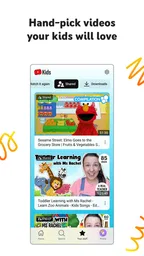
One useful habit is to observe what the child chooses, not just what the app initially presents. A child may be drawn to a familiar topic, a bright thumbnail, or a video that looks exciting but is not what they expected. Talking through the choice helps them learn to pause and ask for help. It also gives the parent concrete information for deciding how much independent browsing is appropriate next time.
Another helpful approach is to end the first session intentionally. Tell the child when viewing is over and close the app together, rather than letting the transition happen only when an adult suddenly takes the device away. That does not depend on a special app feature; it is a simple routine that can make screen time easier to manage. The app supplies the viewing space, while the family supplies the boundaries.
Common points that can surprise new users
The first likely confusion is assuming that “for kids” means every result will be a perfect match for your child. I would not make that assumption. The app’s child-focused purpose can make it a more appropriate starting point than regular YouTube for younger viewers, but parents still need to judge content and keep the child’s maturity in mind. If a video feels unsuitable, help the child move on and adjust how you supervise future sessions.
A second point is that a child’s interests can change quickly. A setup that feels right for a preschooler may not suit an older child who wants different subjects or more independence. Revisit the experience occasionally instead of assuming that the original arrangement remains appropriate. If the child is repeatedly asking for content they cannot find, that may be a sign to review your approach, not a reason to loosen every boundary automatically.
It can also be confusing to distinguish the app from a complete parental-control system. YouTube Kids focuses on children’s video viewing; it does not by itself answer every question about device access, time limits, or what happens in other apps. Families who need broader controls should consider the tools available on their device as well. That distinction is especially important when a child uses a phone or tablet that belongs to an adult.
Finally, convenience can encourage adults to step away sooner than they intended. I understand why: the app is designed to be approachable for children, and a child who can navigate it may seem ready to use it alone. Still, independent use is a decision to make gradually. Start by watching together, then give the child more room only if you are comfortable with their choices and the way they handle the experience.
Who will appreciate it, and who may want another option
I think YouTube Kids is most useful for families who already turn to videos for songs, learning, entertainment, or a quiet moment, and want a child-oriented place to begin. It is also a reasonable choice for a child who can use a touchscreen but still benefits from an adult helping with selection. The free price makes trying it straightforward, and the app’s long-standing popularity means it is a familiar option for many households, though neither point removes the need for supervision.
I would be less enthusiastic about it for a parent who wants to curate every available choice in advance and offer only a small, known collection. In that situation, playing selected videos directly or using a more controlled set of media may be a better fit. I would also look elsewhere if the child is old enough to need a broader viewing experience, or if the main problem is managing access to the whole device rather than choosing a child-focused video app.
There is no single right age at which a child is ready to use it independently. I would base that decision on whether they can follow your household’s screen rules, ask for help when something feels wrong, and stop when the session is over. A child’s ability to tap through an interface is not the same as being ready to make every viewing decision alone.
A sensible next step after the first session
After the first shared viewing, ask the child what they liked and check whether the videos they found were the kind of experience you intended. If it went well, make the next session a little more independent while staying close enough to notice what happens. If it felt confusing or the content did not suit your expectations, return to watching together and rethink how much freedom to give. That gradual approach is more useful than treating installation as the finish line.
YouTube Kids is a practical option when you want a child-focused route into online video, and I would gladly suggest it to a friend who understands that it still calls for adult involvement. Its strongest role is as a convenient starting place for shared or gradually supervised viewing—not as a guarantee of perfect content or a replacement for family rules. Begin together, see how your child uses it, and let that experience guide the next step.
What we like
- Child-friendly controls help parents limit viewing time.
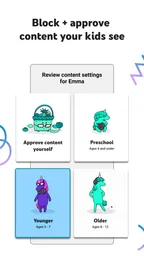
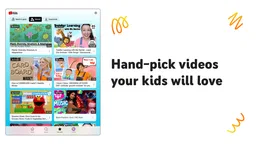
- Profiles let parents tailor content for each child.
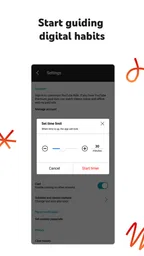
- A timer can end viewing sessions automatically.
- Videos can be downloaded for offline viewing with a subscription.
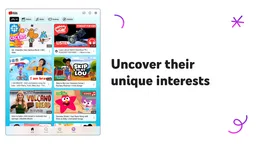
- The interface is simple for young children to navigate.
What could be better
- Some videos may still be unsuitable despite content filters.
- Parental setup requires an adult Google account.
- Offline downloads require a paid subscription.
- The app may show ads between videos.
- Some features vary by country and device.





