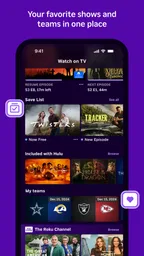
The Roku App (Official) review
 Analysis by Appsdrops
When I want to control a Roku device without searching for the physical remote, I reach for The Roku App. Its central idea is simple: use a phone as a companion to Roku, with controls close at hand. That can make everyday viewing easier, but it also means the app is most useful to people who already use Roku hardware. It is an entertainment app from Roku, Inc. & its affiliates, and I see it as a practical helper rather than a replacement for every way of navigating a TV.
Finding your way around the app
The app’s purpose is easy to grasp: it gives you a way to control Roku devices from your phone. That focused role makes it less demanding to understand than a broad streaming hub with many unrelated menus. If you are setting it up for someone else, I would explain it as a phone-based way to reach the controls, not as a new television service in itself.
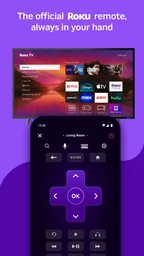
I find the phone format useful when the remote is buried between cushions or left in another room. A phone is often already nearby, and using it avoids interrupting a film just to hunt for a small handset. It can also help when the physical remote is temporarily unavailable. The key distinction is that the app complements a Roku device; it is not a general-purpose remote for televisions and streaming boxes from every brand.
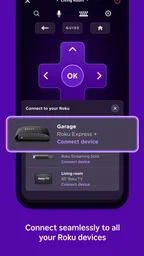
For a first-time user, the practical question is whether the app can connect to the Roku device they want to control. I would start with the phone and Roku on the same home network, then open the app and look for the device. If the Roku does not appear, checking that both are connected to the expected network is a sensible first step. A guest network or a change in the home network can make discovery less straightforward.
This is where the app’s simplicity has a boundary. It is not useful as a remote for someone who has no Roku device, and it cannot solve a problem caused by a television or network that the phone cannot reach. If you are choosing a streaming platform from scratch, the app alone is not a reason to choose Roku. It makes more sense after the hardware decision, as a convenient control option for a household already using it.
Readable in a quick, practical way
In my view, the best accessibility advantage here is the familiar shape of the task: open a phone app and use it to interact with a Roku device. A phone can be easier to keep within reach than a small remote, and the larger screen gives the controls more room than many physical handsets. That does not mean every person will find the app easier; comfort depends on vision, dexterity, and familiarity with touchscreens.
The interface also asks users to move between a phone and a television. That division is convenient when the phone is already in hand, but it can be confusing if someone expects every choice to happen on the TV. I would show a new user the basic sequence once—find the Roku device, open the controls, and then watch the television for the result. Keeping that explanation short is often more helpful than trying to describe every option at once.
The app is free, and its Teen content rating is worth keeping in perspective: it describes the app’s store classification, not a promise that all content available through a Roku device is suitable for every household member. Parents should continue to consider what is watched on the television and how the household manages viewing. The app’s role is control, not a substitute for family decisions about content.
Touch, sound, and different ways of interacting
A phone-based remote can be a useful alternative for someone who finds a compact physical remote difficult to hold or operate. The phone is a larger object, and a touchscreen may feel more familiar to people who already use one for calls and messages. But touch controls can also require precise tapping, and a smooth glass screen offers less tactile feedback than raised buttons. Someone who relies on feeling their way around a remote may prefer the physical handset.
There is another trade-off for people with limited hand movement: a phone can be positioned or supported more conveniently than a remote, but holding it while navigating may still be tiring. I would try resting the phone on a stable surface and using it from there before deciding whether the app is comfortable. The app should be treated as an additional control route, not as a guaranteed solution for every motor need.
For sensory preferences, the phone can reduce the need to search for buttons by touch, while the television remains the main place where the viewing content appears. That arrangement may suit someone who prefers a familiar phone screen. On the other hand, looking down at a phone and back up at a television creates repeated visual shifts. If those shifts are uncomfortable, the physical remote—or another setup that keeps attention on the television—may be a better fit.
I would also avoid assuming that a phone app automatically makes Roku usable without sight or hearing. The app and television are two parts of one interaction, and the experience depends on how the user navigates each. If a person already uses phone accessibility settings or relies on particular TV features, it is sensible to test the full process with the Roku device rather than judging the phone app in isolation.
When phone control helps—and when it gets in the way
A realistic example is a shared living room: someone has settled in to watch a show, the Roku remote is missing, and their phone is on the sofa. Opening the app can be less disruptive than getting up to search. It is also useful when a household member wants to operate the Roku from a nearby phone instead of passing around a single remote. In both cases, the benefit is immediate access to another control method, not a new source of entertainment.
For a caregiver or family member helping someone else, the app can make it easier to keep the control device close to the person using the TV. I would first check that the intended Roku appears in the app and that the user can distinguish it from other devices in the home. A small amount of setup and explanation can prevent the awkward moment of trying to control the wrong screen.
In shared homes, phone control has a privacy and convenience dimension too: the phone belongs to its user, while a physical remote is often communal. That can be helpful when someone prefers to keep their own controls nearby. It can be less convenient if the phone is being used for something else, needs charging, or is not available to the person watching. The physical remote remains a useful backup rather than an obsolete accessory.
Compared with a standard physical remote, the app’s strongest case is convenience when the phone is already in reach. A remote usually wins for quick, eyes-free button presses and for people who do not want to unlock or handle a phone. Compared with a broad smart-home controller, this app is narrower: it is designed around Roku devices, which makes its purpose clearer but gives it little reason to replace a household’s other control apps.
That distinction matters if you are deciding what to install. If your goal is to control Roku from a phone, this is the natural app to try. If you want one interface to control equipment from several brands, a wider home-control option may be more suitable, provided it supports your devices. If you prefer physical buttons, have no Roku device, or rarely misplace the remote, the app may add little to your routine.
Small setup snags and practical workarounds
The first friction point is device discovery. If the app cannot find the Roku, I would check that the phone is on the home network rather than a guest network, and confirm that the Roku is connected as expected. Restarting the app after a network change can be worth trying. These are ordinary troubleshooting steps, but they matter because phone control depends on the devices being able to communicate.
Another practical limitation is that the phone becomes part of the viewing setup. If its battery is low, the screen is being used for another task, or the phone is in another room, the app is not necessarily faster than reaching for the remote. For regular viewing, I would keep the physical remote accessible and think of the app as a second route for moments when it is genuinely more convenient.
Updates can change how an app feels over time, so it helps to know which release is installed when troubleshooting. The current version is 14.2.0.117044833, and the app’s minimum operating-system requirement is version 9. I would check compatibility before relying on it with an older phone. For a household using one shared phone, it is also worth testing the controls on that particular device rather than assuming the experience will be identical across every handset.
Its popularity is substantial: it has more than 100 million installs, around 4.8 million ratings, and a 4.7 average. Those figures suggest that many Roku users find a phone companion worthwhile, but they cannot tell you whether its touch interaction suits your hands, vision, or routines. I would use the free app as a low-cost trial of phone control and keep the physical remote available while deciding.
A useful companion, with clear limits
The Roku App is best for people who already use Roku and want a convenient second way to control it. I recommend trying it if your remote often goes missing, you prefer keeping controls on your phone, or you are helping someone manage a Roku setup from nearby. Its focused purpose is a strength: it does not ask you to learn an unrelated entertainment system just to reach the device controls.
For inclusive use, I see potential rather than a universal answer. A larger phone may be easier to handle than a small remote, yet touch interaction can be less dependable for someone who needs tactile buttons or precise control is difficult. Looking between phone and television may also be a drawback. The best choice depends on the person, so I would test a normal viewing session—including the setup steps—not just a quick tap on the controls.
Roku launched the app on March 2, 2012, and its long-running role is still straightforward: give Roku users another way to interact with their devices. My recommendation is simple. Install it if phone-based control would solve a real inconvenience in your home; skip it if you do not use Roku or strongly prefer a dedicated remote. For many households, the most sensible arrangement is not choosing one or the other, but keeping both available for different situations.
What we like
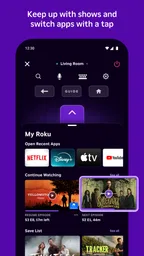
- Use your phone as a remote when the physical one is misplaced.
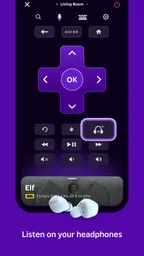
- Private listening lets you hear TV audio through connected headphones.
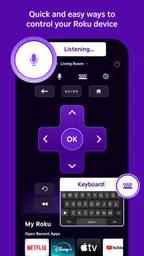
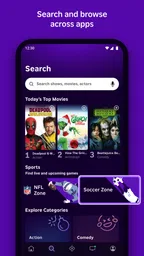
- Search across Roku channels using voice or text input.
- Cast photos and videos from your phone to a Roku device.
- Manage multiple Roku devices from one app.
What could be better
- The app requires a compatible Roku device on the same network for remote controls.
- Some features are unavailable on older Roku devices.
- Private listening can drain your phone battery during long sessions.
- Voice search may not work equally well for every channel.
- Casting support varies by media type and Roku device.





