
Wallpaper Engine review
 Analysis by Appsdrops
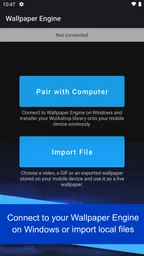
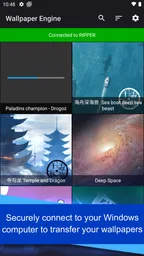
The appeal of Wallpaper Engine on Android is not simply that it puts motion behind your icons. Its defining job is to bring wallpapers from the Windows version onto a phone, making it a companion for people who already have a collection on their computer. I like that focused purpose: instead of treating the phone app as a completely separate wallpaper library, it gives existing desktop choices a way to travel.
That focus also sets expectations. This is a personalization app, not a general-purpose gallery of static backgrounds or a tool for designing elaborate scenes from scratch. The experience makes the most sense when you have access to the Windows app and wallpapers you want to use on mobile. If you are starting from zero and only want a quick, attractive image for your lock screen, the usual wallpaper browser may be more straightforward.
Bringing a desktop wallpaper to your phone
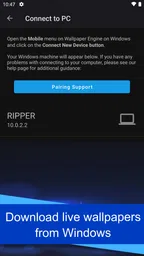
The central idea is a handoff: choose a live wallpaper on Windows, then transfer it for use on Android. In my view, that is more useful than it first sounds. A wallpaper collection can be part of how someone sets up a PC, and having a related visual on a phone helps make both devices feel connected without hunting for a similar image separately.
The app is made by Wallpaper Engine Team and sits in the personalization category. It is free, rated for Everyone, and its current version is 2.8.8. The app has a 4.0 average from around 19,000 ratings, with roughly 1,300 written reviews, and has passed 10 million installs. Those figures suggest it has found a substantial audience, but they are not a guarantee that the transfer workflow will suit every phone or every wallpaper.
The key distinction is that this is a companion to a desktop setup, not an Android replacement for every part of that setup. The store description points to moving live wallpapers from Windows to Android; I would therefore approach it as a bridge between devices rather than assume that the phone app offers the same editing and management experience as the PC version. That distinction matters if you are deciding whether to install it before you have any desktop wallpapers to bring over.
What the transfer changes in everyday use
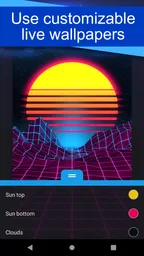
For a phone, a live wallpaper is most noticeable in brief moments: waking the display, returning to the home screen, or glancing at the background while moving between apps. A carefully chosen scene can make those moments feel more personal than a static picture. The effect is less compelling if you spend nearly all your time inside apps, where the background is hidden.
I would treat the transfer as a selection step, not a reason to put every favorite desktop scene on the phone. A wallpaper that looks great across a large monitor may feel crowded on a narrow display, especially if its most interesting detail sits near an edge or behind icons. Before committing to one, consider whether its focal point will remain visible in the phone’s home-screen layout. Choosing a simpler composition for mobile can be a better outcome than forcing a busy desktop favorite to do double duty.
There is also a practical difference between choosing a wallpaper for a computer and choosing one for a phone. On a desktop, you may stare at the background for long stretches; on a phone, you often see it in quick bursts and need icons and text to remain easy to read. I recommend prioritizing contrast and uncluttered areas where your most-used icons sit. That small bit of planning can make a dramatic animated scene more usable, not merely more eye-catching.
A workflow that rewards a little planning
If you already use Wallpaper Engine on Windows, start by deciding which scenes are genuinely suited to a smaller screen. Think about composition first: a centered subject is often easier to live with than one that depends on details spread across a wide desktop canvas. This is a practical screening habit rather than a special feature, but it can save you from transferring a wallpaper that feels impressive on the PC and awkward on the phone.
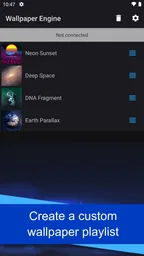
It is also sensible to keep a small shortlist rather than treating the phone as another place to reproduce your entire desktop collection. A few distinct choices make it easier to settle on one that fits your mood and layout. If you change your phone’s icon arrangement often, check the wallpaper again afterward; a change in where icons sit can cover the subject you originally wanted to see.
One useful way to judge a live background is to give it a normal day rather than deciding from a quick preview. Use the phone as usual, then notice whether the motion still feels pleasant after repeated unlocks and whether the background competes with the home screen. This is especially worthwhile with energetic scenes. A wallpaper can be technically attractive yet become distracting when it appears every time you check a notification or open the device.
The Windows-to-Android connection is the reason to choose this app over a conventional wallpaper picker. If your desired image already exists in your desktop collection, transferring it can be more satisfying than searching for a near-match on mobile. If you do not have a Windows setup or any wallpapers there that you want on your phone, that advantage largely disappears, and a dedicated Android wallpaper app may involve fewer steps.
Where the companion approach fits best
The strongest everyday scenario is someone who has already customized a Windows PC and wants a coordinated look on a personal phone. For example, you might use one atmospheric scene on your desktop and carry a mobile-friendly version of that visual style into your home screen. The benefit is continuity, not a new social feature or a larger set of controls: the same taste can carry across devices.
It is also a good fit for people who enjoy revisiting and refining their device setup. Rather than choosing a random image once and forgetting it, you can be selective about which desktop wallpapers deserve a place on the phone. I would start with a scene that has a clear subject, a calm area behind icons, and motion that remains comfortable when seen in short bursts. That approach makes the phone feel customized without turning its background into the main event.
By contrast, someone who changes wallpapers only when setting up a new phone may not gain much from a desktop-linked process. A static image can be easier to browse, quicker to settle on, and less visually active. Likewise, if you want to create or extensively edit a mobile wallpaper directly on the phone, this app’s central transfer role may not match what you have in mind. The right choice depends less on whether live wallpapers are appealing in general and more on whether your desktop collection is part of the decision.
Tradeoffs worth considering before you settle on a scene
Motion adds personality, but it can also compete with the interface. If a wallpaper has a lot happening behind app icons, the home screen may feel busier than you want. I would favor scenes whose movement is atmospheric rather than constantly demanding attention, especially if you use the phone for reading, messaging, or work throughout the day. A static wallpaper remains the better option when visual calm and predictable legibility matter most.
A desktop image is not automatically a good phone image. Different screen shapes and home-screen layouts change what remains visible, so the transfer should be followed by a real-world check on the device. Look at the wallpaper with your normal icons and widgets in place, not just in isolation. If the important part is obscured, try a different scene instead of assuming that a more dramatic desktop choice will necessarily look better on mobile.
There is a workflow tradeoff, too. The app’s purpose is tied to moving content from Windows, so people who want a self-contained phone experience should weigh that extra dependency against the benefit of reusing their desktop choices. I would not pick it solely because its name is familiar or because live wallpapers sound appealing. Pick it when the Windows-to-phone link solves a real problem for you.
As with any live background, it is worth paying attention to how the phone feels during ordinary use rather than judging only by appearance. If you find yourself noticing the animation more than the information on screen, switch to a quieter option or a still image. Personalization should make the device feel more like yours, not make basic tasks harder to focus on.
Who is likely to get the most from it
I would recommend this app first to Windows users who already have Wallpaper Engine wallpapers they want to carry onto Android. They are the people most likely to appreciate its specific role, because it connects an existing desktop habit to their phone instead of asking them to build a new collection from scratch. It is especially appealing if you enjoy coordinated devices and are willing to choose scenes with a phone’s screen and icons in mind.
It is a weaker match for someone who wants an extensive phone-first browsing experience, only uses static images, or has no desktop collection to draw from. Those users may find a standard wallpaper picker more direct. It is also not the choice I would make for anyone who finds animated backgrounds distracting; no amount of desktop continuity outweighs a calmer screen if that is what helps you use your phone comfortably.
The app’s release date is November 21, 2021, and it remains a clearly defined companion rather than a broad redesign of mobile personalization. That narrowness is both its appeal and its limitation. It does one particular job—bringing Windows live wallpapers to Android—and your decision should turn on whether that job fits your devices and habits.
My recommendation is straightforward: install Wallpaper Engine if you already have desktop scenes you genuinely want to see on your phone, then be choosy about what you transfer. Start with one mobile-friendly wallpaper, check it behind your real icons, and live with it through a normal day. If it adds character without making the home screen harder to use, the connection is worthwhile. If you simply want an easy static background or a phone-only source of inspiration, another option will probably feel more natural.
What we like
- Supports animated and interactive wallpapers on compatible devices
- Offers extensive customization for creating a personalized home screen
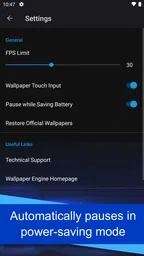
- Can reduce animation activity when battery saving is enabled
- Lets users import personal images and videos as wallpapers
- Provides a broad library of community-created wallpaper designs
What could be better
- Live wallpapers may consume more battery than static backgrounds
- Some effects can cause lag on older or less powerful devices
- Wallpaper availability and quality vary across the community library
- Interactive wallpapers may use extra system resources
- Setup and customization can feel complex for new users





