
Microsoft SwiftKey AI Keyboard review
 Analysis by Appsdrops
I notice a keyboard most when it gets in the way: a word comes out wrong, a useful symbol is buried, or I have to switch apps just to find the right reaction. Microsoft SwiftKey is designed to make those small moments smoother, while letting you change how your keyboard looks and behaves. It is a free personalization app from SwiftKey, and its mix of typing tools, themes, GIFs, stickers, and Copilot makes it more than a cosmetic replacement for the keyboard that came with your phone.
A keyboard that adapts to everyday typing
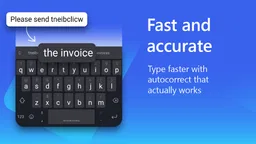
After using it, my main impression is that SwiftKey is best suited to people who type a lot across different apps and want a keyboard that feels tailored to them. It can learn your writing patterns and offer word suggestions as you type, which is especially handy when you move between casual chats, work messages, and longer notes. Suggestions are most useful when they save a tap without making you feel that the keyboard is trying to write the whole message for you.
That distinction matters. Predictive text can speed up familiar phrases, but it is not a substitute for proofreading. Names, unusual wording, and short replies can still produce suggestions that do not fit your intent. I recommend treating the suggestion strip as a set of shortcuts: accept a word when it is right, ignore it when it is not, and check the final message before sending anything important.
The app is rated 4.3 on average from around 4.6 million ratings, and it has passed one billion installs. Those figures suggest that it has found a broad audience, but they do not mean every typing style will suit its predictions. I would judge it by a few days of your own messages rather than expecting it to feel perfectly personalized the moment you install it.
Useful when your conversations change tone
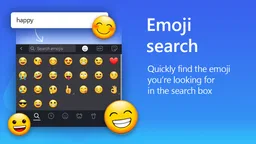
A realistic example is answering a work message on the way home, then switching to a family group chat. In the first, I want clear sentences and careful corrections; in the second, I may want a quick reaction, a sticker, or a GIF. SwiftKey brings those expressive options into the keyboard, so I can keep the conversation moving without opening a separate app to search for a reaction.
That convenience is also a matter of taste. If you send GIFs and stickers often, having them close to the keys can make the keyboard feel more complete. If you prefer plain text or rarely use visual reactions, those extras may add little. I would choose a restrained theme and leave the expressive tools available for occasional use rather than making them the center of the setup.
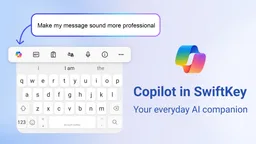
Copilot adds an AI-powered option to the keyboard’s broader toolset. It may appeal if you like having an assistant within reach while composing or looking for help with wording. I see it as an optional layer, not the reason everyone should switch. For quick everyday typing, the familiar keyboard functions are still the core benefit; if you do not want AI features in your writing routine, you can focus on the rest of the keyboard experience.
Personalization that serves a purpose
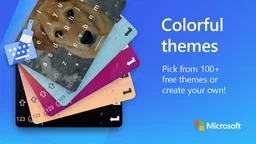
Theme choices are more useful than they may sound when they help you recognize the keyboard at a glance or make it feel less like a fixed system component. Still, customization can become a distraction if you spend more time choosing a look than improving your typing. I would first settle on a comfortable layout and a theme that is easy to read, then explore GIFs, stickers, and other options only if they fit how you actually communicate.
One practical tip is to evaluate a keyboard in stages. Start with ordinary messages and see whether its suggestions match your vocabulary. Then try a longer note, where punctuation and corrections matter more. Finally, test the features you expect to use, such as GIF search or Copilot. This makes it easier to identify whether SwiftKey is genuinely helping or whether a new interface is simply making familiar typing feel different.
What the current version means for users
The current version is 9.13.20.4, and SwiftKey has been available since September 22, 2010. That long product history gives the app a mature role as a keyboard rather than making it a new experiment. The current experience also reflects the way keyboards have expanded beyond entering text: personalization, visual reactions, and AI assistance now sit alongside correction and word suggestions.
I would not read a version number as a promise of a particular improvement. What matters to an existing user is whether the current build continues to fit their routine and whether its options are easy to ignore when they are not needed. If you already use SwiftKey, there is no reason to change a comfortable setup merely because the app has a newer version. Explore additions at your own pace, and keep the functions that genuinely save time.
For someone switching from a phone’s default keyboard, the adjustment is more noticeable. You are changing a tool used in nearly every messaging app, so even small differences in key placement, suggestion behavior, or access to symbols can affect muscle memory. I would give myself time to adapt before deciding that the keyboard is slower. At the same time, if a particular layout keeps causing mistakes, convenience elsewhere does not make that friction disappear.
The app is available at no cost and is suitable for Everyone. It requires Android 8.0 or later, so it is worth checking that requirement before planning a switch on an older device. SwiftKey is developed by SwiftKey, and its focus on personalization makes it a natural candidate for people who want more control over the look and feel of typing without paying for the app itself.
Where it sits among keyboard alternatives
The usual alternative is the keyboard already installed on your phone. That is often the better choice if you value familiarity, want fewer settings to think about, or have no complaint with its corrections. A built-in keyboard also avoids the learning curve of changing a tool that appears in so many apps. There is no automatic win in replacing it just because SwiftKey offers more visible customization.
SwiftKey makes more sense when you want a keyboard that can feel personal and keep visual conversation tools close at hand. Compared with a plain default setup, its themes, GIFs, stickers, and Copilot give you more ways to shape the experience. The trade-off is that extra options can make the keyboard feel busier, and predictive suggestions may take time to align with your habits. If your priority is the simplest possible typing surface, a more basic keyboard may be a better fit.
I would also consider how you handle sensitive or carefully worded messages. A keyboard’s suggestions can be convenient, but they should not decide what you say. For private or high-stakes writing, slow down, review every proposed phrase, and avoid accepting a suggestion just because it appears first. That is sensible practice with any predictive keyboard, not a reason to assume SwiftKey will understand every nuance.
Limitations worth weighing before you switch
The biggest friction is the gap between personalization as an idea and personalization that feels accurate in real life. Predictions depend on the way you type, and a keyboard that has not yet adapted may offer words you would never use. People who rely heavily on uncommon names, specialist vocabulary, or several languages in the same sentence may need to correct it more often. If that describes you, test those exact situations rather than judging it by a few simple texts.
The feature set can also be more than some people want. GIFs and stickers are convenient for expressive chats, but they are not essential to typing, and an AI assistant may be irrelevant if you prefer composing without that kind of help. The right choice depends on whether these extras fit your habits, not on how many features appear in the keyboard. Someone who wants a quiet, minimal layout may be happier staying with a familiar default option.
Another reasonable trade-off is the time needed to make a new keyboard feel natural. Switching can disrupt practiced thumb movements, and a theme that looks attractive may not be as readable as a simpler design. I would prioritize legibility and key comfort over novelty, then make one change at a time. That way, if typing becomes less comfortable, you can tell which adjustment caused it.
Who I would recommend it to
I would recommend Microsoft SwiftKey to frequent texters who want suggestions, a more personalized keyboard, and easy access to GIFs or stickers. It is also worth trying if you enjoy customizing the interface or want Copilot available as part of your writing environment. Its free price makes it easy to try without committing money, while its broad install base shows that it is a well-established option rather than a niche keyboard.
I would tell a minimalist typist to think twice. If the default keyboard already handles corrections well and you rarely change its appearance, SwiftKey may not improve your day enough to justify adapting. I would also be cautious if you expect AI or predictions to compose accurate messages without your review. The app can help with the act of typing, but your judgment remains essential.
For anyone undecided, my practical recommendation is to install it, make only the basic setup changes, and use it in your normal routine before exploring every extra. Notice whether suggestions reduce effort, whether the keys feel comfortable, and whether you actually use the visual tools. If the answer is yes after ordinary conversations rather than just a novelty test, it is likely a useful long-term replacement.
What I would watch as it evolves
SwiftKey’s established keyboard foundations and its newer AI direction create an interesting balance. I would watch how well the optional tools stay out of the way for people who only want dependable typing, and whether personalization continues to feel practical rather than crowded. Those are expectations, not guarantees about future changes; the best evidence for any user will be how the version on their device behaves in everyday use.
Overall, I see SwiftKey as a capable choice for people who want their keyboard to do more than provide a row of letters. Its strongest case is the combination of adaptive typing, customization, and quick access to expressive tools, while its main caveats are the learning curve and the possibility that extra features will not suit a simple workflow. If you like adjusting your phone to match the way you communicate, I think it is well worth trying. If you prefer a keyboard that stays invisible, the one you already use may remain the better fit.
What we like
- Personalized predictions adapt to your typing habits over time.
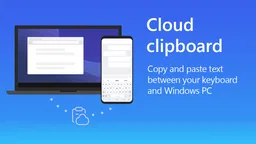
- Clipboard tools make it easy to reuse copied text.
- A wide selection of themes helps customize the keyboard.
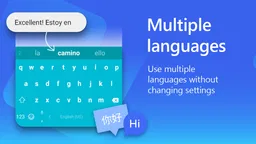
- Supports typing in multiple languages.
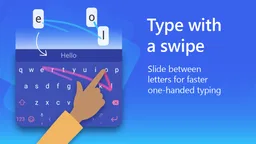
- Swipe typing can help you write without lifting your finger.
What could be better
- Some advanced features require an internet connection.
- AI tools may send text to Microsoft for processing.
- Frequent suggestions can feel distracting to some users.
- Keyboard customization options may take time to explore.
- Prediction quality can vary between languages.





