


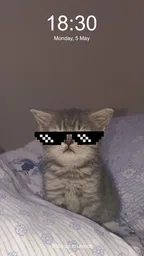
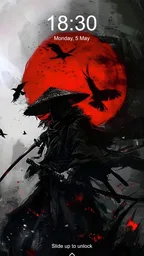
Wallpaper 4K HD – Wallcraft review
 Analysis by Appsdrops
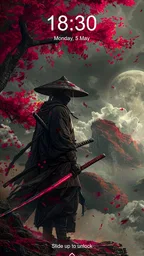
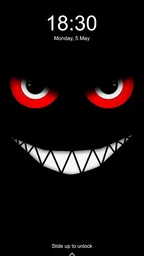
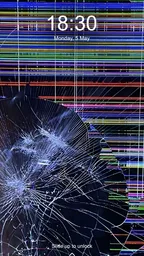
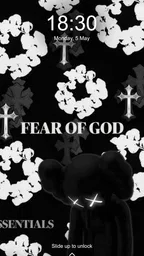
I like a wallpaper app best when it makes a phone feel more personal without turning a simple change into a project. Wallcraft is built around that idea: it gives Android and iOS users a place to browse high-resolution still images and animated backgrounds, then make a choice that changes the feel of the screen. Its range is the main attraction, but the experience also depends on finding an image that suits your display, your icons, and how much movement you actually want.
Finding the right image without getting stuck
The first challenge with a large wallpaper collection is not a lack of options; it is choosing among them. Wallcraft is a personalization app from Nebuchadnezzar DOO, and its focus on 4K imagery and 3D-style animated backgrounds sets it apart from a basic gallery or the small wallpaper selection built into a phone. That variety is useful when you have a specific mood in mind, but browsing can feel less direct if you arrive without one.
I get better results by deciding what I need before opening the catalog. A calm background for reading notifications calls for a different image from a dramatic lock screen meant to make the phone stand out. I also think about whether my home-screen icons will remain easy to see. A detailed image may look impressive on its own yet make the clock, widgets, or app labels harder to pick out.
One practical trick is to judge a candidate as a phone background, not just as a picture. Look for a clear area where the clock or icons sit, and consider what may be cropped when the image fills the display. A striking subject placed near an edge can lose impact after the wallpaper is positioned. This small check can save the frustration of applying an image that looked perfect in a preview but feels awkward once it is behind the interface.
The animated options deserve a separate decision. Movement can make a screen feel lively, especially on a lock screen that you see in brief moments throughout the day. It can also compete with the information you are trying to read. I would choose a live background for a device where visual effect matters, and a still image when clarity and a quieter screen are more important. Having both styles available is a strength, but it does not mean every animated choice is an improvement.
Wallcraft has a 4.6 average from around 1.3 million ratings, alongside roughly 10,000 written reviews. Those figures suggest that many people find the app useful, though popularity does not guarantee that every image will suit your taste or every screen. It has passed 100 million installs, so it is clearly a familiar option in the personalization space; I would still treat the choice of wallpaper as personal rather than assuming the most prominent image is automatically the best one.
Make the first setup deliberate
Before applying anything, I recommend checking how the preview lines up with your screen. The image may need repositioning so its main subject is not hidden by the clock or cut off at the sides. If you are changing both the lock screen and home screen, consider whether the same image works in both places. A detailed design that looks great on the lock screen can make a busy home screen feel cluttered, while a restrained image can be easier to live with all day.
It also helps to decide whether you want a single visual refresh or a background you will keep for a while. If you tend to change wallpapers often, browsing a few candidates first can make the final choice less impulsive. If you are setting up a phone for someone else, ask whether they prefer animation and bold colors or a clean, static look. Those preferences matter more than resolution alone.
When an image does not appear as expected, I would work through the basics in order: check that the intended image is selected, review its placement in the preview, and confirm that the phone’s own wallpaper controls show the change. If an animated background seems static, first make sure the chosen item is actually a live option rather than a still image. Then revisit the application step instead of repeatedly tapping through unrelated settings.
That approach is useful because wallpaper changes can involve both the app and the operating system’s own display controls. A preview inside a personalization app is not always the same thing as the final screen composition. On a phone with prominent interface elements, the system can cover parts of an image that were visible while browsing. I treat the preview as a guide and the applied wallpaper as the real test.
Recovering from a choice that did not stick
If a change seems to vanish, I would first check whether the phone has returned to an earlier background after a restart, a theme change, or another customization. Reopen the wallpaper settings and see what is currently assigned to the lock screen and home screen. This is a more useful first step than assuming the image itself is broken, because the visible result depends on the active system setting as well as the selection made in the app.
For a live background that behaves inconsistently, try applying it again and watch the result on the screen where you expect to see it. If the phone offers separate destinations for lock and home screens, make sure the intended one is selected. A still image appearing where you expected animation may simply mean the wrong destination or item was chosen. If the result remains wrong, temporarily applying a still wallpaper can help establish whether the basic selection workflow is working before you troubleshoot the animated option further.
I would also avoid changing several visual settings at once while trying to diagnose a problem. If you switch wallpaper, icons, and a system theme together, it becomes harder to tell which change produced the result. Apply one adjustment, inspect the screen, and then move on. This is a simple habit, but it makes recovery much less confusing, especially for someone who does not regularly customize their phone.
Storage and connection conditions can affect the general experience of browsing image-heavy content, so it is sensible to check that the phone has room to work and that the connection is behaving normally if content is slow to load. I would not assume every delay means the app is at fault. Close and reopen it if browsing becomes unresponsive, then try again before repeating the same action many times. These are ordinary checks, not a promise that they will resolve every device-specific issue.
When the phone, not the wallpaper app, is the obstacle
Some disappointments come from the screen or the operating system rather than the image source. A wallpaper can look softer than expected if the display is viewed at a distance, if the image is heavily cropped, or if the phone’s interface places a translucent layer over it. Likewise, motion may be less noticeable in normal use than in a preview. I would judge the result during ordinary phone use instead of expecting a static preview to represent every moment.
Power-conscious users may prefer still backgrounds, particularly if they are already trying to keep their phone’s visual effects restrained. I would not choose a live wallpaper just because it seems more advanced. If you notice that animation distracts you or makes the screen feel busier, switching back to a still image is a sensible choice. The purpose is to make the phone more pleasant to use, not to keep an effect that you no longer enjoy.
There is also a difference between image quality and practical readability. A high-resolution background can contain more visual detail, but more detail is not always helpful under rows of icons. For a work phone, a simple image with clear contrast may serve better than a complex scene. For a personal device where the lock screen is mostly viewed briefly, a more expressive image may be worth the trade-off. I would choose for the screen’s job, not just for the image’s technical appeal.
Wallcraft is free to download, with optional in-app purchases ranging from about 49 cents to around 65 dollars per item. That makes it possible to try the basic experience without paying upfront, while also making it worth paying attention to any purchase prompt during browsing. If you only want to update your background occasionally, start with what is available without buying anything and decide whether an optional item genuinely adds value for you.
How it compares with simpler alternatives
The built-in wallpaper picker is usually the quickest choice for someone who wants a basic background and does not care about exploring a broad collection. A general photo gallery is better when you already have a particular picture saved and simply want to use it. Wallcraft makes more sense when you want to browse dedicated wallpaper choices, especially if you are interested in animated or 3D-style designs as well as high-resolution stills.
That focused selection is also the trade-off. A dedicated wallpaper app can encourage more browsing than a small built-in menu, and a wide choice can make a straightforward task take longer. People who value speed above variety may be happier using the phone’s default options. People who enjoy changing the look of their device and comparing visual styles are more likely to appreciate the extra discovery time.
The app is marked for Teen audiences. That is worth keeping in mind if you are helping a younger user choose a personalization app, just as you would with any catalog that includes a broad range of imagery. Parents and guardians should make the decision based on the individual and the way they use their device rather than treating a rating as a substitute for supervision.
Who will enjoy it, and who should pass
I would recommend Wallcraft to someone who gets bored with the same background, likes trying different visual styles, or wants animated choices without searching through unrelated photo collections. It is also handy when setting up a new phone: you can compare a restrained home-screen image with a more expressive lock-screen choice and see which pairing feels right. The key benefit is having a dedicated place to explore, rather than needing to prepare every background yourself.
For a realistic everyday example, imagine checking your phone between errands. A busy live background might look impressive when you first set it, but if it makes notifications hard to scan, a still image with a quieter center may be more comfortable. I would keep the vivid animation for the lock screen if that is where it adds enjoyment, then use a simpler home-screen background behind app icons. This split approach is a useful way to get personality without making the phone harder to use.
I would skip it if you rarely change your wallpaper, already have a personal photo you love, or want the simplest possible route with no extra browsing. I would also lean toward a static image if you are sensitive to movement or strongly prefer an uncluttered display. Wallcraft’s breadth is only valuable when you want to explore it; it is not a necessary addition for someone satisfied with a single background.
My practical verdict
After considering how the app fits into everyday customization, I see Wallcraft as a worthwhile option for people who want more choice than the default wallpaper picker provides. Its combination of high-resolution stills and animated backgrounds gives you room to tailor a phone’s look, but the best results come from checking crop, contrast, and readability before settling on an image. A little care during setup prevents many of the common “this looked different in the preview” frustrations.
The strongest reason to try it is the chance to find a background that matches how you actually use your phone, not simply one that looks dramatic in isolation. The main drawback is that browsing and visual effects can be overkill for someone who wants a quick, quiet change. With more than 100 million installs and a strong average rating, it is an established choice, but my recommendation remains conditional: try it if personalization is part of the fun for you, and stick with the built-in picker if you value speed and simplicity more.
As a free app from Nebuchadnezzar DOO, Wallcraft is easy to consider if you are curious about a broader wallpaper collection. I would begin with a still image, check how it works behind the icons, and only then experiment with animation. That small, deliberate workflow gives you a clearer sense of whether its extra visual options genuinely improve your phone.
What we like
- Automatically adjusts wallpapers to fit the screen.
- Offers separate images for lock screens and home screens.
- Lets you preview wallpapers before applying them.
- Includes live wallpapers for supported devices.
- Provides frequent additions to its wallpaper collection.
What could be better
- Some wallpapers require a paid subscription.
- Ads can interrupt browsing.
- Live wallpapers may use more battery power.
- The best resolution depends on your device screen.
- Downloading high-resolution images can consume mobile data.





