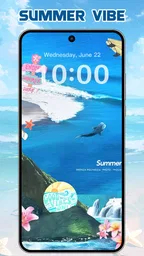

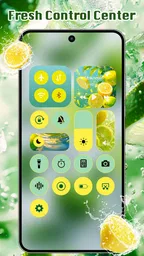
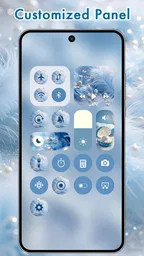
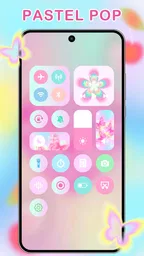
ThemeKit - Themes & Widgets review
 Analysis by Appsdrops
I like changing the look of my phone, but I’m wary of customization apps that promise a complete makeover without making it clear what I’m choosing or what I’m paying for. ThemeKit is best approached as a place to browse and assemble a new visual style, rather than as a reason to hand over control of every part of the phone. Its appeal is easy to understand: themes, icons, widgets, and wallpapers give you several ways to change the home screen in one place. The useful question is whether that convenience suits your habits and comfort level.
Making a phone feel more personal
ThemeKit - Themes & Widgets is a free personalization app from ThemeKit. It has a 4.6 average from around 713,000 ratings and more than 50 million installs, so it has found a large audience among people who want to refresh how their phone looks. It is rated Teen, and the current version is 21.0. I’d treat those figures as context rather than a guarantee that every theme or setup will suit you: the best result depends on your taste and how much time you want to spend arranging things.
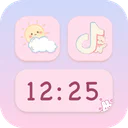
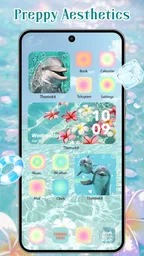
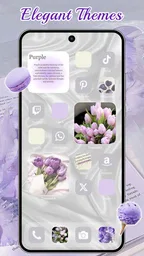
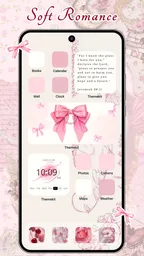
The main draw is the combination of visual pieces. Instead of looking for a wallpaper in one app, icons somewhere else, and a widget in a third, you can explore these kinds of customization together. That can make it easier to settle on a consistent mood, whether you want a calm, understated screen or something brighter and more expressive. The trade-off is that a unified catalogue can encourage you to change more than you originally planned.
I find the app most appealing when I have a clear goal before browsing. For example, if I want a less cluttered-looking home screen, I can start with a wallpaper that leaves room for app labels and widgets, then choose icons that don’t fight with its colors. That order matters: picking decorative elements independently can leave a screen that looks busy rather than thoughtfully styled. ThemeKit’s range is most useful when you use it to build a coherent look, not when you apply every attractive item at once.
Trust starts with what you can actually see
Customization is personal in a fairly literal way: a wallpaper or widget may reveal something about your taste, routine, or interests to anyone who glances at your screen. That does not mean a theme app is automatically risky, but it does make deliberate choices worthwhile. I would browse with the same care I use when choosing any app that asks me to explore a catalogue or make purchases: look at what is on screen, pause before approving prompts, and avoid treating convenience as a substitute for checking the choices presented.
I can’t responsibly make claims about specific permissions, data handling, or account controls without verified details about them. So my practical advice is not to assume either that the app collects nothing or that it collects something particular. If a prompt appears, read it before accepting; if you are uncomfortable with a choice, decline it and see whether the part of the app you want still works. That is a more useful standard than relying on a polished design or a large user base as proof of privacy.
Use visible choices as a checkpoint
When an app offers a range of visual options, the important control is often the one you exercise yourself: which item you select, whether you apply it, and whether you proceed through any payment or access prompt. I recommend treating each theme component as a separate decision. You may want the wallpaper but not matching icons, or a widget without a full set of visual changes. A more gradual setup makes it easier to see what you like and to back away from elements that feel too intrusive or inconvenient.
That approach is also a useful way to evaluate the app’s fit. Try a small change first, such as a wallpaper, before spending time building a whole home-screen style. If the browsing experience feels comfortable and the result works with your everyday layout, continue. If you find yourself accepting prompts just to get through screens, or if the options make it hard to tell what you are selecting, stop and reconsider rather than tapping through automatically.
Build a setup that works beyond the preview
A screen can look attractive in a preview and still be awkward in daily use. I pay attention to practical details: whether the wallpaper keeps icons easy to read, whether a widget takes space I actually need, and whether a new icon style makes familiar apps harder to recognize at a glance. These checks matter more than making every corner of the screen match. A restrained combination can feel more polished and remain usable after the novelty wears off.
One useful workflow is to take a mental snapshot of your current layout before changing it. Note which apps you reach for most, where you expect them to be, and which parts of the screen you want to keep open. Then add visual elements around those habits instead of reorganizing everything for the sake of a theme. If the result makes a common task slower, that is a real cost—even when the screen looks better.
For a realistic everyday example, imagine you glance at your phone between meetings to check the time and open a calendar. A decorative widget may suit the look you want, but if it pushes those familiar shortcuts out of reach or makes the display harder to scan, it is the wrong choice for that routine. I would favor a theme that leaves the important actions obvious, then use color and wallpaper to add personality without disrupting them.
Where the alternatives may suit you better
Compared with choosing a wallpaper from a basic image gallery, ThemeKit is more oriented toward putting several kinds of visual customization together. That makes it a sensible option if you want to explore themes, icons, and widgets as parts of one look. A simple wallpaper picker is a better fit if you only want a background and would rather avoid browsing a broader catalogue. Likewise, someone who enjoys carefully configuring every detail through separate tools may prefer that hands-on approach over a single app’s curated experience.
The combined approach has its own limitation: a set that looks cohesive may not match the way you use your phone. You might prefer one part of a style and dislike another, or find that a decorative choice competes with readability. Don’t feel obliged to apply a complete look just because its pieces are presented together. Selective use is often the best compromise, especially if you value a familiar layout more than a dramatic transformation.
Costs and the moment to slow down
The app is free to install, with in-app purchases ranging from $0.29 to $34.99 per item. That broad range is a reason to check the price attached to a specific choice before confirming it, rather than assuming every item is included at no cost. If you are only exploring, keep the distinction between browsing and buying clear. I’d set a personal spending limit in advance and avoid purchasing a visual extra simply because I have already spent time assembling a look.
This is also where user agency matters. A pleasing design can make a purchase feel like the natural final step, but it is still optional to stop, compare alternatives, or keep the parts you can use without paying. If an item is not worth its displayed price to you, leave it behind. The screen does not need to be complete to be personal, and a free combination that works well is better than a costly one you feel pressured to finish.
Who will enjoy it, and who should pass
I’d recommend giving ThemeKit a try if you like experimenting with your phone’s appearance and want a single place to explore several kinds of visual changes. It is particularly well suited to someone who enjoys refreshing a screen seasonally or creating a coordinated look for a specific mood, provided they are comfortable making choices one element at a time. The app’s free starting point makes casual exploration accessible, while its paid items mean it is worth staying alert during the process.
I would skip it if your priority is a plain, dependable home screen and you have no interest in decorative widgets or icon changes. It may also be the wrong fit if you prefer not to browse in-app catalogues, dislike purchase prompts, or want privacy and account details to be fully clear before engaging with an app. In those cases, a basic wallpaper option or the customization tools already available on your device may be a more comfortable route. No visual upgrade is essential enough to justify ignoring your own boundaries.
A cautious recommendation
My overall view is that ThemeKit - Themes & Widgets is worth considering for people who enjoy hands-on personalization and can keep the practical details in mind. Its range of visual elements is the point: you can think about the whole screen rather than choosing only a background. Its best use is selective and intentional—start with one change, check that it remains readable and convenient, and expand only if the result improves your routine.
ThemeKit is free, though individual in-app purchases can cost from $0.29 to $34.99. It runs on Android 7.0 or later. I’d approach it with curiosity rather than blind trust: read any prompts, make only choices you understand, and verify the price before confirming a purchase. If that measured way of browsing suits you, it can be a useful creative tool. If you want a no-frills screen or need clear answers about data practices before proceeding, choose a simpler alternative instead.
What we like
- Preview themes and widgets before applying them.
- Organize your home screen with matching visual styles.
- Personalize app icons without changing their core functions.
- Find a variety of designs for different tastes.
- Refresh your screen layout without replacing your device.
What could be better
- Some designs or features may require a paid plan.
- Applying custom icons can involve extra setup steps.
- Widgets may need manual placement on the home screen.
- Some themes may not fit every screen size perfectly.
- Frequent personalization can take time to maintain.





