TV Remote For Fire & TV Stick review
 Analysis by Appsdrops
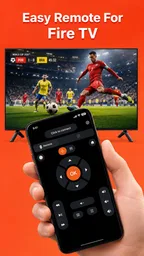
I judge a TV remote app by a simple test: can I get from opening it to controlling the screen without turning a small inconvenience into a troubleshooting project? TV Remote For Fire & TV Stick is aimed at that familiar living-room problem. It offers a phone-based way to control a FireStick, with a touchpad as part of the experience, rather than asking you to hunt for a misplaced physical remote. That focus makes it easy to understand, though it also means the app is most useful when your television setup is compatible and ready to connect.
In the House & Home category, this is a practical utility, not an entertainment service or a replacement for every TV accessory. AxenGrid Labs is the developer, and the app is free to install. Its audience rating is Everyone, so the basic idea is approachable for households where different people may need to use it. I would think of it as a convenient backup and navigation aid, not a promise that every television or streaming device will work in exactly the same way.
What to expect from a phone-based remote
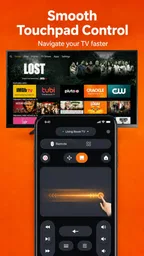
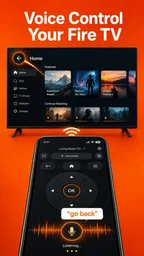
The main appeal is having familiar controls on a device that is usually already in your hand. If the physical remote has slipped between sofa cushions, or someone else has taken it to another room, a phone remote can save a search. The touchpad is especially relevant for moving around menus: instead of tapping directional buttons repeatedly, you can guide the selection with a swipe-like gesture. Whether that feels better is personal, but it gives the app a different role from a plain collection of button replicas.
The public response is encouraging: the app has a 4.7 average from around five thousand ratings and more than 100,000 installs. I treat those figures as a useful sign that many people have found the concept worthwhile, not as proof that it will pair instantly with every setup. Connection experiences can depend on the devices and network arrangement in a particular home, so I would keep the original remote nearby during the first attempt.
Version 1.6.3 is the current version, and the app is free to start, with optional in-app purchases priced from $4.99 to $17.99 per item. That makes it sensible to try the basic experience before spending anything. I would first confirm that the app can connect and handle the navigation I actually need; a paid option is only worth considering if it addresses a specific limitation I encounter, rather than because I assume it is necessary to make the remote work.
Start with the setup you already have
Before opening the app, identify what you want to control. A television may have several connected boxes or inputs, and “the TV” is not always the same thing as the FireStick interface you intend to navigate. Knowing which screen or device you are trying to reach helps you recognize success and prevents a false start in which the phone appears unresponsive simply because the television is showing a different source.
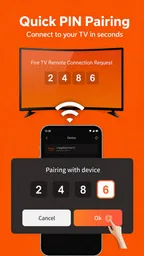
Then open the app and follow the connection flow it presents. I would keep the phone and the streaming setup in their normal home arrangement rather than changing several settings at once. If the device is not found, check the straightforward possibilities first: make sure the FireStick is awake, confirm the TV is displaying its input, and consider whether the phone and streaming device are on the same local network. These are practical checks for a network-dependent remote, not a reason to assume the app is broken.
The app supports Android 7.0 and later. If you are setting it up on an older phone, check that requirement before downloading; on a supported phone, allow the app to finish its initial launch and connection steps before repeatedly tapping controls. I also recommend keeping the physical remote within reach until the first successful command. That small precaution turns setup into a low-stress test instead of leaving you stuck at a menu you cannot navigate.
Make the first success easy to recognize
For the first test, choose a simple action with an obvious result. Once the app indicates that it is connected, use the touchpad or an available navigation control to move the selection one step in a menu. Watch the television while you do it. A visible change tells you more than tapping several controls quickly, because you can separate a connection problem from a gesture that simply behaves differently than you expected.
After that, try a second basic action, such as moving back or selecting an item you can easily leave. This is a better first-use routine than immediately attempting a long sequence of menu navigation. If the pointer or highlighted item moves in an unexpected direction, pause and try a slower, smaller touchpad movement. The useful insight here is that touch surfaces reward deliberate gestures; rapid swipes can make it harder to tell whether the app missed an input or interpreted a larger movement than intended.
Once navigation works, put the phone down briefly and pick it up again. That quick check helps you learn whether you need to reopen the app or re-establish the connection after switching away. I would not assume that a phone remote behaves exactly like a dedicated remote after every interruption. For a first-time user, learning the reconnect routine while the physical remote is still available is a much better test than discovering it during a film night.
Where the touchpad helps—and where it may not
The touchpad is likely to feel most useful when moving through screens with many rows of choices. It can be more fluid than repeated directional presses, particularly when you are browsing rather than making a precise selection. On the other hand, a physical remote’s distinct buttons can be easier when you want predictable, one-step movement or when you are using the controls without looking at your phone. If you prefer tactile buttons, this app may be a helpful fallback but not a satisfying full-time replacement.
Phone control also comes with ordinary phone-related friction. The handset may be across the room, its screen may be locked, or you may be using it for something else. That trade-off matters more than it first appears: a remote app is convenient because the phone is close, but less convenient when reaching for it interrupts what you are doing. I see the strongest use case as occasional backup and flexible menu navigation, rather than relying on a phone as the sole control for every viewing session.
One practical way to avoid frustration is to test the touchpad before settling in. Move through a low-stakes screen, check whether a tap selects the intended item, and make sure you know how to return to the previous screen. This gives you a feel for the control style without risking an accidental change in the middle of something you are watching. If a household member prefers physical buttons, keep the original remote available rather than expecting everyone to adopt the same input method.
Common connection confusion to work through
The most confusing first-run problem is often not a control at all: it is deciding which device the phone should be talking to. A television can be on while the streaming device is asleep, or the screen can be set to another input. Check what is actually visible on the TV before concluding that the app has failed. A remote command cannot make a menu appear if the display is showing a different source.
Network setup is another sensible place to look when discovery does not succeed. A phone connected through one home network path may not see a streaming device isolated on another. If you have separate network names or recently changed router settings, verify that both devices are using the intended home connection. Avoid changing router settings blindly; first test the simplest arrangement you can, then try again. This is a useful troubleshooting order because it keeps the number of possible causes small.
It is also worth distinguishing between “connected” and “every control works as I expect.” A touchpad gesture may require a little adjustment, and a response can be easy to miss if you are looking at the phone instead of the television. Tap once, observe the screen, and wait a moment before repeating the command. Repeated input can create confusing results when the first action was merely delayed or when a menu was still loading.
Who will get the most from it
I would recommend trying this app if you own a FireStick, often misplace its remote, or want a phone-based way to browse menus. It also makes sense for someone who wants to keep a backup control option available without buying another physical remote first. The clearest everyday scenario is a shared living room: the remote has wandered off, the TV is already on the streaming input, and your phone is beside you. A quick connection and a touchpad movement can get you back to the menu without stopping to search the whole room.
It is less compelling if you expect a universal remote for unrelated devices, need tactile controls, or want to avoid using a phone while watching television. The app’s stated purpose is centered on FireStick control, so I would not choose it on the assumption that it will operate every television brand, cable box, or home device. A dedicated physical remote is the better choice for someone who wants reliable buttons, shared access without setup, or a handset that is not always close by.
Compared with the usual alternatives, the choice is mainly between convenience and certainty. A physical remote is purpose-built and immediately available to anyone who picks it up; a phone app can be easier to find and offers touchpad navigation, but depends on the phone and a successful connection. Before paying for any optional item, I would use the free starting experience in the exact room and setup where I plan to rely on it. That tells you whether its particular advantage matters in your home.
My recommendation after the first test
My advice is to make the first session a short compatibility check: open the app, connect to the intended streaming setup, move through a simple menu, and confirm that you can recover from a mistaken selection. If that works, try using it in the next ordinary situation where the physical remote is inconvenient. If it does not connect, verify the active TV input and home network before deciding whether it suits you. This approach gives you a clear answer without turning setup into a major project.
TV Remote For Fire & TV Stick is a focused, approachable option for people who want FireStick controls on a phone, with touchpad navigation as its distinguishing convenience. Its free entry point makes a cautious trial easy, while the optional purchases are a reason to test your real use case before spending. I would keep the physical remote as a backup and recommend the app to someone who values quick access more than tactile certainty. For a first-time user, that is the fairest expectation: a useful extra control when the setup cooperates, not a guaranteed replacement for every remote in the house.
What we like
- Provides a convenient backup when the physical remote is unavailable.
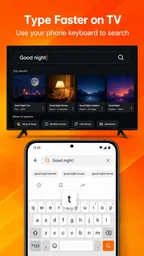
- Offers an on-screen keyboard for entering text more easily.
- Keeps common playback controls within reach on a phone.
- Can help locate compatible TVs and streaming devices on a network.
- The phone interface may feel familiar to touchscreen users.
What could be better
- Requires a compatible device and network setup to work.
- Some features may require in-app purchases or a subscription.
- Phone controls can be less convenient than dedicated remote buttons.
- Using the app may drain your phone battery during extended sessions.
- Network issues can interrupt commands or prevent device discovery.





