





Home Planner AI: Room Interior review
 Analysis by Appsdrops
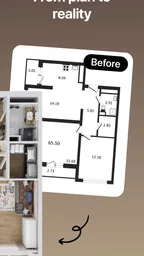
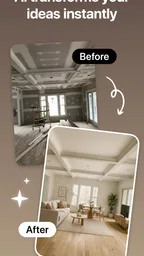
Home Planner AI: Room Interior is aimed at the moment when a room is still an idea: you have a layout to rethink, furniture to place, or a renovation to picture before making costly decisions. I’d treat it as a visual planning tool rather than a substitute for a measured architectural drawing. Its appeal is being able to explore a home design on a phone, while its usefulness depends on how much detail you need and how smoothly you can work with the app’s connected features.
Planning a room when the app is connected
The app is in the House & Home category, and Room Planner Ltd positions it around creating floor plans and planning interiors. In practical terms, the most useful mindset is to begin with a specific question: would a larger sofa fit, does a dining area feel cramped, or could a bedroom work with the bed on another wall? A focused experiment is easier to judge than trying to design an entire home in one sitting.
Connectivity matters whenever a design task relies on content or processing that needs the network. I would plan to have a reliable connection when starting a session, especially if I’m exploring the app’s AI-oriented planning options or browsing design material. Rather than assuming every tool behaves the same way, I’d check that the screen has finished loading before making a string of edits. That small habit helps distinguish a slow connection from a design choice that simply hasn’t updated yet.
For a realistic use case, imagine measuring a living room before a weekend furniture purchase. I’d sketch the room, test a few placements, and compare the walking space around the main pieces before deciding what to buy. The app is most valuable here as a way to think through alternatives, not as a guarantee that a real object will fit perfectly. Measure the room and the furniture independently, then use the plan as a visual cross-check.
A useful workflow is to settle the room’s basic shape before spending time on decoration. First get the walls and openings into a sensible arrangement; next try the large furniture; only then refine the smaller choices. This order makes it easier to see whether a layout works for everyday movement. It also avoids polishing a room’s appearance before discovering that the main pieces are positioned badly.
What works well on a phone, and what does not
Mobile planning is convenient when inspiration strikes away from a desk. You might be standing in a shop, discussing a spare room with family, or looking at a newly rented apartment. A phone lets you make a quick visual comparison without opening a full desktop design program. I find that kind of immediacy helpful for deciding which ideas deserve a more careful measurement later.
The trade-off is precision and screen space. A small display can make detailed adjustments feel fiddly, and a floor plan that looks clear at a glance may be harder to inspect closely on a phone. I’d use a larger screen if the task involves many rooms, careful alignment, or repeated dimension checks. For a single-room concept, mobile is a comfortable starting point; for a renovation plan that contractors will rely on, it should be one input among proper measurements and professional drawings.
It also helps to work in short, deliberate passes. On a phone, changing the room structure, moving several pieces, and revising finishes all at once can make it difficult to tell which choice improved the result. I’d make one kind of change at a time and pause to inspect the room from the view that matters most. That approach is especially useful when comparing a practical layout with a more decorative one.
Because this is a connected design experience, I would avoid treating a half-loaded session as a dependable final copy. If I’ve made a layout I care about, I’d take a moment to confirm it is still present after navigating away and returning, rather than assuming every recent change has been retained. This is ordinary caution for mobile work, not a claim about a particular saving system.
Recovering from a stalled or confusing session
If the app seems to pause while a design element or screen is loading, I wouldn’t immediately repeat the same action several times. On a phone, repeated taps can create uncertainty about whether the request was delayed or whether the interface missed it. I’d wait, check the connection, and then inspect the current room before trying again. This reduces the chance of making duplicate or unintended changes.
If a screen does not respond, returning to the last clear point is more sensible than continuing to edit blindly. I’d first make sure the connection is stable, reopen the relevant design view if needed, and check whether the room still reflects the changes I intended. When a project matters, keeping a separate note of key room dimensions and the layout decision is a practical backup: it makes rebuilding a basic plan less frustrating if a session has to be restarted.
There is a broader limitation here: a mobile planning app can help you reason visually, but it cannot resolve every real-world uncertainty. Walls may not be square, built-in features can affect usable space, and furniture dimensions can differ from what a product image suggests. I would not use a pleasing rendering alone to approve a purchase or construction change. Treat it as a decision aid, then verify anything expensive or irreversible outside the app.
Using it thoughtfully with data and purchases
The app is free to install, with in-app purchases ranging from $1.99 to $399.99 per item. That is a broad span, so I would explore the basic workflow first and check the price of a specific paid option before committing. A useful test is whether the free experience already lets you answer your immediate question. If it does, there is no reason to buy something simply because it appears in the design process.
For data-conscious use, I’d be selective about what I enter into any home-planning tool. A room’s approximate layout is usually enough for experimenting with furniture; there is rarely a need to include identifying details about the household. Since network-dependent moments can be part of the experience, I’d also choose a connection I’m comfortable using when exploring features that may load or process content online. That is a sensible privacy habit without assuming a particular data policy.
Connectivity can shape when the app is most convenient. At home, a stable network makes it easier to settle in and explore ideas; while shopping or travelling, a weak signal may make a session less predictable. I’d save intensive planning for a dependable connection and use brief mobile visits for quick decisions, such as comparing a couple of furniture arrangements. If uninterrupted access is essential to your workflow, test the exact tasks you need before relying on it for a time-sensitive project.
Who will get the most from it
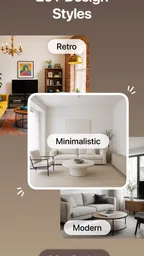
I can see this working well for renters, first-time homeowners, and anyone who wants to visualize a room before moving heavy furniture or buying decor. It is also useful for people who think spatially: seeing a sofa turned toward another wall can reveal a circulation problem that is easy to miss in a verbal conversation. The app’s AI angle may appeal to someone who wants help getting ideas moving, while the floor-plan approach gives those ideas a spatial context.
It is less suitable for someone who needs construction-ready documentation, exact surveying, or a dependable substitute for an interior designer or architect. It may also frustrate people who prefer to make every adjustment with a mouse and a large display. Compared with a notebook sketch, it offers a more visual way to test arrangements; compared with professional CAD software, it is more approachable but should not be expected to provide the same rigor. That distinction matters more than the most polished-looking result.
For people who want to collaborate with a family member, the app can still be useful as a shared point of reference: discuss one concrete question at a time, such as whether the dining table blocks a route through the room. I would not assume a particular sharing or collaboration tool is available. Simply looking at the same plan together can make a conversation more specific than debating an abstract idea.
The audience numbers suggest that it has reached a broad group of home planners: it has over 10 million installs, an average rating of 4.0 from around 242,000 ratings, and roughly 3,700 written reviews. Those figures give a sense of its reach, but they do not tell me whether it suits a particular project. The app is rated Everyone, and its current version is 2653; the key question for a new user is still whether its mobile workflow matches the level of precision they need.
My connectivity verdict
Home Planner AI: Room Interior makes the most sense as a convenient, connected place to test home ideas before acting on them. I’d use it to compare room arrangements, think through furniture choices, and make a renovation conversation more concrete. Its strongest practical habit is to build a simple layout first, check the result, and only then spend time refining the look.
At the same time, I would not rely on it as my only record of a major project or assume every step will feel equally smooth in a poor connection. Keep measurements separately, verify important changes, and confirm the dimensions of real products before buying. For an informal room makeover, those cautions are easy to manage; for technical plans or high-stakes construction decisions, a more precise tool or a professional is the better choice.
Overall, I’d recommend giving it a try if you want a visual, phone-friendly way to explore how your home might work better. The free entry point makes it easy to judge the workflow before considering purchases, while the wide range of optional item prices means it is worth checking costs carefully. If your goal is inspiration and practical layout experiments, it can be a helpful companion; if you need exact plans or guaranteed performance in every network situation, set expectations accordingly.
What we like
- AI-generated concepts make it easy to explore room styles.
- Room visualization can help with early design planning.
- The app is approachable for users without design experience.
- Multiple design ideas can inspire personalized room updates.
- It offers a convenient way to experiment before redecorating.
What could be better
- AI results may not match a room's exact dimensions.
- Generated layouts may overlook practical furniture constraints.
- Some features may require a subscription or in-app purchase.
- Results can vary in quality depending on the uploaded photo.
- AI suggestions may need substantial editing to suit your taste.





