

TV Remote Control review
 Analysis by Appsdrops
I look at a phone-based TV remote as a convenience tool, not an automatic replacement for the physical remote. The real test is whether it makes ordinary moments easier without asking me to hand over more control than I’m comfortable with. TV Remote Control is aimed at that useful middle ground: Galixo.AI makes it for the home, combining remote functions with casting, screen mirroring, and voice control. That breadth is appealing, though it also makes it worth thinking carefully about setup and what you actually want to use.
Convenience is only part of the trust question
The app is free to install, with optional in-app purchases priced from $7.99 to $29.99 per item. That makes trying it relatively straightforward, but I’d still check the purchase screen closely before choosing anything paid. A remote should solve a practical problem; there’s no reason to buy an add-on unless its purpose and cost make sense for your household.
It has a 4.4 average from around 4,400 ratings and has passed 500,000 installs. Those figures suggest that plenty of people have considered it useful, but they don’t tell me how well it will work with a particular television or what information it handles. The app is rated for Everyone, which speaks to its audience classification, not to the details of its permissions or data practices. I treat those as separate questions.
Because the app includes casting and mirroring alongside remote control, my first step would be to decide which job I need it to do. If all I want is to turn the volume up, a physical remote or a manufacturer’s own app may be simpler. If I regularly want to control the TV and send or mirror content from my phone, having those tasks in one place could be more useful.
Start with the smallest useful setup
When I try an app that can interact with a television and phone, I prefer to begin with the basic remote use rather than enabling every option immediately. I’d install it, see what it requests, and grant only the access needed for the function I’m testing. If a permission request appears, the sensible question is whether it fits the action I just chose. A request that feels unrelated is a reason to pause and review, not to tap through automatically.
This is especially practical when other people share the TV. One person may want to use the phone as a remote, while another may not want to mirror a personal screen. Keeping the first test narrow makes it easier to understand what the app is doing and gives everyone a chance to agree before using more involved features.
Choose features according to the moment
Remote control, casting, mirroring, and voice input are not interchangeable. Casting is generally the more focused choice when I want to send selected content to the TV while keeping the phone available for other tasks. Mirroring is better suited to showing what is on the phone’s screen, but it can also expose notifications or other things I did not intend to display. Before mirroring in a shared room, I’d silence notifications or check the screen for anything private.
Voice control can save a few taps when my hands are busy, but I’d use it only when speaking a command is more comfortable than reaching for the phone. It isn’t automatically the best choice in a quiet room, around guests, or when I’d rather not say what I’m looking for aloud. The useful habit is to treat voice as an optional input, not as a required part of using the remote.
What I would check before relying on it
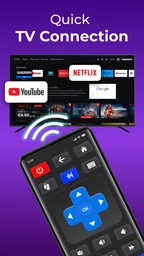
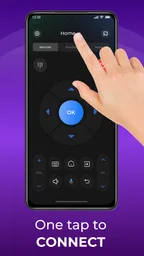
The app’s usefulness depends on a basic compatibility question: can it communicate with the TV I actually own? I’d look for the connection or device-selection steps in the app and test them at home before relying on it for a movie night. A phone remote is only convenient if the television is reachable through the setup the app supports. If the TV does not appear or the connection is unreliable, the physical remote remains the dependable fallback.
I’d also check whether the phone and TV need to be on the same home network, if the app’s setup instructions say so, and whether a network change affects the connection. That is not a detail to guess at: different devices and setups can behave differently. For a real-world test, I’d try the app from the sofa, then try again after the phone has been away from home and reconnected to the household network. This catches the common inconvenience of discovering a setup issue only when everyone is ready to watch.
On a weekday evening, for example, I might use the phone to adjust volume while carrying dinner, then cast a chosen video once I sit down. I would avoid mirroring if I expected private notifications to arrive. This small distinction matters: combining features is convenient, but choosing the least revealing feature for the task is a better default than turning on the broadest option every time.
Keep purchases and account choices deliberate
I would pay attention to any account prompts, sign-in options, and purchase screens as they appear, rather than assuming they are necessary for basic remote use. If an account is offered, I’d look for a clear reason to create one before sharing details. If I decide not to proceed with an optional feature, I’d expect to be able to back out and continue with whatever functions remain available. The key is to distinguish a genuine requirement from an optional path presented during setup.
For purchases, I’d review the exact item and amount in the app store confirmation before approving it, particularly if the phone is used by children or other family members. The listed age classification is Everyone, but that does not remove the need for household purchase controls. I’d use the device’s own purchase authentication and make sure anyone else with access to the phone understands that paid options may appear.
The same careful approach applies to privacy choices. I would read the app’s permission prompts and the privacy information available through the app store before deciding whether to use voice or screen-related features. I would not assume that a feature’s name tells me what is collected, retained, or shared. If those details matter to you, check the actual disclosures and device settings before enabling the feature.
Where it fits among TV remote options
The usual alternatives each have a clear advantage. A physical remote is ready without a phone, does not compete for battery, and can be easier for guests who do not want to install anything. A TV maker’s own app may be the better first stop if you want device-specific controls and setup guidance. A general phone remote is more appealing when you want a single interface for everyday control and also value casting or mirroring.
That comparison leads me to a practical trade-off: this app’s extra capabilities may matter more than specialized depth. If your main task is simply changing channels or volume, the added features may not justify changing a routine that already works. If you often move between controlling the TV and sharing phone content, the combination is a stronger reason to try it. I would keep the physical remote nearby until I know the phone-based connection is dependable in my home.
The app is currently version 1.2.3 and supports Android 9 or later. Before installing, I’d check that the device meets that requirement and that the phone has enough battery for a session if I plan to use it as the main remote. A phone is easy to misplace or take out of the room, so relying on it as the only control can be inconvenient even when the software works well.
Who should give it a try
I’d recommend testing TV Remote Control if you want phone-based control and are genuinely interested in using casting, mirroring, or voice input too. It may suit a household where the remote often disappears, where someone prefers a phone interface, or where sharing content from a phone is part of the normal routine. I’d start with one feature, confirm that it behaves as expected, and only then explore the others.
I’d skip it, or at least keep it as a backup, if you want a remote that works independently of a phone, if you do not want to grant any permissions, or if your television is already served well by its own remote app. I’d also avoid mirroring in situations where personal notifications could appear on a shared screen. Those are not flaws unique to this app; they are meaningful limits of putting phone-based TV control and screen sharing into everyday use.
A cautious recommendation
For a free app in the house-and-home category, TV Remote Control has a sensible appeal: it brings several ways of interacting with a TV into one phone app, and its broad user base gives it a reasonable case for a trial. My recommendation is conditional rather than automatic. Test the basic connection first, inspect permissions and account choices as they appear, and treat paid items as optional decisions that deserve a close look.
If the remote function works reliably and the extra features match your habits, it can make a shared TV setup more convenient. If setup is awkward, the privacy choices do not suit you, or all you need is a dependable button remote, the physical remote or the television maker’s app is likely the better fit. I’d try it with a clear purpose, keep a fallback handy, and let the actual experience in your home decide whether it earns a place on your phone.
What we like
- Works with many TV brands and models.
- Offers a convenient way to control your TV from your phone.
- Can reduce the need to keep a physical remote nearby.
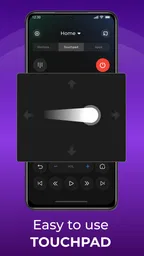
- Simple controls make common actions easy to find.
- Useful as a backup when the original remote is unavailable.
What could be better
- Some features may require a compatible smart TV.
- Your phone may need an infrared blaster for older TVs.
- Ads can interrupt the remote control experience.
- Setup can take time if the TV is not detected automatically.
- Some functions may require a paid upgrade.





