
Tripo - AI 3D Model Generator review
 Analysis by Appsdrops
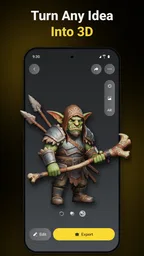
My first impression of Tripo - AI 3D Model Generator is that it is best treated as a quick way to explore a 3D idea, not as a replacement for a full modeling workshop. The app turns a text prompt or an image into a 3D model, which makes it appealing when you have a concept but do not want to begin by learning every tool in a traditional 3D package. In my experience, the most useful question is not simply “Can it make a model?” but “How much cleanup will this particular idea need afterward?”
Where a promising idea can get stuck
Tripo sits in the art and design space, and its central appeal is speed: you can start from words or a picture rather than building an object piece by piece. That changes the early creative process. Instead of wrestling with geometry before you know whether an idea works, you can use generated results to test a shape, prop, or character concept and decide whether it deserves more attention.
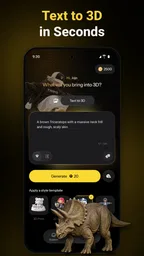
The first friction point is usually the prompt itself. A description that makes sense in your head may leave too many choices open for a generator. “A chair” is broad; a chair with a curved back, four tapered legs, and a simple wooden look gives the request more direction. That does not guarantee a precise result, but it gives the model a clearer target. I would describe the object’s defining silhouette and materials first, then add secondary details only if they matter.
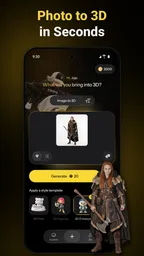
Images have a different trade-off. A clean, well-lit reference with one clear subject is easier to interpret than a busy photo with overlapping objects, dramatic shadows, or a partly hidden outline. If the subject is small in the frame, cropping closer before using it can help keep the intended object central. This is a practical preparation step, not a promise that every image will convert cleanly.
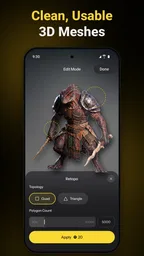
Another common disappointment is expecting a generated shape to behave like a carefully authored production asset. A model can look convincing at a glance yet have awkward proportions, soft details, or areas that need editing. I would judge the first result as a draft: useful for visualizing an idea, less dependable as a finished object that can go straight into a demanding project.
Before you begin: keep the first test simple
I recommend starting with one recognizable object rather than a complex scene. A single backpack, helmet, plant pot, or stylized creature is easier to assess than a room full of furniture. This also makes it clearer whether a weak result came from the source image, the wording, or simply an idea that is difficult to express as one model.
For text generation, put the object and its most important visual traits up front. Avoid mixing several incompatible styles or asking for a long list of tiny features in the same prompt. If the first output misses the mark, change one meaningful detail at a time. Rewriting everything at once makes it harder to learn which description helped.
For image-based work, inspect the reference before submitting it. A sharply defined object against a relatively uncluttered background is a better starting point than a product shot with accessories crossing the subject. When possible, use a view that shows the overall form rather than a close-up of surface texture. These choices are especially helpful if your goal is to preserve the object’s silhouette.
It is also sensible to check the practical side before committing to a long session. The app is free to install, but it offers in-app purchases ranging from $15.99 to $549.99 per item. I would try the basic workflow first and decide whether the quality and controls suit your needs before spending. The broad price range makes it particularly important to understand what you personally need from the app rather than assuming every project calls for a paid option.
Recovering a workflow when a result disappoints
When a generated model looks wrong, I would not immediately repeat the same request. First, identify the kind of miss. If the silhouette is wrong, simplify the prompt or choose a clearer reference. If the overall form is close but small details are messy, decide whether those details matter for your use case. A rough prop for a mood board has different standards from an object intended for close inspection.
A useful recovery routine is to keep the original prompt or source image, make one controlled change, and compare the next attempt against the first. For example, if a generated bottle has the right body but an incorrect cap, keep the description of the body and clarify the cap rather than replacing the entire prompt with a new paragraph. This makes iteration more deliberate and avoids treating every output as a fresh lottery ticket.
Try a second input method when the first one is a poor fit. If a text prompt keeps producing an uncertain interpretation of a specific real object, a clear image may communicate its shape better. If the reference image contains distracting surroundings, a text description may be a cleaner route for a stylized version. The important trade-off is that text gives you room to invent, while an image gives the system a visual starting point; neither automatically provides exact control.
Save useful intermediate results as you go, wherever the app’s available workflow permits it. That way, a later experiment does not force you to recreate an earlier direction from memory. I also find it helpful to judge outputs at the scale where they will actually be used. A shape that works as a small concept image may reveal problems when viewed closely, so do not confuse a quick visual win with a model that is ready for every downstream task.
When the problem may be outside the app
Not every slow or unsuccessful attempt means the prompt is bad. A weak or unstable connection can interrupt online creative workflows, and switching networks or retrying after a short pause is a reasonable first check. If the app behaves inconsistently, closing and reopening it and checking that the device is running a supported system are basic steps worth trying before rebuilding the project.
Tripo’s current version is 2.5.0, and it supports Android 7.0 and later. If you are using an older device or an outdated system, checking compatibility is more useful than repeatedly changing a prompt. Keeping the app updated through the app store is also a sensible general maintenance step, especially if an issue appears after a system update.
Storage and device load can matter in ordinary ways when working with visual projects. If the phone is nearly full or several demanding apps are open, free up space or close background apps and try again. These steps cannot fix a generation that simply interpreted the request differently than you intended, but they can help distinguish a device-side problem from a creative mismatch.
For an everyday example, imagine you want a 3D concept of a desk lamp for a home-office mood board. A photo of a lamp with a clear outline could be a good starting point if you want the broad proportions; a text prompt could be better if you want a more playful, invented design. If the output has the right shade but an odd base, refine that specific part rather than starting from scratch. If the app itself will not complete the attempt, check connectivity and device basics before spending time rewriting the lamp description.
Who will get the most out of it
I can see Tripo being useful for hobby artists, designers exploring early concepts, and anyone who wants a quick visual starting point without first mastering a conventional 3D modeling interface. It can also help with brainstorming: generate a rough object, notice an unexpected shape, and use that as a springboard for a more considered design. That exploratory role is where fast generation has the clearest value.
It is less suitable if you need exact dimensions, predictable topology, or finely controlled edits from the outset. People producing assets for a tightly specified professional pipeline may be better served by dedicated modeling software or a specialist workflow that gives them direct control over geometry. Tripo can still contribute an initial concept, but I would not make it the only tool in a project where technical precision is non-negotiable.
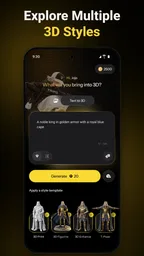
Compared with traditional 3D creation apps, the main trade is convenience for control. A hands-on modeling tool asks for more skill and time but gives you deliberate control over each part. Tripo lowers the barrier to getting a first visual result, while leaving the creator responsible for checking whether that result is accurate and usable. Compared with other AI-assisted design tools, its specific draw is the text-to-3D and image-to-3D direction; it is not a general substitute for illustration, photo editing, or detailed CAD work.
Cost, audience, and the practical verdict
The app is free, and its content rating is Everyone, so it is accessible to a broad audience. Tripo AI is the developer, and the app has an average rating of 4.3 from around 18,000 ratings, with more than 500,000 installs. Those figures suggest that many people have tried it, but they do not tell me whether a particular output will meet a particular project’s standards. I would put more weight on testing my own kind of object than on popularity alone.
My practical recommendation is to use it as an idea generator and first-draft maker, then inspect every result with a clear purpose. Start with an uncomplicated subject, provide a clean reference or focused prompt, and make small revisions when something is off. If your goal is rapid concept exploration, that workflow can be genuinely useful. If you need exact geometry, dependable production readiness, or extensive hands-on control, a traditional modeling tool is the safer main choice.
Overall, I would recommend Tripo to curious creators who want to turn a visual reference or a short description into a 3D starting point without a steep learning curve. I would skip it as a sole solution for precision-heavy work, and I would be cautious about paying until I had tested whether its results fit my own workflow. Used with those expectations, Tripo - AI 3D Model Generator makes the early stage of 3D ideation more approachable while leaving room for human judgment where the generated model falls short.
What we like
- Turns text prompts and images into 3D models with little modeling experience.
- Offers a quick way to create concept assets for creative projects.
- Generated models can be useful as starting points for further editing.
- The web-based workflow avoids installing a full desktop modeling suite.
- Supports experimentation with different prompts and visual ideas.
What could be better
- AI results may need cleanup before they are ready for production.
- Complex prompts can produce shapes that differ from what you intended.
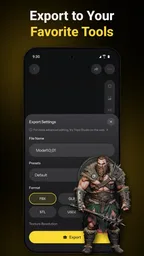
- Export options and usage limits may depend on your plan.
- A stable internet connection is needed for cloud-based generation.
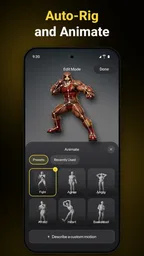
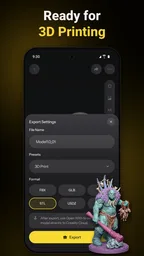
- Generated models may not have the topology needed for animation or 3D printing.





