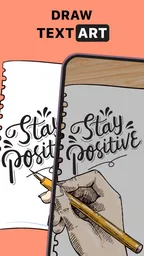
Trace Drawing: How To Draw review
 Analysis by Appsdrops
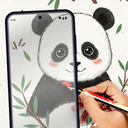
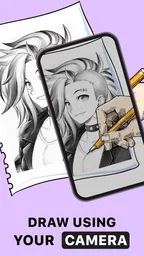
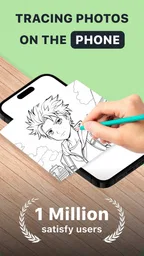
I like tracing apps most when they make the first mark feel easy without pretending to replace drawing practice. Trace Drawing: How To Draw is built around that simple idea: use an image as a guide, then follow its lines to create a sketch. In my view, that makes it a practical starting point for someone who wants to draw a subject but is unsure how to break it down by eye. It is less suited to someone looking for a full digital art studio with layers, brushes, and detailed editing controls.
What the free starting point offers
The app is free to install, and its age rating is Everyone. That gives curious beginners a low-barrier way to try the tracing approach before deciding whether it fits their routine. There are in-app purchases, with listed item prices ranging from $0.99 to $99.99, so the free entry point should not be confused with a promise that every option or later use is free. I would check the purchase details shown in the app before paying for anything, especially if I only need an occasional tracing session.
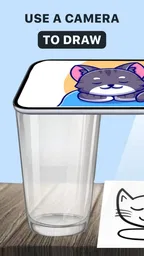
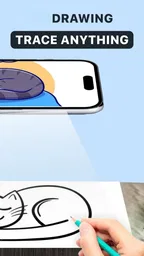
That distinction matters because tracing can be valuable without requiring a large toolkit. If all you want is help placing a recognizable outline on paper, the core idea is straightforward: choose an image, use it as a visual reference, and concentrate on following its shape. The app’s appeal is less about producing a finished digital illustration and more about helping you get from blank paper to a first draft.
The app is published by GeniusTools Labs and sits in the art and design space. It has a 4.6 average from around 77,000 ratings, with more than 10 million installs. Those figures suggest broad interest, but they do not tell me whether the tracing method suits a particular person. I would treat them as context, then judge the app by whether its workflow helps me draw the subjects I actually care about.
Where tracing earns its keep
Tracing is especially useful when the difficulty is proportion rather than imagination. A beginner may know what a cat, flower, or favorite character looks like but struggle to place its head, body, and distinctive details in the right relationship. Following a reference gives the hand a path to practice. It can reduce the frustration of an early attempt and leave more attention for line confidence, pressure, and small features.
One everyday use case is a quick craft project at home. Imagine making a simple card for a friend and wanting a recognizable outline of a bicycle or a flower without spending the evening sketching rough versions. I would use a tracing workflow to establish the main silhouette first, then put the app aside and add personal details by hand. That keeps the result from feeling like a mechanical copy and makes the time spent feel purposeful.
A useful habit is to trace only the largest shapes on the first pass. Start with the outside contour and major divisions, then inspect the paper and decide which details truly matter. Trying to capture every tiny line at once can make a drawing cluttered and slow. This selective approach is a practical way to use a guide as training rather than treating it as a line-by-line instruction sheet.
How I would use it as a learning aid
I would not trace the same reference repeatedly in exactly the same way. Instead, I would use a three-pass routine: follow the main outline once, redraw it while looking at the reference without tracing, then try a smaller version from memory. The first pass builds hand familiarity, the second tests observation, and the last shows which proportions I have actually learned. That turns a convenient shortcut into a small exercise in seeing shapes.
It also helps to simplify the source image before beginning. A photograph with busy textures, overlapping objects, or sharp shadows can be a poor tracing lesson because it offers too many competing edges. A clear, high-contrast subject with a distinct outline is easier to interpret. If the result is meant for a child or a first-time drawer, choosing a simple image can matter more than choosing an impressive one.
Another practical tradeoff is scale. A reference that looks manageable on a screen may translate into cramped marks on a small sheet of paper. I would plan the page first by lightly marking the intended drawing area, then trace the biggest shapes with a relaxed hand rather than chasing tiny details. This is particularly helpful for lettering, small decorations, or any subject with narrow features that can disappear when copied too tightly.
What it does not replace
Tracing can improve coordination and help with basic proportions, but it does not automatically teach how to construct a subject from different angles. If I want to draw a person turning their head, design a character in a new pose, or invent an object that is not in the reference, I need observation and drawing practice beyond tracing. The app is best seen as a bridge into drawing, not a complete substitute for learning shapes, perspective, and anatomy.
It is also not the right choice if my main goal is to make polished digital artwork inside the app. People who expect a broad canvas editor, fine control over layers, or a large collection of painting tools should compare it with dedicated illustration software instead. A trace-focused tool has a narrower job, and that focus is useful only when the job matches what I want to do.
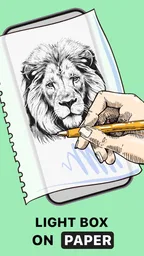
There can be friction whenever a drawing depends on following a visual guide while working on paper: comfort, alignment, and visibility all affect the result. I would set up the image and drawing surface before starting, check that the reference is positioned where I can follow it naturally, and work in short sections instead of leaning over one spot for too long. That preparation helps avoid losing the outline midway through a session.
Who is likely to get good value
I would recommend giving it a try to a beginner who enjoys crafts, wants to practice steady lines, or needs a little help getting proportions onto paper. It can also suit a parent looking for a simple drawing activity to do alongside a child, provided the goal is playful practice rather than a perfect copy. The Everyone rating makes it broadly approachable, though adults should still guide a young user through any in-app purchase prompts.
It may also suit someone who already draws but occasionally wants a fast starting outline for a personal project. In that case, I would use tracing selectively: perhaps to place a complex silhouette, then switch to freehand work for shading or expression. The benefit is getting past the intimidating blank page, while the limitation is that relying on the guide for every mark can make the finished drawing feel less personal.
I would skip it if I want a structured drawing course, detailed feedback on technique, or a powerful digital painting workspace. A tracing app cannot tell me why a drawing feels flat or how to improve a composition. For those goals, a course, a sketchbook, or a full-featured art program is likely to be a better use of time. I would also avoid paying for extras until I understand exactly what they add to my own workflow.
Version and final verdict
The current version is 4.1.2, and it supports devices running Android 8.0 or later. I would check that requirement before installing on an older device. For a person who just wants to experiment with guided sketching, the no-cost starting point makes the decision simple: try the basic workflow first, use an uncomplicated reference, and see whether it makes drawing more enjoyable.
My overall view is that Trace Drawing: How To Draw offers its clearest value as a focused practice aid. It can make a first outline less intimidating and give beginners a concrete way to work on hand control, but it will not replace freehand skill or a full illustration app. I would keep it if tracing helps me move from idea to paper and I use the guide to learn, not merely to copy. If I want a broader set of creative tools, I would choose a different kind of app; if a simple visual starting point is enough, this is an approachable place to begin.
What we like
- Beginner-friendly tracing can help build confidence with basic shapes.
- Step-by-step guides make complex pictures easier to approach.
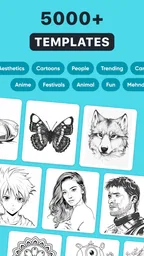
- A variety of subjects can keep drawing practice interesting.
- Short sessions suit casual practice between other activities.
- Tracing can help users focus on line control and proportions.
What could be better
- Tracing alone may not develop freehand drawing skills.
- A device screen can feel cramped for detailed artwork.
- Some lessons may be too simple for experienced artists.
- Drawing with a finger offers less precision than a stylus.
- Progress depends on regular practice outside the app too.





