
3D Modeling App: Sculpt & Draw review
 Analysis by Appsdrops
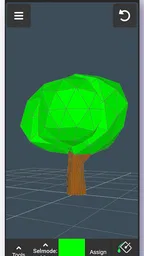
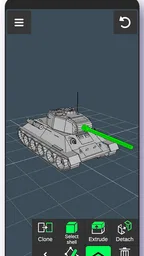
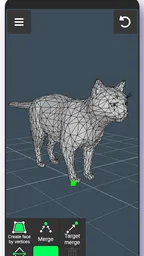
I like a 3D art app most when it makes the first rough shape feel approachable without pretending that a phone screen is a full desktop studio. 3D Modeling App: Sculpt & Draw is aimed at that middle ground: it gives curious beginners a place to make and paint 3D forms, while asking them to work within the practical limits of a touch interface. I would treat it as a hands-on sketching tool for exploring shapes, not as a guaranteed route to production-ready models.
From a blank project to a workable shape
The useful way to approach this app is to keep the first session simple. Start with one clear object in mind—a rounded toy, a small decorative figure, or a rough prop—and focus on its silhouette before worrying about surface detail. In 3D, a shape that reads well from the front can look lopsided from the side, so I recommend rotating the view regularly rather than sculpting from a single angle. That habit catches proportion problems early, when they are easier to correct.
The app belongs to the Art & Design category and is developed by 3D Modeling Apps. Its stated purpose is centered on modeling, sculpting, and painting, which makes it more directly about creating forms than drawing a flat picture. That distinction matters: if you want to illustrate a scene with layers and brushes, a conventional painting app will feel more natural. If you want to think in volume and inspect a shape from different viewpoints, this is the more relevant kind of tool.
I would build a model in passes. First establish the broad mass, then adjust its proportions, and only after that add smaller features or color. This is not a magic shortcut; it is a way to avoid polishing details that later need to move. A useful test is to pause and look at the model from a few angles before adding another feature. If the basic form does not yet communicate what it is, extra surface work is unlikely to fix the underlying design.
Painting also benefits from a deliberate order. I find it easier to decide on a small color plan before touching the model: choose a main color, a supporting color, and perhaps one accent. That keeps the result readable on a compact screen and makes it easier to spot whether the paint is helping the form or simply covering it. For a first attempt, a simple two-tone object is a better learning exercise than a complex, highly decorated character.
For an everyday example, imagine making a small desk mascot during a break. I would block out the body, rotate it to check its profile, add only the most recognizable features, then paint a restrained palette. The point is not to finish a commercial asset in one sitting. It is to leave with a clear little study and a better understanding of how changing a form affects its appearance from different directions.
Settings and habits that make touch work easier
Before investing time in a detailed model, spend a moment getting comfortable with the controls and any available settings. In a touch-based modeling app, accidental camera movement or an imprecise gesture can be more frustrating than the sculpting itself. I recommend trying a few low-risk actions first: rotate the view, adjust a simple shape, and undo a change if the result is not what you intended. This gives you a feel for the interaction before you have a favorite version of the model to protect.
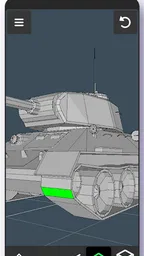
One practical habit is to separate camera navigation from editing in your mind. When the view changes unexpectedly, stop and reorient before continuing to sculpt. Otherwise, it is easy to interpret a perspective shift as a problem with the model and make unnecessary edits. A second habit is to make small changes and inspect them immediately. On a phone, a broad gesture can affect more than you intended, so gradual adjustments are easier to judge and reverse.
It is also worth checking the app’s current version and the device requirements before installing. The current version is 1.20.21, and the listed minimum operating system is Android 7.1. The app is free to download, with optional in-app purchases priced from $0.99 to $34.99 per item. I would begin with the free experience and decide whether any paid option is useful only after seeing how well the basic workflow fits your device and creative habits.
Because the interface is used for both shaping and painting, avoid trying to learn every control while making a complicated project. A small practice model lets you identify which actions feel precise and which require more care. If you are working on a phone, use a comfortable grip and take breaks when repeated fine adjustments start to feel tiring. A tablet can offer more room for touch work, but the core challenge remains the same: your fingers cover part of the canvas, so deliberate, incremental edits are usually more reliable than sweeping gestures.
Repeatable patterns for quicker, cleaner results
Experienced users tend to save time not through secret controls, but through repeatable decisions. I would use a short loop: make one change, rotate the model, inspect the silhouette, and either keep or undo the change. Repeating that cycle helps prevent a familiar trap in 3D work—adding detail because the view looks empty, then discovering that the object’s overall proportions are still off.
A second useful pattern is to set a stopping point for each pass. For example, finish the broad shape before moving on to recognizable features, and finish the features before painting. This creates a clear answer to “what should I do next?” and makes it easier to return to a project later. If you only have a few minutes, you can work on one stage without feeling obliged to complete the whole model.
For color, I suggest testing the palette against the shape rather than choosing colors in isolation. A bright accent may help a small feature stand out, while too many competing colors can make the form harder to read. Keep a simple version before experimenting with more decoration; that gives you a useful point of comparison. This approach is especially helpful when making icons, toy-like objects, or personal concept sketches, where clarity matters more than realistic surface detail.
Another good use is visual brainstorming. If you are planning a handmade ornament, a game prop, or a small character, a rough 3D mock-up can reveal whether the idea works in volume before you spend time on a polished drawing or physical build. I would not rely on the app alone for technical measurements or manufacturing preparation, but it can help answer a simpler question: does this shape look appealing from more than one side?
Compared with ordinary drawing apps, this tool asks for more spatial thinking and gives you a way to work with form rather than only outlines and flat color. Compared with full desktop 3D software, it is better approached as a compact, accessible place to sketch and experiment than as a complete professional pipeline. That trade-off is the reason to choose it: you can explore an idea on a mobile device, but serious asset production may call for software with a broader set of tools and a more precise working environment.
Where the mobile approach reaches its limits
Touch controls are convenient, but they are not equally suited to every task. Fine sculpting can become fiddly when your finger obscures the area you are editing, and long sessions may feel less comfortable than working with a mouse, stylus, or larger display. If your goal depends on exact geometry, highly controlled topology, or a complex professional handoff, I would look for a dedicated 3D package rather than assume a mobile modeling app will cover the whole workflow.
There is also a difference between making a model that looks convincing on screen and preparing one for a specific technical use. A quick sculpt can be excellent for a personal concept, a visual reference, or a casual creative exercise. It should not automatically be treated as ready for animation, fabrication, or use in a larger production. If those outcomes matter, check that the tools and export workflow in the app meet your requirements before building a major project around it.
New users should expect a learning curve even if the app is designed to be approachable. Modeling involves judging depth and proportion, and those skills do not become automatic after a few taps. The best response is to keep early projects small and compare the object from several angles. If you mainly want instant templates or polished results with almost no manual adjustment, a template-based design app may be a better fit. If you enjoy shaping an idea yourself, the process is more rewarding.
The app has an Everyone age rating, and it is free to install. Its average rating is 4.2 from around 20,000 ratings, with more than 10 million installs. I see those figures as signs that it has reached a broad audience, not a promise that every device or workflow will suit it. The useful question is whether you want to experiment with 3D shapes on a mobile screen and are comfortable learning by making small, revisable edits.
Who I would recommend it to
I would recommend 3D Modeling App: Sculpt & Draw to beginners who want to try sculpting without starting in a heavyweight desktop environment, and to casual creators who enjoy turning simple ideas into small 3D studies. It also makes sense for artists who already draw and want to test whether a concept holds up as a volume. The strongest use case is exploratory work: rough props, decorative objects, toy-like characters, and visual experiments that benefit from being viewed in three dimensions.
I would be more cautious if you need exact, repeatable technical modeling or expect a phone app to replace a professional 3D workstation. It is also not the first tool I would pick for someone who only wants to make polished flat illustrations. In those situations, a dedicated CAD or desktop modeling program, or a standard drawing app, is likely to serve you better.
My recommendation is to begin with one modest project and use it to learn the controls, check the shape from multiple angles, and test a simple paint scheme. The app is free to try, while in-app purchases are available if you later decide you want them. For its intended role as a mobile place to sculpt, paint, and explore form, it offers a worthwhile creative starting point. Just keep expectations grounded: its best results come from patient, repeatable practice, not from treating a touchscreen as a full studio replacement.
What we like
- Offers a hands-on way to explore basic 3D sculpting on a mobile device.
- Touch controls make it easy to shape models without a desktop setup.
- Useful for quick creative sketches and casual experimentation.
- Can help beginners become familiar with digital sculpting tools.
- A portable option for practicing 3D art away from a computer.
What could be better
- Small screens can make precise sculpting difficult.
- Touch gestures may take time to learn and control accurately.
- Complex projects may be challenging to manage on a phone.
- Mobile hardware can limit performance with detailed models.
- It may not provide the depth of professional desktop modeling software.





