
Artrace: AR Easy Draw & Sketch review
 Analysis by Appsdrops
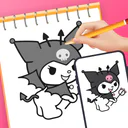
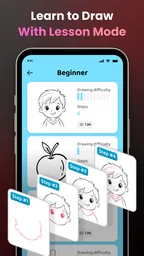
I like drawing apps that help me get from “I can picture it” to a first sketch without making me learn a full digital-art studio. Artrace: AR Easy Draw & Sketch is aimed at that gap: it uses augmented reality as a drawing aid, rather than asking you to create everything on a blank screen. That makes it an interesting fit for beginners, casual sketchers, and anyone who wants to trace or plan an image on paper with a phone as a guide.
My main advice is to approach it as a practical drawing companion, not as a replacement for a traditional illustration app. The appeal is the bridge between a digital reference and a physical sheet of paper. Whether that bridge feels useful depends on your patience with setup, your device, and the kind of drawing you want to make.
What the AR approach changes
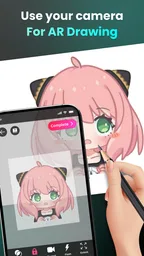
In a conventional drawing app, the phone or tablet is the canvas. Here, the core idea is different: the camera view helps you work with a real-world surface. That distinction matters. If you want layers, detailed brush control, or a finished digital image, a standard art app is usually the more natural choice. If you want help placing a sketch on paper, an AR-oriented tool is more directly suited to the task.
That format can lower the barrier to starting. A beginner does not need to decide how to build a drawing from scratch on a touchscreen; they can focus on following a visual guide and making marks by hand. I see the strongest use case in practice sketches, simple objects, and personal projects where the goal is to learn or create something tangible rather than produce polished digital artwork.
The trade-off is that the phone becomes part of your drawing setup. You need to position it so the camera view is useful, keep the paper and device in a workable arrangement, and look between the screen and the page. That is a different rhythm from drawing directly on a tablet, and it may feel awkward until you find a comfortable position.
Who is likely to enjoy it
I would recommend trying it if you are curious about drawing but often get stuck on proportions or the first outline. It may also suit a parent or teacher looking for a guided activity, or someone who enjoys making cards and small decorations by hand. For these users, the value is not just the finished sketch; it is having a concrete way to begin.
More experienced artists may still find the AR concept useful for a quick reference or rough layout, but it is unlikely to replace a carefully controlled drawing workflow. If you rely on a stylus, custom brushes, layers, and precise digital editing, choose an illustration app built around those tools. Artrace is most compelling when paper is part of the plan.
Getting a useful first session
A little preparation can make the difference between a smooth start and a frustrating one. Use a stable surface, leave enough room for both the page and your hand, and choose a drawing size that fits the available space. If you are using a small sheet, a complicated reference can become cramped quickly; starting with a simple outline gives you a better chance to judge whether the camera-guided approach suits you.
One practical tip is to test the setup before you commit to a detailed drawing. Make a few light marks, check whether the guide remains comfortable to follow, and adjust the phone or paper if the arrangement feels strained. This small trial helps you catch problems early, when restarting is easy. It also reveals whether your lighting and viewing angle are comfortable enough for a longer session.
For a realistic everyday example, imagine wanting to draw a small plant for a notebook after seeing one on your desk. Rather than opening a complex digital canvas, you could use the app to help establish the basic shape on paper, then add your own details and shading. That division of work is a strength: the app can help with getting started, while the final character still comes from your hand.
Speed expectations and demanding sessions
Because the experience depends on a live camera view and an AR drawing setup, I would not judge it by the same standard as a simple note-taking app. The important question is whether the view responds well enough for you to keep drawing comfortably. In use, the workflow is inherently more involved than opening a blank canvas: you have to arrange the physical workspace as well as interact with the app.
Longer or more ambitious sessions can bring out the limits of that arrangement. A large drawing may require more attention to positioning, and repeatedly shifting your gaze between screen and paper can become tiring. I would break a detailed project into manageable stages rather than expect the phone to make a lengthy drawing effortless. The AR aid can reduce uncertainty about where to begin, but it does not remove the time and hand control that drawing itself requires.
It is also sensible to keep expectations modest about resource demands. The camera-based format is more involved than a static reference image, but I would not assume that every phone handles it identically. If the view feels sluggish or the device becomes uncomfortable to hold, simplify the setup, pause, or try again on a supported device that feels more capable. The drawing method should help you concentrate, not make you fight the phone.
Reliability is partly about the workspace
With AR drawing, a usable session depends on more than the app alone. The phone needs a workable view of the page, and the page needs to stay where you can draw on it. A wobbly stand or cramped desk can make alignment feel less dependable even when the app is behaving normally. I would treat the physical arrangement as part of the tool, not as an afterthought.
That also suggests a sensible recovery habit: before beginning a larger sketch, make a small test and confirm that the setup is still comfortable. If you lose your position or the arrangement becomes inconvenient, stopping to reset is better than pressing on and ending up with a page you do not like. For a casual drawing, this is a minor pause; for a careful project, it is worth building into the process.
I would not choose this as my only option for work where exact repeatability is essential. A traditional drawing app offers a more controlled digital workspace, while a printed reference gives you a stable image without requiring a live camera arrangement. Artrace’s advantage is its more hands-on bridge to paper, and that advantage comes with some dependence on the room, desk, and device position.
Device fit and the cost of trying it
The app is free to install, with optional in-app purchases listed from $2.99 to $39.99 per item. That makes it reasonable to try the basic experience before deciding whether it belongs in your routine, while keeping in mind that some purchases may be offered inside the app. I would explore the free experience first and only spend if the drawing workflow proves useful to you.
It is rated for Everyone, and its minimum operating-system requirement is Android 7.0. The current version is 2.0.5. Those details make the compatibility threshold clear for Android users, but a minimum requirement does not guarantee that every compatible device will provide the same comfortable AR experience. A phone that meets the software requirement may still be less pleasant for a camera-guided session than a newer or more capable device.
Developed by Braly JSC, the app sits in the art-and-design space rather than the general photo or note-taking category. Its audience is reflected in its broad reach: it has more than 50 million installs, a 4.6 average rating, and around 401,000 ratings. Those figures suggest that many people are willing to try the concept, though they cannot tell you whether its physical drawing method matches your own habits.
How it compares with familiar alternatives
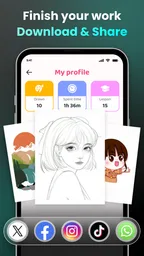
Compared with a standard mobile drawing app, Artrace shifts effort away from digital brush technique and toward coordinating a screen with paper. That is useful if you find a touchscreen canvas intimidating or simply prefer pencil and paper. The usual drawing app remains better for editing, experimenting with layers, and making a digital image that is ready to share without photographing or scanning a paper result.
Compared with a static image reference, an AR-guided approach can feel more interactive, but it also asks more of your setup. A printed picture is dependable and easy to glance at; it does not depend on keeping a phone positioned over your work. The choice is practical: use the AR approach when having the guide integrated into the drawing process helps you, and use a print or ordinary reference when you want a simpler, hands-free workspace.
There is another useful distinction for learners. Tracing or following a guide can help you complete a drawing, but it is not the same as learning to judge proportions independently. I would use the app as a stepping stone: make one guided sketch, then try a similar subject from observation or from a reference beside the page. That way, the tool supports practice instead of becoming the only method you trust.
My performance verdict
Overall, I see Artrace as a focused option for people who want digital guidance while drawing on real paper. Its biggest strength is the idea of bringing a visual aid into a hands-on activity; its main friction is that the phone, page, and drawing posture all have to work together. That makes the app a better match for short creative sessions and beginner-friendly sketches than for demanding, precision-heavy artwork.
I would give it a try if you want a gentler way into drawing, enjoy making things by hand, or want a guided activity that does not depend on mastering a full digital-art interface. I would skip it if you need advanced digital editing, a dependable no-camera workflow, or a tool that disappears into the background during a long session. For me, the key question is simple: does using the camera view make it easier to start on paper? If the answer is yes, the extra setup is a worthwhile trade-off; if not, a conventional drawing app or a printed reference will likely feel more natural.
What we like
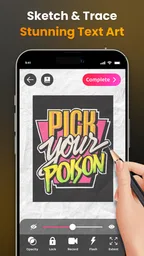
- Helpful overlays make it easier to trace proportions accurately.
- The AR approach can make practice feel more engaging.
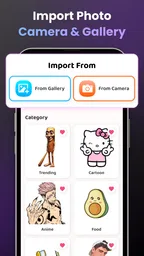
- Useful for transferring a reference image onto paper.
- Can support beginners who find freehand sketching difficult.
- A practical option for trying guided drawing without a studio setup.
What could be better
- Drawing results depend on steady camera positioning.
- Good lighting is important for a clear AR view.
- Holding a phone while drawing may feel awkward.
- The overlay may shift if the device moves.
- A small screen can make fine details harder to follow.





