
AI Image Generator: ImagineArt review
 Analysis by Appsdrops
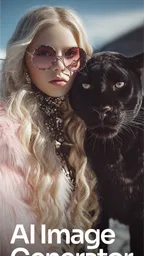
I approached AI Image Generator: ImagineArt as a newcomer might: with a rough idea in mind and no finished artwork to upload. The app is aimed at turning written prompts into visual material, with creative uses ranging from logos and tattoo concepts to broader AI art and image editing. That makes it appealing if you want a fast starting point rather than a blank canvas, though it works best when you treat the first result as a draft to refine—not a guaranteed finished design.
What to expect from an AI-first art app
ImagineArt is an art and design app from ImagineArt. Its central appeal is that you can describe an idea instead of building every visual element by hand. For a beginner, that removes a lot of the intimidation associated with traditional drawing or design software: you can start with a subject, a mood, and a visual direction, then see what the generator makes of them.
The app is free to install, and its audience is broad. It has an average rating of 4.2 from around 443,000 ratings, with more than 10 million installs. Those figures suggest that it has reached well beyond a small community of AI-art enthusiasts, but they do not mean every generation will match your idea. Prompt-based results can be unpredictable, and the most useful habit is to judge each output as one interpretation of your words.
That distinction matters if you are expecting the precision of a conventional photo editor. A regular editor lets you adjust a specific object or pixel with predictable results; an AI generator is better at exploring looks and concepts quickly. I would reach for ImagineArt when I want options, atmosphere, or a visual starting point. If I need exact brand geometry, carefully controlled typography, or a faithful edit to a particular photograph, I would plan on finishing the work elsewhere.
The app is rated Teen, and the current version is 7.12.0. It supports devices running Android 8.0 or later, so it may suit older Android hardware as well as newer phones. It is also worth knowing that “free” describes the starting point, not necessarily every part of ongoing use: in-app purchases range from $5.99 to $799.99 per item. I would explore the free experience first and decide whether a paid option solves a real need before spending.
Who will get the most out of it
ImagineArt makes particular sense for people who have an idea but lack the time, drawing confidence, or design experience to visualize it from scratch. A small business owner could explore possible moods for a new logo before briefing a designer. Someone considering a tattoo could create references that communicate a theme, composition, or style to an artist. A hobbyist could turn a vague fantasy scene into an image to share or use as inspiration.
Those are concept-development uses, not a substitute for professional judgment. A generated logo may look striking while still being too complicated to reproduce at a small size. A tattoo image can help explain the desired feeling, but a tattoo artist needs to adapt it to the body and the practical demands of tattooing. I find the app most valuable when it helps me ask better questions about an idea, rather than when I expect it to make every decision for me.
Getting from install to a useful first result
For a first session, I would keep the goal small. Pick one clear subject and one intended use, such as “a calm, hand-drawn-looking emblem for a neighborhood garden.” Then add only a couple of details that genuinely matter, such as the mood or a visual style. A prompt with a focused subject gives you a much easier result to assess than a long list of unrelated objects, colors, and effects.
Once a result appears, compare it with your original intention instead of asking only whether it looks attractive. Is the main object recognizable? Does the mood feel right? Is the image too busy for where you plan to use it? If the broad idea is there but the composition is wrong, change one part of the prompt and try again. Changing one meaningful detail at a time makes it easier to learn which words are steering the image and keeps the process from becoming a string of random retries.
A practical everyday example is making a quick invitation image for a casual get-together. I would first describe the event’s subject and atmosphere, then check whether the output leaves enough visual breathing room for the invitation details I intend to add. If the result is too ornate, I would simplify the description rather than piling on more instructions. This approach turns generation into a small, manageable loop: describe, inspect, adjust, and keep the version that best serves the purpose.
For text-heavy designs, I would take a different route. AI-generated images can be useful for visual direction, but exact words and clean lettering are important enough that I would plan to add or correct the text in a conventional editor. The same applies to brand marks that must remain consistent across packaging, social posts, and print. Use ImagineArt to explore the visual concept, then use a tool built for precise layout when the details need to stay fixed.
Where the first session can feel confusing
The most common point of confusion is the gap between what a person imagines and what a prompt actually communicates. “A cool logo” leaves many choices open, so the output may be polished but unrelated to your taste. It helps to describe the subject and the feeling in plain language, then add a specific visual cue only if it matters. You do not need specialist vocabulary to begin; clarity is more useful than trying to sound like a professional art director.
Another potential frustration is that a good-looking image is not automatically a usable design. A composition may have awkward spacing, details that disappear when reduced, or elements that are difficult to reproduce. For a social post or a personal mood board, those imperfections may be acceptable. For a business identity, a product label, or a permanent tattoo, I would treat the output as a reference and have the final version checked or recreated with appropriate tools.
It is also easy to mistake repeated generation for progress. If you keep changing several parts of a prompt at once, you may get a different image without understanding why it improved or worsened. I get better results by preserving what works—perhaps the subject and mood—and changing only the element that is off. That simple discipline saves time and gives you a clearer sense of whether the app is responding to your direction.
People comparing it with ordinary drawing apps should think about the kind of control they need. A drawing app is the better choice if you want to place every line yourself or build a design in layers from the outset. A template-based design tool is often a better fit for a quick, conventional poster or a layout with exact text. ImagineArt’s advantage is the jump from a verbal idea to a set of visual possibilities; its trade-off is that the result may need more deliberate correction before it is ready for a specific job.
How I would build on a promising image
After finding a result that captures the right direction, I would save it as a reference and decide what still needs attention. For a tattoo concept, that might mean simplifying a crowded background and asking the tattoo artist to adapt the important shape. For a logo idea, it might mean identifying the one symbol or color mood worth carrying into a cleaner design. This is a useful way to avoid treating the generated image as untouchable: keep the idea, but be willing to reshape the execution.
For creative exploration, try making separate prompts for separate goals rather than asking one image to do everything. A logo exploration benefits from a clear symbol and a restrained mood; a fantasy illustration can accommodate more atmosphere and detail. Keeping those intentions distinct makes comparisons fairer. It also helps you decide whether you want a finished-looking picture, a reference for a human creator, or simply a spark for your next idea.
Cost is another reason to be intentional. Because the app includes in-app purchases, I would avoid buying anything just to rescue a prompt that is still vague. First work out what you want the image to communicate and see whether a more focused description gets closer. If you reach a point where a paid option would support a repeated workflow you genuinely value, you can weigh that choice then. The free entry point is enough to let a newcomer judge whether this style of creation feels useful.
ImagineArt is not the right tool for everyone. I would skip it if my priority were precise manual drawing, dependable typography, or a production-ready logo with tightly controlled specifications. I would also look elsewhere if I needed a predictable edit to a specific image and did not want to review multiple interpretations. But for a beginner who wants to turn a thought into a visual reference without first learning a complex design workflow, it offers a reassuring place to start.
My recommendation for a first-time user
My advice is to install AI Image Generator: ImagineArt with one modest project in mind, not a demand for a finished masterpiece. Describe a clear subject, generate a first direction, and refine the prompt by changing one detail at a time. That gives you a meaningful result quickly and helps you learn whether the app’s approach suits the way you think creatively.
Overall, I see it as a useful idea-to-image companion rather than a replacement for every art or design tool. ImagineArt has attracted a large audience, and the 4.2 average rating reflects a generally positive reception, but the best experience still depends on setting the right expectations. Use it to explore, compare, and communicate visual ideas; switch to a more controlled editor or a human specialist when accuracy and repeatability matter. For a curious first-timer, that balance makes the app worth trying before deciding how far to take it.
What we like
- Creates images from text prompts with little effort.
- Offers a quick way to explore different visual concepts.
- Can help users create artwork without drawing skills.
- Useful for making images suited to social posts and projects.
- An accessible option for experimenting with AI-generated art.
What could be better
- Generated results may not match the prompt exactly.
- Some images can contain odd details or visual artifacts.
- Access to certain features may require a paid plan.
- Creating polished results can take several prompt revisions.
- AI-generated images may not be suitable for every commercial use.





