
Super HomeScreen review
 Analysis by Appsdrops
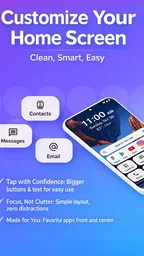
Choosing a home-screen replacement is less about finding the most elaborate layout and more about deciding what you want to see before opening anything. I’d consider Super HomeScreen if your current launcher feels like a row of app icons you have to search through, and you would rather make the first screen a useful starting point. It is a free Android personalization app from lighten apps, with a 4.0 average rating from around 5,600 ratings and over a million installs.
Decide what you want from your home screen
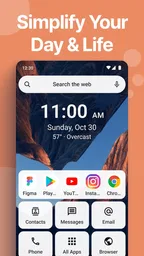
The central question is whether you value quick access to information more than a highly customized visual setup. Super HomeScreen is presented as an efficient launcher, so its appeal is practical: it aims to make the home screen a place to check what matters and get moving, rather than a canvas to decorate for its own sake.
That distinction helps narrow down the choice. If you regularly unlock your phone to check something, then open a separate app, a launcher built around at-a-glance use may suit your habits. If you mostly want themed icons, elaborate layouts, or extensive control over how every element looks, a customization-first launcher may be a better match. I would judge this one by whether its information-focused approach reduces little interruptions in your day, not by how many visual tweaks it offers.
There is also a practical threshold: a different launcher changes the most familiar screen on your phone. Even a sensible design can feel wrong if it interrupts habits you have built around your existing layout. Before committing, think about what you reach for most often, what you want to notice without opening an app, and whether you are willing to adjust your routine to get a more focused home screen.
Where an information-first launcher can help
A useful home screen can save time in small increments rather than through one dramatic feature. For example, imagine checking your phone while waiting for a bus: you want to glance at the screen, decide whether you need to do anything, and put the phone away. A launcher designed to emphasize essentials may make that interaction feel more direct than navigating through icons first.
The same idea can help at home or during a workday. If your phone is mainly a tool for a few repeat tasks, a focused first screen can give those tasks a clearer place in your routine. I’d try arranging your day around the information you genuinely check, rather than filling the screen with everything that might conceivably be useful. The benefit of a glanceable setup depends on restraint: too much competing content defeats the point.
One useful test is to notice which apps you open simply to confirm something and then close immediately. Those quick checks are good candidates for a more convenient home-screen workflow, if the launcher’s actual layout supports what you need. Another is to separate “need to act now” from “might look at later.” Keeping the first screen focused on the former can make it easier to ignore distractions without losing access to the apps you still use.
What to check before making it your default
Because the home screen is something you use repeatedly, small points of friction matter. Spend a little time learning where your familiar apps sit and whether the information you care about is easy to find. A launcher can sound efficient in principle yet fail for you if its organization does not match your habits. I would test it during ordinary routines, not just admire the screen immediately after setup.
It is also worth asking whether you want the launcher to replace your current home-screen experience or simply make it more useful. A replacement is a better fit when you are ready to adopt a different way of reaching apps. If you want to preserve a carefully arranged layout and only change its appearance, a theme or icon-focused option may involve less adjustment.
For a more revealing trial, use the same few everyday tasks on both setups: check the information you normally look up, open your most-used apps, and return to the home screen after each one. Pay attention to whether the new arrangement helps you finish with fewer steps or merely shifts the effort somewhere else. That comparison is more useful than judging the launcher by its first impression.
Where Super HomeScreen wins—and where it may not
The strongest reason to choose Super HomeScreen is its clear emphasis on speed and information rather than decorative complexity. That makes it a sensible candidate for someone who wants the first screen to answer “what do I need right now?” and help with “where do I go next?” It is a more appealing starting point for practical users than for people who treat their phone’s interface as a design project.
Its positioning also makes it easier to decide what not to expect from the category as a whole. Launchers that focus on visual customization can be more appropriate when the main goal is a distinctive look or precise control of the layout. Search-oriented alternatives may suit someone whose home screen is mostly a launching pad and who prefers to find apps by typing. Super HomeScreen’s information-led approach is most persuasive when you want useful context on the screen itself, rather than only a different route to your app drawer.
That is a trade-off, not a universal advantage. An information-rich screen can become cluttered if it tries to serve too many purposes at once. And even a clean launcher may feel less efficient if the items it emphasizes are not the ones you personally check. I would not assume that a general focus on essentials automatically produces the ideal arrangement for every user; the meaningful test is how well it fits your own repeated checks.
Who should look elsewhere
I would steer away from this choice if your top priority is deep visual control and you are happy to spend time tuning icons, spacing, and themes. A customization-first launcher is likely to align better with that goal. Likewise, if you already have a home-screen setup that gets you to your apps quickly and shows the information you care about, switching just because a new launcher sounds more efficient may create work without solving a real problem.
It may also be a poor match if you prefer a deliberately minimal screen with little visible information. The phrase “at a glance” points toward a more informative experience, but the right amount of information is personal. If even a small amount of extra content makes your screen feel busy, compare minimalist alternatives before changing your default.
People who rely on a particular launcher’s established gestures, folders, or carefully arranged pages should be especially cautious. This is not a claim about a specific missing feature; it is a reminder that changing launchers can alter the muscle memory you depend on. Make a note of your current setup before trying something new, so that you can judge the change fairly and restore your familiar arrangement if the new workflow does not suit you.
The real cost is adjusting your routine
There is no purchase price to weigh here: Super HomeScreen is free, and its content rating is Everyone. The more relevant cost is time. Moving to a new launcher means learning its organization, deciding what belongs on the first screen, and checking whether your everyday actions still feel natural. That effort is worthwhile only if the new arrangement improves something you notice often.
To keep the switch manageable, I’d start with a small experiment instead of reorganizing the phone all at once. Choose the handful of tasks you perform most often, use the launcher for those, and avoid trying to recreate every detail of your old screen on day one. This gives you a clearer sense of whether the information-first approach is helping, while keeping the decision reversible in your own routine.
Before switching, take note of the apps and shortcuts you depend on and how you currently reach them. Then compare the same actions after setting up the new screen. If you find yourself repeatedly hunting for something that used to be obvious, that is meaningful evidence—not a failure to adapt. The best launcher is the one that makes your own common actions easier, not the one with the most persuasive description.
Compatibility, version, and confidence
The current version is 3.2.7, and the app requires Android 8.0 or later. It was released on August 28, 2025, so anyone considering it should check that their device meets the minimum system requirement before making it part of their setup. The 4.0 average rating gives a useful broad signal, but ratings cannot tell you whether its particular approach will suit your habits.
Its review count—around 340 written reviews—offers more context than a rating alone, while the install total suggests that many Android users have tried it. I treat those figures as background, not a substitute for a personal test. Launcher preference is unusually individual: what feels clean and quick to one person can feel restrictive or distracting to another.
My recommendation
I’d recommend Super HomeScreen to someone who wants a more practical Android home screen and is open to changing how they find information and apps. Its focus makes the most sense for people who perform frequent quick checks, prefer utility over elaborate theming, and are willing to spend a little time seeing whether a new layout fits.
I’d choose a different kind of launcher if appearance control, a deliberately sparse screen, or a familiar existing setup matters more than information at a glance. In those cases, the alternative is not necessarily better overall; it is simply better matched to the job you want your home screen to do. The deciding question is whether your current screen makes everyday checks harder than they need to be.
For me, this is best approached as a focused trial rather than an automatic upgrade. Give it a place in your normal routine, pay attention to the tasks it genuinely simplifies, and keep it only if that improvement survives beyond the novelty of a new layout. That is the clearest way to tell whether its practical approach belongs on your phone.
What we like
- Customizable layouts make it easy to personalize the home screen.
- App shortcuts help you reach frequently used tools faster.
- A clean design keeps essential information easy to scan.
- Widgets can display useful details without opening apps.
- Flexible organization suits different daily routines.
What could be better
- Some customization options may require time to configure.
- Widget support can vary depending on the installed apps.
- Frequent layout changes may take extra effort to maintain.
- Performance may depend on your device and Android version.
- Users seeking a simple setup may find the options overwhelming.





