
Sora 2 AI Video: Question AI review
 Analysis by Appsdrops
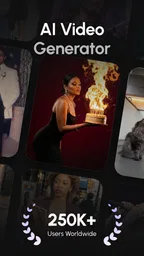
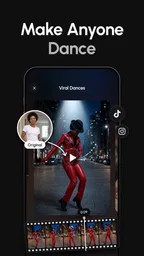
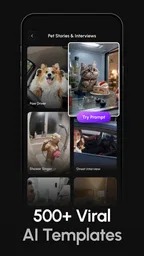
Sora 2 AI Video: Question AI is an art-and-design app built around a tempting idea: turn a written prompt or a photo into a short video without first learning a conventional editing tool. I like that focus. It makes the app appealing for quick visual experiments, social posts, and concept sketches, rather than positioning it as a full production suite. The important caveat is that AI generation is unpredictable, so the app is best approached as a creative starting point—not as a button that reliably delivers a finished video exactly as imagined.
Prompting is the real creative work
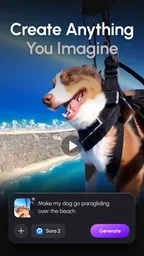
The app is developed by OneChat AI, and its central workflow brings text and photos into video creation. That gives newcomers two sensible ways to begin: describe a scene from scratch, or use an image as a visual anchor. In practice, those paths suit different jobs. A prompt is useful when the idea is still loose; a photo is more helpful when the subject, colors, or composition already matter.
I would treat the prompt box as a brief, not a magic phrase. Start with the subject and setting, then specify one clear action and a camera or mood cue if it matters. For example, a small bakery could use a photo of a pastry and ask for a gentle close-up with warm morning light. That is easier to assess than piling on several characters, scene changes, and conflicting styles. One strong visual intention usually gives you a more useful experiment than a crowded prompt.
That approach also helps when a result is only partly right. If the subject looks good but the motion feels wrong, change the movement rather than rewriting every detail. If the overall image is off, reconsider the scene description or the reference photo. Making one focused adjustment at a time lets you learn which parts of your instructions are steering the output, instead of turning each attempt into a brand-new guess.
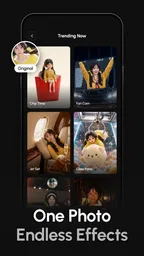
The photo-to-video route has a practical advantage for small businesses and creators who already have product images. A café owner, for instance, might try animating a still image for a story post, while an artist could explore motion ideas for a character sketch. The result still needs checking: AI-generated movement may alter details that should remain consistent, such as a label, a face, or an object’s shape. I would use such clips for mood and attention, then keep precise product information in ordinary editing tools.
Multiple generation models, with a trade-off
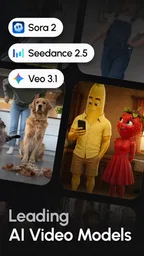
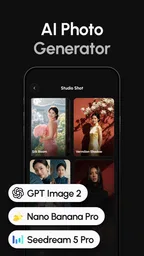
The app presents access to several named AI video models, including Sora 2 AI, Veo 3, and Seedance 2. That variety is potentially useful when one approach does not suit a particular idea. A prompt that produces an appealing atmosphere but weak motion in one model may be worth testing elsewhere. Comparing outputs can reveal which interpretation better fits the intended style, even when neither is perfect.
There is a trade-off: more model choices can make the process feel less straightforward. Someone who simply wants a quick clip may not want to decide which generation option to try, and switching models does not guarantee a better result. I recommend keeping the prompt consistent during a comparison. That way, you can judge the visual differences more fairly instead of changing the model and the instructions at the same time.
For repeat work, keep a small note of prompts that produce a useful look. This is especially helpful for a creator making several related posts, because a consistent description of lighting, setting, and movement can make experiments feel connected. It is not a substitute for a dependable style guide, though: generative results can vary, and the same wording should not be treated as a promise of identical outputs.
Where the experience can frustrate
The biggest limitation is inherent to text-to-video creation: an idea can be easy to describe and still hard for a model to interpret. Motion is particularly demanding. Hands, small objects, text inside a scene, and transitions between actions are the kinds of details I would inspect closely rather than assume came out correctly. A clip that looks striking at a glance may contain a distracting flaw once it is viewed frame by frame.
This matters if the video needs to communicate exact information. A maker showing how an object works, a business presenting a specific product feature, or anyone needing precise typography should not rely on generated footage as the sole source. A conventional editor is better for controlled cuts, captions, branded layouts, and repeatable timing. I see this app as a way to create visual material or test a direction, with careful editing elsewhere when accuracy matters.
Cost is another reason to experiment deliberately. The app is free to download, but it includes in-app purchases ranging from $7.99 to $599.99 per item. That wide span makes it sensible to understand what is available in the free experience and check the purchase details inside the app before committing. I would not pay for a larger option just because a first prompt misses the mark; revise the idea and test a modest workflow before deciding whether the results justify spending.
There is also a basic distinction between making a clip and having a finished asset. A generated video may still need trimming, sound, captions, or a format suited to a particular platform. If you expect a complete publishing workflow with detailed timeline controls, this is not the first tool I would choose. Its appeal is the generative step, not replacing every part of video production.
Who will get the most from it
I would recommend it most to people who enjoy visual trial and error: social creators looking for an unusual background, illustrators exploring how a still image might move, or beginners who want to turn a rough idea into something they can react to. The low-friction premise is valuable when the alternative is abandoning an idea because filming or animation would take too long. Even an imperfect result can help clarify what the creator wants to make next.
A realistic everyday use is preparing a quick visual for a small event announcement. You could begin with a photo of the venue or a simple text description, try a restrained motion idea, and then decide whether the result is good enough to share or only useful as inspiration. I would keep essential details—date, location, and readable wording—in a separate design or editing step. That keeps the generated portion responsible for atmosphere rather than facts that viewers must read correctly.
It is less suitable for someone who needs exact control, consistent characters across a long sequence, or a dependable commercial deliverable on a deadline. In those cases, conventional video editing, motion graphics, or a production workflow with review checkpoints is a safer choice. The same goes for users who dislike iterating: if a single predictable result is the priority, generative video may feel more like negotiation than editing.
The audience rating is 4.6 from around 24 thousand ratings, and the app has passed 100 thousand installs. Those figures suggest that many people have tried it, but they do not answer whether a particular prompt will work well. I would use them as context, not as a substitute for testing the app against your own creative needs.
Practical details and final call
Sora 2 AI Video: Question AI is listed as free, with a Everyone age rating, and it runs on Android 8.0 or later. It was released on July 26, 2024, and its current version is 4.0.2. Those details make it accessible to a broad range of Android users, while the in-app purchase range is worth keeping in mind if you plan to generate often.
My overall view is positive but specific: this is a useful creative sandbox for turning prompts and still images into video ideas, especially when experimentation matters more than exact control. Its strongest case is helping a person move from “what if?” to a visual draft quickly. Its weakest case is any job where the clip must preserve fine details, communicate precise text, or behave consistently without review.
If you enjoy shaping prompts and are comfortable judging imperfect results, I think it is worth trying before reaching for a more involved editor. Start with a simple scene, use a photo when the subject needs to stay recognizable, and compare model outputs only when you have a clear reason. If you need reliable, polished footage with predictable edits, choose a conventional video tool instead. That distinction is the clearest way to decide whether this app belongs in your creative routine.
What we like
- Offers a simple way to explore AI video generation.
- Question-based tools may help users shape creative ideas.
- Can suit quick experimentation without advanced editing skills.
- A mobile format makes creative work easy to access.
- May be useful for producing concepts for social posts.
What could be better
- Output quality can vary depending on the prompt.
- AI generation may take time during busy periods.
- Some features may require a paid plan or credits.
- Generated clips may need further editing before sharing.
- Check privacy terms before submitting personal content.





