SketchPad – Doodle & Draw review
 Analysis by Appsdrops
When I want to sketch an idea before it slips away, I value being able to start drawing without turning the moment into a project. SketchPad is a free art-and-design app from Kaffeine Software, and its appeal is straightforward: it gives casual drawing a place on your phone or tablet without asking you to treat every doodle as a polished illustration. My impression is that it works best as a lightweight creative outlet, a scratchpad for visual thinking, and a low-pressure way to pass a few minutes.
A simple place to begin drawing
The basic appeal is easy to understand even if you do not consider yourself an artist. You can reach for the app when you want to draw a quick shape, experiment with a little lettering, or make a rough visual note. That puts it in a different role from a full illustration suite: the goal is not to manage a complex art project, but to make it less of a chore to get an idea onto the screen.
In the art-and-design category, it sits closer to a casual sketchbook than to software built around elaborate editing. That distinction matters. A beginner may appreciate an uncomplicated starting point, while an experienced artist can use a quick-drawing app as a place to explore a composition before moving to a more specialized tool. I would not choose it as the center of a professional pipeline, but I can see why someone would keep it around for spontaneous sketches.
The app has a 4.5 average from around six thousand ratings, and it has passed one million installs. Those figures suggest it has reached a broad audience, but they do not tell me whether it suits a particular drawing habit. The more useful question is whether you want a relaxed canvas for informal work or need detailed controls and a production-ready workflow. SketchPad makes more sense for the first kind of use.
What the version history tells existing users
The current release is version 3.0.2, while the app first appeared on January 21, 2018. That gives it a longer history than a brand-new drawing experiment, but a version number alone does not explain which tools changed or how each update affected people who already use it. I would treat the current version as the edition to assess today, rather than assuming that its age guarantees a particular feature set.
For existing users, a newer version can matter because drawing habits become familiar: a preferred brush, a particular way of starting a sketch, or a routine for saving work. The practical way to judge an update is to try a small, disposable drawing first, check that the controls still feel comfortable, and only then settle back into a longer session. That is a sensible habit with any creative app, especially when a drawing is more than a throwaway doodle.
The release history also makes it reasonable to expect the app to have evolved since its early days, but I would not infer specific additions or removed tools from the version label. What I can say is that it remains a free app with optional in-app purchases priced at $1.99 per item. If you are considering a purchase, decide based on what the app actually offers in your own session, not on the assumption that paying automatically turns a simple sketchpad into a full desktop-style art program.
Where it fits into an everyday routine
A useful scenario is a quick visual note while planning something at home. You might sketch the rough arrangement of furniture, mark where a shelf should go, or draw a small diagram to explain an idea to someone else. The value is not precision; it is getting the thought out of your head before you forget it. For that kind of job, a drawing app can be more natural than trying to describe every shape in a text note.
Another good use is warming up. Before tackling a more demanding illustration, I like the idea of making a few loose marks or testing a composition without worrying about whether the result is worth keeping. A casual sketchpad helps separate exploration from the pressure to finish. If a rough idea develops into something important, you can decide whether to continue in a more capable art app rather than forcing the first tool you opened to do every job.
There is also a practical trade-off between drawing on a phone and drawing on a larger screen. A phone is convenient for capturing an idea on the spot, but the smaller working area can make fine detail and careful lettering harder. A tablet generally offers more room to move, though the app still needs to provide the depth you want. If you are choosing a device mainly for detailed illustration, I would compare the available controls and drawing experience before making SketchPad your deciding reason.
One tip I would use is to keep early sketches deliberately rough. Draw the overall shape first, then decide whether the idea deserves refinement. This prevents a quick note from consuming the time you meant to spend simply capturing it. It also helps expose a real limitation of casual drawing tools: if your process depends on intricate layers, exact adjustments, or a carefully managed final export, you will want to verify that the app supports your workflow before investing effort in it.
How it compares with common alternatives
Compared with the blank page in a general note-taking app, a dedicated sketching app is the more natural choice when marks, shapes, and visual play are the point. Notes apps are often better when the drawing is only one piece of a larger written record. SketchPad’s identity is more focused on drawing, so it is easier to recommend for doodling and visual exploration than for organizing a mixed collection of meeting notes, reference material, and finished artwork.
Compared with feature-heavy illustration software, the attraction is the lighter commitment. Advanced art apps are the better choice when you need fine-grained control, a layered workflow, or tools suited to a specific professional task. They can also take longer to learn and make a spontaneous sketch feel like setup work. I would use a specialized alternative when the finished result needs to meet a strict standard; I would reach for SketchPad when the point is simply to start.
That is not a claim that one approach is universally better. A beginner who feels intimidated by a dense toolbar may prefer a simpler drawing experience, while someone who already knows their way around illustration software may find a casual app limiting. The best choice depends on whether you value quick access or technical flexibility more. If you are unsure, try a short sketch that resembles the work you actually want to make, rather than judging by an abstract list of tools.
Limitations worth considering before you commit
The biggest caution is the gap between “fun to draw in” and “equipped for serious production.” A pleasant doodling session does not automatically mean a tool is right for polished commissions, print preparation, or a repeatable professional process. If you need reliable control over every stage of an illustration, make sure the app’s actual options match those needs before building a project around it. For important work, it is safer to test the whole process with a small sample first.
There is a similar question around long-term organization. A quick sketch is easy to make, but a growing collection of drawings can become less useful if you do not have a clear way to name, sort, or revisit them. I would decide in advance whether a drawing is temporary or worth keeping, and move meaningful work into a system you already trust. That habit matters more than it may seem: a scratchpad is convenient precisely because it does not have to become your archive.
Purchases deserve the same practical check. The app is free to start, with optional items costing $1.99 each. I would first use it for the kind of drawing I expect to do regularly, then consider a paid item only if it addresses a specific need. That avoids paying for an option simply because it is available. It is also a good way to keep the app’s low-pressure role intact rather than expecting a purchase to solve a mismatch in workflow.
SketchPad is rated for Everyone and requires Android 5.0 or later. That makes its stated age suitability broad, though parents should still use their own judgment about what a child draws or shares on any device. If you are installing it on an older Android phone, the minimum operating-system requirement is the first compatibility detail to check. The app’s free starting point makes a brief trial a reasonable way to find out whether its style suits you.
Who will enjoy it, and what I would watch next
I would recommend it to people who want a straightforward place to doodle, practice drawing, or capture visual ideas without starting in a complex design environment. It is also a reasonable option for someone testing whether drawing on a phone or tablet fits their routine. I would steer away from it if your main requirement is a highly controlled illustration workflow, detailed asset management, or a dependable professional production setup; in those cases, a more specialized alternative is the better bet.
For anyone already using the app, the most useful way to assess its present state is to judge it against a real task: make a quick diagram, try a short warm-up sketch, or rough out an idea you would otherwise write down. Notice whether the controls let you work at your natural pace, and whether the result is easy enough to keep or move into your usual workflow. Those small tests answer more than the version number by itself.
Looking ahead, I would watch for whether future releases make the everyday drawing process more comfortable without losing the app’s approachable feel. That is an expectation, not a claim about planned changes. The release date and current version show a product with a history, but the best reason to keep using it is still practical: it should make it easier for you to draw when inspiration or a useful visual thought arrives.
My overall view is that SketchPad is most appealing as an accessible, free sketching companion rather than an all-purpose art studio. Kaffeine Software has given it a clear place in the art-and-design space, and its broad audience is encouraging, but the right fit depends on how demanding your work is. If you want a relaxed canvas for spontaneous ideas, I would give it a try. If you need precise, structured control, choose a more advanced drawing tool and let this one remain what it does best: a place to begin.
What we like
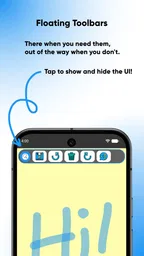
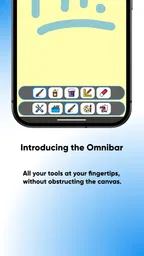
- Simple controls make quick sketches easy to create.
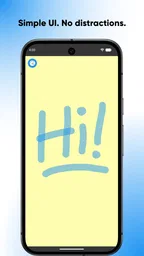
- A blank canvas offers a distraction-free place to draw.
- Useful for casual doodling and practicing basic drawing skills.
- The lightweight concept suits short creative sessions.
- Saving finished drawings lets you keep your work for later.
What could be better
- Advanced artists may find the drawing tools too limited.
- Small screens can make detailed drawing difficult.
- The experience may feel repetitive without guided activities.
- Some features may require an internet connection.
- Ads or in-app purchases may interrupt the creative flow.





