

Sketch Pro: Draw & Create Art review
 Analysis by Appsdrops
When I try a drawing app, I pay attention not only to what it lets me make, but also to how comfortably I can use it for a quick sketch or a longer session. Sketch Pro: Draw & Create Art is aimed at digital illustration, particularly Anime and Manga art, and its straightforward premise makes it easy to understand who it is for. My overall impression is that it can be a handy place to practise and develop a drawing, provided its drawing-focused approach matches the way you like to work.
Finding your way around a drawing session
Sketch Pro is an Art & Design app from 4Axis Technologies. Its focus on drawing and painting gives it a clearer purpose than a general-purpose creative app: you open it to make artwork, not to manage a broad collection of unrelated projects. That focus is useful for newcomers who might otherwise feel overwhelmed by a toolset built for professional production.
In my experience, a drawing app’s navigation matters most when I am trying to capture an idea before it disappears. A simple sketching routine—open a workspace, establish the rough pose, then refine the lines and color—benefits from tools that are easy to locate and understand. Sketch Pro’s identity as a drawing pad makes that kind of use feel natural, especially for someone starting with Anime or Manga-inspired studies.
It is also a plausible companion for deliberate practice. Rather than treating each canvas as a finished illustration, I would use it to work through small exercises: repeat a character’s expression, test a few hair silhouettes, or compare rough poses. Keeping the exercise focused makes it easier to judge progress without turning every session into a demanding project.
The app has an average rating of 4.6 from around 36,000 ratings, and it has been installed over a million times. Those figures suggest that plenty of people have tried it, but they do not tell me whether its controls will suit a particular hand, device, or drawing habit. I would treat them as useful context, not as a substitute for checking whether the experience feels comfortable to you.
Choosing a workflow that stays manageable
A practical way to approach a new drawing app is to begin with a deliberately small task. I would sketch one face or a simple character pose first, then spend a few minutes locating the controls I use repeatedly. That prevents the first session from becoming a hunt through menus while also revealing whether the app’s basic interaction feels intuitive.
For Manga-style work, rough construction is often more useful than polishing immediately. I would block in the head, body, and gesture before investing time in details. If a pose feels wrong at that stage, changing it is less frustrating than discovering the problem after carefully drawing clothing or facial features. Sketch Pro’s drawing-and-painting purpose suits this gradual approach, though artists who rely on a highly specialized production pipeline may prefer a more comprehensive illustration environment.
Another useful habit is to separate exploration from refinement. I might spend one session testing expressions or color ideas, then return later to develop the strongest option. This keeps practice low-pressure and makes the app useful even when I have only a short break. It is a better fit for regular sketching than for someone who expects every drawing session to produce a polished portfolio piece.
Comfort, precision, and different abilities
Drawing places particular demands on hand control. Fine line work, repeated strokes, and holding a device for a long session can be tiring, so I would not assume that a drawing pad will feel equally comfortable for everyone. If precise hand movement is difficult, starting with broad shapes and simpler studies is a sensible way to see whether the interaction works for you before committing to detailed work.
I also recommend trying the app in short sessions before deciding how much detail to pursue. A quick character thumbnail can reveal whether the controls feel manageable without making fatigue the main event. If a session becomes uncomfortable, stepping away and returning later is more useful than forcing a long stretch of tiny corrections.
For people sensitive to visual clutter or intense color, a restrained workflow can help: begin with a simple sketch and add color only when it serves the idea. This is a practical drawing choice rather than a claim about specific display or accessibility settings. The key question is whether the actual screen and controls feel clear on your device and comfortable for your needs.
Sketch Pro is rated for Everyone, which makes its intended audience broad, but an age rating should not be confused with a promise that every interaction will suit every person. Younger artists can use it as a creative outlet, while a parent or caregiver may still want to explore the app together and decide whether its layout and in-app purchase options are appropriate for the child’s situation.
Using it in everyday situations
A realistic use case is a student wanting to draw during a quiet break. They could open the app, make a few face or pose studies, and return to class with a clearer sense of what they want to practise next. That kind of short, self-directed session is where a focused drawing app can be more approachable than a large desktop-style art suite.
It can also suit someone who likes to sketch character ideas while relaxing at home. I would keep an ongoing practice routine simple: choose one subject, make a few variations, and note which version has the clearest expression or silhouette. This turns casual drawing into useful repetition without requiring a formal course or a complicated setup.
On the other hand, drawing in a noisy place or while moving around may make careful line work harder, whatever app is being used. If your surroundings interrupt concentration, treat the session as a chance to collect rough ideas rather than finish fine details. Sketch Pro’s drawing purpose lends itself to that distinction: use it for the part of the process that fits the moment, and save demanding refinement for when you can focus.
For a person who mainly wants to add quick marks to photographs, annotate documents, or make diagrams, this is probably not the most natural choice. Its emphasis is on illustration and painting, particularly Anime and Manga art. A general note-taking or image-editing tool would make more sense if drawing characters is not part of your goal.
Where it sits among other art apps
Compared with a general sketching app, Sketch Pro has a more recognizable illustration identity. That can be a benefit if your interests already lean toward Manga or Anime, because the app’s purpose aligns with the sort of work you want to practise. A broad art app may offer a wider range of creative uses, but its extra scope can also make it feel less direct when all you want is to draw.
Compared with a full professional illustration suite, a focused drawing pad is easier to recommend as a place to begin or to sketch casually. The trade-off is that experienced artists may expect more control over their production process than a focused app is meant to provide. If your work depends on a particular advanced workflow, evaluate the actual tools before moving a serious project into it; familiarity with an art app’s category does not guarantee that it will cover every specialist need.
That distinction helps clarify who should skip it. If you need an all-purpose design workspace, a tool centered on layout or photo editing is a better match. If you want to make Anime or Manga-inspired drawings and build confidence through practice, Sketch Pro’s narrower focus may be exactly the point.
Costs and practical expectations
The app is free to download, with in-app purchases ranging from $0.99 to $19.99 per item. I would start with the free experience and decide whether the app fits my routine before spending anything. Since the purchase range is broad, it is worth checking the price shown for an individual item in the app store rather than assuming every optional purchase costs the same.
Its current version is 2.1.2, and it requires Android 9 or later. That requirement is relevant if you are considering an older device: check its operating system before planning to use the app. The release date is December 7, 2023, but for a practical decision I would put more weight on whether the current version runs comfortably on your device and whether its drawing approach feels right.
One small but useful decision rule is to test it against the work you actually want to do. If your goal is character practice, try a face, a pose, and a simple colored study rather than judging it only by a blank canvas. If those tasks feel comfortable, the app may have a place in your routine. If you quickly find yourself needing a different kind of creative workspace, choosing a more specialized alternative is reasonable.
A considered choice for inclusive creative practice
My verdict is that Sketch Pro is worth considering for people who want a focused way to draw and paint, especially those interested in Anime and Manga art. Its appeal is not that every artist will find it ideal, but that its purpose is easy to grasp and its free entry point lets you explore before deciding whether it belongs in your toolkit.
Its accessibility in practice depends on the person and the setting. Someone who prefers short exercises, a clear creative goal, and gradual refinement may find it approachable. Someone who needs specific control options, has difficulty with precise touch drawing, or expects an advanced production workflow should test it carefully and compare it with alternatives before relying on it.
4Axis Technologies has made a drawing app with a clear audience, and the substantial user response offers some reassurance that it has found people who enjoy it. I would recommend giving it a small, low-pressure trial: sketch something familiar, notice how your hand and eyes feel, and see whether you want to return for another session. If that experience is comfortable, Sketch Pro can be a useful creative space; if it is not, choosing a tool better suited to your abilities and habits is the right call.
What we like
- A clean interface makes drawing tools easy to find.
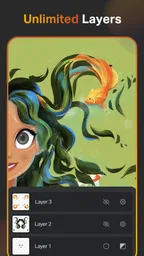
- Layers help organize complex sketches and edits.
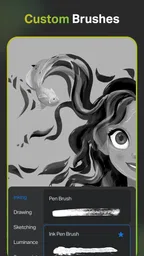
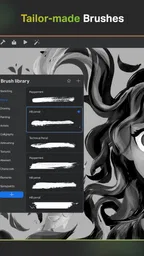
- Brush options support a range of drawing styles.
- Undo and redo make experimentation less risky.
- Export options make it easier to share finished artwork.
What could be better
- Some advanced tools may require a paid upgrade.
- Small screens can feel cramped during detailed work.
- Large canvases may slow down older devices.
- Touch controls can make precise strokes difficult.
- The app may take time to learn for new artists.





