
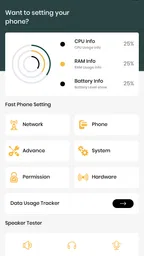
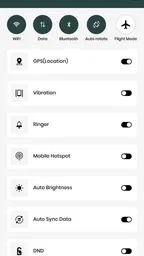
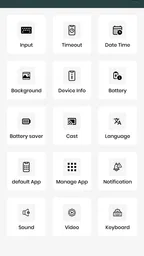
Settings App review
 Analysis by Appsdrops
I find a settings shortcut useful only when it gets me to the right place faster than the phone’s normal controls. Settings App is a free personalization app from BourtinaUp built around quick access to settings. That focused purpose makes it easy to understand, but it also means its value depends on what you expect it to open and how often you need that shortcut.
When finding a setting becomes the real hassle
Phone settings can be awkward to reach when I am in the middle of something: adjusting a connection before joining a call, changing display behavior while reading, or looking for a control I do not use often. A shortcut-oriented app can reduce the hunt through menus, especially for someone who prefers starting from a dedicated app rather than remembering where a control lives.
The key distinction is that this is not a replacement for the phone’s settings system. I would treat it as a route into settings, not as a new control panel with its own independent versions of every device option. The actual controls and their behavior belong to the Android device, so the experience can vary with the phone and its software.
That distinction matters when deciding whether it solves your particular frustration. If you already reach the settings you need quickly through Android’s existing controls, another entry point may add little. If you repeatedly lose time navigating menus, a direct-access app is a more plausible fit. I would try it with one or two settings I genuinely visit often rather than expecting it to transform every part of phone setup.
The app is listed in the personalization category, though its practical role is narrower than changing the look of a home screen. Its appeal is convenience: bringing settings access into a place that feels easier to reach. For me, that makes it most relevant to people who routinely tweak their device, rather than people looking for themes, wallpapers, or broad customization tools.
Start with the settings you actually revisit
A useful way to judge the app is to name the settings that slow you down before opening it. Think of the controls you have needed repeatedly in the last week, not every option Android contains. That small check prevents a common disappointment: installing a shortcut app with a vague hope that it will make an unfamiliar phone feel instantly simpler.
For example, someone who changes a device setting before commuting may care more about a quick route to that control than about exploring a long list of options. Someone who rarely adjusts anything after initial setup may find the built-in Settings app is already enough. The difference is not which person is using Android “correctly”; it is whether faster access fixes a recurring inconvenience.
Check the phone before blaming the shortcut
When a settings route does not behave as expected, I would first check the ordinary basics: confirm the phone is running a compatible Android version, open the app again, and make sure the setting itself is available on that device. The minimum operating system is Android 5.0, but compatibility alone does not mean every phone presents every setting in the same place or with the same options.
That is an important practical limitation. Manufacturers can arrange their system menus differently, and some controls depend on the device or Android version. A shortcut may take me to the relevant area without making an unavailable option appear. If a setting is missing from the phone’s own menus, repeatedly reopening a shortcut is unlikely to fix that underlying limitation.
I would also test one route at a time. Open the app, choose the setting you want, then check whether the resulting screen is the one you expected. If it is not, return to the phone’s regular Settings app and find the option there. This simple comparison helps separate a navigation issue from a misunderstanding about the setting’s name or location.
Recover calmly when a route feels wrong
If I land in an unexpected screen, I would not immediately assume that the app has changed the phone’s configuration. Back out, inspect the system settings directly, and confirm the current value before making another adjustment. That is especially sensible when the setting affects connectivity or another part of the phone I rely on during the day.
A practical workflow is to use the shortcut to reach a control, make one deliberate change, and then verify the result in the setting itself. Avoid changing several unrelated options in quick succession: if something behaves differently afterward, it becomes harder to identify which adjustment mattered. This is a general troubleshooting habit, but it is particularly helpful with an app whose purpose is to get you to system controls quickly.
If the app seems unresponsive, closing and reopening it is a reasonable first check. I would also try the same route from Android’s regular Settings app. If that works, the comparison gives a clearer picture of whether the problem is the shortcut or simply a route that is unfamiliar. If neither route works, the issue may be with the phone’s system, the specific control, or device compatibility rather than the app alone.
One non-obvious trade-off is that quicker access can make impulsive changes easier too. A shortcut is most useful when I know what I am trying to adjust; it is less helpful when I am tapping through unfamiliar controls without understanding their effect. I recommend keeping the workflow intentional: identify the setting first, use the shortcut as a path, and verify what changed afterward.
When Android, rather than the app, is the obstacle
Not every failed setting change points to a fault in Settings App. A device may not support a particular control, the manufacturer may organize it differently, or the operating system may handle it in a way that differs from another phone. The app’s role is access, while the phone remains responsible for the available options and their behavior.
This is why I would not choose the app as a fix for a broken phone setting or a way to unlock features the device does not have. If a control is absent or behaves incorrectly in Android’s own Settings, investigate the device’s normal troubleshooting options first. The shortcut can make navigation less tedious, but it cannot take over the system’s job.
There is also a useful boundary for expectations: quick access does not necessarily mean fewer decisions. Some settings screens still require you to understand what an option does and choose the right value. If your main difficulty is knowing which setting to change, rather than reaching it, a shortcut will not answer that question by itself.
Who is likely to get the most from it?
I can see this being useful for people who adjust settings regularly, prefer a dedicated entry point, or are helping someone who finds the normal menu structure confusing. It may also suit a person who wants to try a faster route before learning the phone’s full settings layout. The benefit is modest but concrete when it removes repeated searching from an everyday task.
It is a weaker match for users who want extensive visual customization or a complete alternative to Android’s system interface. It is also easy to skip if you rarely change settings and already know where your preferred controls are. In those situations, the built-in Settings app is the more direct alternative because it is already part of the phone and does not require an extra app in the workflow.
Compared with other approaches in the same broad personalization space, this app’s stated purpose is practical access rather than changing how the phone looks. I would not judge it by the number of themes or decorative options; that is not the job I would install it to do. Judge it instead by whether its routes are useful for your own recurring settings and whether they feel clearer than your usual path.
What the rating and version suggest to a new user
The app has an average rating of 3.4 from around 6,900 ratings, alongside about 392 written reviews. I read that as a reason to keep expectations measured rather than as proof that the app will or will not suit a particular phone. A shortcut’s usefulness is highly personal: the same route can feel convenient to one user and unnecessary to another.
It has passed one million installs, is rated for Everyone, and is free. The current version is 4.0, and the app was released on June 13, 2025. Those details make it easy to try without paying, but I would still judge it by a practical test: can I reach a setting I actually need with less friction than before?
For a first run, I would pick one familiar setting, compare the app’s route with the normal Android route, and see which is easier to remember. Then try a second setting that you use less often. That gives a fairer impression than browsing without a goal, and it quickly reveals whether the app fits your habits or merely duplicates a route you already know.
My practical verdict
Settings App makes the most sense as a small convenience tool, not a replacement for Android’s settings or a broad customization suite. I would recommend trying it if menu navigation is a recurring annoyance and you want another way to reach device controls. Its free price makes that test straightforward, while the app’s narrow purpose keeps expectations clear.
I would skip it if you rarely adjust settings, want deeper personalization, or expect it to repair controls that are missing or malfunctioning in the phone itself. The best outcome is simple: a more convenient route to a setting you already know you need. If it does that reliably on your device, it earns a place in your routine; if the built-in menus are already quicker, there is little reason to add another stop.
What we like
- Quickly adjust sound and notification preferences.
- Search makes specific options easier to find.
- Accessibility controls support a more tailored experience.
- Privacy settings help manage app permissions.
- Battery options can help limit background activity.
What could be better
- Some settings are difficult to locate without search.
- Menu labels may vary between device brands.
- Changing advanced options can affect device behavior.
- Some controls are unavailable on certain devices.
- Settings may open slowly on older phones.





