Screen Mirroring for Smart TV review
 Analysis by Appsdrops
When I want to show a phone photo or a short video on a larger screen, I want the setup to feel simpler than digging through menus on the TV. Screen Mirroring for Smart TV is aimed at that everyday task: it helps you send phone content to a compatible television. I’d approach it as a practical casting tool, not as a replacement for every TV app or a guarantee that every screen will connect instantly.
Made by Shami Apps Studio, this free House & Home app has an average rating of 3.2 from around 300 ratings, with over 100,000 installs. That gives a newcomer a useful, if mixed, signal: plenty of people have tried it, but the rating suggests the experience may depend on the phone, television, and home network. Its age rating is Everyone, and the current version is 1.0.59.
What to expect from a phone-to-TV connection
Screen Mirroring for Smart TV is for people who want to put personal media on a bigger display without first moving files to a computer or plugging in a cable. A photo shared with family, a clip saved on your phone, or other media you already have at hand can be easier to enjoy together when the phone acts as the starting point.
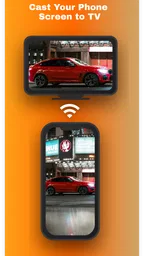
The key distinction is that screen mirroring and casting are not always the same experience. Mirroring generally means the TV shows what is happening on the phone; casting can instead send selected media to a TV for playback. The app’s purpose covers mirroring and media casting, but you should think about which result you want before troubleshooting: displaying the whole phone is different from sending only one video.
For a first-time user, the most reassuring expectation is modest: install the app, make sure the phone and TV can see one another on the home network, choose the display when it appears, and test with something simple. Compatibility matters. A Smart TV that supports a suitable receiving method is a better starting point than an older television with no smart features; for the latter, a separate streaming device or a cable may be the more dependable route.
The app is free to install, but it includes in-app purchases priced from five dollars to just under fifty dollars per item. I’d check what an optional purchase offers inside the app before paying, rather than treating a purchase as a necessary step to establish a basic connection. If you only need an occasional photo or clip on the TV, it makes sense to try the free experience first.
Getting ready before the first connection
Before opening the app, turn on the television and find its screen-sharing or casting feature if it has one. The exact wording and location differ between TV brands, so I wouldn’t assume every set labels the option “Screen Mirroring.” Having the TV ready first can save time: a phone cannot connect to a receiver that is asleep, hidden, or waiting for a sharing mode to be enabled.
Next, check that the phone and TV are connected to the same home Wi-Fi network. This is a useful first check whenever a television fails to appear. Guest networks, separate network names, or a phone using mobile data while the television is on home Wi-Fi can prevent devices from finding one another, even when both have internet access. Internet access alone does not necessarily mean the two devices can communicate locally.
Once the app is installed, allow the access it requests when it is needed for choosing or showing your media. Then look for the television in the app’s available-device area and select it. If it does not appear, don’t repeatedly tap through every option at random. Confirm the TV’s sharing mode, check the network connection on both devices, and reopen the device search after the receiver is ready.
The app is listed for Android devices running version 7.0 or later. That makes it relevant to a broad range of Android phones, but it does not by itself guarantee that a particular TV will be compatible. The receiving side still matters, so I’d treat seeing the TV in the device list as the practical test rather than relying only on the phone’s operating-system version.
Make the first success deliberately easy
For the first attempt, choose one ordinary photo rather than starting with a long video, a live event, or a demanding presentation. A still image is an easy way to see whether the TV has connected and whether the picture is visible. It also separates connection problems from playback problems: if the photo appears, the basic link is working even if a particular video later behaves differently.
A realistic example is showing a few pictures from a weekend outing to relatives in the living room. I’d connect while everyone is settling in, select one image as a test, and only then move through the rest of the album on the phone. That small check avoids the awkwardness of gathering people around the TV before knowing whether the screen is ready. It also helps establish whether the phone’s orientation or the TV’s presentation suits the pictures.
For video, start with a short clip you already know plays correctly on the phone. If it appears on the television, let it run briefly before handing the phone around or switching apps. This gives you a useful baseline for judging whether any later pause comes from the connection, the source file, or a change in what the phone is doing. It is a more reliable test than immediately using the most important clip of the evening.
One practical trade-off is that mirroring keeps the phone involved in the viewing session. If notifications, incoming calls, or accidental taps would interrupt what you are showing, prepare the phone before connecting: close unrelated content and avoid using it for another task during playback. When you need uninterrupted viewing, a TV’s own media app or a dedicated streaming device may be more convenient than reflecting the phone’s screen.
Common snags and what they usually mean
If the TV never appears, begin with discovery rather than image quality. Confirm both devices are on the same network, make sure the television’s receiving feature is active, and try searching again. A router may separate devices even when they use the same internet connection, so a successful web search on each device does not prove that local casting will work. If the TV still stays missing, its supported sharing method may not match what the phone and app can use.
If the device is visible but the connection does not complete, I’d first restart the attempt in a simple order: leave the app, check that the TV remains in its receiving mode, then reopen the app and select the TV again. Avoid changing several network settings at once; doing so makes it harder to know what fixed the problem. If other casting tools also cannot find the TV, the issue is more likely to involve the receiver or network than this one app alone.
If a photo displays but a video does not, that does not necessarily mean the whole connection has failed. The video’s source, format, or the way it is being played may be the sticking point. Try a different short clip stored on the phone. If that works, you have narrowed the problem to the original media or playback route rather than the TV connection itself.
Also keep an eye on the phone while mirroring. Because the point is to show phone content on another screen, anything visible on the phone may become visible to people in the room. I’d prepare the screen before starting and avoid opening private messages or account pages while the TV is connected. That is a simple habit, but it matters more for mirroring than for playback launched directly from a TV app.
How it compares with familiar alternatives
The built-in cast option on a phone or within a video app is often the better choice when you only want to play one supported service. It can leave the phone free for other tasks and may offer a more direct path from the video to the television. Screen Mirroring for Smart TV is more appealing when the material is already on the phone or when you want the larger screen to reflect what you are viewing there.
A cable is less convenient to carry and connect, but it can be a sensible alternative when wireless discovery is unreliable or the home network is restricted. A TV’s own app is usually preferable for regular streaming because it avoids making the phone the centre of the session. On the other hand, for a quick family photo share, those alternatives can feel like extra steps when the phone is already in your hand.
This is where I’d set expectations carefully. The app’s broad purpose is useful, but its average rating of 3.2 suggests that not every setup is smooth. I would not choose it as the only plan for a work presentation or a time-sensitive event unless I had already tested the exact phone-and-TV combination. For casual use, a quick trial at home is a reasonable way to learn whether it fits your equipment.
Who should try it, and when to choose something else
I can see this app suiting someone who occasionally wants to show personal photos or phone-based media on a Smart TV and prefers to try a wireless route before buying extra hardware. It is also a reasonable option for first-time users who are comfortable checking a TV’s sharing settings and doing a simple network check if the screen does not appear immediately.
I would steer frequent streamers toward the television’s own apps or the casting controls already built into the service they use. I’d also suggest a cable or a dedicated receiver to anyone who needs predictable results in a room where Wi-Fi discovery is restricted. If the television cannot receive a compatible wireless connection, installing a phone app alone cannot turn it into a suitable display.
Screen Mirroring for Smart TV is free to download and intended for Everyone, but its optional purchases are worth reviewing before you decide to spend. I’d treat payment as a separate decision from basic compatibility: first establish that your TV appears and that a simple photo or clip works. That approach protects you from paying to solve a problem that may actually come from the network or television.
A sensible next step after setup
My recommendation is to test the app on an ordinary evening, not when you are under pressure to make a presentation work. Start with the TV’s receiving mode, connect both devices to the same home network, and send a single photo. If that succeeds, try one short video and note whether the phone needs to stay on the same screen for comfortable viewing. These small checks tell you much more than simply installing the app and hoping it will be ready later.
For casual sharing, this can be a handy addition to a phone, especially when the alternative is passing a small screen around the room. Its main appeal is straightforward: use the phone as the source and bring that content to a larger display. The limitations are equally practical—device discovery and playback depend on the setup, and the phone may remain part of the viewing experience.
Overall, I’d give it a try if your goal is occasional wireless sharing and you are willing to confirm compatibility before relying on it. I wouldn’t make it my first choice for uninterrupted streaming or a must-work event; built-in TV apps, service-level casting, or a wired connection can be better in those situations. For a first-time user, the best route is simple: test one photo, then one clip, and keep the option only if that routine feels easier than your usual alternative.
What we like
- Works with many smart TV brands and streaming devices.
- A simple setup process helps new users get started quickly.
- Mirroring is useful for sharing photos and presentations on a larger screen.
- The interface makes it easy to find available devices.
- Can mirror content without connecting a cable.
What could be better
- Mirroring quality depends heavily on Wi-Fi strength.
- Some devices may not appear unless they share the same network.
- Audio and video can fall out of sync.
- Protected streaming content may not mirror properly.
- Some features may require a paid upgrade.





