
Runway: AI Image & Video review
 Analysis by Appsdrops
I find Runway most useful when I treat it as a creative workbench rather than a button that turns a vague idea into a finished video. It brings image and video generation into one mobile app, so I can move from a visual starting point to motion without immediately switching tools. That convenience is the main reason I’d recommend trying it; the trade-off is that getting a result worth keeping still depends on clear prompts, deliberate choices, and a willingness to revise.
A mobile creative workflow, not a one-tap shortcut
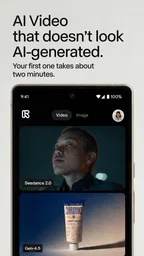
Runway is an art and design app from Runway AI Inc. Its current creative lineup includes Seedance 2.5, Gen-4.5, and Runway Agent. The app is free to install, but in-app purchases range from $7.49 to $899.99 per item, so I’d check the available purchase options before building a regular workflow around frequent generations.
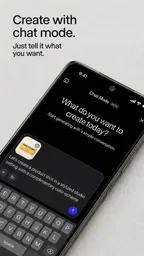
The most sensible way to begin is with a small, specific task: create a reference image for a mood board, explore a scene for a short social post, or test a visual idea before committing time to a larger project. I would describe the subject, setting, lighting, and overall feeling in plain language, then assess whether the output matches the intended use. A prompt that asks for a “quiet evening street with warm shop lights” gives the tool more to work with than simply requesting something “cinematic.”
For video work, I’d first decide what needs to remain consistent from one moment to the next. Is the important part the subject, the atmosphere, or the movement? Keeping the request focused helps me judge the result instead of changing several creative variables at once. If a generation misses the mark, I’d adjust one part of the description and try again rather than rewriting everything. That makes it easier to learn which wording is actually helping.
Because image and video creation sit together, a practical sequence is to settle on a visual direction before asking for motion. An image can serve as a useful concept reference even if it is not the final asset. Once the look feels close, I can use the idea as a guide for the video prompt, keeping the subject and environment recognizable while describing only the movement that matters. Separating visual design from motion decisions is a simple habit that can save time and make revisions easier to interpret.
Choosing the right job for each model
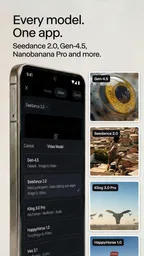
Having Seedance 2.5, Gen-4.5, and Runway Agent in one app gives the experience a broader feel than a single-purpose image generator. I’d approach them as options for different creative intentions, but I wouldn’t assume that every model will suit every prompt or deliver the same kind of result. The useful habit is to start with the model that appears relevant to the task, then compare alternatives only when there is a clear reason to do so.
For example, if I’m exploring a visual direction rather than preparing a polished deliverable, speed of iteration and variety may matter more than precise control. If the piece needs a coherent look across multiple assets, I’d pay closer attention to whether the outputs feel consistent before investing more effort. A model name alone does not guarantee that a scene will match a particular brief, so I’d judge by the actual results and the amount of editing they require.
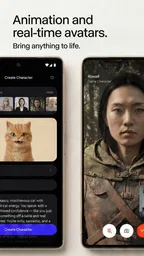
Runway Agent is part of the same creative environment, but I would not treat the word “Agent” as a promise that the app can make every artistic decision for me. The safest approach is to give it a defined task, review what it produces, and keep responsibility for the final choices. That’s especially important when the output is going to represent a personal project or a client’s style.
Settings and choices worth checking
Before generating, I’d pause to review the selected model and the way I’ve framed the request. A mismatch between the model and the task can be more costly than a weak adjective in the prompt. I’d also decide in advance what counts as a successful result: a composition to develop, a usable draft, or a final piece. That distinction keeps me from judging exploratory work by the standards of finished production.
On a phone, prompt writing can feel cramped, so I’d prepare longer descriptions in a notes app when the details matter. I keep the subject and action near the beginning, then add atmosphere and supporting details. This makes the prompt easier to scan and edit. If a result introduces unwanted elements, I’d remove ambiguity before adding more decorative language; piling on adjectives can obscure the instruction that matters most.
It is also worth deciding whether the output is meant to be viewed on a small screen or used elsewhere. A striking image on a phone may not be suitable for every crop or layout. I’d inspect the composition for space around the subject and consider where text, borders, or other design elements may later sit. This is a practical check, not a guarantee of a particular export format: the creative brief should determine whether a generated result is a starting point or ready to use.
Runway is rated for Everyone, and its app-store average is 4.1 from around 12,000 ratings. Those figures are useful context, but they don’t tell me whether a particular workflow will suit you. The app has been released as version 103.0.0, with Android support from OS 9. I’d still check how it behaves on my own device before relying on it for time-sensitive work, since a generative workflow is only convenient when it fits comfortably into the way I create.
Repeatable habits that make mobile work smoother
The best time-saving trick I’ve found is to keep a small prompt recipe for recurring projects. I’d save the parts that define a visual identity—such as the mood, lighting, and setting—and change only the subject or action for each new idea. This is not a special app feature; it is a disciplined way to avoid starting from a blank prompt every time. It also makes it easier to spot when a change in wording has improved or weakened the result.
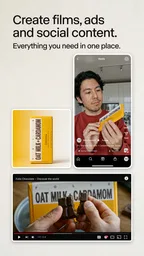
For a café owner preparing a week of social posts, a realistic routine might be to draft several concepts during a quiet moment, settle on one visual direction, and then develop a small set of related images or motion ideas. I would keep the prompts consistent about tone while changing the scene details, then review everything together before posting. The benefit is not just saving typing: comparing pieces side by side makes mismatched colors, subjects, or moods easier to notice.
Another useful pattern is to separate experimentation from production. I’d try unusual ideas in a low-stakes session, note which descriptions lead to promising results, and reserve more focused work for the concept I intend to use. This avoids treating every generation as a precious attempt. It also helps keep purchase decisions grounded: if you expect to create often, understand the in-app purchase options and how they fit your needs before assuming the free install alone will cover a continuing workload.
When I’m working on a sequence rather than a single image, I’d write down the details that must stay stable: the character or object, the location, and the overall look. I would then keep those details consistent in each prompt and vary the requested action carefully. Generative tools can interpret wording in unexpected ways, so a written reference gives me something concrete to compare against when a later result drifts from the original idea.
Where the app’s limits matter
Runway is not a replacement for a conventional editing suite when I need exact, repeatable control over every frame or a fully finished production timeline. Generative output is better suited to ideation, visual exploration, and material that can tolerate some interpretation. If a project depends on precise branding, dependable continuity, or detailed manual adjustments, I’d plan to review and refine the results elsewhere rather than expecting a prompt to solve the whole production process.
It can also be the wrong choice if you want a traditional drawing app with direct brush control, layers, and hands-on illustration as the central activity. Runway’s appeal is its generative approach, not the feeling of sketching every line yourself. Likewise, if your goal is simply to trim and assemble existing clips, a standard video editor may be the more straightforward tool. Choosing the right category of app matters more than trying to force one creative tool to cover every stage.
There is a learning curve in describing what you want without overloading the prompt. A concise request may leave too much open to interpretation; a long one can contain conflicting instructions. I’d treat early attempts as tests, noting what the output actually followed. If the scene is wrong, revise the scene description. If the mood is wrong, adjust the mood. This one-variable-at-a-time approach is less frustrating than repeatedly changing the entire prompt and losing track of what worked.
Cost is another practical boundary. The app is free, but its listed in-app purchases span a wide range, so it is worth checking the terms shown in the app store and inside the app before committing. I would not recommend paying simply because a first result looks impressive. Instead, try a few representative tasks, decide whether the output quality and editing effort fit your needs, and only then consider a purchase. That is especially important for casual users who may only need occasional inspiration.
Who I’d recommend it to
I’d recommend Runway to people who want to explore AI-generated images and video from a phone, especially designers, social creators, and curious makers who enjoy iterating. Its combination of several named generation options and an agent-based tool makes it more flexible than a basic prompt-to-image utility. The strongest use is often early in the creative process: finding a look, testing a scene, or creating a draft that gives a project direction.
Compared with a typical image-only generator, the appeal here is being able to work across still imagery and video in the same app. Compared with a conventional editor, the emphasis shifts away from direct, precise manipulation and toward describing an idea and reviewing generated interpretations. Neither approach is automatically better. I’d choose Runway when I want to explore possibilities quickly, and a traditional design or editing app when exact placement, consistent revisions, or hands-on control is the priority.
With more than 1 million installs, Runway has found a substantial audience, but popularity alone should not decide whether it fits your workflow. My advice is to start with one real task rather than a broad experiment: a visual reference for a presentation, a concept for a small campaign, or a short scene to test a story idea. Keep the prompt focused, compare results against a clear goal, and note which choices produce something worth developing.
My overall view is positive, with a practical caveat: Runway works best when you bring a clear creative brief and treat each result as something to evaluate, not automatically accept. It is convenient for moving between image and video exploration, but it does not remove the need for judgement, refinement, or a suitable production tool afterward. If you enjoy shaping ideas through prompts, I think it is well worth exploring; if you need exact manual control or occasional simple editing, another kind of app may serve you better.
What we like
- The interface makes core creative tools easy to find.
- Text prompts can generate images without manual drawing.
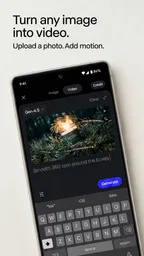
- Image-to-video tools help add motion to still artwork.
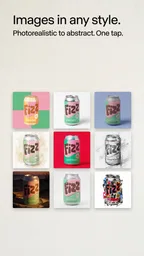
- Preset styles make it easier to explore different visual looks.
- Projects can support quick experiments with creative ideas.
What could be better
- Generated results may not match the prompt precisely.
- Video generation can take longer than image creation.
- Access to advanced tools may depend on a paid plan.
- Results can vary between runs with the same prompt.
- AI-generated visuals may need editing before professional use.





