


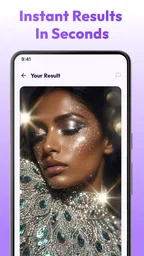
Piclux: AI Photo Studio review
 Analysis by Appsdrops
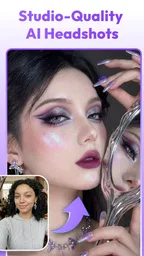
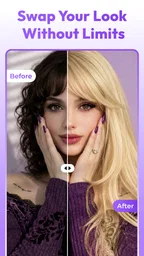
AI portraits are easy to make, but getting one that still looks like you takes a little more thought. Piclux: AI Photo Studio is built around quick image transformations: it can create professional headshots, change clothes in a photo, and turn a still image into an AI video. I find its appeal straightforward: rather than asking you to learn a full editing suite, it promises a direct route from a photo to a more polished or imaginative result.
Starting with a solid photo
The most useful way to approach Piclux: AI Photo Studio is to begin with the image you actually want to improve. For a professional headshot, pick a photo where your face is clear and easy to recognize. For a clothing change, choose an image in which the outfit is visible. And if you want to make an AI video from a photo, think first about whether the source image gives the effect a good foundation. The app’s central promise is speed, but a thoughtful starting image is still part of the process.
That baseline workflow helps keep expectations grounded. AI editing can transform the look of a portrait, but it cannot make every source photo equally suitable. A sharp, well-lit image gives you a better chance of getting a result you’ll want to keep than a dim or cluttered one. I’d treat the first attempt as a draft: review what changed, decide whether the result fits your purpose, then try another suitable photo if it doesn’t.
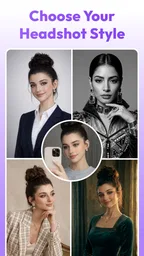
For a headshot, the practical goal is usually a believable, clean portrait rather than a dramatic makeover. Consider where you intend to use the image and how formal it should feel. A polished profile picture and a creative social image have different jobs, so it helps to choose a source photo and an editing direction with that end use in mind. Piclux’s focus on AI headshots makes it relevant to people who want a professional-looking portrait without starting from a blank canvas.
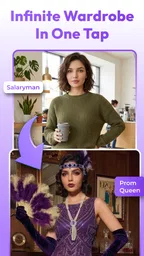
Clothing changes call for a slightly different kind of judgment. The result should make sense alongside the person’s pose and the framing of the original photo. I recommend checking the full image rather than judging only the outfit area: an edit can look convincing in one part while feeling out of place overall. That simple review step is especially useful when you want to share the picture or use it as a profile image.
The AI video option begins with a still photo, which makes image choice important there too. A photo that works well as a portrait may not necessarily produce the kind of moving result you had in mind. Before you create anything, decide what you want the video to communicate—an animated portrait, a playful experiment, or a more eye-catching presentation. This gives you a clearer standard for deciding whether the result is successful.
Set a purpose before you edit
People often get more consistent outcomes when they avoid changing direction mid-session. I like to decide whether I’m making a work-ready headshot, testing a clothing look, or animating a photo before I begin. That small habit keeps the process focused and makes it easier to compare results. If the first version misses the mark, I can identify whether the source image or the intended style needs reconsidering instead of making random edits without a clear goal.
Piclux is free to download, with in-app purchases ranging from $6.99 to $89.99 per item. That makes it sensible to explore the basic experience with a specific task in mind and understand what you can do before choosing any paid option. The key is not to assume that every transformation or output is included at no cost. Check the choices presented in the app before committing to a purchase, and make sure the option fits how often you expect to use it.
Settings and choices worth checking
When an editing app offers several ways to transform an image, the most useful “setting” is often the choice you make before pressing ahead: which photo to use, what result you’re aiming for, and whether the edit suits that image. Piclux’s advertised tools cover headshots, clothing changes, and AI video from a photo. I’d explore those options one at a time rather than expecting a single image treatment to serve every purpose.
For professional portraits, check the finished image at a comfortable size and look for details that affect how natural it feels. Ask yourself whether the face remains recognizable, whether the overall presentation suits your intended use, and whether the result looks coherent rather than merely polished. These are useful checks regardless of how quickly the app produces an edit. A fast result is only helpful if you’re happy to use it.
For clothing edits, review the picture as a whole and consider whether the new look fits the original pose and setting. If you’re preparing an image for a particular context, keep that context in mind as you judge the result. A style that feels right for a creative post might not be appropriate for a professional profile. The app can help change the visual direction, but your own judgment remains important.
For an AI video from a photo, take a moment to assess whether the source picture is the one you want to animate. I’d also decide in advance whether the result is meant to be shared casually or used in a more polished presentation. That decision helps guide how carefully you review it. The feature’s one-tap framing suggests an accessible process, but a quick creation flow doesn’t remove the value of choosing the right image and checking the result afterward.
It’s also worth thinking about how you handle the images you choose to edit. Use pictures you’re comfortable working with, especially when they show other people. That is a sensible habit for any photo-editing tool, and it helps keep experimentation considerate. If you’re preparing an image for a public profile or work-related use, take an extra moment to make sure the final version represents you in a way you’re comfortable sharing.
Build a repeatable routine
Once you know what kind of result you want, a repeatable routine can make the app feel more efficient without relying on imaginary shortcuts. I’d keep the process simple: choose a suitable photo, select the intended transformation, inspect the result, and decide whether it meets the purpose. If it doesn’t, change one thing at a time—such as the source photo or the type of edit—so you can tell what made the difference.
That approach is useful when you’re trying several versions of a headshot. Keep the goal consistent and compare each result against the same standard: clarity, recognizability, and suitability for where you plan to use it. You don’t need to make every portrait look dramatically different. Often, the most successful professional image is the one that feels refined while still looking like the person in the original photo.
For outfit experiments, think in terms of a small, intentional set of alternatives rather than endless variations. Decide what you’re testing, then review each result for overall coherence. This keeps the exercise manageable and helps you avoid choosing an image just because it looks striking at first glance. The better question is whether it works for the situation you had in mind.
The same discipline applies to AI video. Start with one image that suits the intended effect, create a result, and review it before trying a different source. If you’re exploring for fun, you can be more playful. If the output is meant for a profile or presentation, be more selective. Separating experiments from final-use images is a practical habit that keeps your collection easier to manage.
Piclux is aimed at quick creative work, so it makes sense to keep sessions focused. Rather than opening the app without a plan and trying every option, decide on one task and finish it. This is especially helpful if you are new to AI photo editing: you learn what the tools are meant to do without confusing one kind of transformation with another. Experienced users can benefit too, because a clear routine makes it easier to repeat a result-oriented process.
Where expectations matter
AI image tools can be fun and convenient, but they’re best approached as editing assistants rather than guarantees of a perfect image. A generated headshot may look polished yet still need a careful review. A clothing change may create a new look that doesn’t suit the image. A video made from a photo may be entertaining without being appropriate for every use. Knowing what you want—and deciding what counts as a good result—matters as much as the speed of the tool.
The app’s scope is appealing because it brings several photo-focused ideas together: professional portraits, outfit changes, and animation from a still image. At the same time, those are distinct tasks. I wouldn’t expect a workflow that works well for a headshot to automatically be the best way to create a video. Treat each option as its own small project, and you’ll have a clearer sense of what Piclux does well for your needs.
There’s also a difference between experimentation and a finished asset. Trying a visual change can be worthwhile even if you never use the result. For anything public-facing, though, I’d be more selective: check that the image looks appropriate, that it still represents the person, and that the final presentation supports its intended purpose. This is where a quick AI tool benefits from a careful human review.
Piclux is rated for Everyone, and it has a broad audience, with over five million installs. Its average rating is 3.8 from around 7,700 ratings. Those figures suggest that plenty of people have tried it, while the rating also makes it wise to approach it with realistic expectations and decide for yourself whether its particular tools match your workflow.
Who will get the most from it?
I can see the strongest fit for people who want a quick way to explore portrait transformations without taking on a complicated editing process. Someone preparing a more polished profile image may appreciate the headshot focus. A person curious about changing an outfit in a photo may enjoy testing that option, while anyone looking for a playful way to animate a still image has a clear reason to try the video feature.
It may be less compelling if you want detailed, hands-on control over every aspect of an image or expect every AI result to be ready for professional use without review. Piclux’s central appeal is accessible transformation, not a promise that judgment and refinement are no longer needed. The best results come from matching the right tool to the right photo and being willing to assess the output instead of accepting the first version automatically.
The app is developed by ATQ - AI Lab and currently uses version 3.0.0. It supports Android 8.0 and later. Those details are useful if you’re deciding whether your device can run it, while the free download and optional in-app purchases give you a reason to look closely at the available choices before spending money. If you’re simply curious, begin with a clear goal and see whether the experience suits the kind of images you want to create.
A practical verdict on Piclux
My overall take is that Piclux is easiest to appreciate when you treat it as a focused, quick-turnaround AI photo studio. Its main attractions are easy to understand: create a professional headshot, change the clothes in a picture, or make an AI video from a photo. That combination makes it approachable for casual experimentation and useful for people who want to explore visual changes without beginning with a complex editing workflow.
The key to getting more from it isn’t chasing hidden controls or expecting every image to transform perfectly. It’s building a sensible habit: choose a photo suited to the task, keep your goal clear, and check the result before using or sharing it. That routine makes the app feel more dependable, whether you’re working on a profile picture, testing a new outfit, or animating a still image.
With a 3.8 average rating and a large install base, Piclux has attracted substantial interest, but the right question is whether its particular tools fit your own needs. I’d recommend trying it if quick AI portraits and photo-based transformations sound useful, while keeping an eye on optional purchases as you explore. Used thoughtfully, it can be a handy creative companion; used with realistic expectations, it’s easier to separate a fun experiment from an image you’re genuinely ready to use.
What we like
- Creates polished portraits from uploaded photos.
- Offers a quick way to explore different visual styles.
- AI editing can save time compared with manual retouching.
- Useful for refreshing profile pictures and social posts.
- Simple studio concept makes experimentation approachable.
What could be better
- Results may vary depending on the quality of source photos.
- Some AI generations may not closely match your appearance.
- Processing can take longer when servers are busy.
- The best tools or styles may require a paid plan.
- Uploading personal photos raises privacy considerations.





